


3CXPhone Softphone for Windows (PC) Setup Guide
For the stable operation of a sales department or support service on Windows, it is essential to have a tool that combines simplicity and reliability. 3CXPhone is a classic software phone that integrates perfectly with UniTalk cloud telephony. Using it allows operators to make and receive calls directly from their computers, ensuring high audio quality and convenient call management. Follow these brief instructions to activate your workstation in just a few minutes.
1. Download 3CXPhone6 (version 6).
2. Install the 3CXPhone software phone. After installation, click “Create Profile”

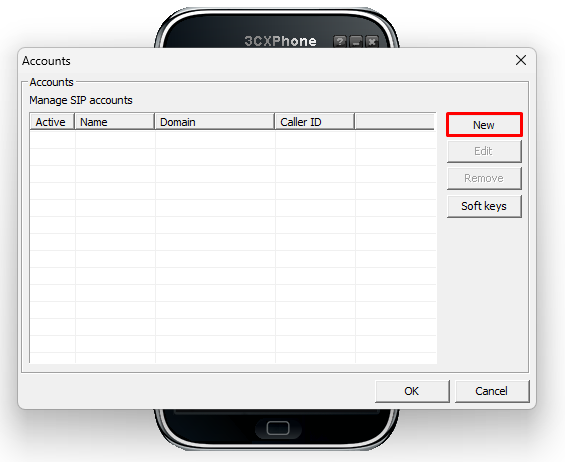
3. To create an account, click the “New” button
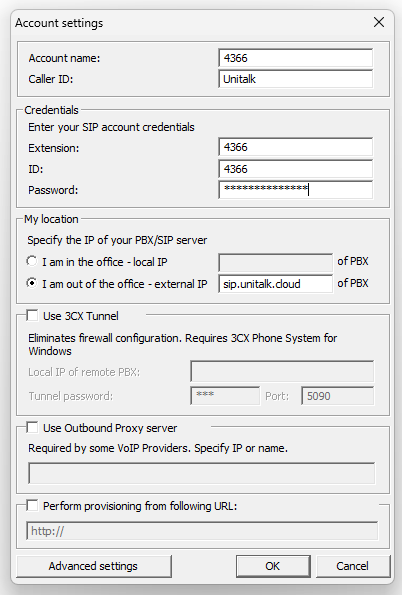
4. Fill in the settings: Account name: Your SIP number from your UniTalk personal account; Extension: Your SIP number from the UniTalk personal account; ID: Your SIP number from the UniTalk personal account; Password: The password for the SIP number can be found by clicking the “Show password” button in the personal account of the selected extension; External IP: 185.168.129.136 or sip.unitalk.cloud (as specified in the SIP line settings on the Users tab).
5. The On Hook status indicates successful authorization on the server.
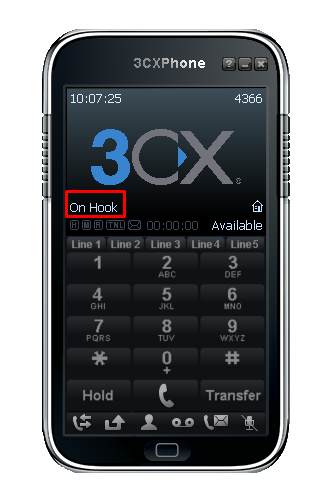
The “On Hook” status indicates that authorization on the UniTalk server was successful and you are ready to work. 3CXPhone provides stable communication even with minimal system requirements, making it an excellent choice for daily intensive work. With UniTalk, your communication with customers becomes professional, manageable, and highly efficient.



