Autodialer by Voice Robot
A voice robot is a multifunctional tool that recognizes human speech, conducts a dialog, and, depending on the caller’s response, performs a certain action specified in a scenario. The main task of the Voice Robot is to conduct a natural dialog with the subscriber instead of a human.
Let’s go to the settings of the “Autodialer by Voice Robot”
The section for adding and editing autodialers is located in the “Autodialer” side menu item:

At the very top of the page, you will find the following section controls:
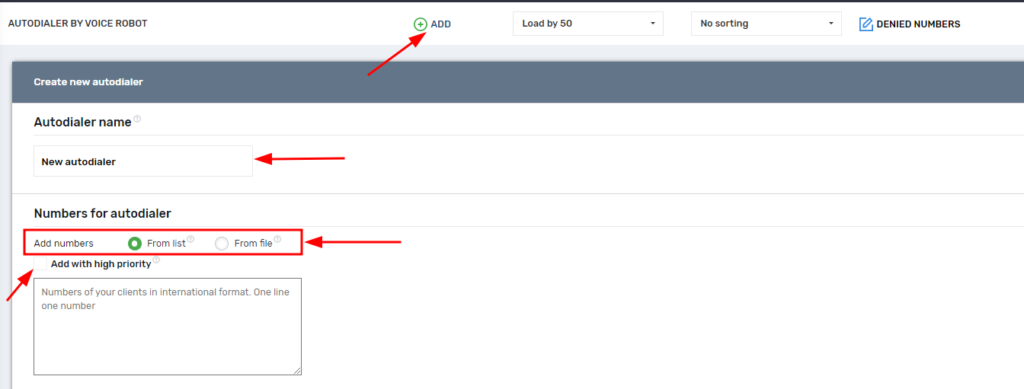
- “Add” – create a new autodialer in the project;
- “Load by …” – you can select how many autodialers will be loaded on the page for the project user (from 5 to 50), if there are more autodialers in the project than selected in this item – above the first autodialer there will be information about the number of displayed autodialers from the total number of autodialers in the project, and below the last autodialer there will be a button “Show more …” the same number of autodialers as selected in this item;
- “No sorting” – the default option, you can change it to “Sort by status”, then autodialers with the same status will be grouped (for example: “Completed”, ‘Paused’, ‘Waiting for working operators’, ‘Numbers not added’, etc;)
- “Forbidden numbers” – in this block, you can upload a list of numbers that should be ignored when loading the database into auto-dialing.

Creating a new autodialer
When creating a new autodialer, it is advisable to immediately specify a unique name for it, numbers can be added later, but if necessary, they can be loaded when creating a list or a pre-prepared file in .xls, .xlsx format. The option “Add with high priority” is also available, when this checkbox is selected, all numbers from the list will be processed first. The numbers will be called according to the order in which they were uploaded
Voice robot – Select one of the previously created voice robots that will handle calls.

Calling mode – Three modes are available:

o “By number of threads” – simply specify the required number of calls (below in the settings), taking into account the available channels on the numbers;
o “By free operators” – the call will start only if there is an operator who is ready to answer the subscriber’s call (the operator must select the “Working” status), for each free operator one call will be launched to the subscriber;
o “Smart selection” – this mode is similar to the previous one, but when using it, the caller will start calling subscribers before a free operator appears. The smart algorithm will start working when a sufficient number of successful calls have been made in the autodialer.
Schedule.
When creating a autodialer, the schedule is set by default to weekdays from 9:00 to 18:00, and the autodialer period is one month from the current date. You can make the settings right away or edit this section later. Pay special attention to the schedule only if you add numbers to the autodialer when you create it, because according to the schedule, auto-dialing can start immediately after creation.
Repeated autodialers .
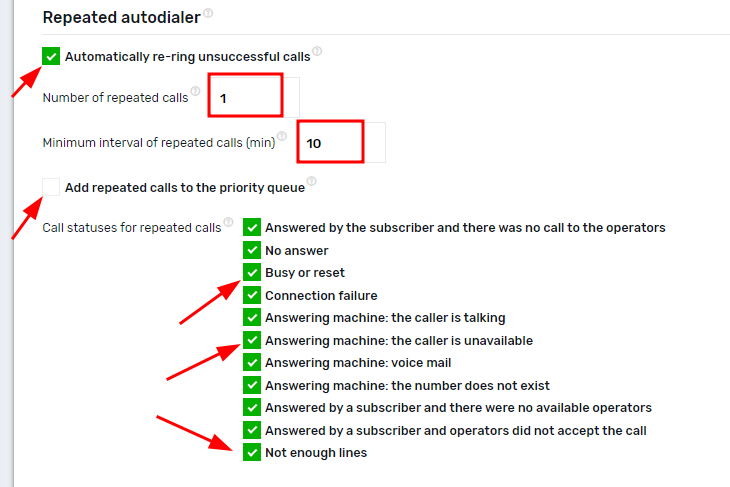
When you check the “Automatically re-ring unsuccessful calls” checkbox, the autodialer will make the specified number of redial calls to subscribers at a specified interval (in minutes) for certain call completion statuses selected when editing or creating a call. It is also possible to start redial calls with a higher priority:
Event handling
You can associate actions to call events and call completion events. Actions can be added on the “Event handling” page
For example, you can specify actions such as sending a notification in Telegram to the project user, sending an SMS to the subscriber’s number, removing a number from a call, adding a number to another call, etc. You can learn more about this in the section “Event processing”.
Below is a list of autodialer actions and call completion statuses to which you can attach an event handler:
- New autodialer call
- A subscriber answered the autodialer call
- An operator answered the autodialer call
- Autodialer call complited
- Autodialer status changed
- Autodialing completed
- Autodialer is canceled
- Autodialer removed
- Autodialer canceled automatically
- User paused by autodialer
- The number of autodialer threads has been reduced
- Сall completed unsuccessfully and the number of re-ring attempts has been exceeded
- Client made the call himself or was an outgoing call
- Phone number is blocked by the project settings
- Call completed – answered by subscriber and operator
- Call completed – answered by the subscriber and there was no call to the operators
- Call completed – answered by a subscriber and there were no available operators
- Call completed – answered by a subscriber and operators did not accept the call
- Call completed – no answer
- Call completed – busy or reset
- Call completed – connection failure
- Call completed – the callee is talking
- Call completed – the callee is unavailable
- Call completed – voice mail
- Call completed – the number does not exist
- Call completed – not enough lines
- Call completed – wrong direction
- Call completed – audio error
- In the last minute there were calls that completed
- In the last minute there were calls that completed with status – answered by subscriber and operator
- In the last minute there were calls that completed with status – answered by the subscriber and there was no call to the operators
- In the last minute there were calls that completed with status – answered by a subscriber and there were no available operators
- In the last minute there were calls that completed with status – answered by a subscriber and operators did not accept the call
- In the last minute there were calls that completed with status – no answer
- In the last minute there were calls that completed with status – busy or reject
- In the last minute there were calls that completed with status – connection failure
- In the last minute there were calls that completed with status – the callee is talking
- In the last minute there were calls that completed with status – the callee is unavailable
- In the last minute there were calls that completed with status – voice mail
- In the last minute there were calls that completed with status – the number does not exist
- In the last minute there were calls that completed with status – not enough lines
- In the last minute there were calls that completed with status – wrong direction
- In the last minute there were calls that completed with status – audio error
Settings
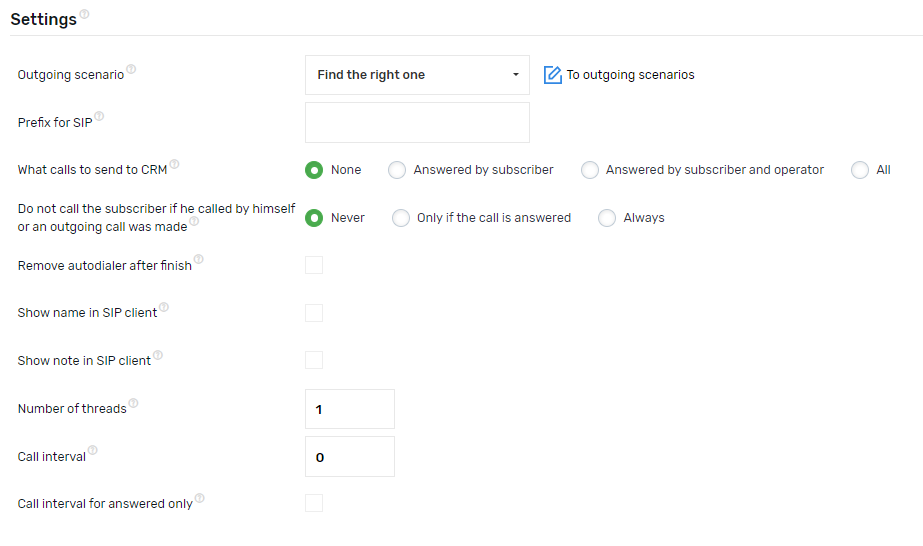
- Outgoing scenario – you can select a pre-configured outgoing scenario, if you do not specify anything, calls will be made from the default scenario;
- Prefix for SIP – you can specify a value that is understandable for the operator, which will be displayed before the number in the SIP client so that the operator understands from which call he/she received the call. It is not necessary to fill it in, by default, the prefix “Autodial-” will be displayed before the subscriber’s number;
- Which calls to send to CRM – available options: do not send anything, all calls answered by the subscriber, only those answered by the subscriber and the operator, all calls of the call;
- Don’t call the subscriber if he/she called himself/herself or made an outgoing call – in this option, you can cancel a call to a subscriber from the list of those loaded in the autodialer if he/she called the project number on his/her own during the autodialer or the operator made an outgoing call to the subscriber’s number. Options: never (ignore such calls, still call from the autodialer), only if the call is answered, always (do not call the subscriber);
- Delete the autodialer after completion – you can delete the autodialer automatically upon completion, if you wish;
- Show name in the SIP client – you can display the name of the subscriber in the SIP client if it was previously loaded into the table with numbers;
- Show note in the SIP client – you can display a note in the SIP client if it was previously loaded in the table with numbers;
The settings are available only in the “By number of threads” mode:
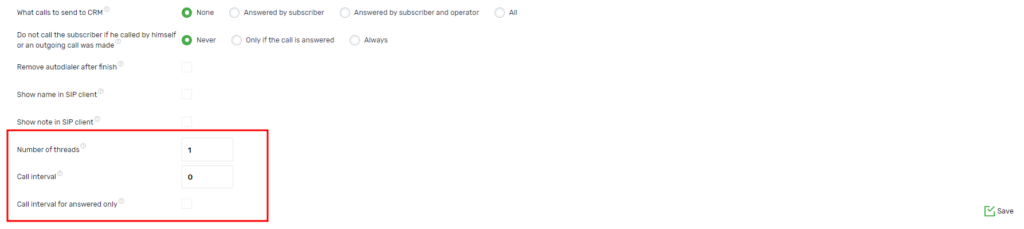
- Number of threads — the number of parallel calls. Set the value depending on the number of lines and the number of available operators;
- Call interval — pause between calls. It works only when the number of streams is 1. It is measured in seconds;
- Call interval for answered only – if you check the box, the pause between calls will be triggered only after calls that have been answered by the operator
In the created autodialer, all these parameters described above are available for editing, and the call statistics and management block will appear:
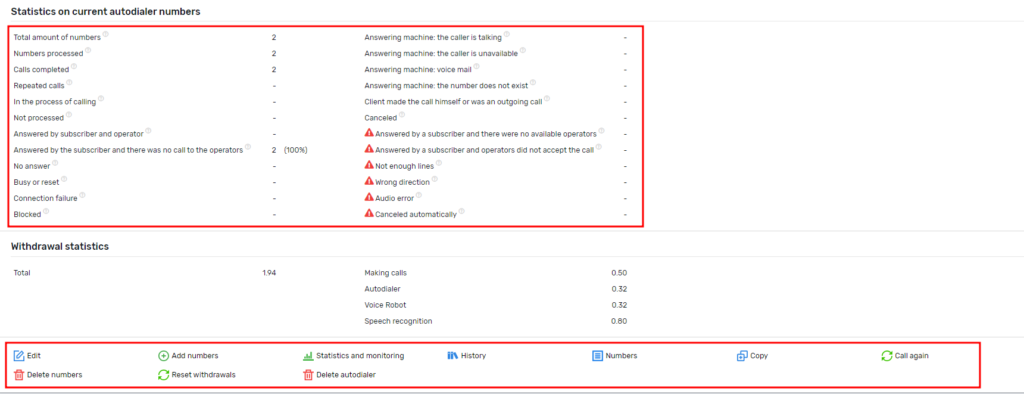
Status name and Condition under which the status is assigned
Total numbers – The number of unique numbers that have been added to the autodialer
Numbers processed – The number of numbers that have already been called back and are not yet due for a full callback
Calls completed – The number of numbers that have already been processed by the system and will not be interacted with again
Redialed calls – The number of calls that were redialed based on the setting in the call “Automatically redial failed calls”
Not processed – The number of numbers to which the system will still make calls
In the process of autodialing – The number of active dialogs that customers answered when calling from auto-dialer
Answered by the subscriber and the operator – The number of calls answered by the subscriber, after which the call was transferred to the operator and the operator picked up the phone
The subscriber answered and there was no call to the operators – The number of calls that the subscriber answered but ended the conversation before trying to connect to the operators
No answer – The number of calls to which the subscriber did not pick up the phone
Busy or dropped – The number of calls that were either rejected by subscribers or subscribers were in a call when the call was attempted
Connection failure – The number of numbers that were attempted but ended with an error from the service provider
Blocked – The number of numbers to which a call was attempted, but these numbers are blocked in the section “Project settings — Blocking users”
Answering machine: the subscriber is talking – The number of numbers that were recognized by the answering machine:The subscriber is talking and cannot accept your call.
Answering machine: the subscriber is unavailable – Number of numbers recognized by the answering machine:The subscriber is out of range and cannot receive your call
Answering machine: voicemail – Number of numbers recognized by the answering machine: The person you are calling cannot accept your call, leave a message after the beep
Answering machine: number does not exist – The number of numbers recognized by the answering machine: The number you are calling does not exist, check the number you have dialed correctly
Subscriber called back or was an outgoing call – The number of numbers that indicate the number of numbers that called back to the company, or there was a direct outgoing call by the manager (Manual dialing) ((This works only when setting up auto-calling, the function does not call customers who have contacted themselves))
Canceled – The number of numbers that got into this status after pressing “Cancel” in the autodialer or if the autodialer schedule is over and there are still numbers in the “Not processed” status – these numbers will move from the “Not processed” status to the “Canceled” status
The subscriber answered and there were no available operators – The number of calls that the subscriber (client) answered but there were no available operators (employees) to connect the subscriber to the operator
The subscriber answered and the operators did not accept the call – The number of calls that were answered by the subscriber (client) but the operators (employees) did not accept the call
Not enough lines – This status will include numbers that do not have enough lines on the number used in the call. Also, when the selected outbound scenario contains incorrect conditions for making a call
Incorrect direction – This status will be assigned to numbers that are limited by the outgoing scenario or the rate of the number that makes calls in this auto-call
Audio error – This status will include calls in which there was an error with audio playback at the beginning of the call, for example, it was not possible to synthesize the audio before the call (using Audio Synthesis)
Canceled automatically – Calls fall into this status due to insufficient funds on the project balance.
Now let’s move on to the options for interacting with the created autodialer.

Edit — When pressed, allows you to change the autodialer settings. You can change the autodialer schedule, or make changes to the audio, incoming scenarios, calling mode, or name.
Add Numbers — When clicked, you can add numbers to the created autodialer. You can add numbers from a file (xslx, xls)
- File in .xls and .xlsx format with columns phone, name, note, link, audio1, audio2, audio3, audio4, audio5, param1, param2, param3, param4, param5, param6, param7, param8, param9, and param10 and no more than 100,000 lines with 1 sheet. In these columns, all cells must be in text format. Columns can be placed in any order. The presence of extraneous fields does not matter.
- **”phone ” (telephone)** – Numbers in international format (+380…380-). The only required column. Spaces and non-numeric characters are not allowed. The phone number is unique for one subscriber. You do not need to add numbers that are already present in the autodialer.
- **“name” (NAME) – 100 characters**. If it is longer, it is cut off.
- **note (Note)** – 500 characters. If more than that, it will be cut off.
- **link (Dialer link)** – 500 characters. If more than that, it is cut off.
- **“param1”, “param2”, “param3”, “param4”, “param5”, “param6”, “param7”, “param8”, “param9”, “param10”** – Different parameters for the number. Maximum of 5000 characters, if more than that, it is cut off.
- **“audio1”, “audio2”, “audio3”, “audio4”, “audio5”** – Audio recordings that can be used to autodial the subscriber. Audio 01 will be played in the numbering order. You can specify 1 audio recording. You can specify only 1 audio in autodialer.
- Statistics and monitoring:Clicking on it takes you to a separate tab, Monitoring, where you can see real-time statistics for the current autodialer numbers and the current autodialer status.
Autodialer historyWhen you click History, you are taken to the “Autodialer history” section, where you can search for a call and set call search filters, just like in Call History. Calls from paging are not displayed in Autodialer history. - NumbersThis item takes us to the “Autodialer numbers” sectionwhere you can specify filters for searching for a number by the number of calls and by the number status.
- CopyBy clicking, you copy the autodialer in which you clicked on “Copy” and create a new autodialer with the settings/schedule as in the autodialer in which you clicked “Copy”
Call againThis function allows you to redial the numbers from the autodialer, using the specified parameters, you can specify the statuses of the calls that you want to redial, namely
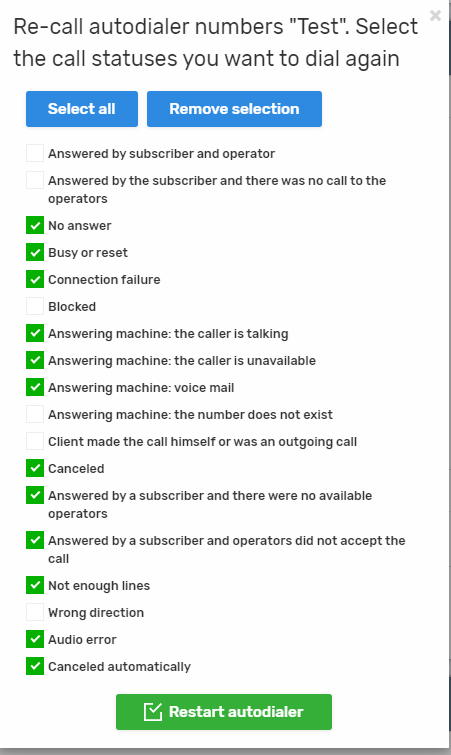
Delete numbers
You can remove numbers from the autodialer by statuses shown in the screenshot above, as well as numbers from a list or file.

Reset write-offs
Allows you to reset the statistics on autodialer write-offs to zero.
Delete a autodialer
Allows you to delete a autodialer.