


Configuring the PortSIP Softphone on Android
Using a mobile application for making calls allows you to stay connected with your customers even when you are away from the office. PortSIP for Android is a functional software solution that fully integrates with the UniTalk cloud platform. Configuring this softphone ensures the stable operation of your internal line on your smartphone, allowing you to use all the features of your IP telephony in a mobile format. Below is a brief instruction for quick account registration.
Step-by-Step Configuration Instructions
1. In the GooglePlay app store, find and install the app PortSIP.
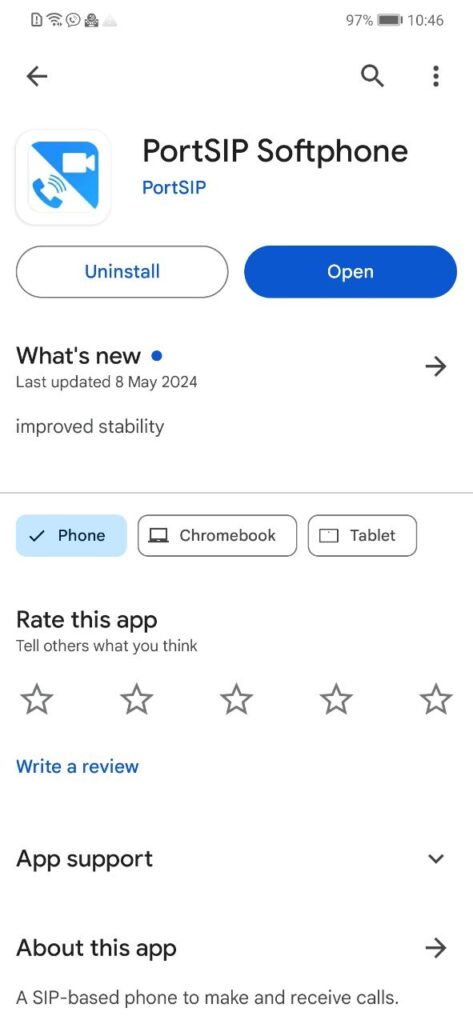
2. Log in to the application, give it all the necessary permissions. Enter the data you can find in your UniTalk personal cabinet, in the “Users” tab. In the “Username” field, enter your line number, then the password in “Password” (to see the password, click the bottom “Settings” button next to your user in the personal cabinet) and in the “SIP Domain” field – sip.unitalk.cloud or sip.nextel.cloud (as specified in the SIP line settings in the “Users” tab).
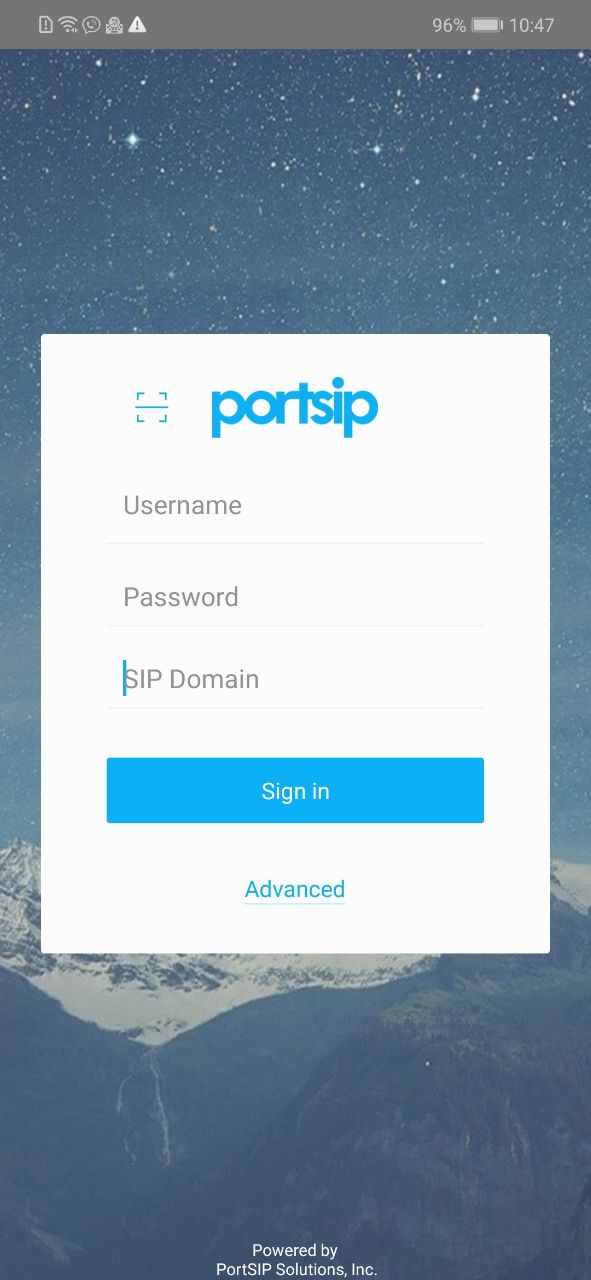
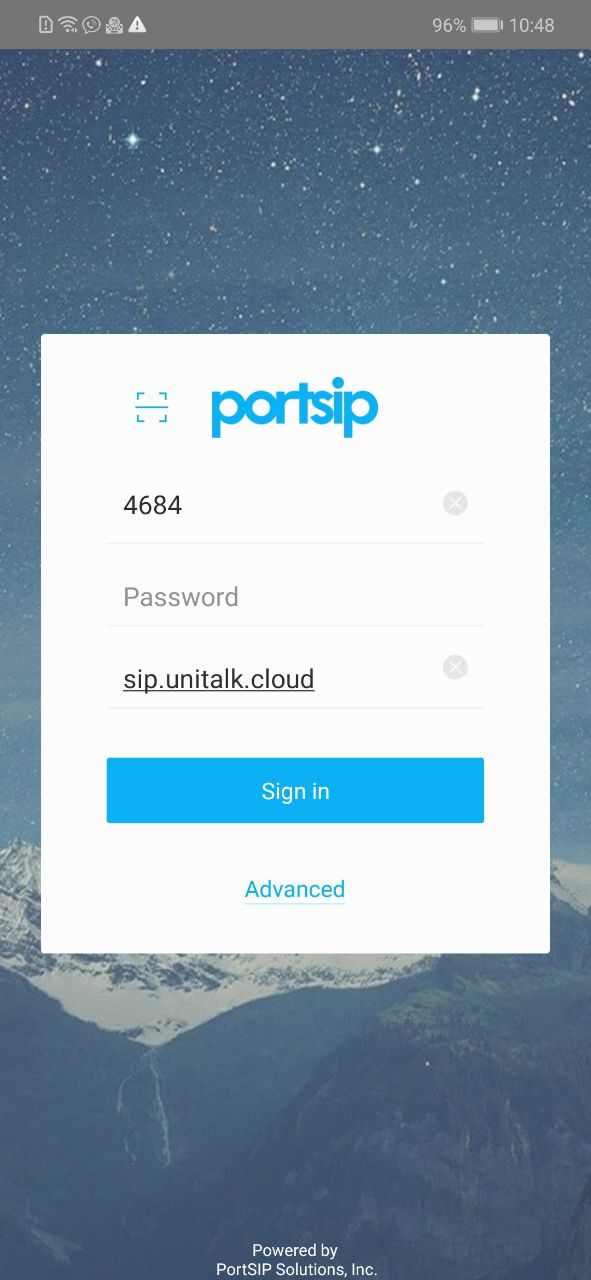
3. Then click “Sign in”. If everything is entered correctly, you will see the status “Online” in the “Settings” menu.
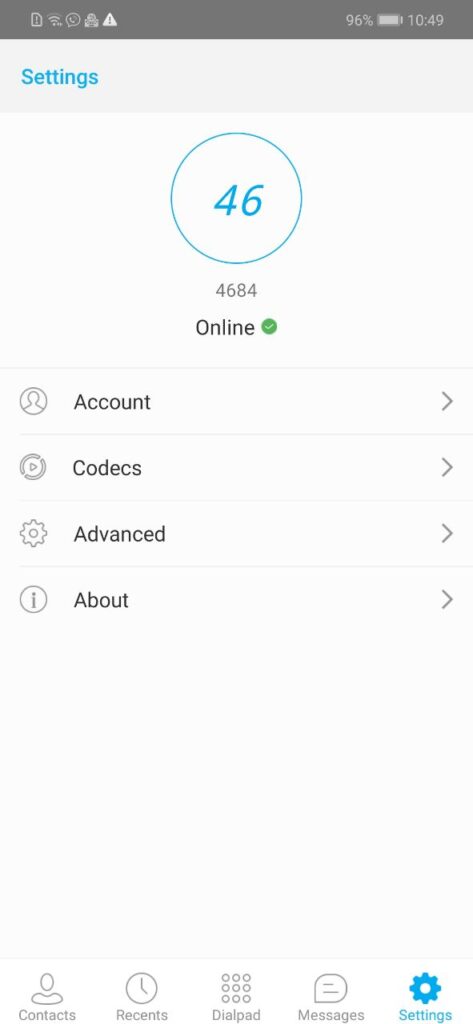
If everything is entered correctly, you will see the status “Online” in the “Settings” menu. This confirms that the PortSIP application is successfully integrated with your UniTalk account and is ready to process calls. You can now receive and make calls over the internet, maintaining high connection quality and control over your business communications without being tied to a stationary workstation.



