


Connecting and configuring integration with RO App
RO App is a multifunctional Ukrainian CRM system designed for sales management and service provision. Integrating it with UniTalk IP telephony and chat widgets allows you to fully automate communication: every customer call or message will be instantly logged in the system. Follow this guide for a quick connection and setup.
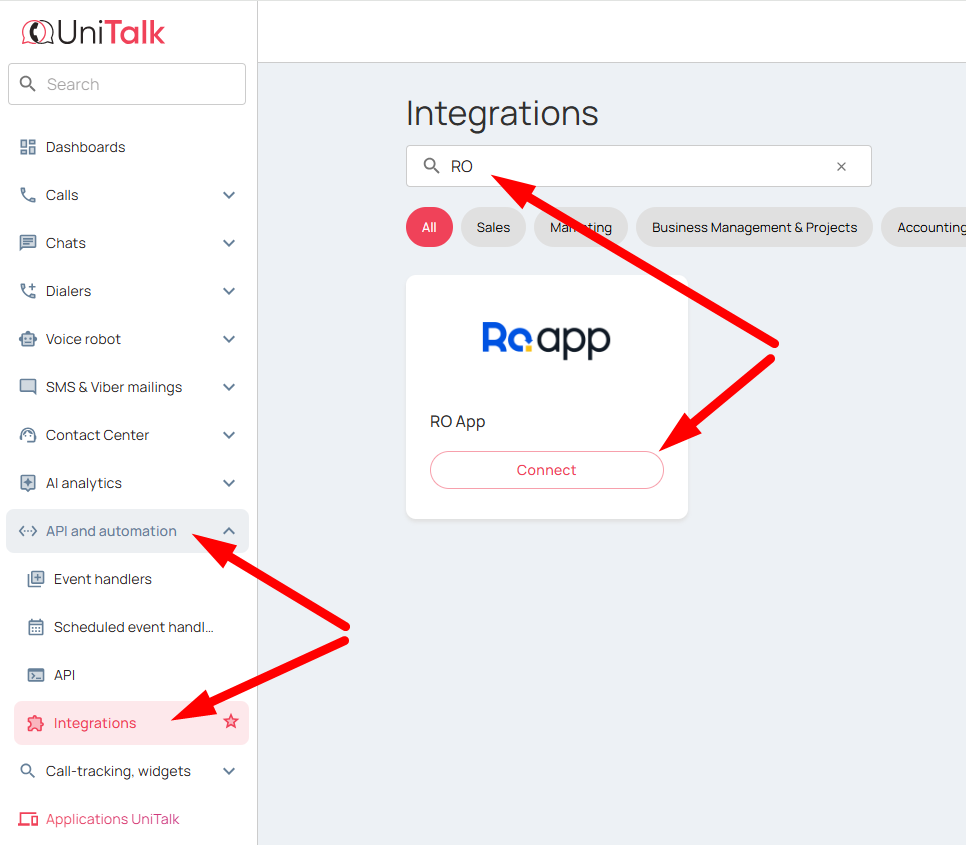
Next, in the UniTalk personal account, go to the “Integrations” section, type “RO App” in the search field, and click the “Connect” button.
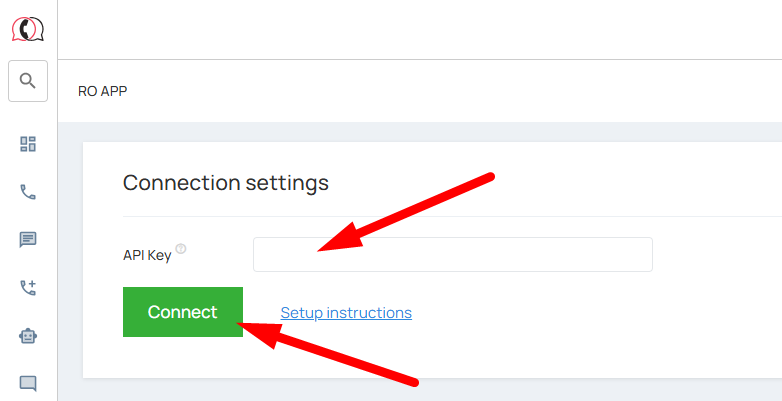
On the integration page, find the “API key” field and paste the copied API key. Click the “Connect” button.
Settings for the Calls Section
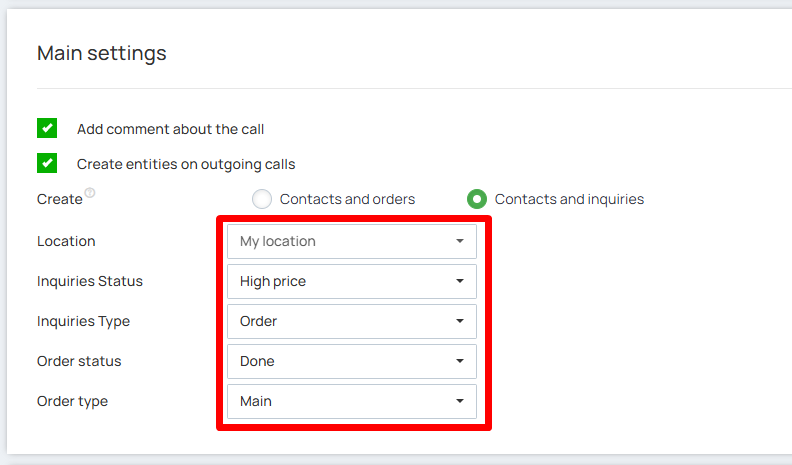
To configure the calls section, select one of the proposed options: “Contacts and orders” or “Contacts and inquiries”.
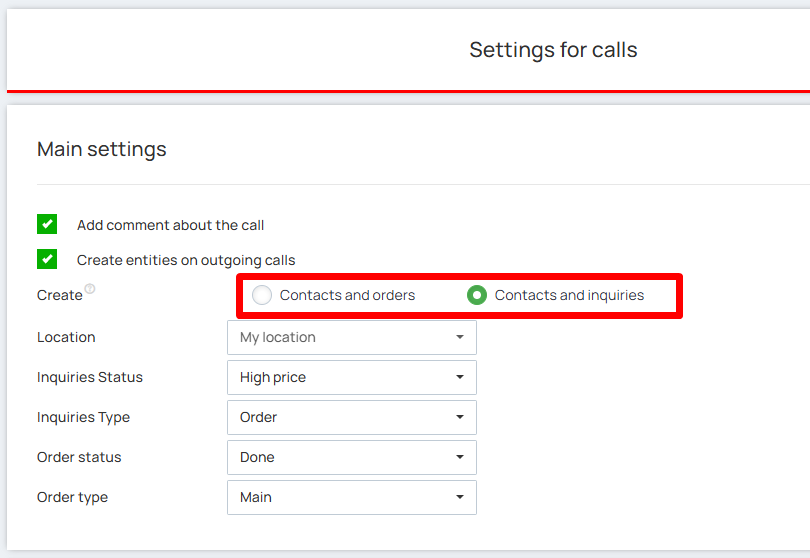
In the same section, select the required location, as well as the status and type of the order or inquiry being created.
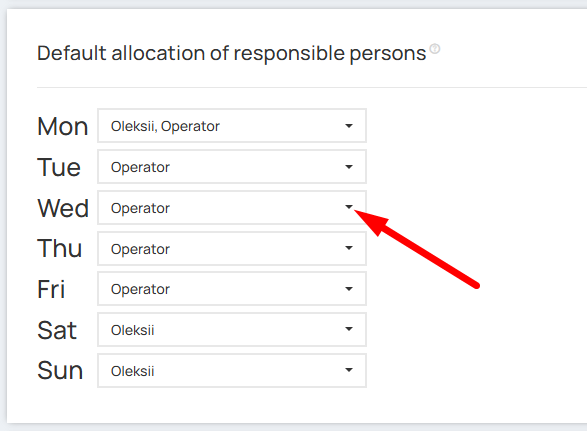
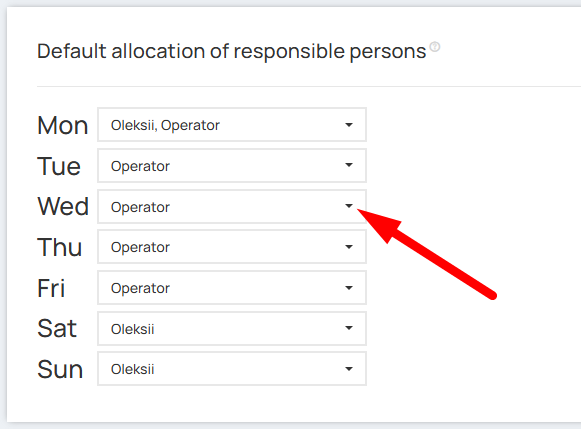
In the “Default allocation of responsible persons” section, you can specify the data of the responsible manager (or several) for missed calls. You can assign different responsible persons for different days of the week.
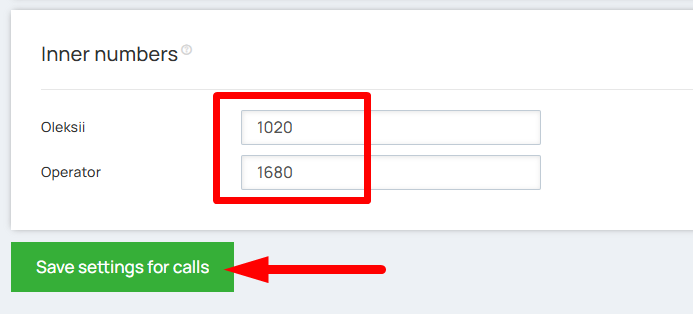
In the “Inner numbers” section, specify the internal telephone numbers of your employees. This will allow calls to be transferred to the responsible manager. Click the “Save settings for calls” button.
Now you can use the toggle to enable “Integration for calls”.
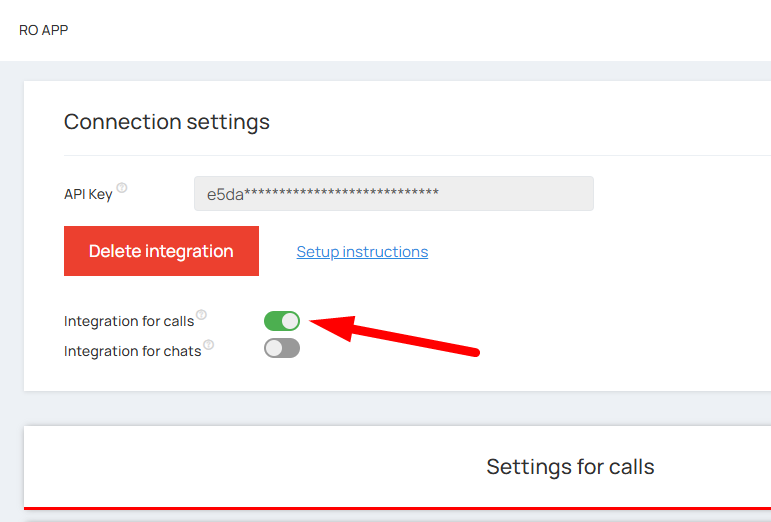
The setup of the call integration is complete. When an incoming call is made in UniTalk, a contact, inquiry, or order will be automatically created in RO App.
Settings for the Chats Section
When a chat starts, ends, or chat fields are updated — the integration can create entities in the CRM system. For the integration to create entities — the client in the chat must fill in the custom field with a phone number in the authorization form. It is impossible to create entities without a client’s phone number! The number must be specified in full format.
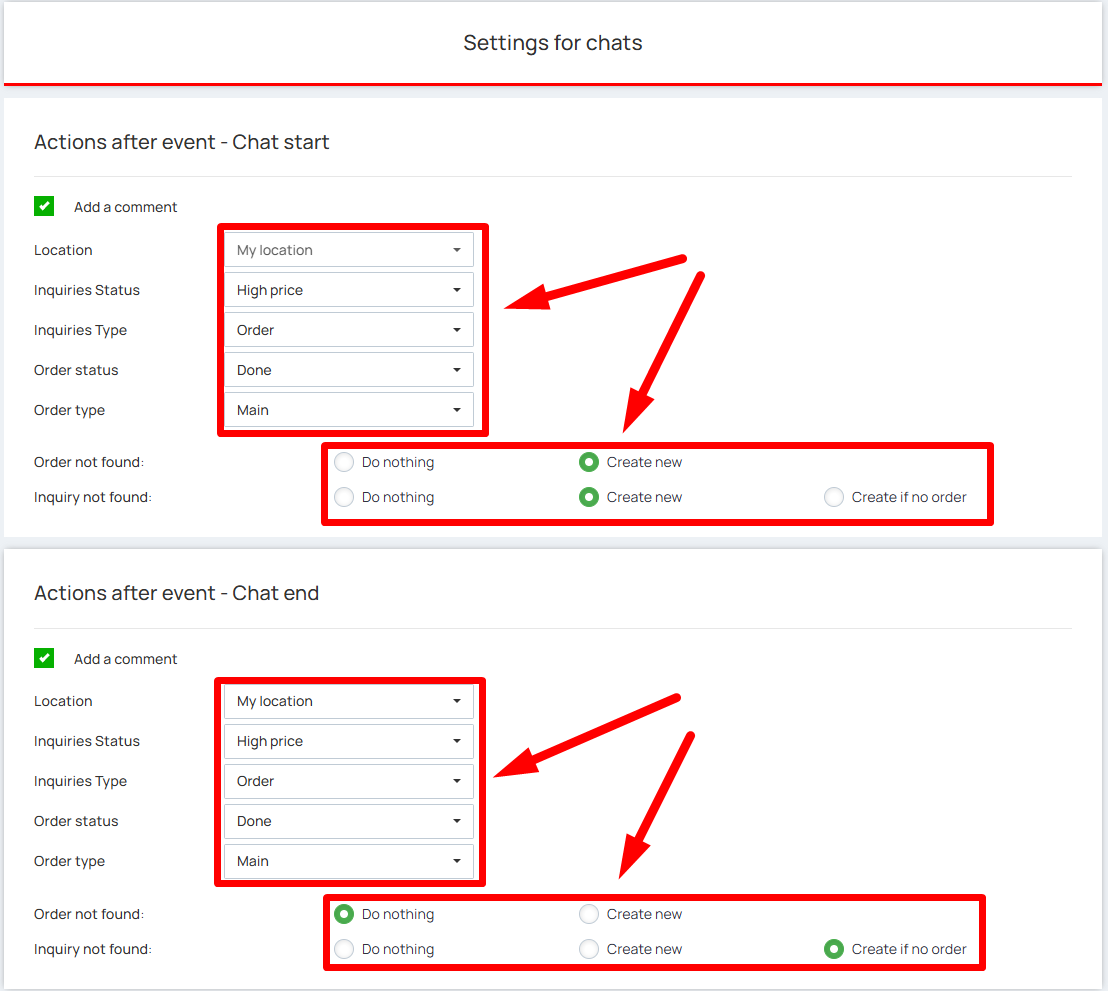
In the chat settings section, there are three main sections for working with chats: “Action after event – Chat start”, “Action after event – Chat end”, and “Action after event – Chat fields update”. Specify the appropriate settings for the entity being created for each of the events.
In the “Default allocation of responsible persons” section, specify the data of the responsible manager (or several), completely by analogy with the settings of the calls section.
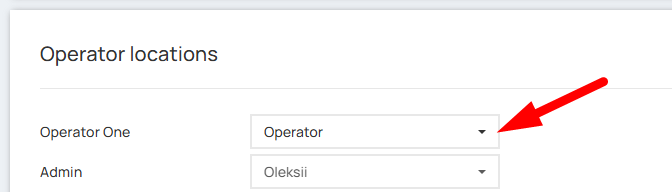
In the “Operators location” section, match the project users in UniTalk (name on the left) with the CRM users (dropdown list on the right).
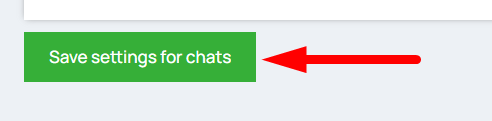
After filling in all the necessary fields of the section, save the chat section settings.
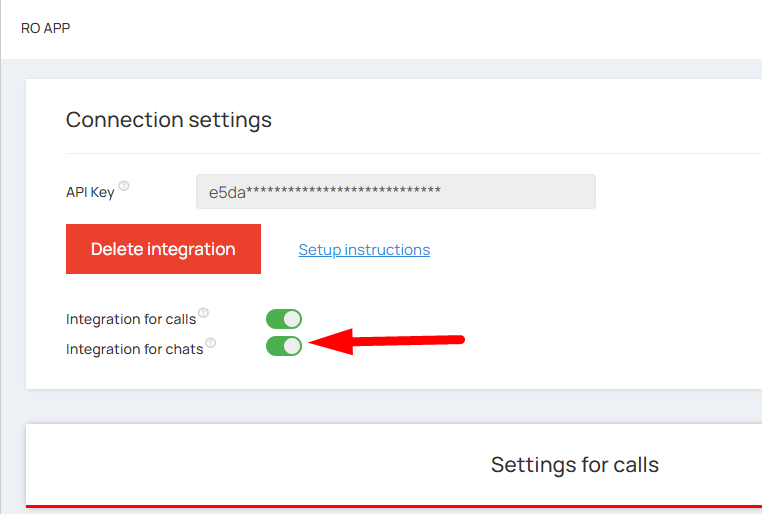
Now, at the very top of the page, you can enable “Integration for chats”.
Congratulations! The integration setup for calls and chats is complete. When an incoming call is made in UniTalk or a new chat is opened, a contact, request, or order will automatically be created in the RO App. If you have any questions during the setup, the UniTalk technical support team is always ready to help.



