


Connecting and configuring UniTalk IP telephony integration with Abills
To set up UniTalk integration with Abills, follow these steps.
- Log in to your UniTalk account, go to the Abills integration page , click “Connect”.
- In the address bar, you have the domain of your portal indicated.

Copy the domain and paste it into the appropriate field in the “Connection settings” section of your UniTalk personal account.
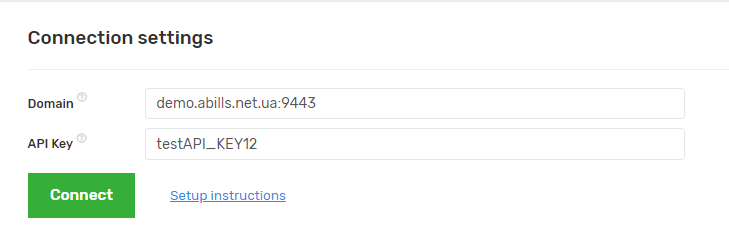
3. In your Abills personal account, in the “Settings/Configuration” section on the administrator card, in the “API_KEY” field, copy the API key and paste it into the corresponding field in the “Connection settings” section in your UniTalk personal account.
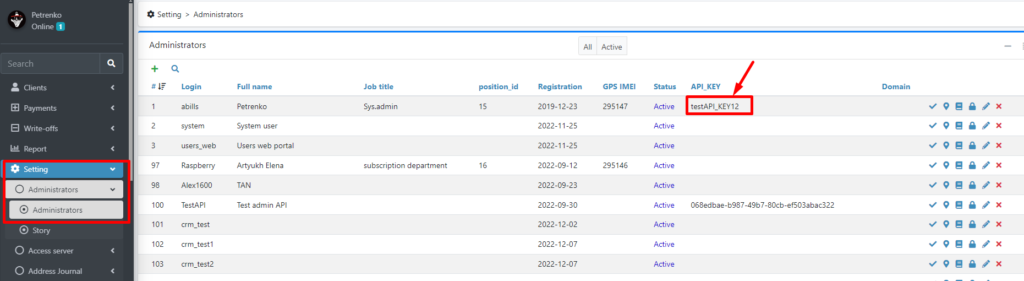
4. In the administrator card, go to the “Rights” section and select the following items:
I field “Clients”:
1 — Add (adding subscribers)
2 — List (access to the list of subscribers)
3 — Show Groups (work with groups is allowed)
Settings:
4 — Administrators (adding/removing administrators, changing rights)
In the section “Settings/Support/Administrators/Rights” select “Add messages”.

5. Return to your UniTalk personal account, go to the ” Abills Integration ” section and specify the user IDs in the “Settings” field. They can be found in your Abills personal account in the “Settings/Administrators” section.

6. Next, in your UniTalk personal account, select the following items:
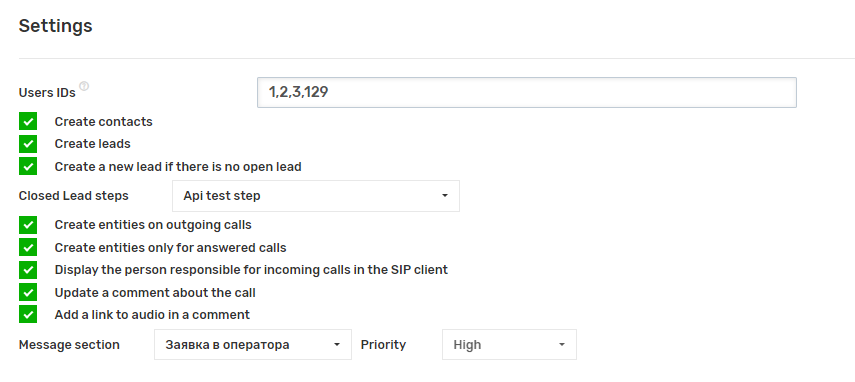
7. If you select the option “Create a new lead if there is no open one”, a new lead will be created only if the last created lead already has a closed status.
8. If you select the option “Create entities for outgoing calls”, leads and contacts will be created in the CRM system when outgoing calls are made to contacts’ mobile phone numbers.
9. If you select the option “Create entities only for calls that were answered”, the CRM system will create leads and contacts for those phone calls that were answered.
10. If you select the option “Display the responsible person for incoming calls in the SIP client”, you should additionally enable the option “Display the subscriber’s name” for each user in the “ Users ” section of the “SIP settings” block of your UniTalk personal account.
11. If you select the “Leave a comment about the call” option, specify the message section and the selected priority, you will be able to add a comment about the call.

12. If you select the option “Add link to audio in comment”, this will give you the ability to add links to listen to audio in comments.
13. Fill in the lead and contact fields that will be filled with data from UniTalk.
14. Remember that the value of the field type “Date” must be filled in the format 2024-01-15, and the value of the field type “Flag” is designated as 0 – off, 1 – on.
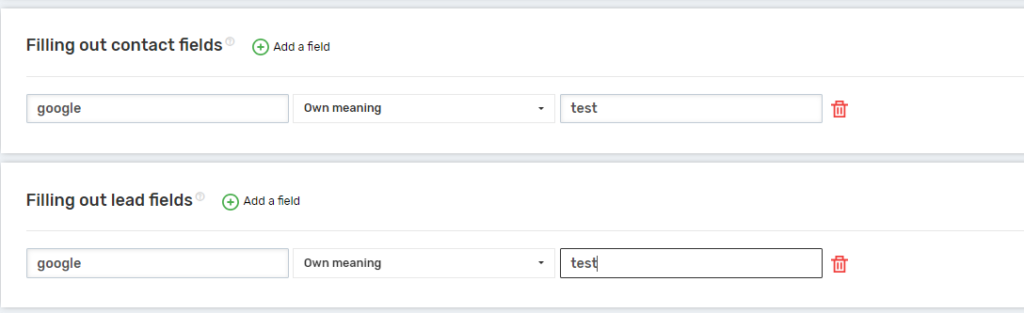
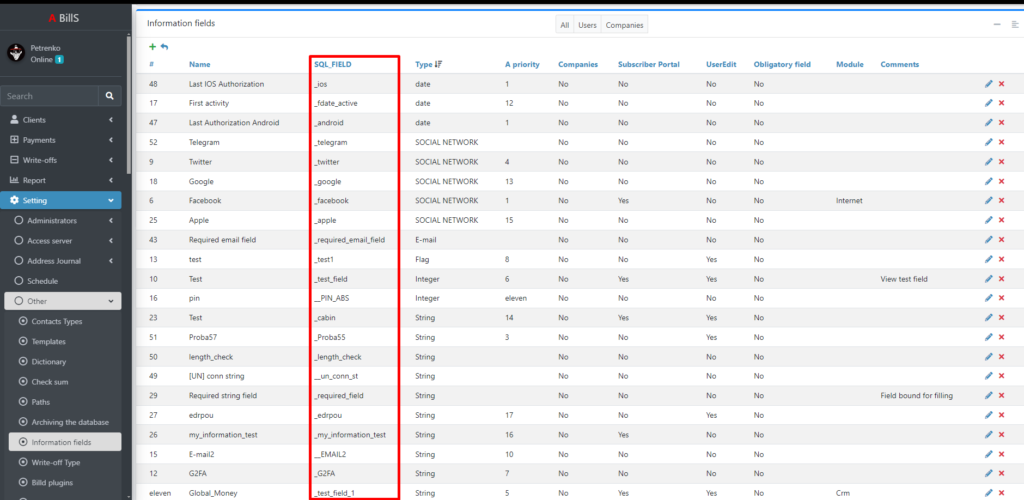
15. Go to your Abills personal account in the section “Settings/Other/Information fields” in the column “SQL_FIELD”. In the section “Users” you will see the names of the user fields of the contact.

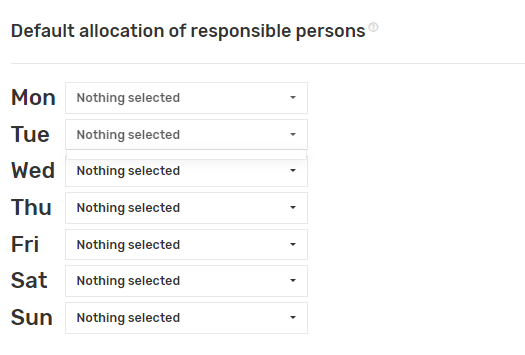
16. Select those responsible for missed calls.
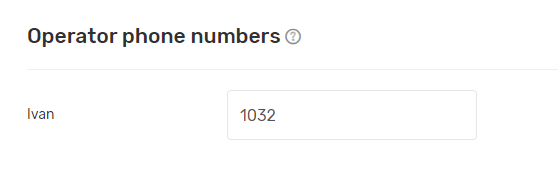
17. Enter Abills users’ phone numbers (internal lines or GSM numbers) separated by commas.
18. Select the settings for distributing contacts and leads when creating.




