


Copying voice robots to other projects
Creating the perfect Voice Robot takes time, but scaling that success should be instant. The “Copy to Another Project” function allows you to transfer all complex dialogue logic, including audio, recognition profiles, and background robots, between your UniTalk projects. This saves hours of routine setup, ensures service consistency across all your business units, and allows you to quickly launch new projects based on proven solutions.
If you need to copy voice robots to another project, you can do so on the voice robots page by clicking the Copy to another project button.

Copying is possible if the user has the role of Administrator or Owner in both projects.
Copying will not be available if:
- there are no voice robots in the current project yet
- if the user’s role in the current project is not Administrator or Owner
- if the user is not the same in other projects or does not have the role of Administrator or Owner
After clicking on the “Copy to another project” button, the copying settings will open.
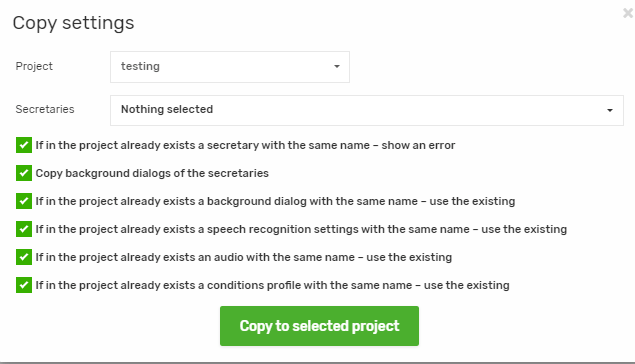
To copy, you need to specify the settings and click on the “Copy selected project” button. It may take some time to copy.
Copy settings:
- project – the project to which the works will be copied
- works – you can select as many works as you want to copy
- if the project already has a work with the name of the one to be copied, an error appears:
- on – an error will be displayed
- off – a number will be added to the copy name
- copy background dialogs of robots – if enabled, then in addition to robots, their background work will be copied
- if the project already has a background dialog with the name of the robot to be copied, use the existing one:
- on – instead of copying a background robot, the settings of the copied robots will be substituted with the existing background robots with the same names in the target project
- off – a number will be added to the copy name
- if the project already has speech recognition settings with the name of the ones to be copied, use the existing ones:
- on – instead of copying the speech recognition settings, the settings of the copied robots will be substituted with the settings existing in the target project with the same names
- off – a number will be added to the copy name
- If there is already an audio in the project with the name of the audio you are copying, use the existing one:
- on – instead of copying audio, the actions of the nodes of the copied robot tree will substitute the existing audio in the target project from the audio section “Voice robots” with the same names
- off – a number will be added to the copy name
- If the project already has a condition profile with the name of the one being copied, use the existing one:
- on – instead of copying condition profiles, condition profiles that exist in the target project with the same names will be substituted into the conditions of the nodes of the copied robots’ tree
- off – a number will be added to the copy name
The copying function is a powerful tool for unification and rapid deployment of your contact centers. You are not just moving files, but automatically resolving naming conflicts for entities (audio, profiles, background dialogues) through flexible settings. This allows you to maintain a single quality standard for customer service across all your projects and reduces the time to market for new dialogue solutions.



