


HOW TO GIVE ACCESS TO THE PERSONAL CABINET TO YOUR EMPLOYEES
To ensure your team works efficiently and securely, every employee should have their own controlled access to the UniTalk Personal Telephony Cabinet. Sharing a single account leads to chaos, security risks, and poor reporting. This simple, step-by-step guide will help you quickly set up individual accounts, giving your employees the tools they need and ensuring you maintain full control over your telephony system. Let’s get started!
1. First you need to enter your personal cabinet on the UniTalk website in the “Users” section of the menu.
To do this, open the side menu on the left(1), in the list find the “Settings” section(1). After that, in the expanded list you will see the “Users” section(2). You can create an account with the rights of owner, administrator or chief.
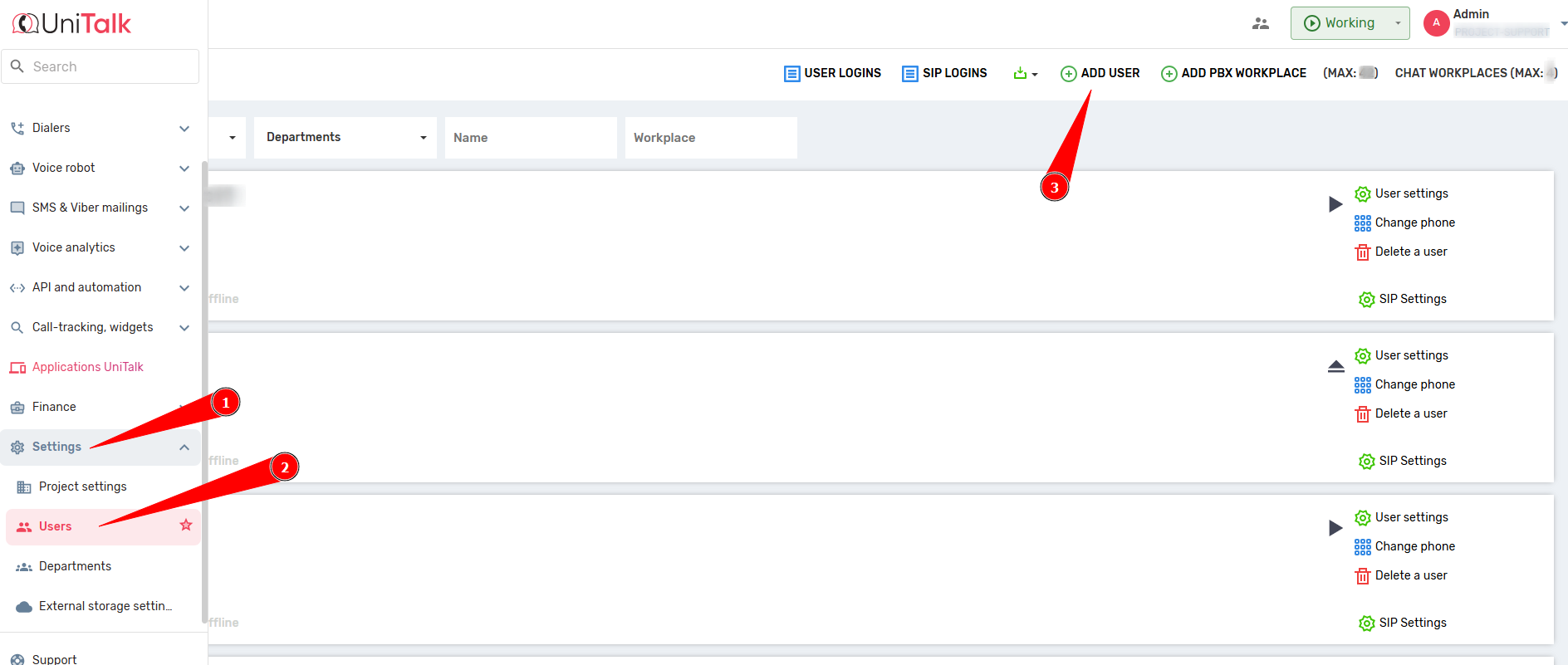
2. Then press “+” to add a user. Expand the fields for registering the data of your employee. Enter only a real e-mail address! E-mail will be used as a login for your employee to enter the personal cabinet of telephony.
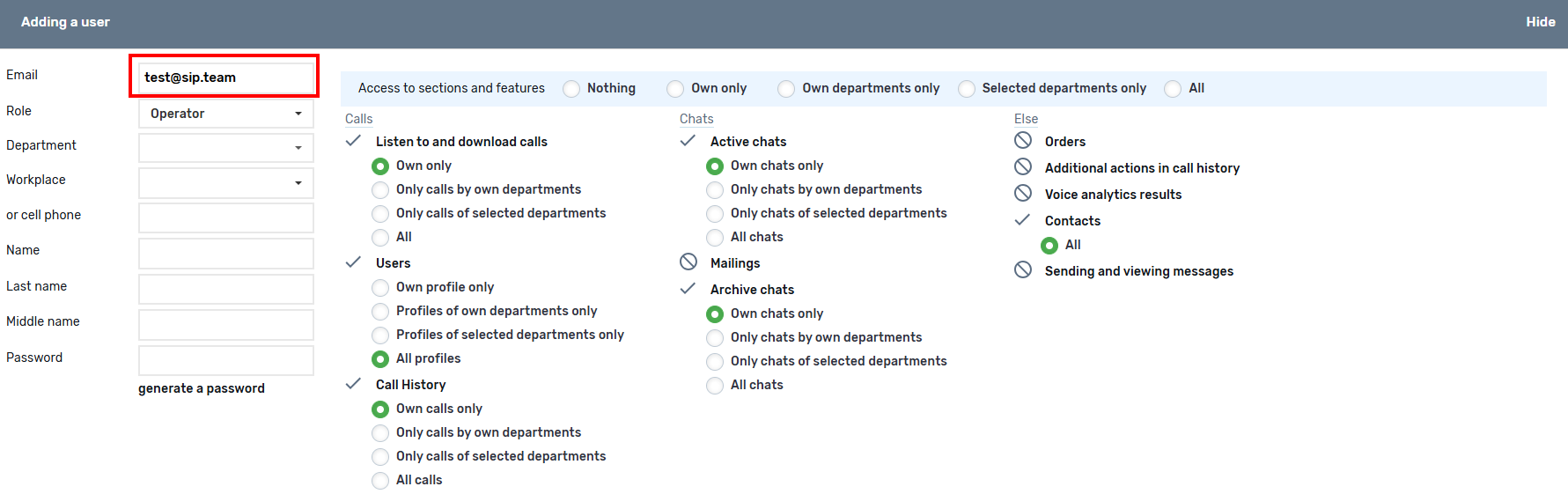
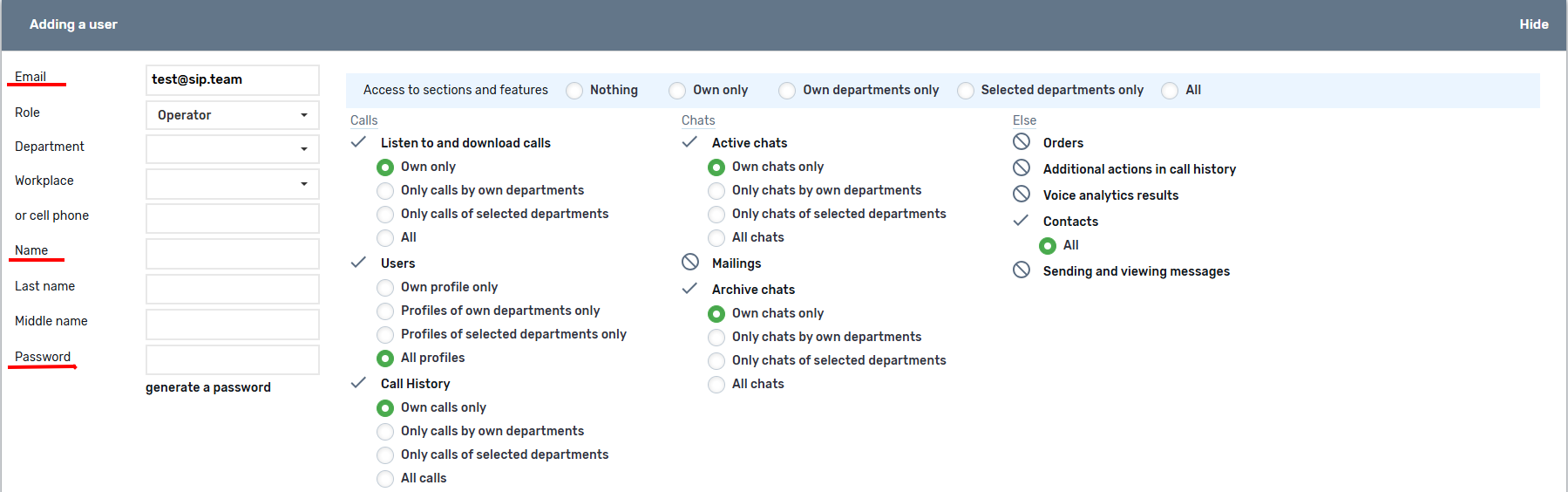
3. After entering the e-mail address there will be an instant check of its validity. Next, you need to specify the employee’s mobile number or select the appropriate SIP line. After that, additional fields for entering the full name and password will appear.
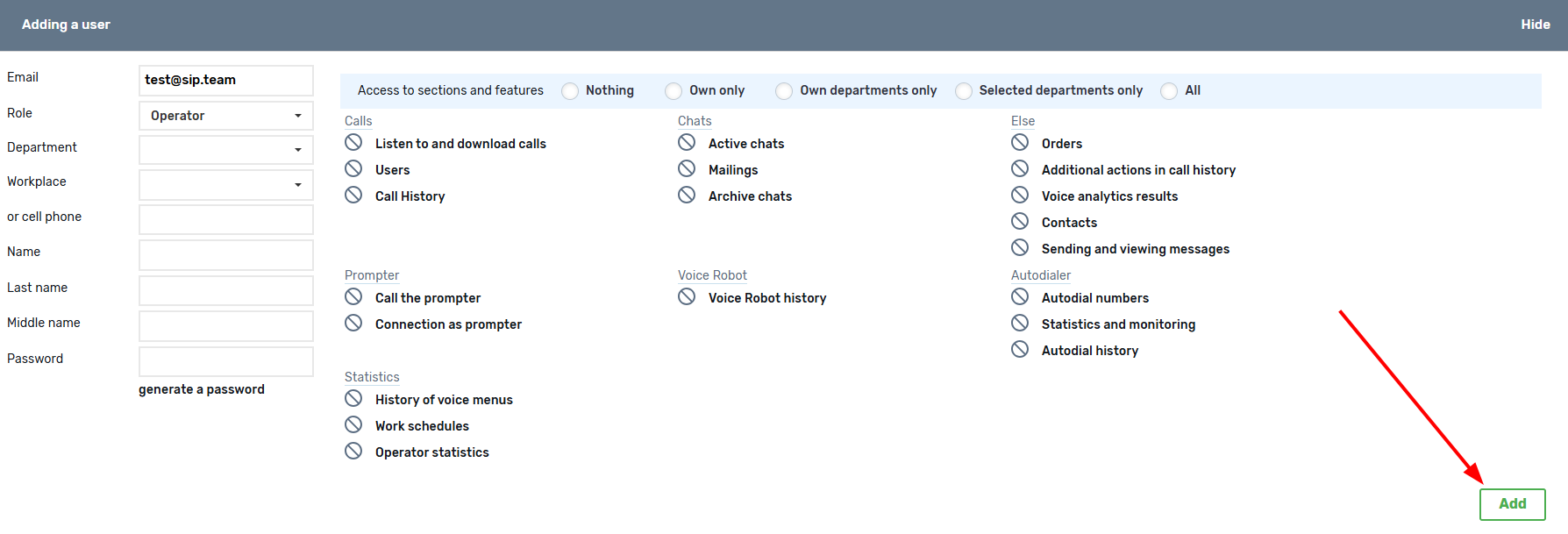
4. After filling in all mandatory fields and defining the access level and enabling additional functions, do not forget to click the “Add” button.
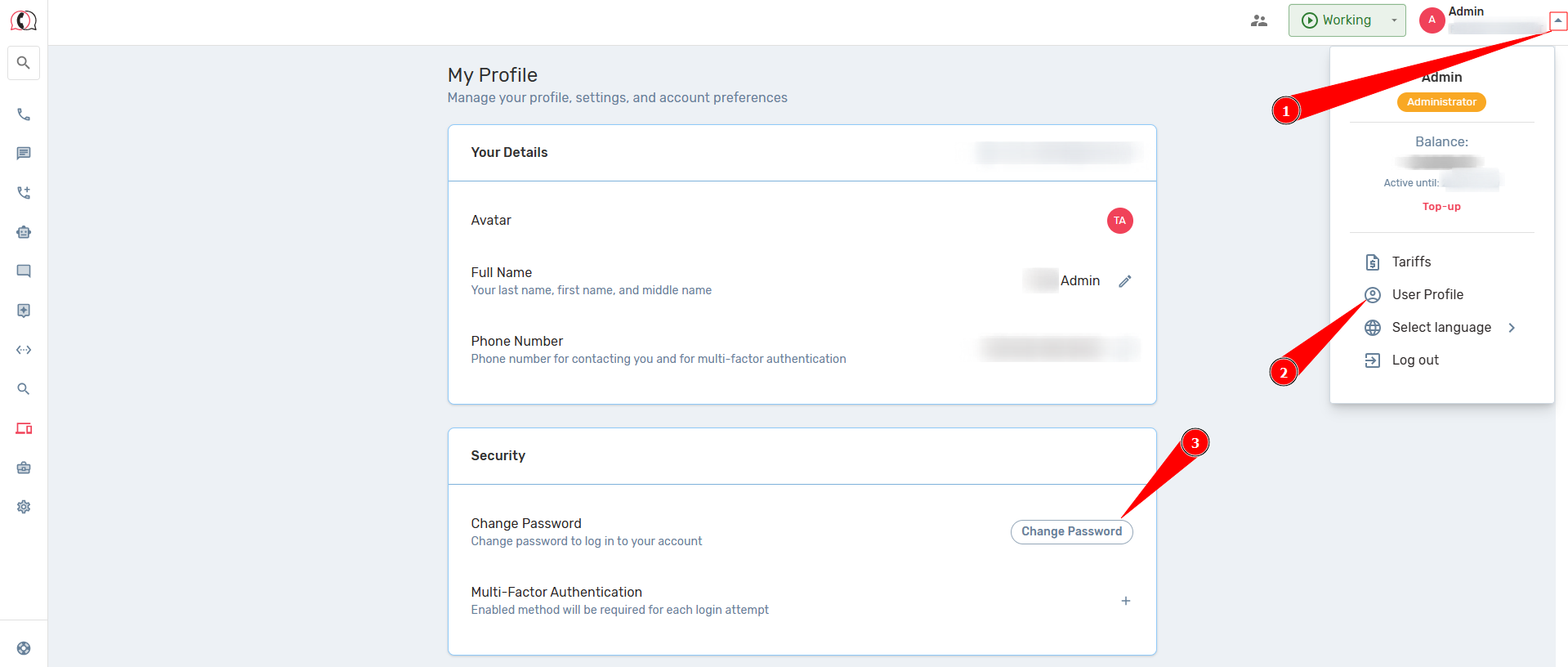
5. If the password selected for the employee is temporary, after the first login to OK, the employee must change it in the menu section “User Profile”.
To go to the account settings, it is necessary, in the upper right corner, to click on the arrow(1), and in the opened menu select “User Profile”(2). The user will be redirected to the account page, where the user can use the “Change Password” function(3)
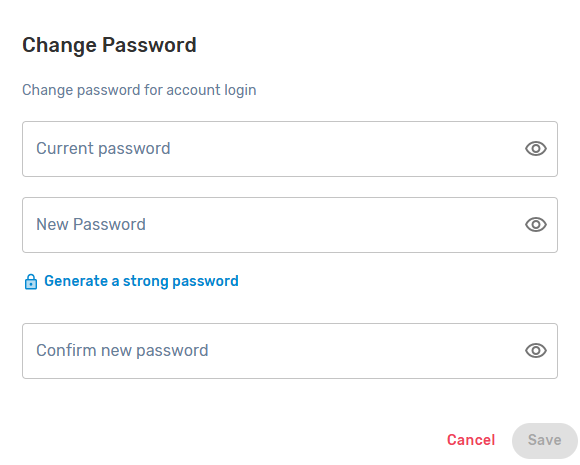
In the window that opens, the user must first enter the current password. After that, the user can enter their password or generate a random one, and then confirm it in the last field. After filling in all the fields, do not forget to click “Save”
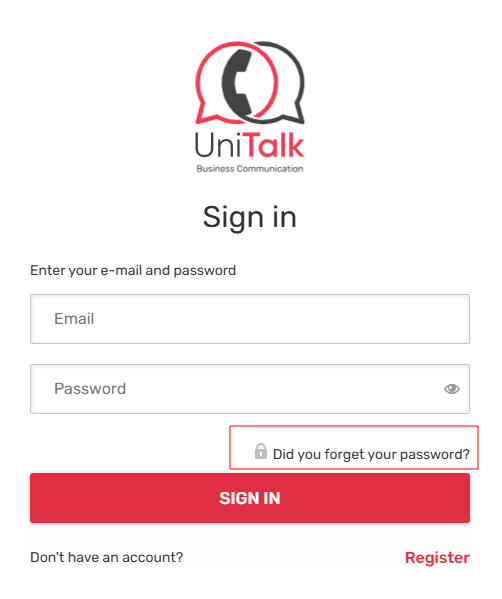
6. If the password is lost, use the password recovery system. The message will be sent to the e-mail you specified when adding an employee.
7. If you have read up to this point, your skill in registering employees of the company has increased by 100%
Great job! You have successfully onboarded your team. So what’s in it for you? You’ve just enhanced your security, simplified reporting, and ensured that every team member has their own dedicated workspace within UniTalk. This setup is key to achieving the stability and control that modern IP-telephony requires. If you need to refine access levels or integrate this process further, our 24/7 support is here to help you get the most out of your system.



