


INSTRUCTION FOR CONNECTING AND SETTING UP UNITALK AND CREATIO INTEGRATION
The UniTalk integration with Creatio is a comprehensive solution for automating sales and customer support teams. Combining IP-telephony and UniTalk Chat within the CRM interface allows your team to work in a “single window,” respond instantly to calls and messages from various messengers, and automatically log all customer interaction history.
In the UniTalk cabinet, open the API and Automation – Integrations – Creatio menu item.
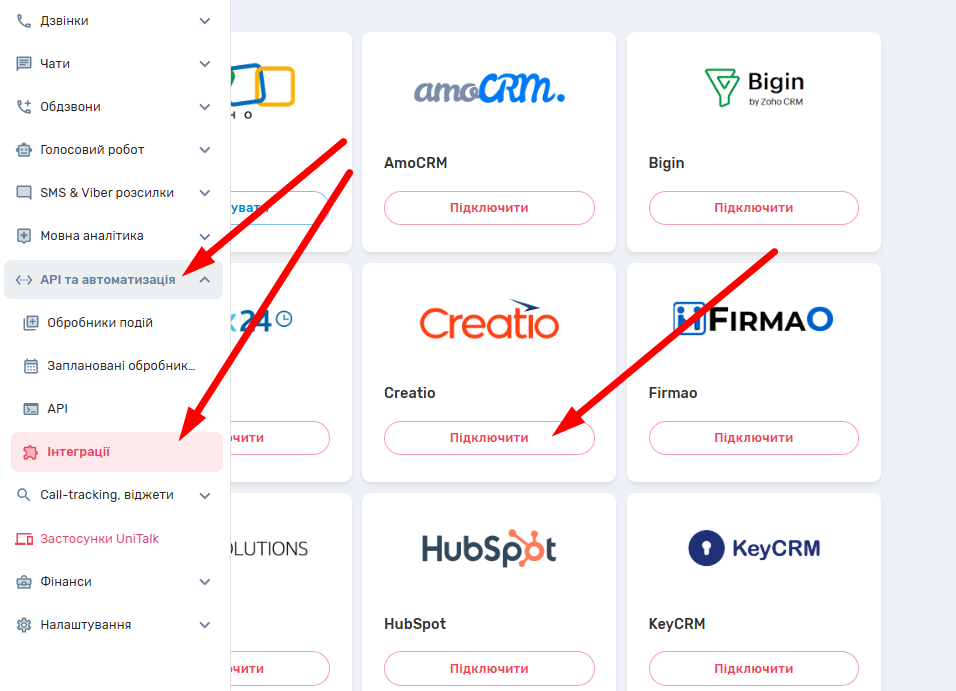
Or follow the link. Enter your account name, login and password. Click the “Connect” button.

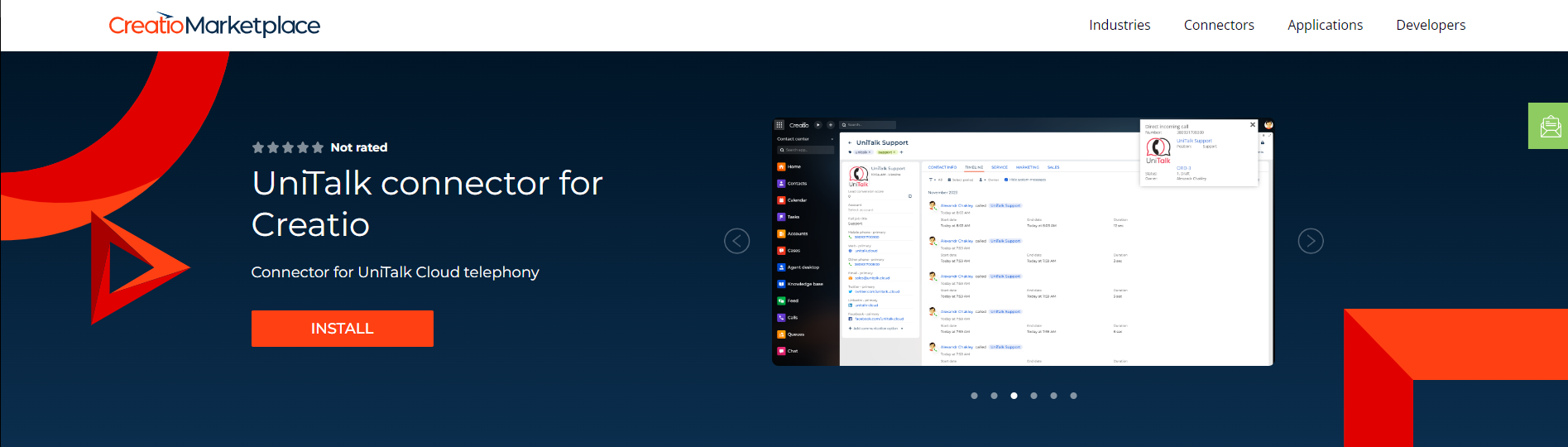
Install the connector from the link on your Creatio account.
Integration settings
The integration page contains 2 blocks of settings – for calls and for chats. Each of these blocks has separate settings and its own button for saving settings.




There are also two separate integration control switches:
- for calls,
- for chats.
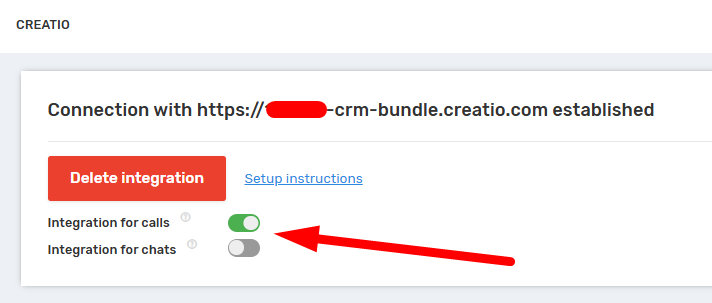
If you need integration for only one of the areas (for example, only for chats), turn on the corresponding switch and turn off the other.
When an integration is disabled, you can edit its settings. If the settings are incorrect, you cannot enable the integration until they are saved in a valid form
Customization options integrations for calls
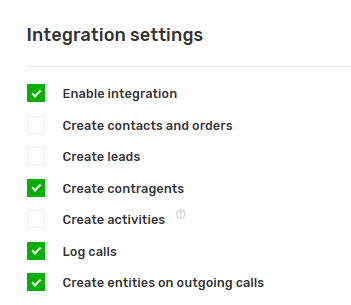
Choose what you want to create in Creatio Cabinet: leads, contacts and orders, contragents, activities, calls.
If you want customer cards to be created not only on incoming calls, but also on outgoing calls, enable the “Create entities on outgoing” setting.
Set up responsible Creatio Cabinet users for missed calls for each day of the week.

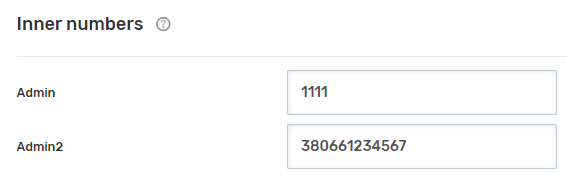
Configure corporate numbers for the users of the Creatio Cabinet. You can assign internal project numbers or GSM numbers to users.
Customization options integrations for chats
Basic settings
There are three events for which you can separately specify the necessary actions:
- chat start,
- chat end,
- chat fields update.
In each of these cases, you can configure whether you want to create comments, tasks, and define actions with contacts, Orders, leads and Accounts.
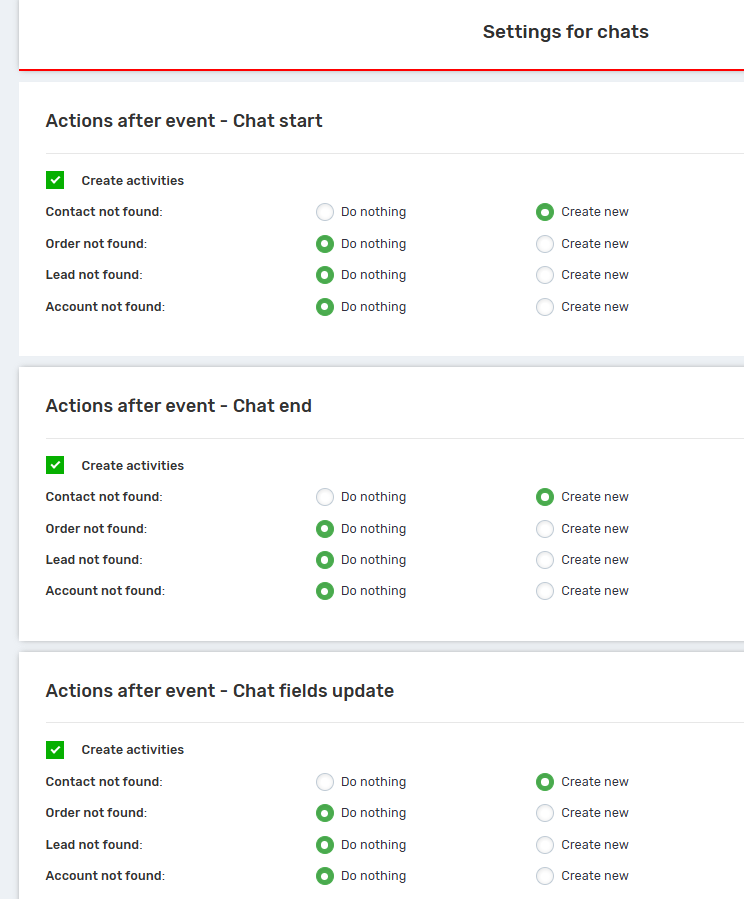
Scenarios are available for each entity:
- Contact not found: do nothing or create a new
- Order not found: do nothing or create a new
- Lead not found: do nothing or create a new
- Account not found: do nothing or create a new
Description of available actions:
- Do nothing — the system ignores this entity and does not perform any actions with it.
- Create new — creates a new entity (contact, Order, Account or lead).
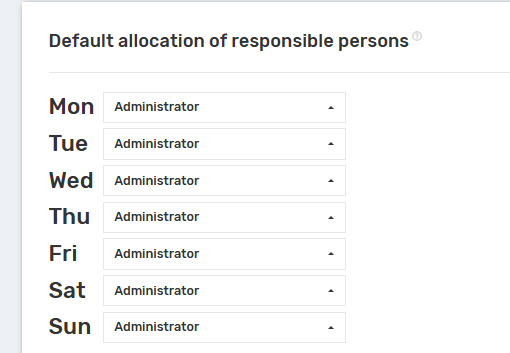
Default responsible
Similar to the settings for calls, you can assign an agent to each day of the week. If for some reason the responsible person cannot be identified automatically, the created entity (contact, deal, or lead) will be assigned to the agent specified in this field.
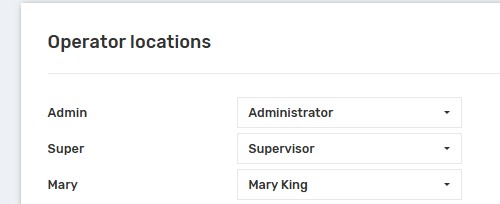
Operator locations
This is where Unitalk users (on the left) are mapped to users (list on the right)
With independent configurations for calls and chats, you can flexibly adapt the CRM to your company’s business processes. Automatic entity creation and responsible party assignment provide you with objective data for analysis and ensure no inquiry goes unnoticed. If you have any questions regarding operator mapping or connector performance, UniTalk technical support is available 24/7.



