


INSTRUCTION FOR INTEGRATING UNITALK AND KEYCRM: HOW TO CONNECT AND WORK
KeyCRM is a modern Ukrainian CRM system designed to automate business processes in online commerce. Thanks to the integration of KeyCRM and UniTalk IP telephony, the efficiency of sales managers increases, and the processes of interaction and communication become easier. The integration allows you to make and receive phone calls directly from the CRM, place orders online, and create customer cards, thereby saving resources on daily routine work.
How to connect UniTalk to KeyCRM
In order to integrate UniTalk and KeyCRM, follow these steps:
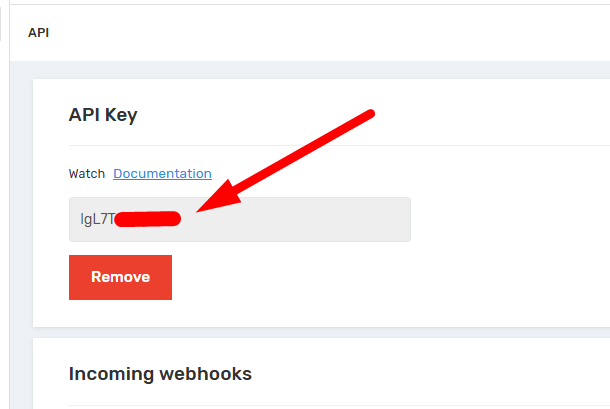
1. Find the API key for your UniTalk project. To do this, go to your UniTalk personal account, select “API and Automation” → “API”, and copy the key.
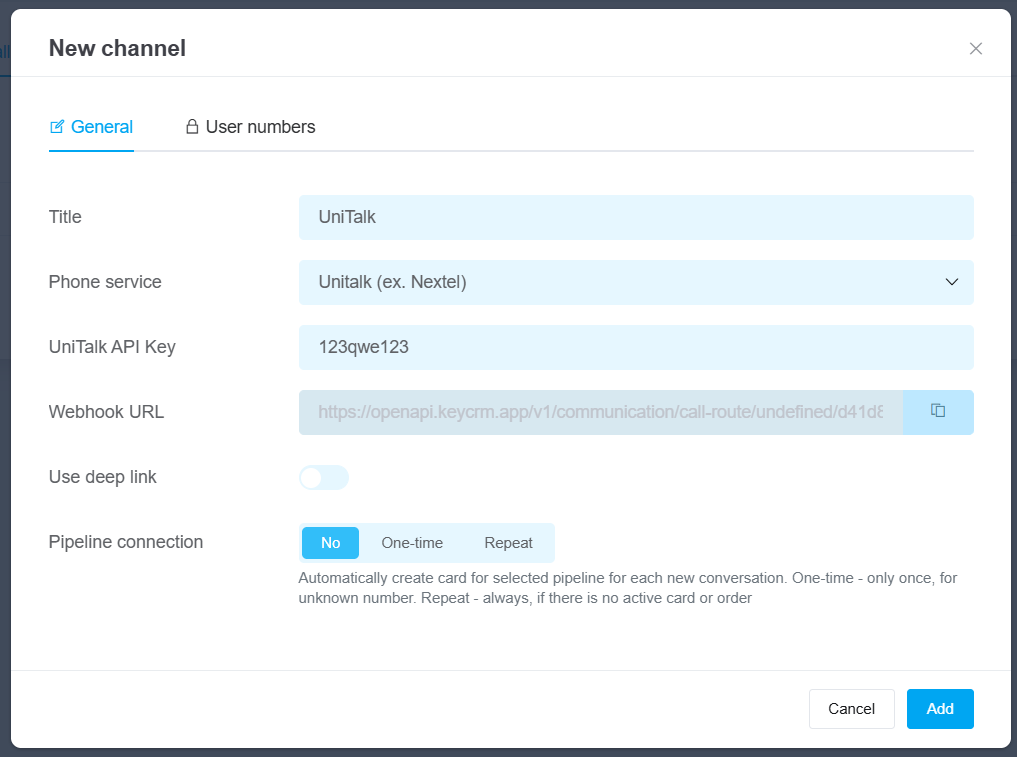
2. Go to the KeyCRM personal account and go to the Settings – Communications – Telephony – Add new service section. In the new window that opens, enter the name, select UniTalk in the Telephony service field, and enter the key you copied in the API Key field.
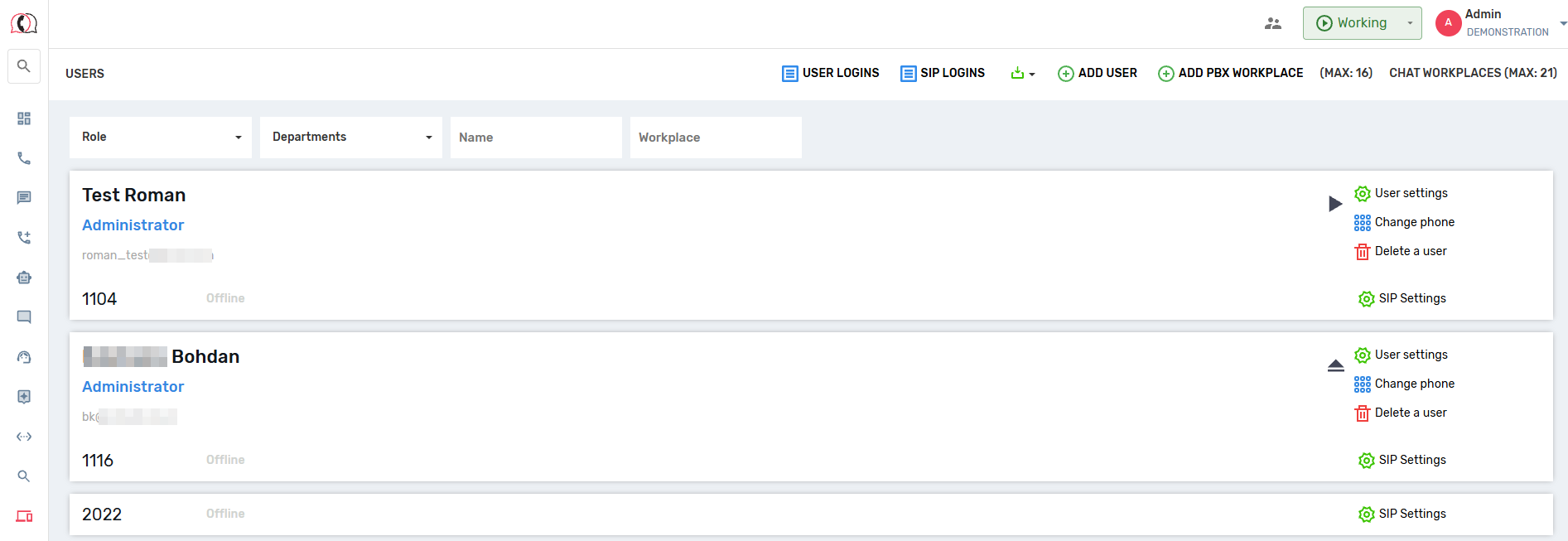
3. Create internal UniTalk extension numbers for each sales manager. To do this, go to your UniTalk personal account → Settings → Users, and add the required number of extensions.
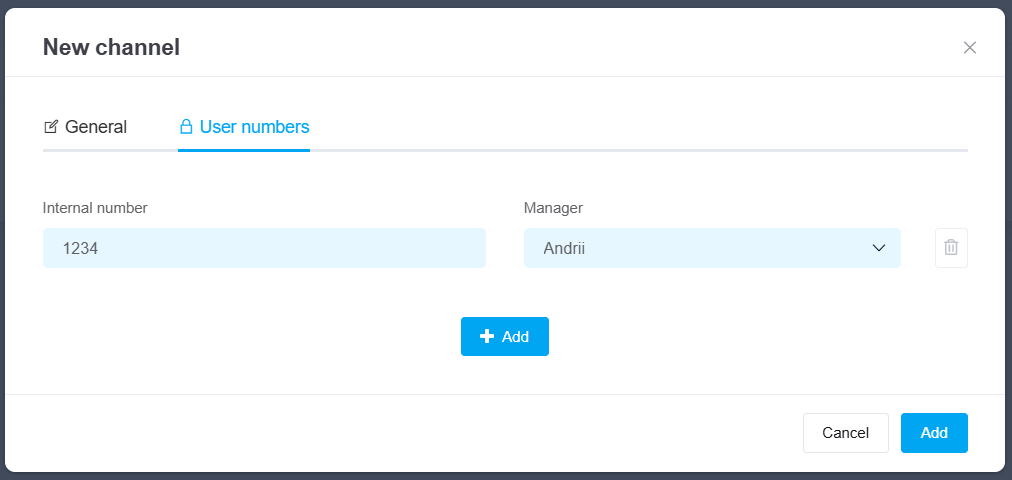
4. Log back into KeyCRM and open the Employee Numbers tab, enter all users who will use the telephony, their names and UniTalk line numbers.
5. Next, set up a webhook in UniTalk. To do this, go to the telephony settings and copy the link to the webhook.
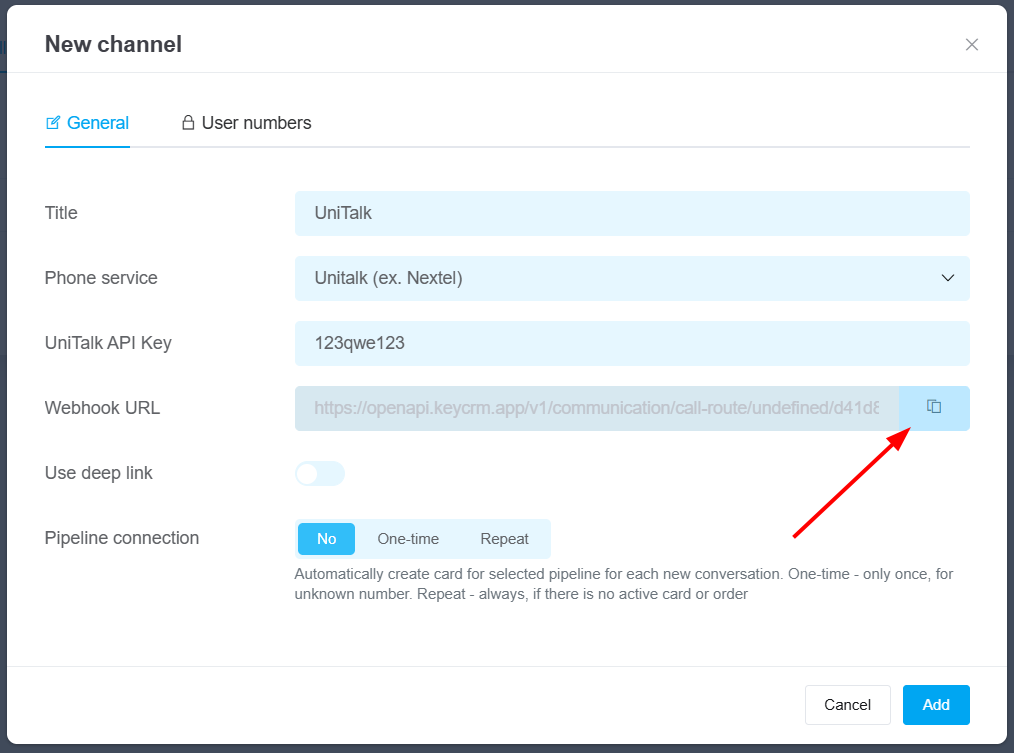
6. Paste the copied link into a webhook in your UniTalk personal account under “API and Automation” – “Event Handlers”. In this section, click “Add” to start creating a new webhook.
Then, fill in the webhook details as follows:
- Name – any name for the event handler (used only within your UniTalk account for easy management);
- URL – the address to which the request will be sent; insert here the link provided by the Key-CRM system;
- HTTP Method – leave it as POST;
- Request Body – select standard JSON, which is a template automatically generated by our system.
- Leave the other parameters as default and save the event handler.
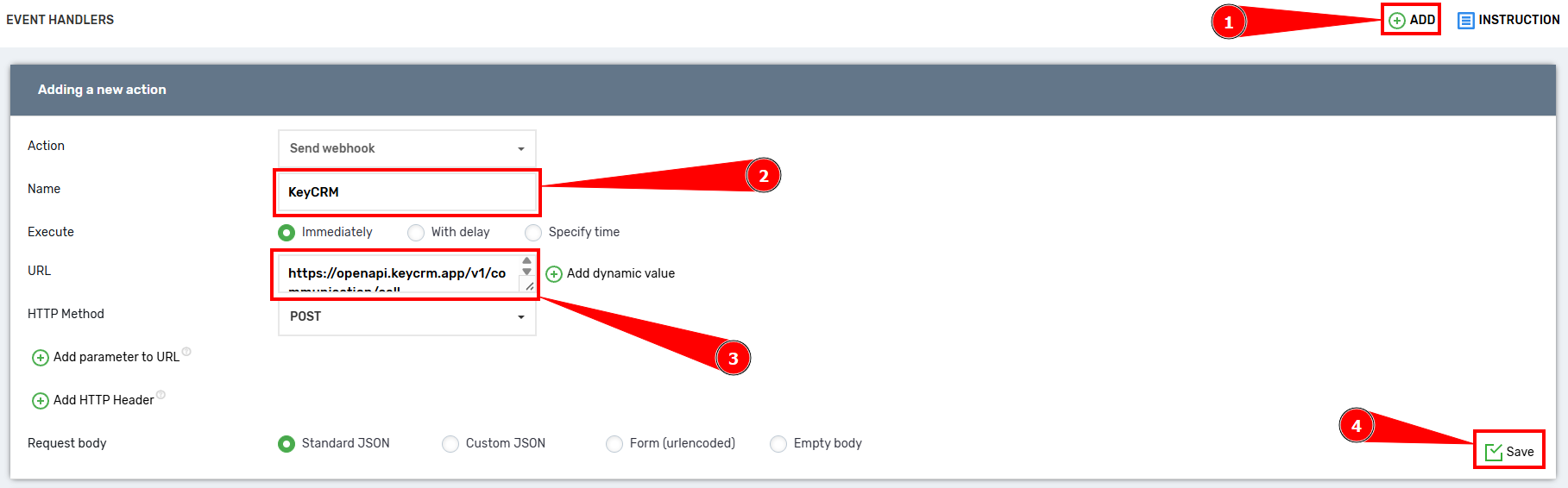
7. After saving, go to the “API and Automation” – “API” tab and add the event handler for each call event.
To do this, click the “+” icon and select the previously created event handler from the list. After adding all the necessary events, don’t forget to save the page.
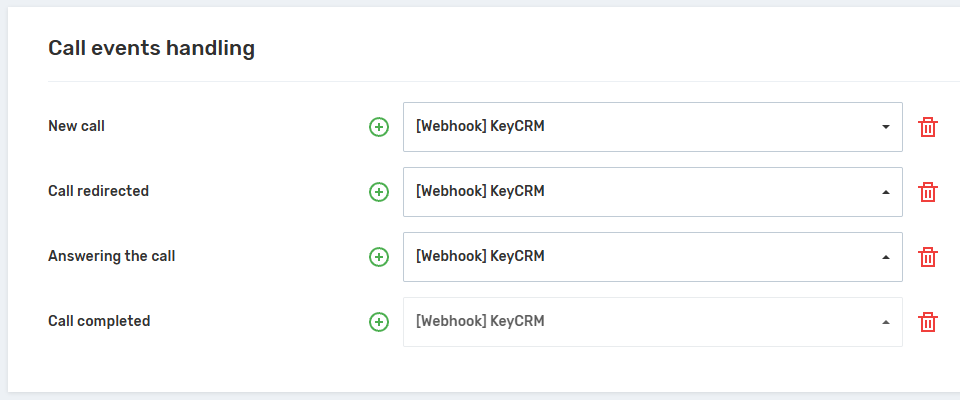
Congratulations! You have set up the UniTalk integration in KeyCRM!
How to use UniTalk telephony in KeyCRM
After setting up, the manager gets access to all the benefits of UniTalk integration into KeyCRM.
How to make phone calls from KeyCRM
When placing an order, the customer’s phone number is entered into the customer card in KeyCRM. To make an outgoing call, just click on the handset icon next to the phone number.
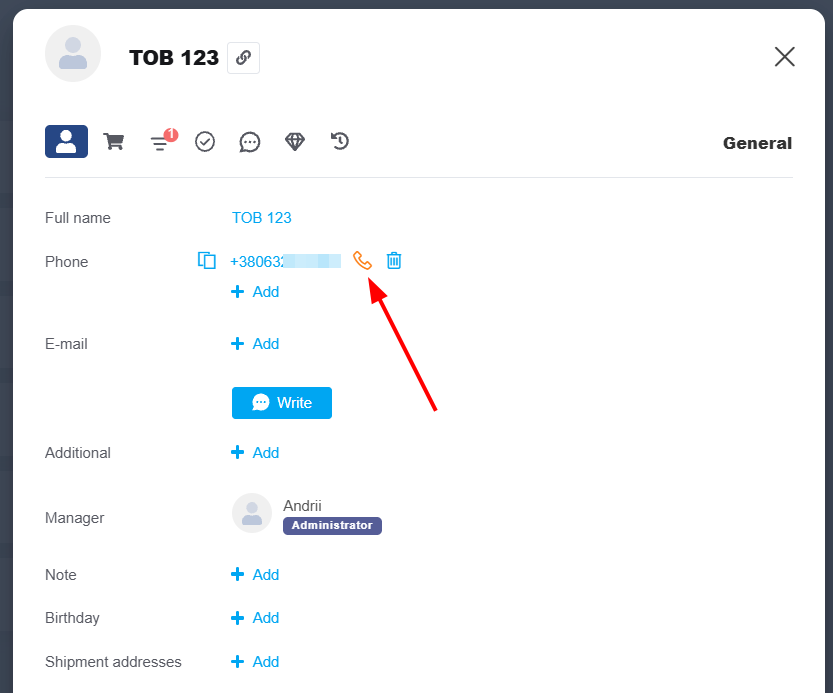
An incoming call from the telephony will appear on your softphone, which you should answer. After that, the connection with the client will start, and the client’s card will appear on the screen.
While processing an incoming call, KeyCRM will create a call record with the call time, call time, phone number, etc.

How to create a customer card
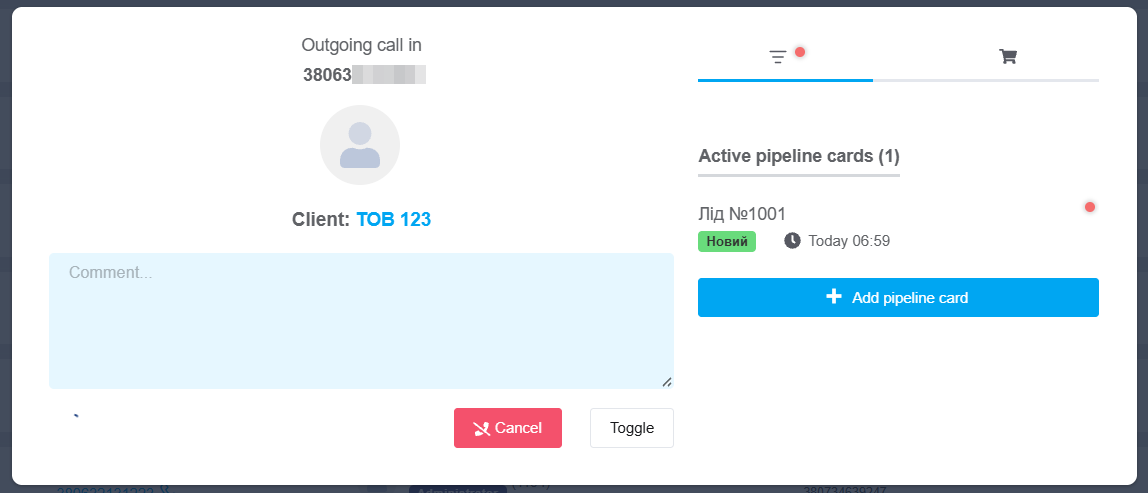
When you make an incoming or outgoing call in KeyCRM, an information window will automatically open with the following information:
- type of call;
- name and phone number;
- field for notes and comments on the order;
- call status and duration;
- button to reset the call (the card will remain open);
- button to create a customer (if the customer calls for the first time) and create an order.
If the customer calls for the first time, you can create a card and enter the data into it during the conversation. And if the customer is not new, but calls from a new phone number, you can immediately replace it in the card.
Call history
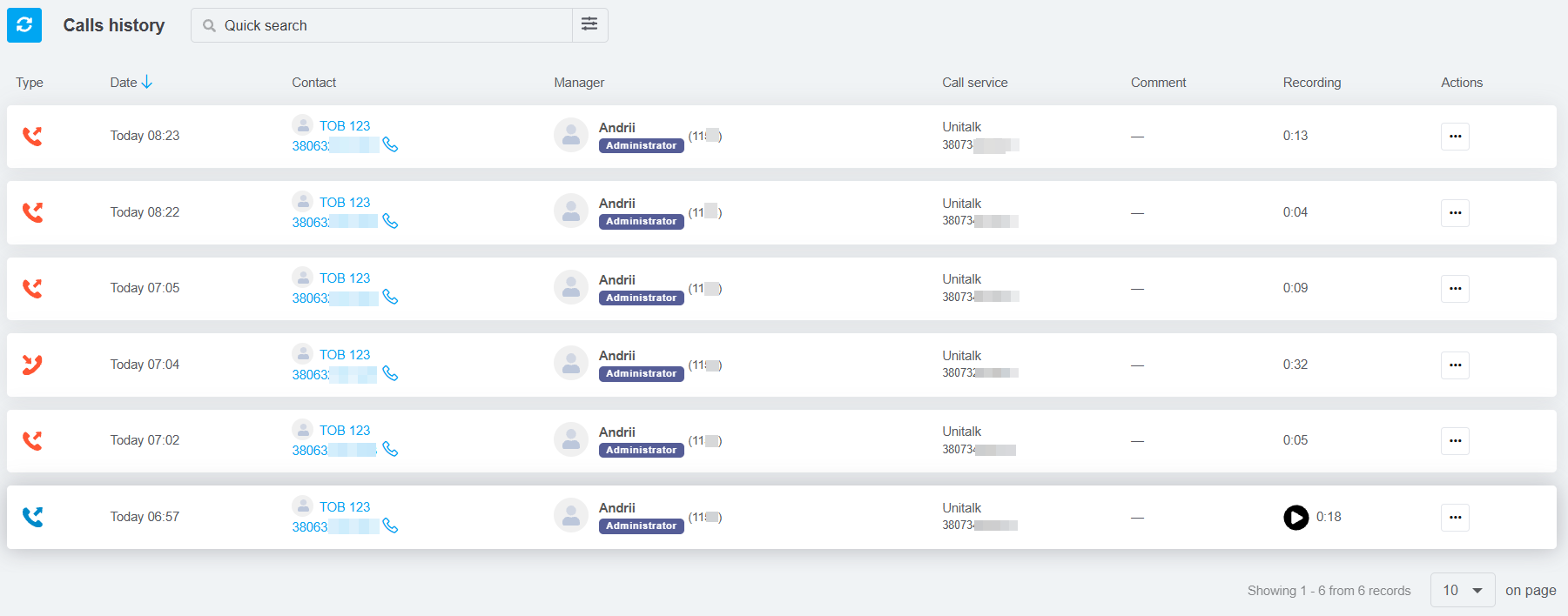
In KeyCRM, in the Sales menu, you will find the history of all calls. A convenient table records all the necessary information about the call:
- time of the call;
- name and phone number;
- responsible manager;
- comments and notes about the call;
- audio recording of the entire conversation.
The UniTalk and KeyCRM integration enables your team to work faster and collect objective data for every sale. By automating routine tasks, managers can spend more time on meaningful customer interactions. If you have any questions during setup, our technical support is available 24/7.



