Instructions for connecting and configuring UniTalk integration with G-PLUS CRM
Go to the G-PLUS CRM integration page in the UniTalk Personal Area and click “Connect”.
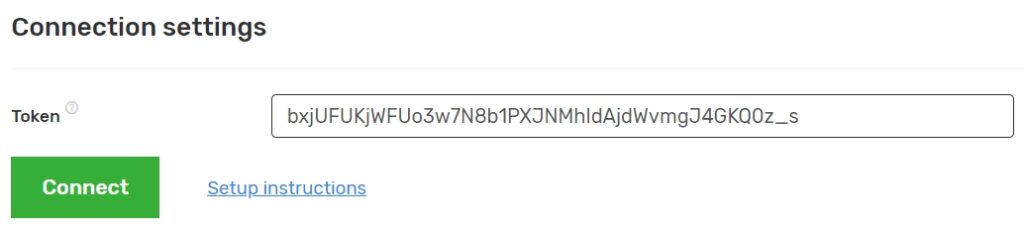
The token is indicated in the G-Plus CRM Personal Area on the Integrations page in the Available integrations/UniTalk section in the Webhook address field as the last segment of the path.
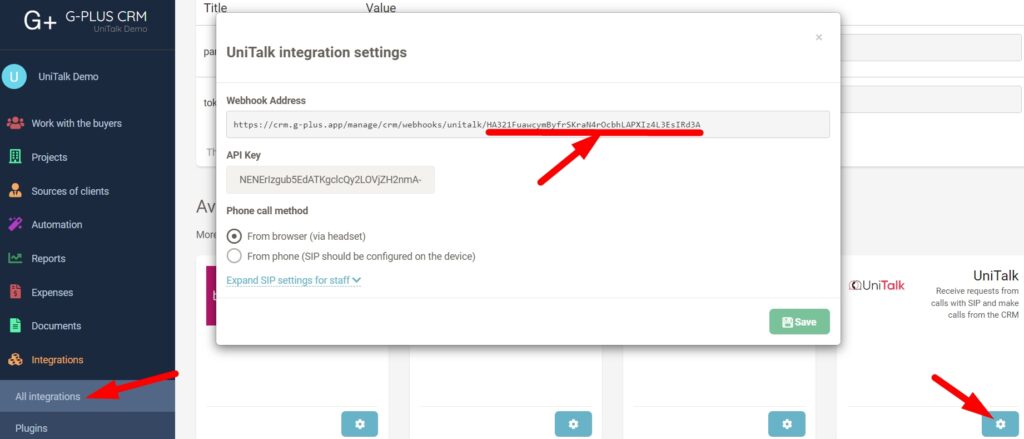
Integration settings
- In your UniTalk personal account, in the G-PLUS CRM integration section, in the Settings block, select the checkboxes to perform the appropriate actions.
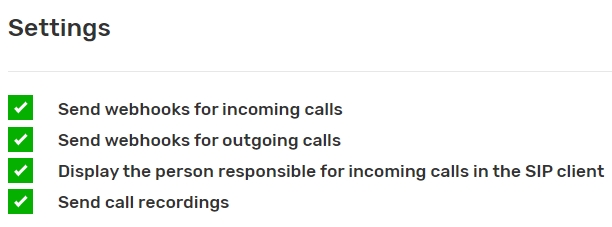
2. When the Send webhooks for incoming calls checkbox is enabled, webhooks will be sent to the CRM system when incoming calls are received before they are completed, as well as when incoming calls are received after they are completed.
3. By enabling the Send webhooks for outgoing calls checkbox, webhooks will be sent to the CRM system when outgoing calls are made after they are completed.
4. When enabling the “Display the person responsible for incoming calls in the SIP client” checkbox, you must additionally enable the “Display caller name” checkbox in the “Users” section of the UniTalk personal account for each user in the “SIP settings” block.
5. To add a call recording to a lead card, select the Send call recordings checkbox.
6. Enter the user’s email address from the entity card of the Staff section of G-PLUS CRM, and select the UniTalk operator.


In the G-PLUS CRM Personal Area, on the Integrations page, in the Available integrations/UniTalk section, in the Employee settings subsection, for each employee, in the E-mail or extension number field, enter the UniTalk extension number.
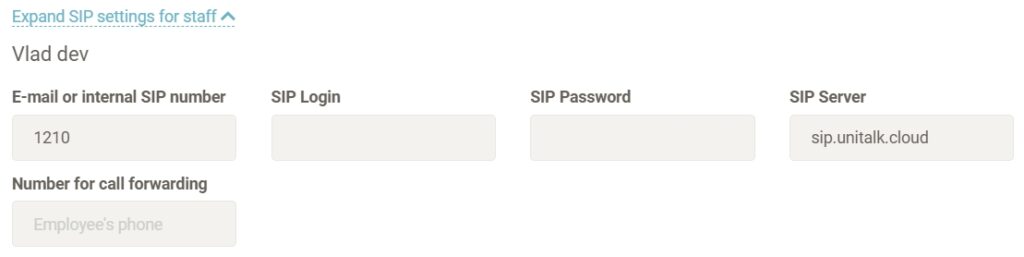
The extension number of the UniTalk operator is specified in the UniTalk OK on the Users page.