


Instructions for connecting and configuring UniTalk integration with NCRM
Integrating UniTalk with NCRM allows you to unite your communications and sales management system into a single ecosystem. This enables you to automatically create customer records, log call history, listen to call recordings directly from the CRM, and effectively assign responsible managers.
1. Connection
Go to your UniTalk personal cabinet, navigate to the NCRM integration page, and click the “Connect” button.
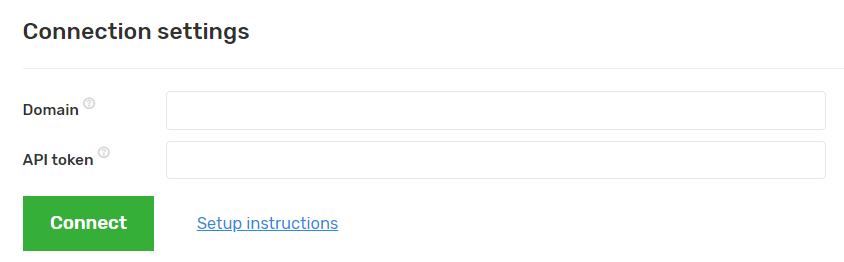
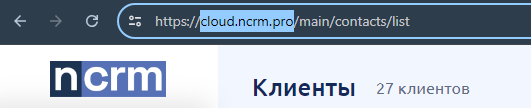
- Domain: Enter the domain displayed in your browser’s address bar when you are logged into your NCRM account.
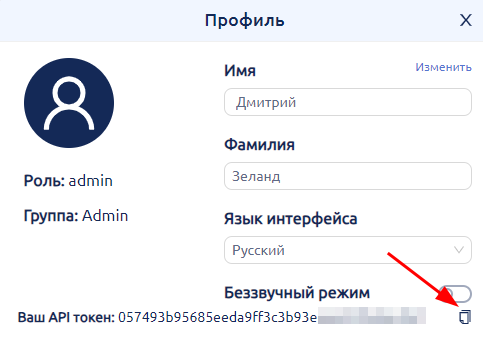
- API Token: Enter the token found in your NCRM account under the “Profile” section (field “Your API Token”).
- Note: If the “Your API Token” field is not displayed, please contact NCRM technical support.
2. Settings
To configure the main parameters, go to the NCRM settings page in UniTalk and check the necessary options:
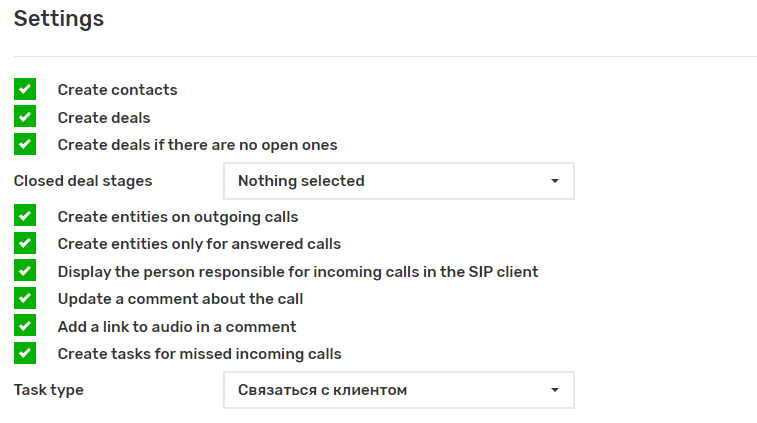
- Record Creation Logic:
- If the “Create contacts” checkbox is disabled, but “Create deals” is enabled, deals will only be created for existing contacts.
- “Create deals if there are no open ones”: A new deal will only be created if the contact’s last deal is already closed (has a final status).
- Outgoing Calls: Enabling “Create records on outgoing calls” ensures that contacts and deals are created in the CRM when a manager calls a new mobile number.
- Successful Calls: The option “Create records only for answered calls” restricts record creation to calls where a conversation actually took place.
- SIP Name Display: To see the responsible manager’s name during an incoming call, enable “Display responsible on incoming calls in SIP client”.
- Important: Additionally, in UniTalk -> Users, the “Display caller name” option must be enabled for each employee in the “SIP Settings” block.
- Call Recordings: Enable “Send call recordings” to have a link to the audio recording added to the comments of the customer card or deal.
- Tasks: Enable “Create tasks for missed incoming calls” and specify the task type to automatically schedule a callback.
3. Default Responsible Distribution
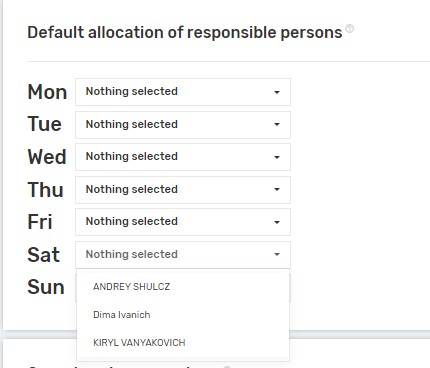
This block determines which user will be assigned as responsible if the system cannot determine one automatically (e.g., a missed call from a new client, a call handled without an operator, or the operator’s number is not mapped in settings).
- Select responsible users from the dropdown lists next to the days of the week.
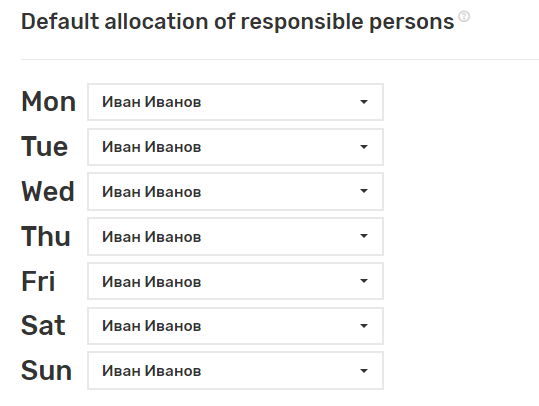
- If multiple users are selected for a single day, the system will choose one at random.
4. Operator Phone Numbers
This block allows you to map NCRM users to UniTalk telephony lines.
In the text fields next to user names, enter the internal extension numbers or mobile numbers they use, separated by commas.


- Important:
- You cannot assign the same number to multiple operators.
- Do not use internal lines that do not exist in the project.
- You can use a personal number (not used in the project) or an FMC number as a phone number.
- It is forbidden to specify the project’s external lines (company SIP numbers) to avoid cyclic call processing
Routing Logic:
When an incoming call occurs, UniTalk checks for the client in NCRM. If a responsible manager is found, the call is routed to the first number listed for that user in this settings block.

When processing a call requires creating or modifying an entity in the integrated system, the person responsible is selected based on the number of the operator who received or made the call. If such a match cannot be established, the person responsible is selected based on the settings in the “Default Distribution of Responsible Persons” block.
When processing an incoming call according to the incoming scenario and using the “To the responsible manager” redirection with the “In the CRM system” option, requests are made to the integrated systems to check for the presence of records corresponding to the subscriber’s number and the responsible manager in them. If such a record is found, the call is forwarded to the first number specified in the “Operator phone numbers” block:
5. Deal Distribution by Funnels (Segments)
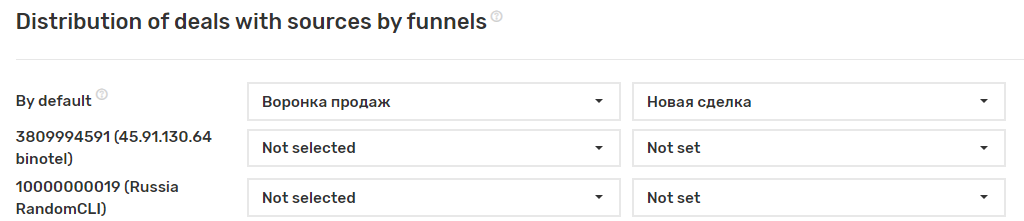
The “Distribution of entities from sources by segments” settings block allows you to specify in which segments of the integrated system entities will be created.
Segments are internal categories of entities in the integrated system, such as funnels, stages, statuses, etc.
Segments and entities vary depending on the integrated system and the completeness of integration and are reflected in the name of the block.
Select which funnels (pipelines) and stages deals will be created in, depending on the call source.
- Map UniTalk sources to NCRM funnels and statuses in the settings table.
- Filling in the field for the “Default” source is mandatory.
- Some settings are linked: selecting a funnel may change the list of available stages.
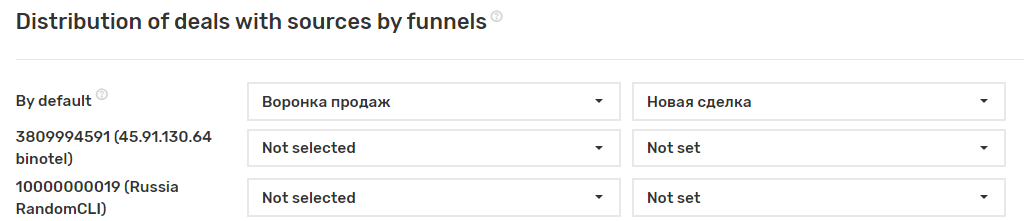
If the table contains a “Default” source, it must be filled in:
Each field is a drop-down list, and the list of valid values corresponds to that presented for a specific segment in the integrated system:
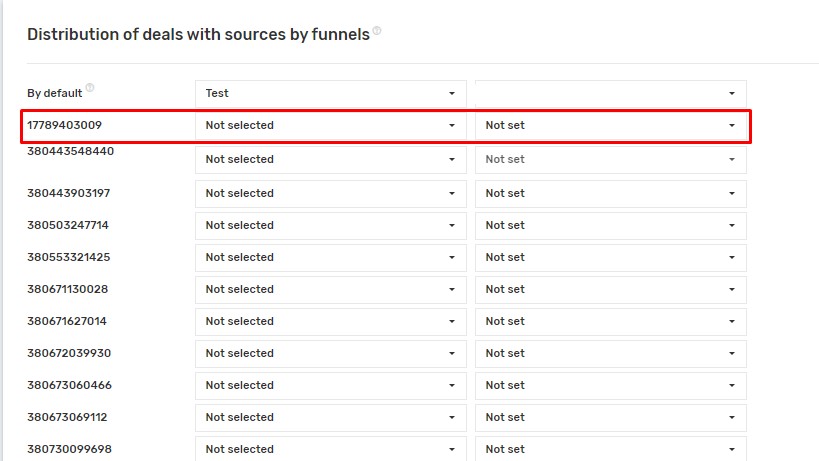
Some segments may be linked. For example, the selected deal funnel may determine the list of acceptable stages.
6. Filling Fields (Contacts and Deals)
As part of the connected integration with NCRM, you can fill in the Deal and Contact fields.
The “Fill in entity fields” settings block allows you to specify the values that will be used to fill in the entity fields when creating them. There may be several such blocks within the integration settings, each of which corresponds to one of the entities of the integrated system. The entity to which the setting applies is indicated in the block name. Blocks are hidden if no suitable fields to be filled in were found in the entities of the integrated system.
Settings
The block displays the names of fields available for filling in for the corresponding entity of the integrated system in several columns:

Clicking on the name opens an input field. There are several options for filling it in:

The field allows you to enter a value from a list defined by the integrated system itself
The field is filled with one of the dynamic UniTalk values.
The field is filled with a static value that is specified manually.
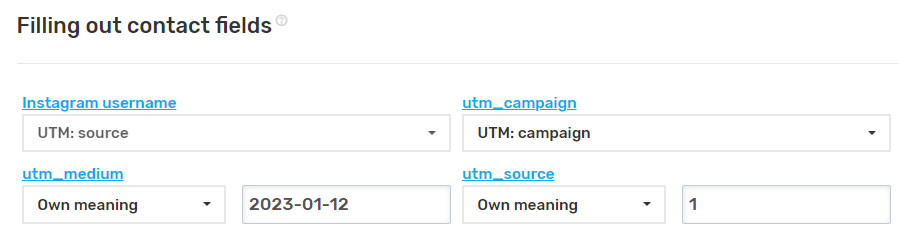
How it works
When creating a corresponding entity in the integrated system, in addition to the basic data defined by the integration settings, the data configured in this block is also transferred. Dynamic values may be missing depending on the circumstances and events under which the entity is created.
For example, when creating an entity based on an incoming call, there are no values associated with calls
The fields of the integrated system may have requirements for filling in. In cases where the value selected in accordance with the block settings violates these requirements, the creation of the entity may end with an error. Repeated attempts to create it are not made and the entity will not be created, which in turn may disrupt the integration.
NCRM requirements for filling in fields:
- The value of a “Flag” field can be either ‘0’ (Off) or “1” (On);
- The value of a “Date” field must be entered in the format “yyyy-mm-dd” (for example, 2024-01-01).
7. CRM Event Processing (Webhooks)
To automatically execute an event handler when a deal is created or its status is changed to the specified one, select the appropriate event handler.
For each event, you can configure the execution of up to one webhook or not specify it at all.
Deal statuses are displayed for all existing funnels in CRM.
In your UniTalk account, copy the URL from the integration settings page.
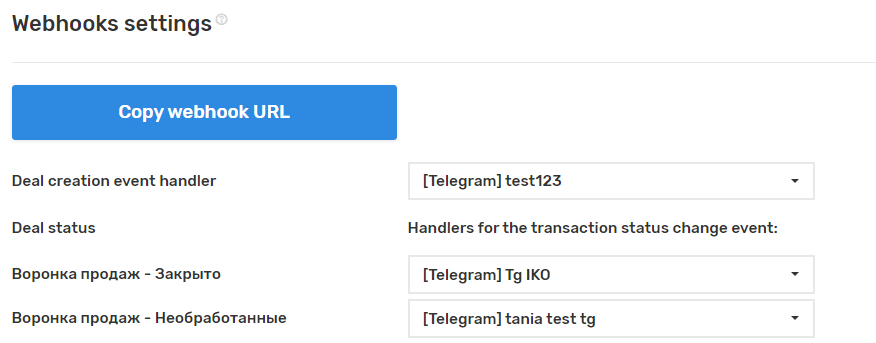
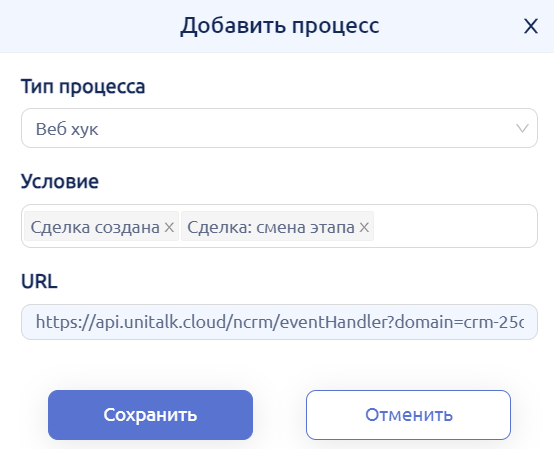
In your NCRM personal account, in the “Settings/Business Processes” section, add a process when creating a deal and changing its status:
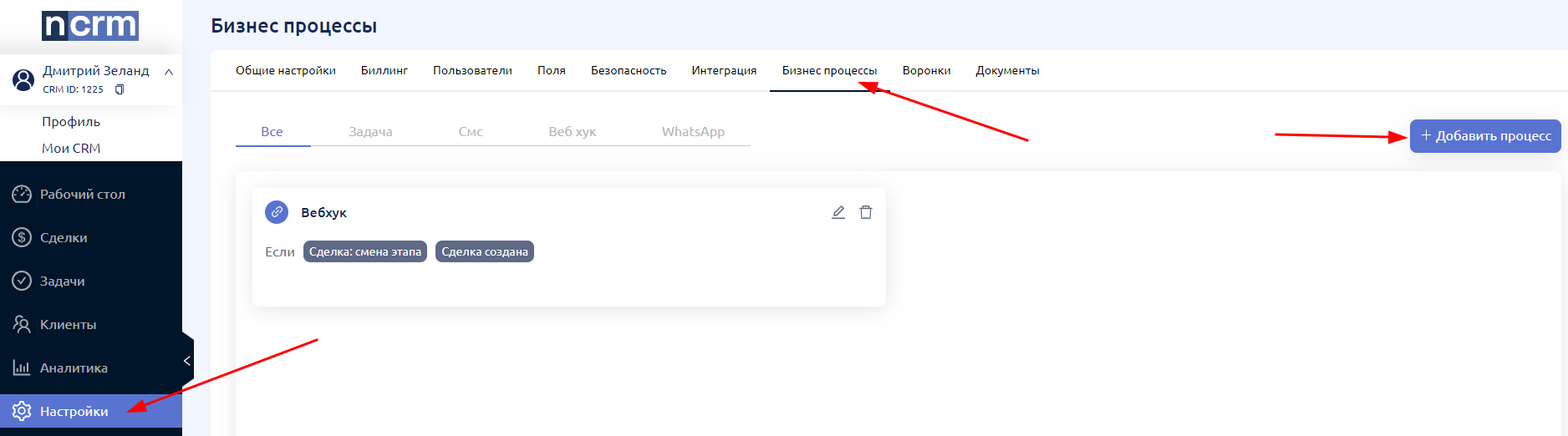
Add a process with the following parameters:
- Process Type: “Webhook”.
- Condition: “Deal created” or “Deal: stage change”.
- URL: Paste the copied address.
Result: When the event triggers (e.g., “Add number to auto-dialing”), the deal ID will be recorded in the client’s notes.
Conclusion
The integration setup is complete. Your telephony system and CRM are now working in sync, automating routine processes and preserving your entire communication history.



