


Instructions for Setting Up the Unitalk Mobile App on iOS
The UniTalk Mobile App transforms your iPhone into a fully functional workspace for operators and managers. It allows you to stay connected with your customers even outside the office, maintaining access to your corporate line and call history. This guide details the installation process and two methods of authorization within the app.
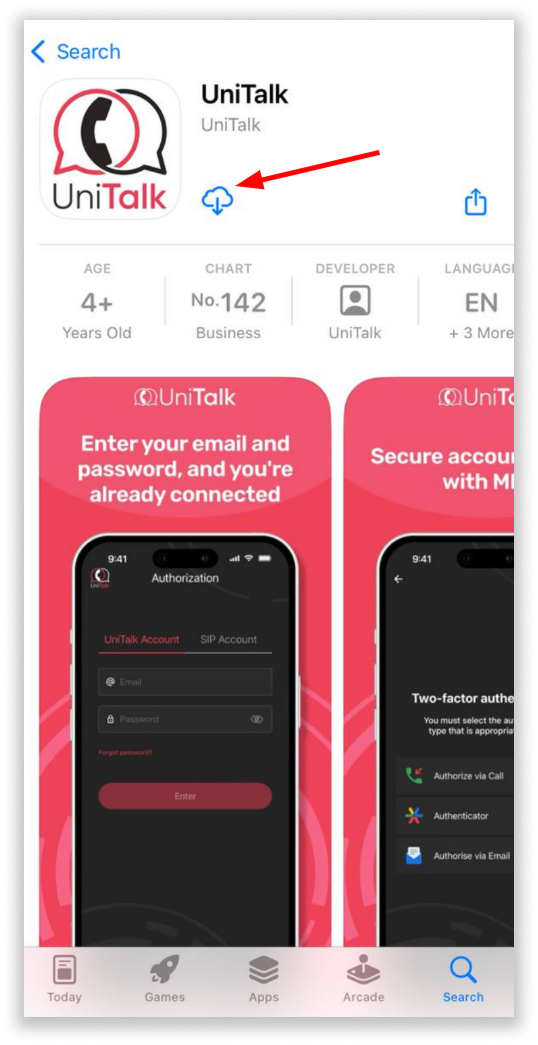
To download the UniTalk app on your smartphone, follow the link in the App Store. Click “Get”, then confirm the installation by selecting “Install”.
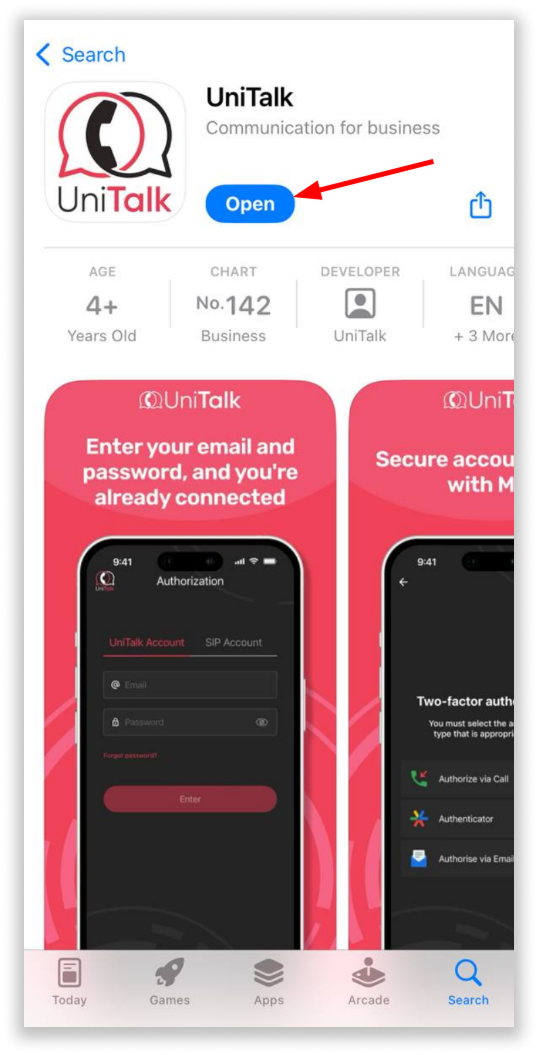
After the application is downloaded, click “Open”.
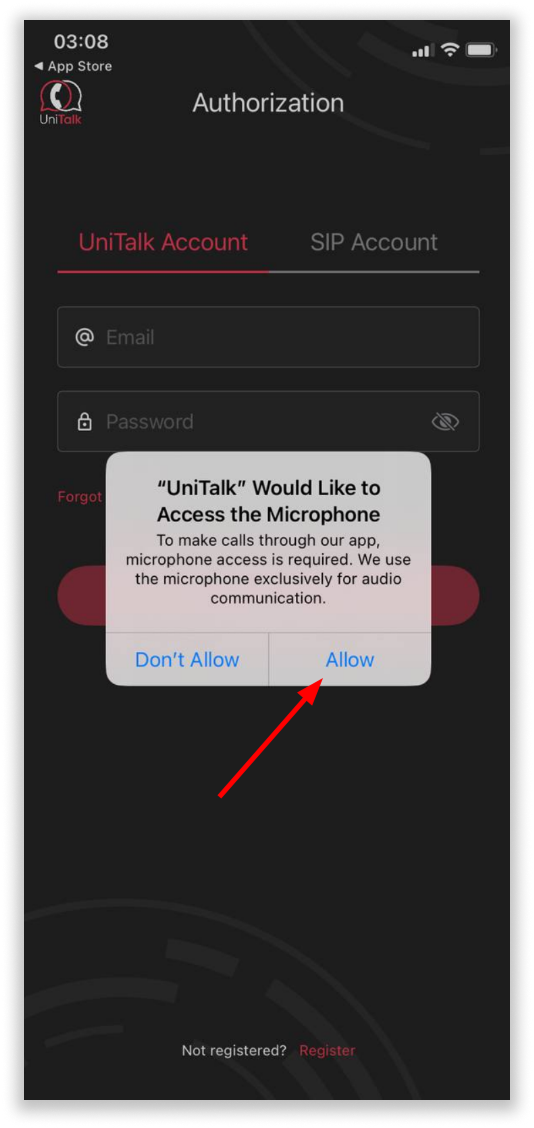
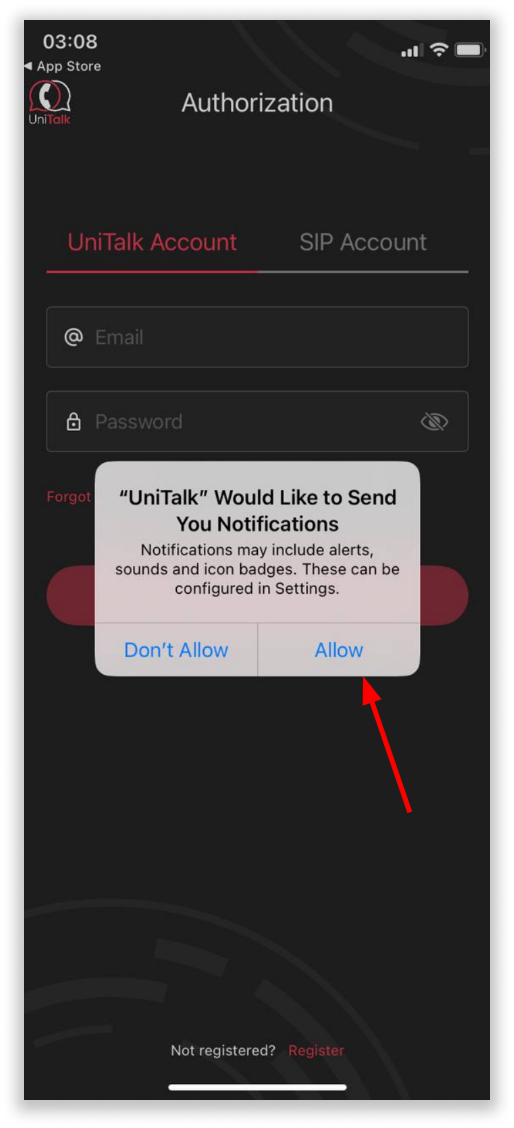
When launching the application for the first time, it is necessary to grant permission for:
- Microphone access
- Sending notifications
After this, you will be presented with two authorization options:
1. Using your UniTalk account credentials
2. Using SIP account credentials

Authorization Using UniTalk Account Credentials
Authorization in the UniTalk Mobile App is available using the credentials from your UniTalk personal account. However, for this to work, your account must have an assigned active SIP line in the project.
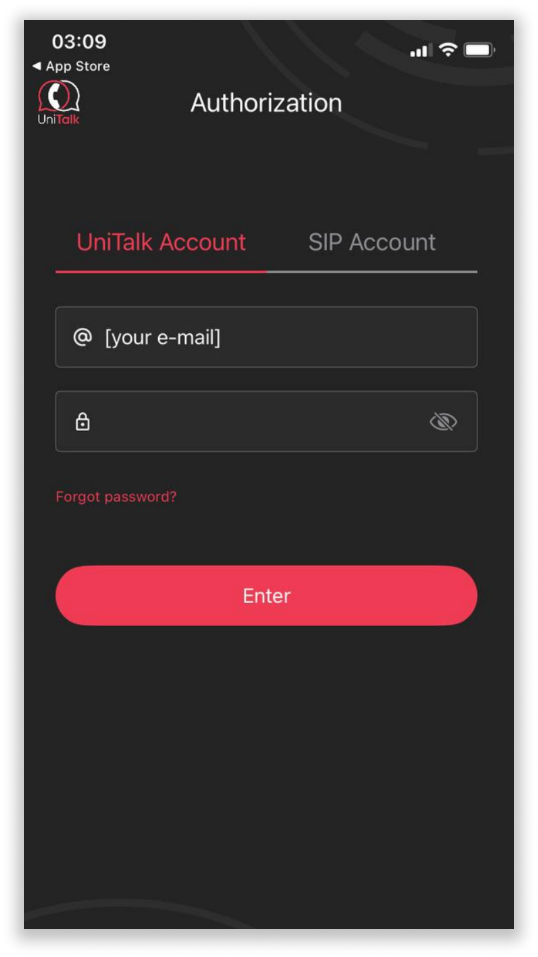
Enter your login and password from your UniTalk personal account. In the login field (“[your e-mail]”), enter the email address that was used during registration.Then click “Enter”.
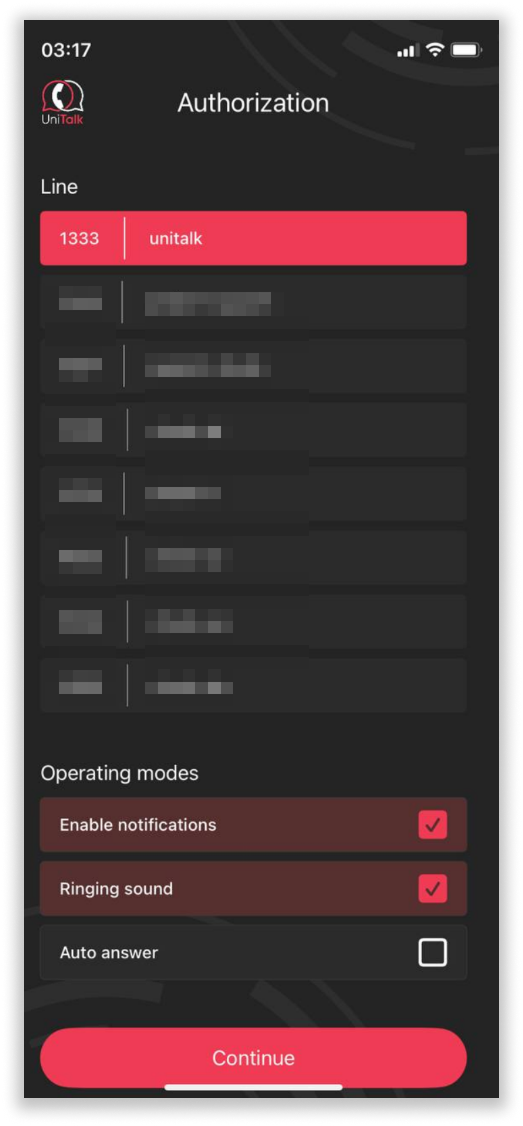
If your account is linked to multiple projects, select the appropriate project. To receive incoming calls, enable call notifications and click “Continue”.
✅ Done! Authorization is complete, and you can now use the app to make and receive calls.
On the main screen of the application, you will find:
- Your assigned SIP line number
- Button to manage work status
- Button to access account settings
- Call history (with the ability to view calls from previous days and only missed calls)
- Dial pad button for entering a phone number
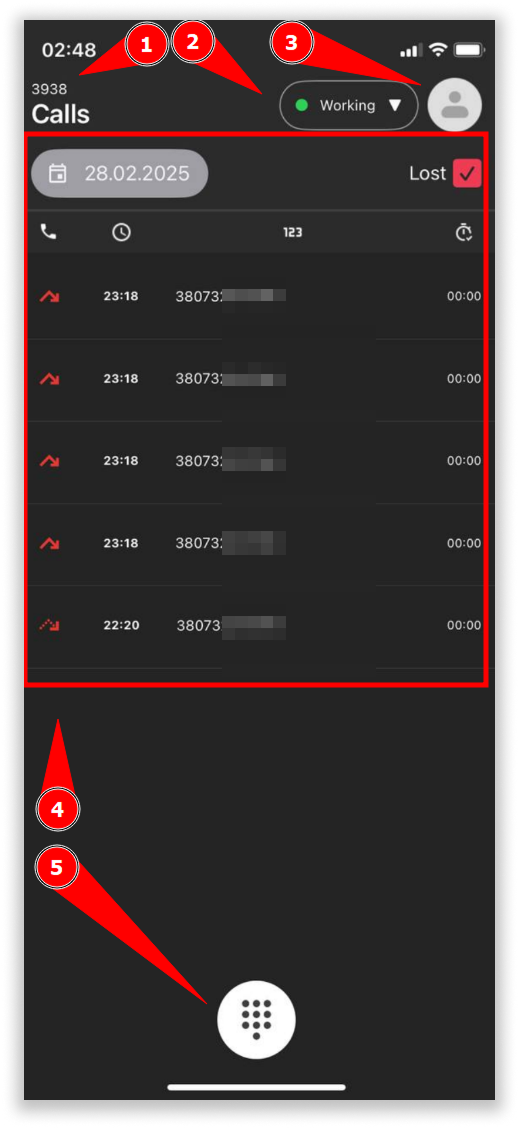
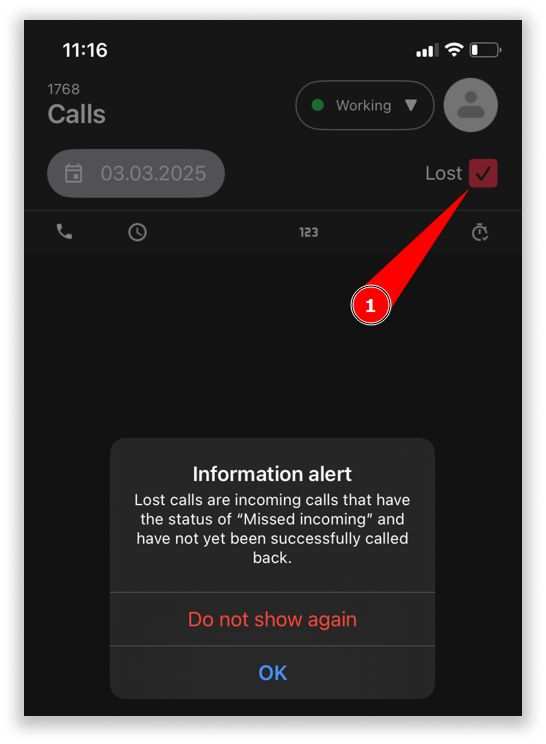
To view lost calls, activate the “Lost” checkbox.
After that, an information message will appear explaining what this feature is.
To change the status, click on the button with the current work status.
There are 3 categories of job statuses:
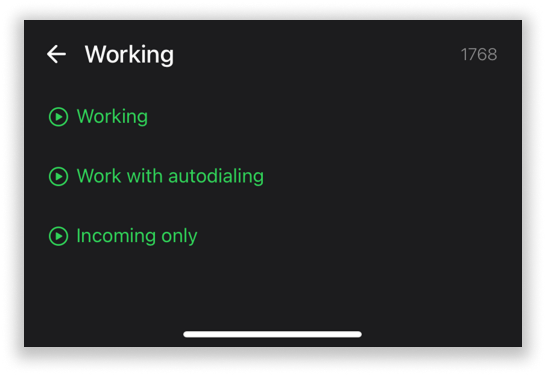
1. Working
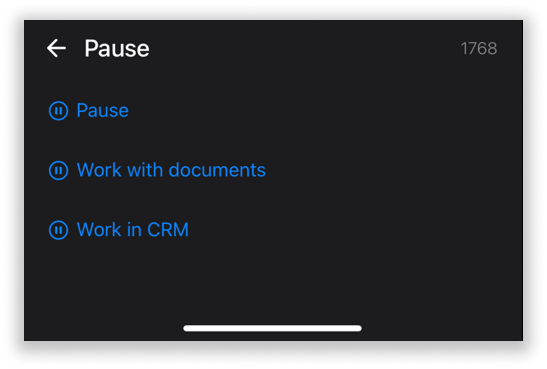
2. Pause
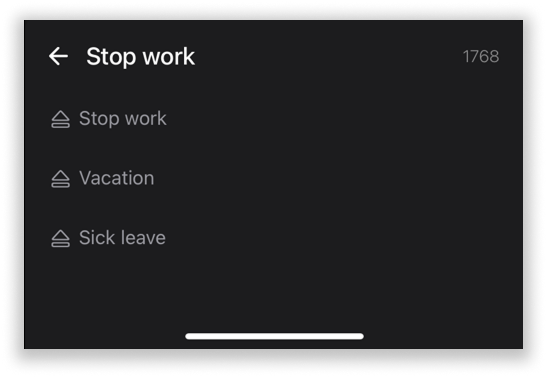
3. Stop work
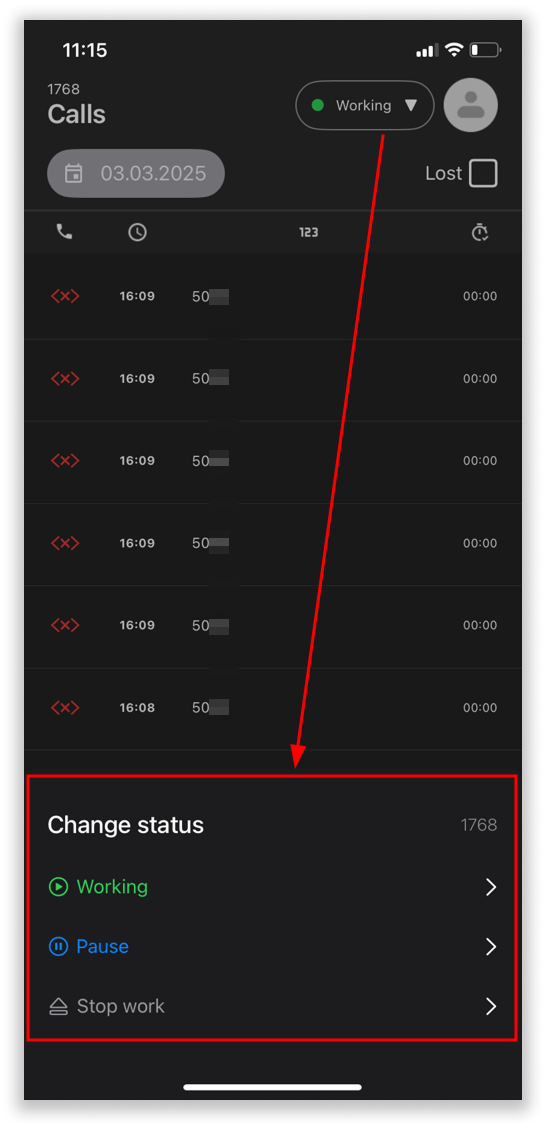
Each of the categories can have several custom statuses, which can be created and customized in UniTalk account.
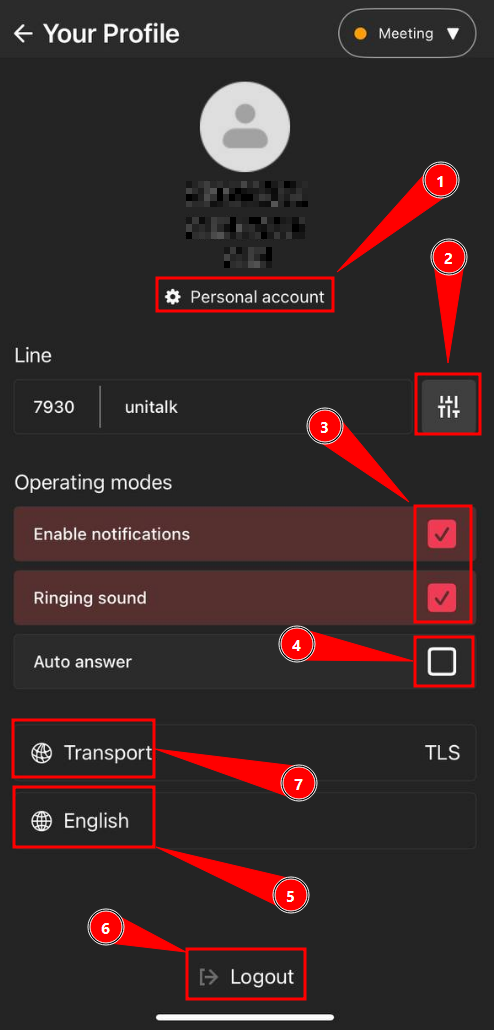
In the account settings menu, you can:
1. Open the UniTalk personal account page in a browser
2. Switch between SIP lines of your projects
3. Enable/disable call notifications
4. Set up automatic response to incoming calls
5. Change the interface language
6. Log out of the account
7. Change transport protocol
Authorization Using SIP Line Credentials
You can also log in to the app using your SIP line credentials. In this case, the SIP line does not need to be assigned to a specific user in the UniTalk project.
Steps for SIP Authorization:
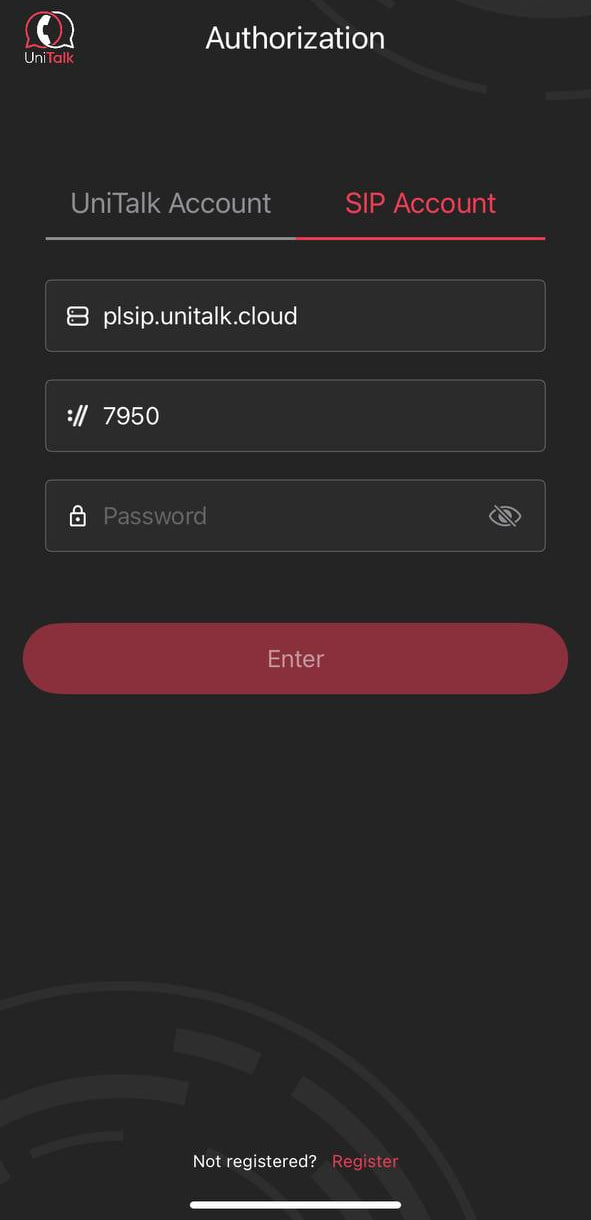
1. Select the SIP account tab.
2. Enter the required SIP line registration details.

You can find this information in the UniTalk personal account of your project, under the “Users” section. Navigate to SIP Settings, and copy the credentials for the working SIP line:
- Server: registration server address
- Login: SIP line number
- Password: SIP client password
After filling in all the fields, click “Enter”:

Done! Authorization is complete, and you can now use the application to make and receive calls.
The setup of UniTalk Mobile App on your iOS device is complete. You can now manage calls, handle your work statuses, and track “lost” calls directly from your smartphone. For stable operation, we recommend ensuring a reliable internet connection. If you have any questions regarding status configuration or SIP lines, our UniTalk support team is always ready to assist.



