


Setting up the types of conditions for the Voice Robot
The effectiveness of the Voice Bot directly depends on its ability to accurately recognize client intent. In UniTalk, we offer an advanced set of condition types—from simple phrases to complex recognition of numbers, time, and word similarity. This allows you to create dialogue branches that react not only to exact commands but also to natural language, synonyms, and variations in pronunciation. You gain a tool to build maximally flexible scenarios that ensure a high percentage of successful recognition and minimize communication errors.
For convenience, the terms and conditions are divided into sections.


Special conditions:
- Special conditions are available only when you add a new group of conditions. That is, you cannot add a special condition to an existing group.
- Special conditions are processed last, regardless of the priority in the condition settings.
- You cannot specify a transition to background work in conditions.
- You cannot specify more than one node in child nodes.
- The condition “The recognized text does not meet any condition and the timeout has expired” must be specified once in the children of the same node (so that you know where to go if none of the conditions are met).
The phrases
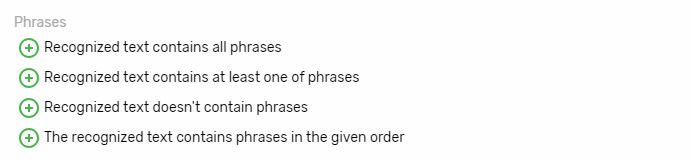
You can specify which phrases the recognized text should or should not contain. You can specify any number of phrases (the Add Phrase button).

When saving, phrase conditions are formatted:
- everything is deleted except letters, numbers and spaces
- are reduced to lower case
- many spaces between words are replaced with single spaces
- spaces at the beginning and end of a phrase are removed
The words

You can specify which words the recognized text should or should not contain. You can specify any number of words (the “Add word” button).

Words cannot contain spaces. When saving the condition, the words are formatted:
- everything is deleted except letters and numbers
- are converted to lowercase
The numbers
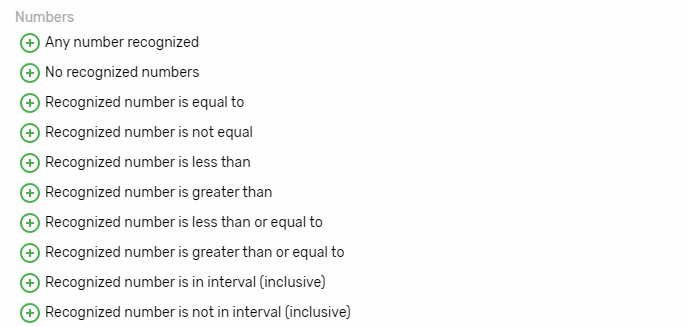
You can specify which numbers should be in the recognized text. For conditions other than “Any number recognized” and “No numbers recognized”, you must specify any number or number range and specify how the number is to be selected.

There can be several numbers in the recognized text, and to check the condition, you need to select only one number using the “Number selection method”. The following options are possible:
- First number
- Last number
- Smallest number
- The largest number
- Arithmetic mean (rounded)
- Each number (compared to the number and if at least one of the numbers matches, the condition is met).
- Glue numbers – the recognized numbers will be glued together. For example, if the recognized text contains the numbers 5, 12, and 7, then the number 5127 will be compared with the number from the condition.
The time
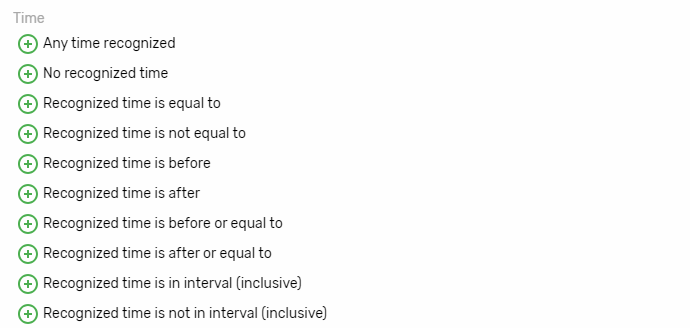
You can specify which time periods should be included in the recognized dates. A date can be recognized if the caller says the phrases “tomorrow”, “in a week”, “on May 5”, etc. There can be several recognized dates, you can see the list of recognized dates in the history of voice robots in call forwarding.
Dates from the caller’s conversation are recognized relative to the project’s time zone.
For conditions other than “Any time recognized” and “No time recognized”, you must specify the following settings:

You can select the following options in the settings:
1. Method of setting the time. The selected option determines how the time for comparison will be set in the Time field or in the Time from and Time to fields.
- Date
- Date and time
- Relative date and Relative date and time. Allows you to specify how much (in hours, days) the time should be shifted relative to the current moment when the robot is working.
2. Time selection method. There can be several recognized dates, and this setting determines which one should be selected for comparison with the time specified in the condition.
- First date – the first date in the list of recognized dates
- Last date – the last date in the list of recognized dates
- Oldest date
- The newest date
- Each date – each of the recognized dates is compared
Text

Text settings specify how text should or should not be recognized. Yes, the text is formatted:
- everything is deleted except letters, numbers and spaces
- lower case is used
- many spaces between words are replaced by single spaces
- spaces at the beginning and end of the text are removed
Substrings

Substrings differ from text in that they can begin and end in the middle of words. For example:
- recognized the text: “I want the red door”
- a substring in the text: “I want the red one”
- a phrase in the text: “I want the red one”
- a substring in the text: “I want the re”
- the text is missing a phrase: “I want the re”
Substring settings specify which substrings the recognized text should or should not contain. You can specify any number of substrings.

Substrings are formatted:
- everything is deleted except letters, numbers and spaces
- lower case is used
- many spaces between words are replaced with single spaces
Prefixes of words

Prefix settings specify which prefixes words should or should not be included in the recognized text. You can specify any number of prefixes.

Prefixes cannot contain spaces. Prefixes are formatted:
- everything is deleted except letters and numbers
- are converted to lowercase
The similarity of words
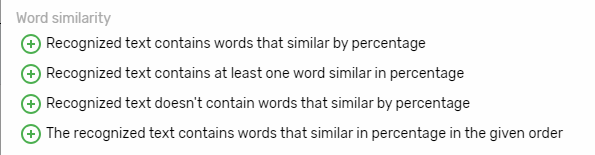
The word similarity settings specify which words the recognized text should or should not contain, but they do not check for a complete match, but rather for how similar the words are. You can specify any number of words (the “Add word” button). In addition to the words, you must specify the “Percentage of similarity” – the percentage by which the recognized text and the words specified in the condition should be similar. For example, the words “bark” and “circles” are 75% similar.
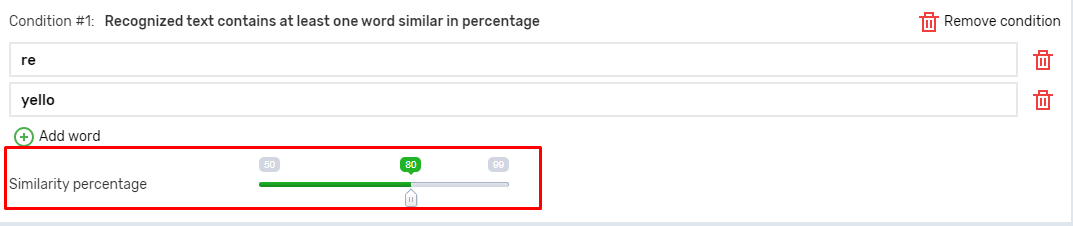
Words cannot contain spaces. Words are formatted:
- everything is deleted except letters and numbers
- are converted to lowercase
The detailed set of Voice Bot conditions, from precise recognition of numbers and dates to flexible checking of word similarity, allows you to create dialogue scenarios whose effectiveness depends on their ability to work with virtually any type of incoming information. By ensuring a clear distinction between condition groups (AND and OR logic) and mandatory handling of unexpected responses (special conditions), you guarantee that the dialogue never reaches a dead end, and the customer always receives the appropriate result or transition to a live operator.



