


Speech Recognition Settings, Audio Features, and Bot Drafts
The effectiveness of a Voice Bot depends 90% on its ability to accurately understand a client speaking different languages or at varying speeds. At UniTalk, we have integrated advanced speech recognition settings (based on Google) that allow you to manage two languages simultaneously, and configure sensitivity and speed of result retrieval. Furthermore, you get a flexible tool for audio creation: from dynamic speech synthesis (TTS) using dialing parameters to utilizing SSML and silence. This ensures maximum dialogue naturalness and guarantees that no bilingual client is ignored.
How does the robot select recognition results if two languages are specified in the recognition settings?
Google’s recognition system sends intermediate results as the subscriber speaks, and after about 1.5-2.5 seconds, when the subscriber has finished speaking, it sends the final recognition result.
The language for which the final result is received first will be selected. If it arrives for both languages at the same time, the one with the highest accuracy percentage, as determined by Google, will be selected.
If you enable “Don’t wait for the final result” in the speech recognition settings and the last intermediate result came more than 2 seconds ago, it will be considered the final result.
Subscriber speech settings are created on the Recognition settings page. Currently, only Google’s recognition system is available.
General settings
- Name – the name of the profile
- Setting the primary language
- Setting up an alternative language
- The alternative language doesn’t have to be the same as the main language, it’s not necessary to specify it. Recognition of the alternative language is charged separately.
Google recognition features
- Google has languages that support advanced recognition (tailored to phone calls) and those that don’t.
- The list of languages available for selection in the Settings:
- English (US) – supports improved recognition
- English (GB) – supports improved recognition
- Ukrainian
- russian – supports improved recognition
- Polish
- If you need a language that is not listed, contact tech support.
- During recognition, Google sends intermediate results while the caller is speaking, and the final result after a while.
- For languages that support improved recognition (russian, English), the final result comes about 2 seconds after the subscriber has finished speaking.
- For languages that do not support enhanced recognition (Ukrainian, Polish), the situation is unstable: the final result can come in 2 seconds or even a minute after.
Settings:
- Use an advanced recognition model. Available only for languages with advanced recognition. Speeds up the final result by about 10%, but intermediate results are less precise.
- Don’t wait for the final result. If we don’t receive another intermediate or final result within 2 seconds after receiving an intermediate result, the result will be accepted by the voice robot without waiting for the final result. This setting was added specifically for languages that don’t support advanced recognition. We do not recommend enabling it for languages that do support advanced recognition.
Features of audio
You can define audio and alternative audio not just as a single audio project, but as a set of parts.
Parts of the audio can be:
- audio project

For audio to be available to voice robots, it must be uploaded in the “Voice robots” section of the audio page. The maximum possible audio length is 5 minutes; if it is longer, it will be cut off when uploaded.
- silence
The maximum possible silence duration is 10,000 milliseconds (10 seconds)
- speech synthesis

– Synthesize value – select the value to be synthesized. You can synthesize the data specified in the voice robot numbers: name, note, parameters from 1 to 10, data for Web Dialer
– Speech synthesis works only for voice robot calls. The voice robot synthesizes all audio in the robot and its background dialogs before calling the subscriber
– The “If audio synthesis fails” setting determines what happens in case of unsuccessful synthesis.
– End call – if at least one audio failed to be synthesized, the robot will not call the subscriber
– Skip audio – the parts of the audio that could not be synthesized will be skipped when playing the audio to the subscriber
If no speech synthesis settings are selected for a part of the audio, the speech synthesis settings specified in the robot’s main settings will be used.
If the parameter you want to synthesize is not present, this part of the audio will be skipped when it is played. For example, when the synthesis specifies that you want to synthesize a name from a call number, but the name is not specified.
If the value you want to synthesize begins and ends with , it will be synthesized as SSML text, not plain text.
For example, here you can see one audio that consists of four parts. When you play the audio, the subscriber will first hear the audio of the “Good afternoon” project, then 0.2 seconds of silence, then the synthesized audio with the value specified in the “Name” field, and finally the audio of the “Promotion” project.
Drafts of robots
When editing a robot, unsaved changes are saved to drafts. The list of drafts can be found on the voice robots page in the Drafts section. After saving the robot, the draft is automatically deleted. Drafts are tied to your browser and can only be viewed by you. The maximum number of saved drafts is 3.
Drafts are saved whenever you change the robot and when you move between versions of the robot in the editor with arrows, except when the left arrow is not active (in this case, no changes are made).

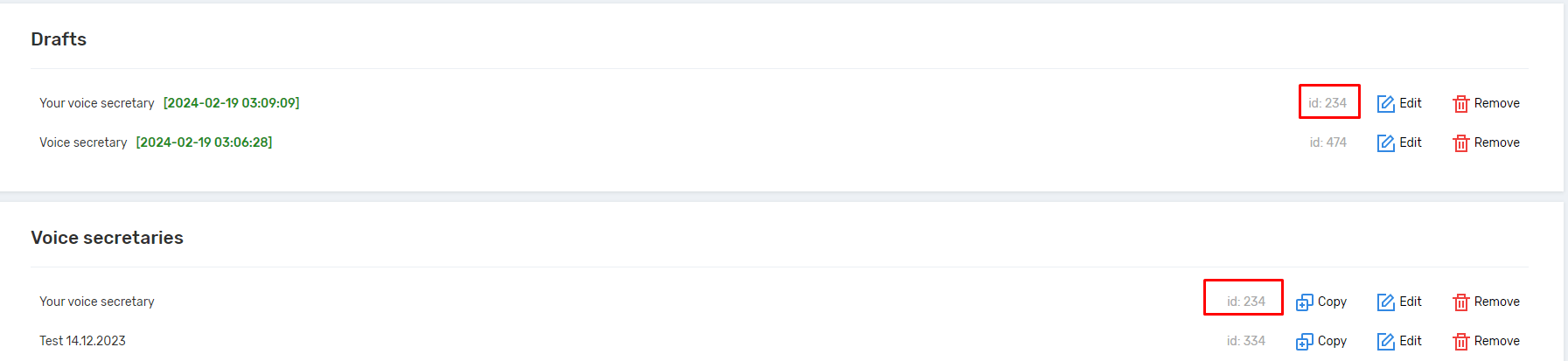
On the Voice Robots page, you can delete and view drafts. Each draft shows the id of the robot to which it belongs. If id=0, this is a draft of a robot that has not yet been saved and assigned an id.
If you go to a draft and save it, the changes will be saved to the robot with the same id, unless id=0, in which case a new robot will be created. For example:
The Window draft and the Window robot have the same id. If you go to the draft and click Save, the changes are applied to the Window robot, and the Window draft is automatically deleted.
Other settings
- Where is the language specified in the robot settings?
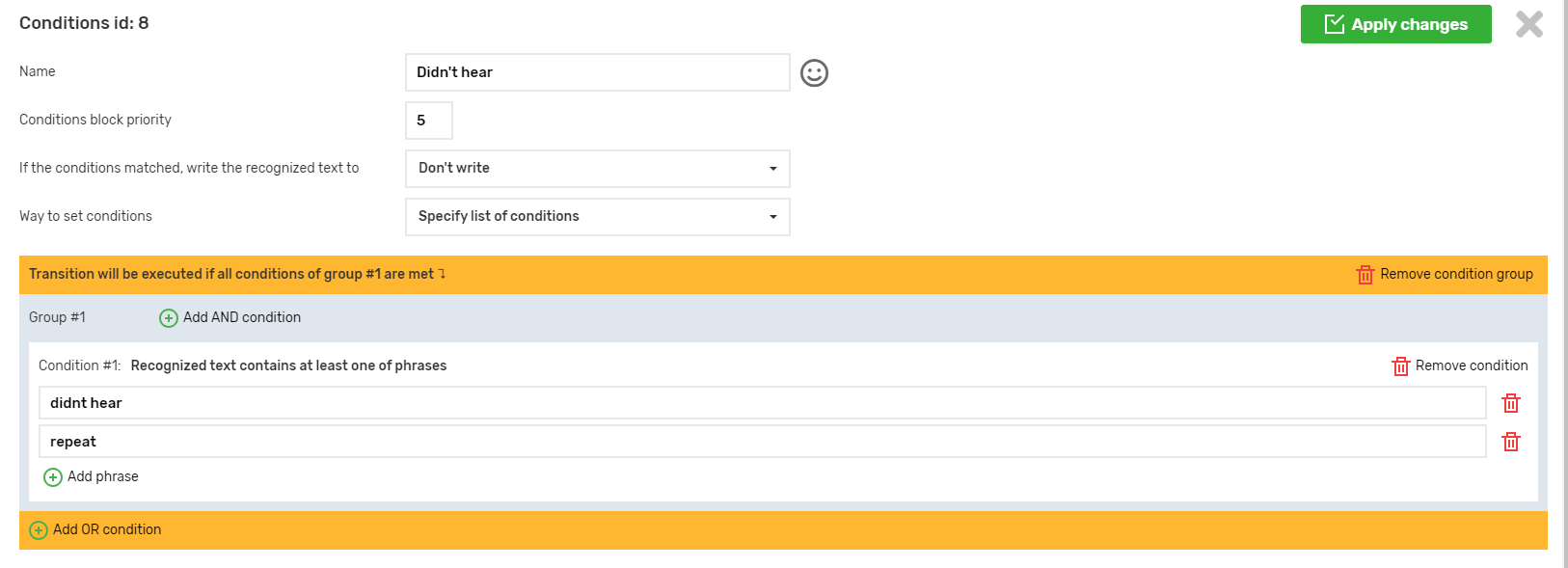
The languages in which we receive the recognized words of the caller are specified in the speech recognition settings. They are specified in the main settings of the robot. In the transition conditions, phrases, words, etc. must be written in the same languages as specified in the speech recognition settings.
- When are new versions added that can be reverted to using the Undo button?
– When adding a node
– When deleting a node
– After clicking the Apply Changes button in the settings sidebar (i.e., after saving the robot’s basic settings, saving the node conditions, saving the node action settings)
– When pasting nodes after copying or cutting
– After changing the color of the side bar of nodes
– After moving the node to the left or right in the list of children of the parent node
After saving the robot, you cannot undo the changes – intermediate versions are lost.
- Entities specified in voice work cannot be removed from the project
This applies to:
- Scripts
- Voice menus
- Departments
- Audio of voice robots
- Ringtones on hold
- Event handlers
- Background robots
- Voice robot condition profiles
- Speech recognition settings profiles
- If an extension is deleted from the project, if it was specified in the actions of voice robots with the type “Transferring a call to a SIP line”, the action type will be changed to “Exit voice robot”
- In the call history, voice robots are displayed as a single forwarding step in call forwarding. Background robots are not included in call forwarding, they are considered part of the main robot.
Fine-tuning speech recognition and flexible audio capabilities are key to creating a highly adaptive Voice Bot. By using two recognition languages and individual settings (such as “Do not wait for final result” for less stable languages), you minimize delays and ensure accuracy. The ability to create audio from dynamic parts (TTS from parameters) allows for instant personalization of dialing campaigns. Finally, the draft system ensures that your unfinished changes are always saved and protected from accidental loss.



