


History of voice robots
Creating a robot is just the first step; true efficiency is achieved through the constant analysis of its interaction with customers. The “Voice Robot History” section in UniTalk provides you with a complete “map” of every call. You can do more than just see the fact of a conversation—you can study the customer’s journey through the dialogue tree in detail, listen to recordings, and understand at which stages customers make decisions. This empowers you to promptly identify “bottlenecks” in your scenarios and continuously improve the conversion rate of your automation.

On the page with the history of voice robots, you can view data about their work during calls. Several receptionists can work during a single call, and a separate record is created for each of them in the history. Background robots are not recorded in the history as separate entries, only in the forwarding of regular receptionists.
Columns
- Client – the subscriber’s phone number
- Voice robot – the name of the Voice robot
- Source – where the Voice Robot was called from. The source type is at the top, and the source name (if any) is at the bottom. There are 3 options:
- Voice robot + name of the Voice robot
- Script + name of the incoming script
- API call
- Date and time – time of robot start
- Robot duration – the duration of the robot in seconds
- End node – description of the end node, consists of 2 or 3 lines:
- the type of node where the robot ended
- name of the background robot – will be in case the robot ended in the background robot
- node id and action name of the node where the robot ended
- Reason for termination
- Buttons:
– play audio

– show redirects

Redirects
Redirects display the path traveled through the robot’s tree.
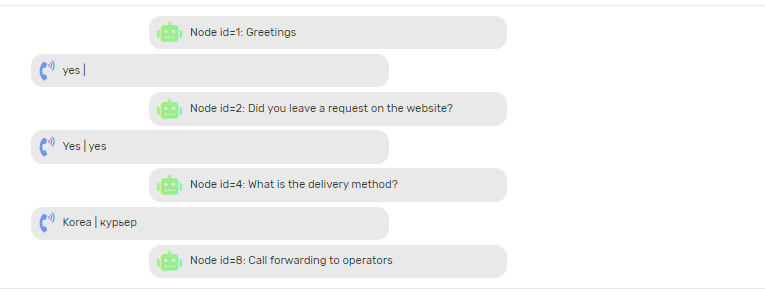
Redirects consist of various types of steps:
- node (with the green robot icon) shows:
– node id

– node action name

– if alternative audio was played instead of the main audio, the index of the alternative audio played is displayed

- recognized text (with the icon of a blue telephone receiver)

- recognized dates (with a dark blue hourglass icon) are displayed in a block with delayed text

- switch to the background robot (with the right arrow icon)

- exit the background robot (with the left arrow icon)

- move to another node (with a downward arrow icon) – indicates that the nodes were not directly moved between, but using the “Move to another node” action.

Access
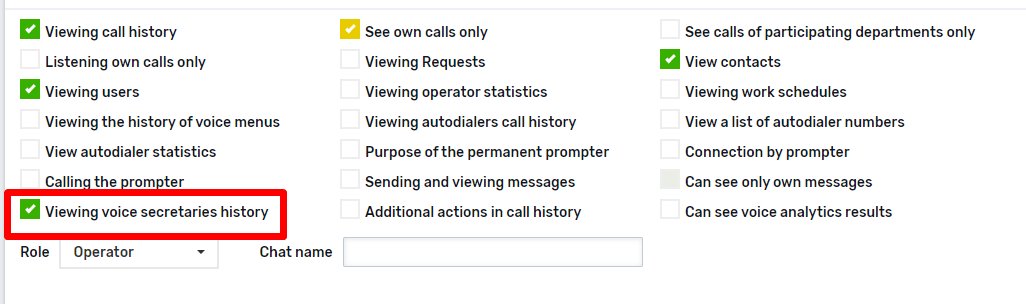
Access to the page for operators and managers is regulated on the users’ page using the “View voice robot history” setting.
The history section is your primary tool for hypothesis validation and quality control. Through the visualization of redirects, you can see the actual text recognized by the system and the precise reasons why dialogues were concluded. Use this data to adjust transition conditions, add new synonymous phrases, or modify the logic of background dialogues. With UniTalk, every call processed by a robot becomes a valuable source of information for scaling your business.



