UniTalk and Asteril CRM Integration: A Step-by-Step Guide to Setting Up Calls and Chats
Asteril CRM is a convenient, powerful CRM system designed to automate online sales. Asteril CRM is an opportunity to maintain a single database of customers and orders in a single system, keep financial records of the enterprise, track the status of consignment notes, keep a history of sales, warehouse, conduct SMS and email correspondence with customers, and use cash registers.
1. To configure the integration of UniTalk IP telephony with the Asteril CRM system, go to the UniTalk personal account in the “API and Automations” section
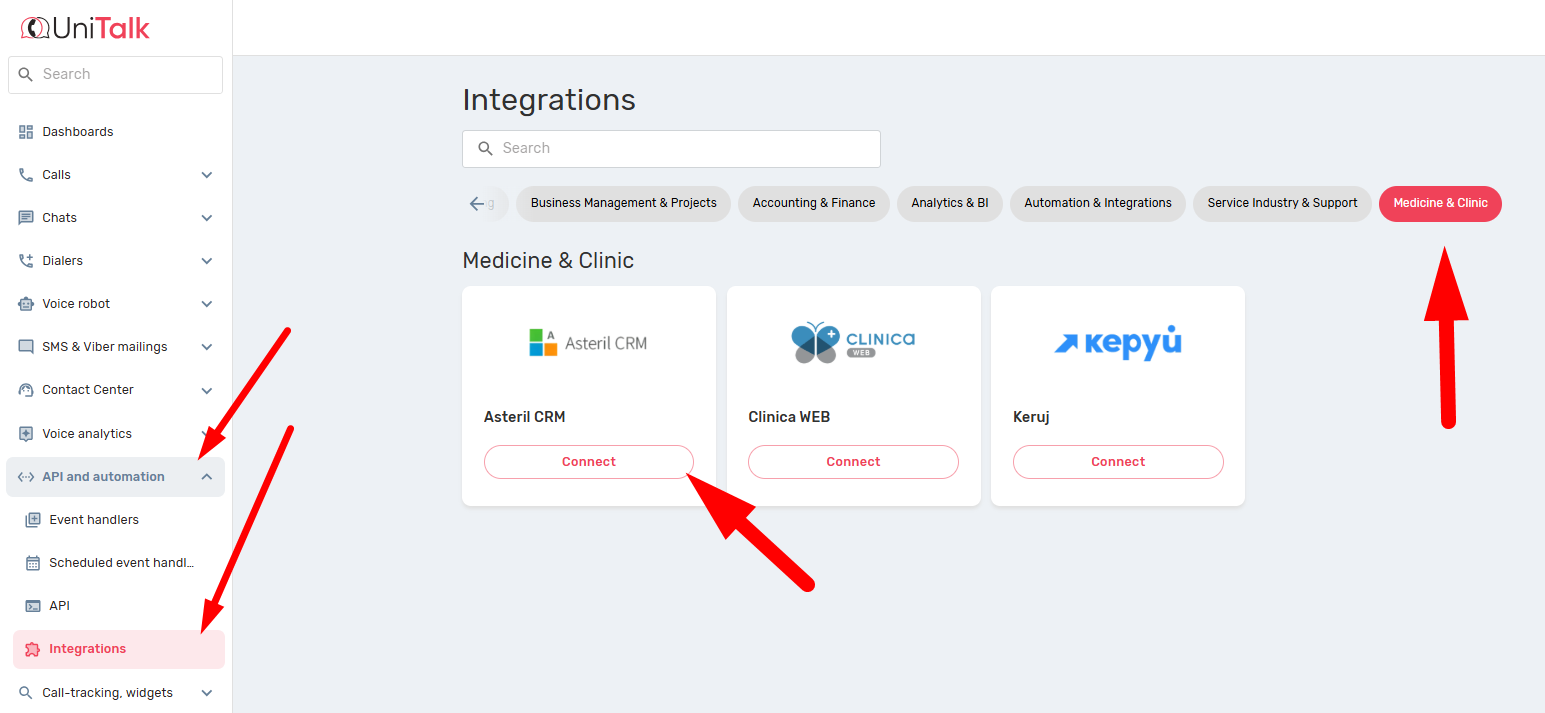
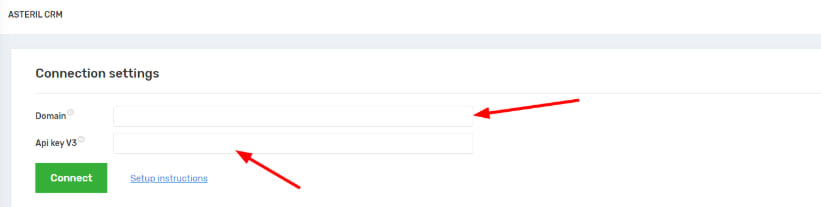
Fill in the fields:
- Domain – the domain of your Asteril CRM system
- API key – to get it, contact Asteril CRM technical support
Click Connect.
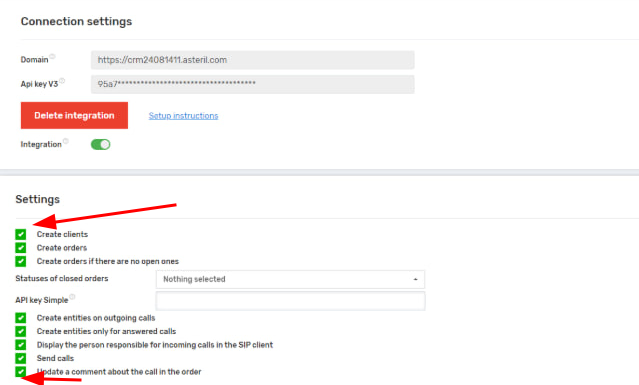
2. In your UniTalk personal account, go to the Asteril CRM integration section again. In the “Settings” section, check the boxes:
3. To configure the “Create orders” function, you must additionally specify the Simple API key. To get the key, go to your Asteril CRM account and select the store in the “Administration/Registries/Stores” section.
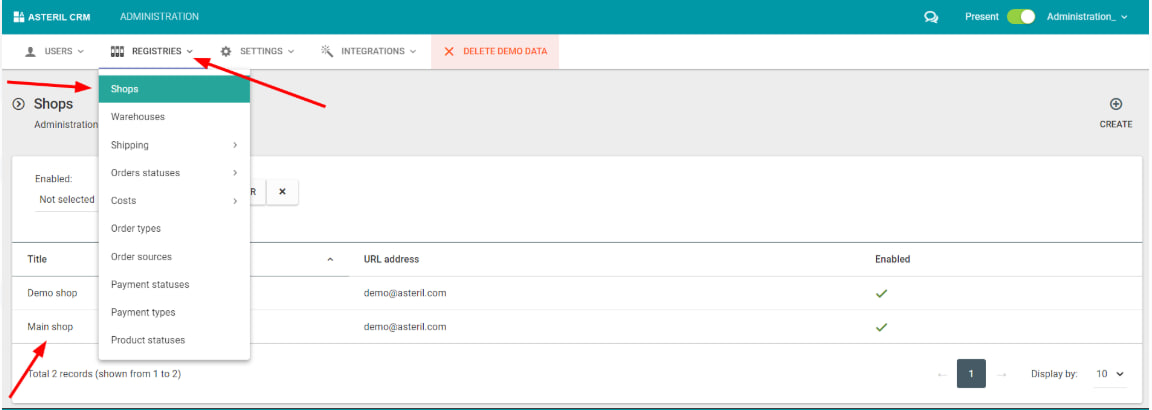
In the “Receiving orders via API” section, in the “Activate Simple Order API” drop-down list, select “Yes”. Next, copy the value from the Simple Order API key field. Click “Save”.
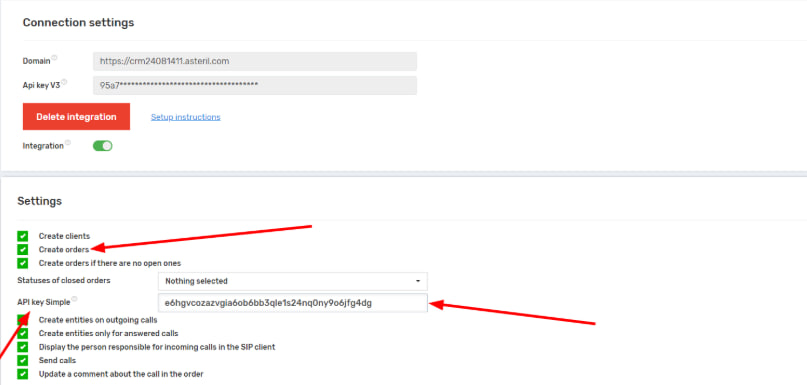
If the Create customers feature is turned off and the Create orders feature is turned on, orders will only be created when there are customers.
If the Create orders when there are no open orders feature is enabled, a new order will be created if the customer’s last order has a closed status or any status you select from the Closed order statuses list.
If the “Create entities during outgoing calls” feature is enabled, customers and orders will be created in the CRM system when outgoing calls to customers are made to mobile phone numbers.
If the “Display the person in charge during incoming calls in the SIP client” feature is enabled, you must additionally enable the “Display caller name” checkbox in the ‘Users’ section of the UniTalk personal account for each user in the “SIP settings” section.
The “Send calls” feature is enabled to enter information about calls made to the CRM system. In order for the information about calls to be displayed in the Asteril CRM personal account, in the Administration/Integrations/Telephony section, select “Enabled” in the drop-down list.
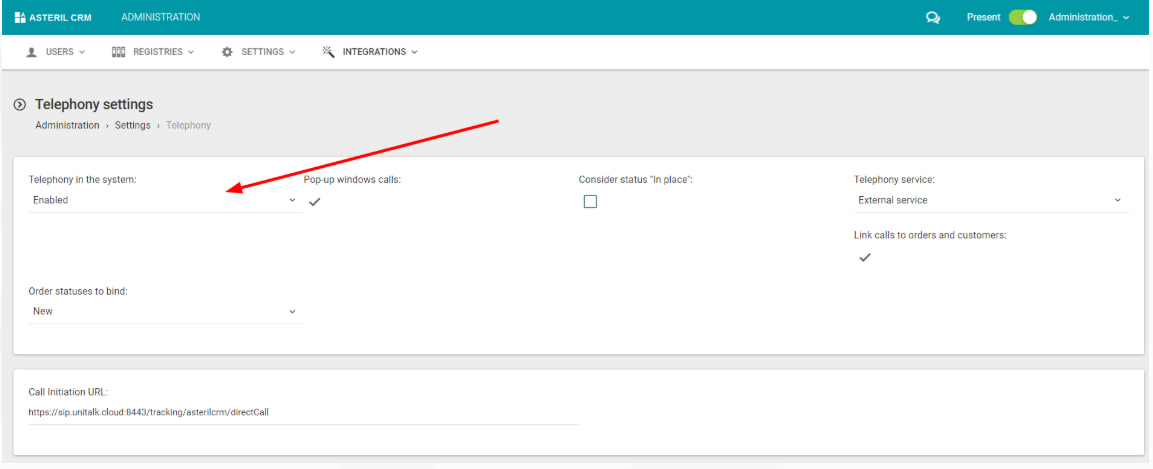
Next, in the Telephony service drop-down list, select External service. In order to automatically add calls that are entered into the CRM system to customer and order cards, you need to activate the “Link calls to orders and customers” feature.
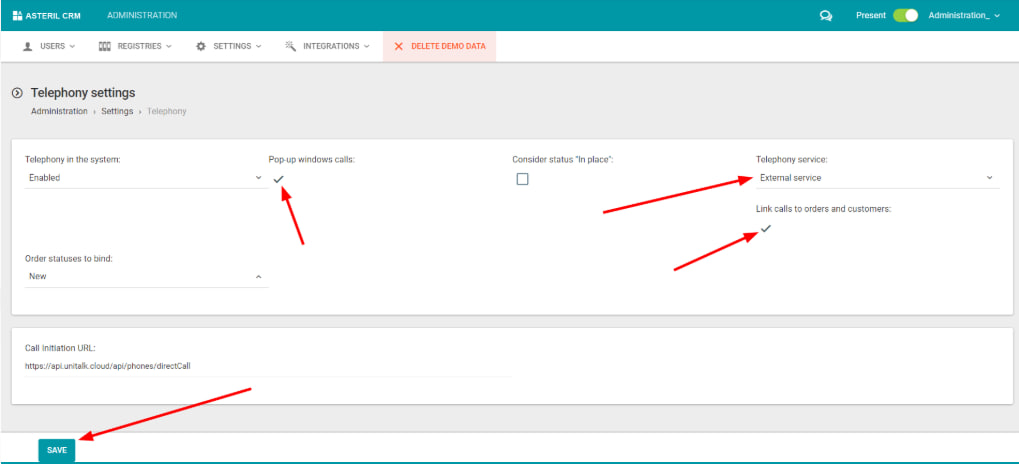
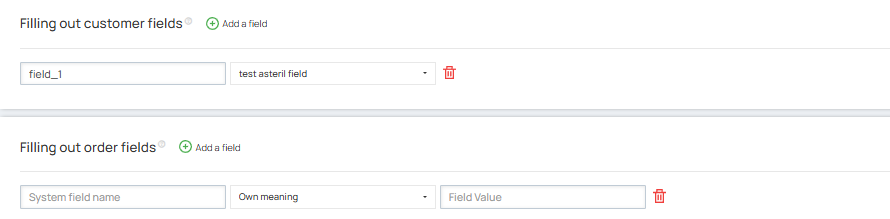
4. Fill in the customer and order fields. When created, they will be filled with data from UniTalk.
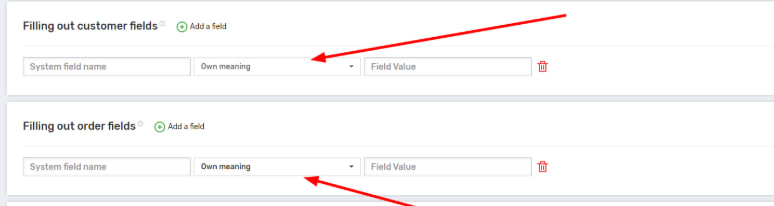
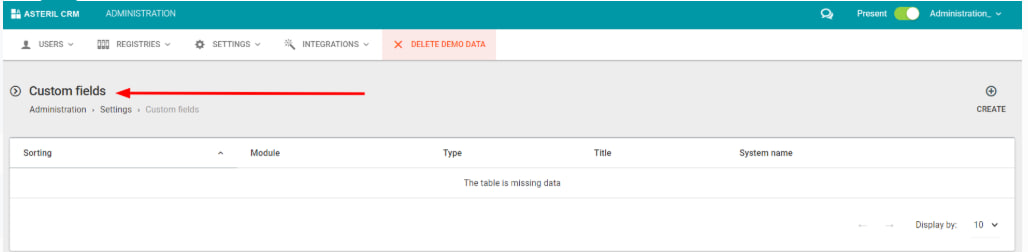
System field names are specified in the “Administration/Settings/Custom fields” section in the Asteril CRM personal account.
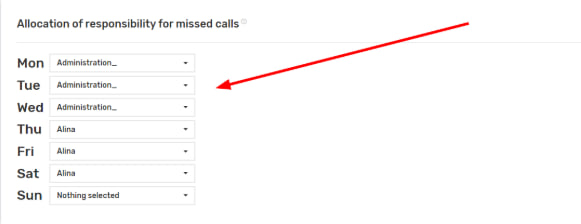
5. Select who is responsible for missed calls, depending on the days of the week.
6. Next, set up phone numbers for Asteril users: internal lines or a GSM operator.

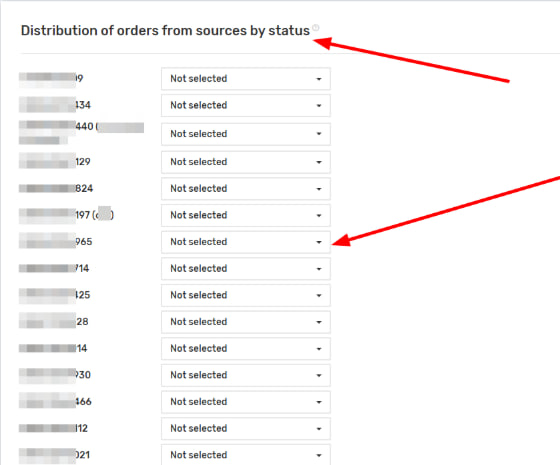
7. Select the statuses by which orders will be distributed during creation
8. After making changes in your UniTalk account, click “Save”.
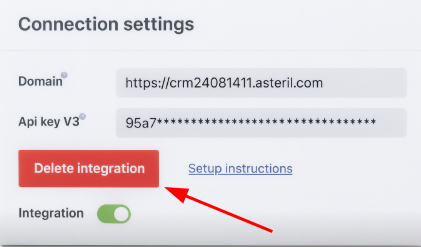
To disable the UniTalk integration with Asteril CRM, click on the “Remove integration” button and confirm your choice.
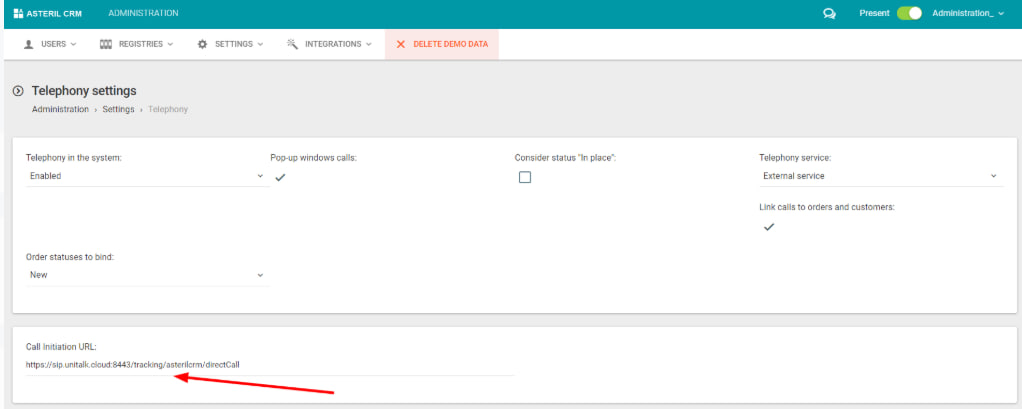
How to set up click-to-call from the CRM system
1. To set up click-to-call in your Asteril CRM personal account, in the Administration/integration/telephony section, in the Call initiation URL field, enter https://sip.unitalk.cloud:8443/tracking/asterilcrm/directCall. Click the Save button.
2. To set up an outgoing call from CRM to a customer’s phone number by clicking in the settings of each user in the “Administration/integration/telephony” section, in the “Primary telephony identifier” field, specify the SIP number and click the “Save” button.
3. To make a click-to-call call from CRM, open the customer card and click on the customer’s mobile phone number.
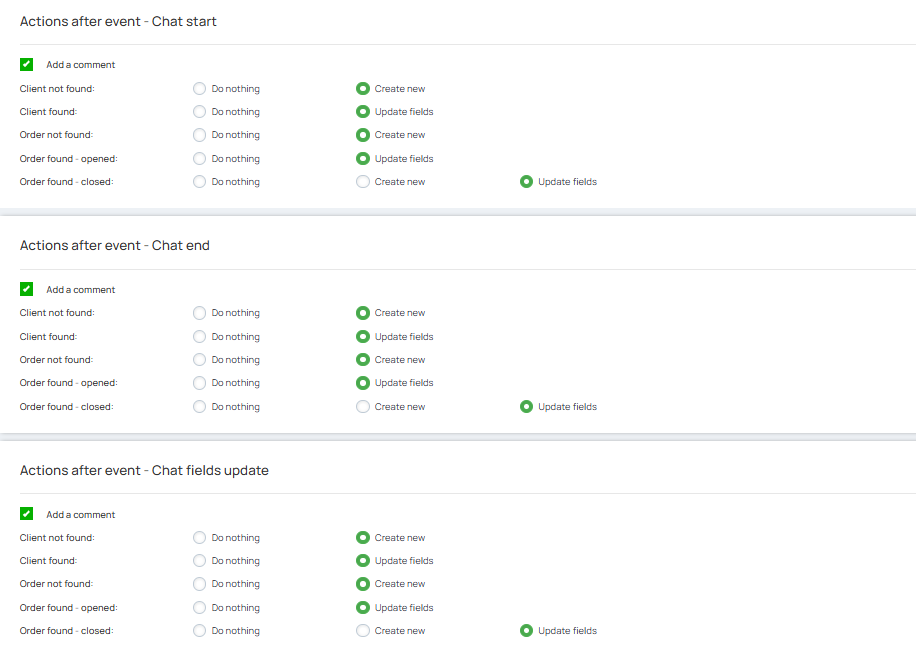
In the “Chat Settings” section, for each chat event, specify whether to add a comment and what actions to perform with entities in which cases.
Fill in the entity fields that will be populated with UniTalk data upon creation. The system field name must match the system field name in Asteril.
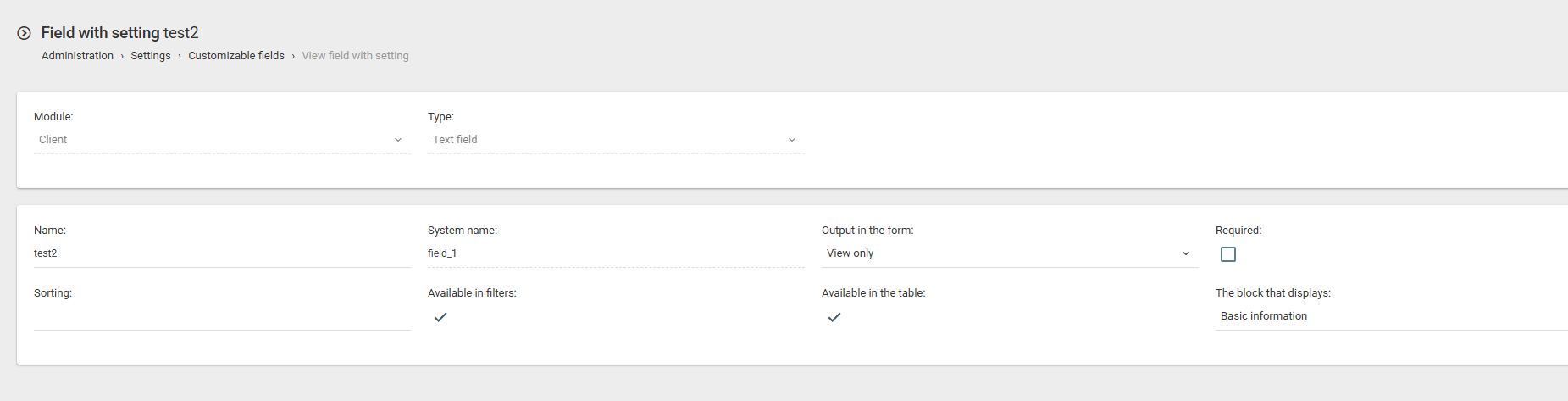
Values can be specified as static or dynamic. Dynamic values can be retrieved by selecting from preset parameters such as “Chat Link” or “Client Google ID.” You can also read a custom field filled out by the client via a custom form. The custom field is specified directly in the integration settings.
You can also select the module to which the custom field will be added: Client / Order
The default assignment of responsible persons determines which user will be responsible for an order and customer in Asteril.
All users in the project are listed in the operator assignment fields. Users must be assigned a corresponding profile in Asteril so that when a given user processes a chat, the responsible employee is correctly assigned in Asteril.
Assigning orders from a source to a status will ensure that each source creates a deal with the required status, allowing for flexible pipeline customization for each source.
After completing the setup, save the chat settings and activate the chat integration.