UniTalk and Firmao CRM Integration: Setting Up Calls and Chats
UniTalk and Firmao Integration: Connection Guide
Connect your telephony and chats with the Firmao CRM system to automate lead processing and eliminate routine tasks. Once configured, all call data and chat history will be automatically saved to customer cards.
Key benefits of the integration:
- Automatic entity creation: The system automatically creates a contact, deal, or task if a manager misses a call.
- History in one place: Call recordings and chat details are available directly within the CRM.
- Time-saving: Automatic field population and responsible person assignment allow your sales team to focus on deals rather than filling out tables.
Below is the step-by-step setup guide for calls and chats.
Connecting the Integration
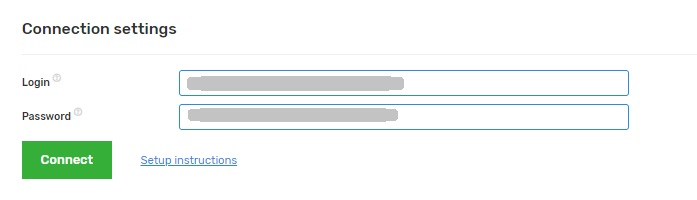
Go to the UniTalk dashboard to the integration page with Firmao and click connect.
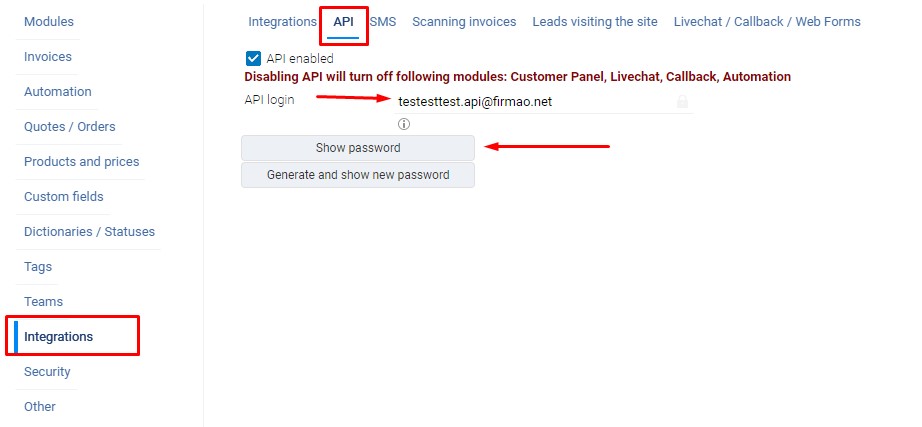
Credentials are provided in the Firmao dashboard in the “Company Settings / Integrations” section under “API”:
- login: in the “API Login” field;
- password: by clicking the “Show password” button.
Configuring the Integration
- In the UniTalk dashboard in the integration section with Firmao, in the “Settings” block, enable the checkboxes to perform the corresponding actions.
- If the “Create contacts” checkbox is disabled, deals will only be created if there are existing contacts when the “Create deals” checkbox is enabled.
- When the “Create deals” checkbox is enabled, specify the currency, which is a required parameter when creating a deal.
- When the “Create deals if none are open” checkbox is enabled, a new deal will be created only if the last created deal for the contact has a closed status.
- When the “Create entities on outgoing calls” checkbox is enabled, contacts and deals will be created in the CRM system for outgoing calls to contact mobile numbers.
- When the “Create entities only for answered calls” checkbox is enabled, contacts and deals will only be created in the CRM system for phone calls that were answered.
- When the “Show responsible person for incoming calls in SIP client” checkbox is enabled, it is necessary to additionally enable the “Show caller name” checkbox for each user in the Users section of the UniTalk dashboard in the “SIP Settings” block.
- To add an audio listening link to the contact and deal card comments, enable the “Add audio link to comment” checkbox.
- To add a call recording to the contact and deal card files list, enable the “Send call recordings” checkbox.
- To create call-back tasks for missed incoming calls, enable the “Create tasks for missed incoming calls” checkbox and specify the task priority.
- Select those responsible for missed calls.
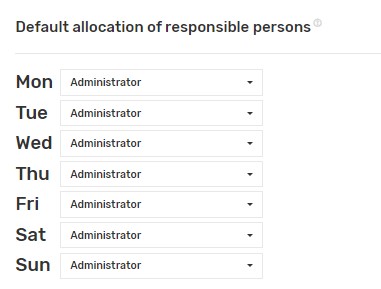
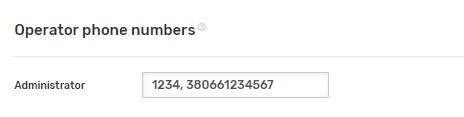
12. Specify the phone numbers of Firmao users separated by commas. These can be internal lines or GSM numbers.
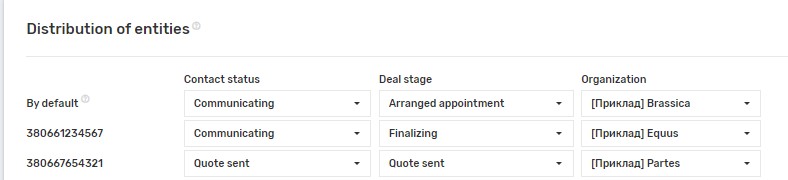
13. Depending on the external line from which the call came, select the settings with which to create entities.
FIRMAO and Unitalk Chat settings options
1. Main settings
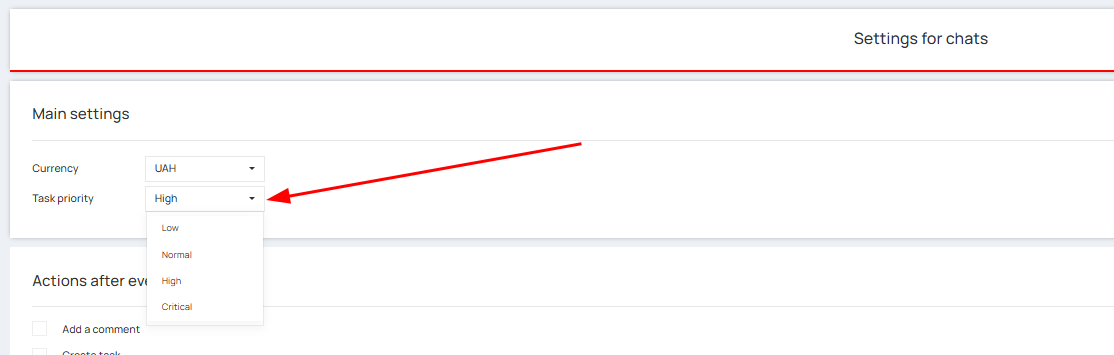
It is possible to set the default currency when automatically creating a transaction, as well as their priority.

2. Actions after event
There are three events for which you can specify the necessary actions separately:
- start of chat;
- end of chat;
- update of chat fields.
In each of these cases, you can configure whether to create comments, tasks on the selected board with the ability to specify the status, as well as determine actions with contacts and deals.
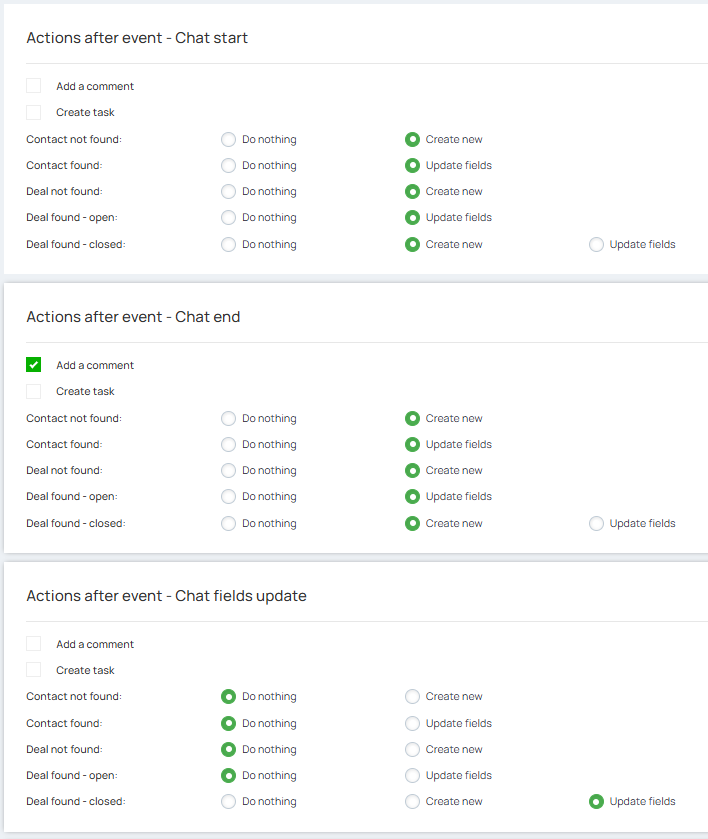
Available scenarios for each entity:
- Contact not found: do nothing or create a new contact;
- Contact found: do nothing or update fields;
- Deal not found: do nothing or create a new one;
- Deal found – open: do nothing or update fields;
- Deal found – closed: do nothing or create a new deal.
Description of available actions:
- Do nothing – the system ignores this entity and does not perform any actions with it;
- Create new – a new entity (contact or deal) is created;
- Update fields – data within the existing entity is updated.
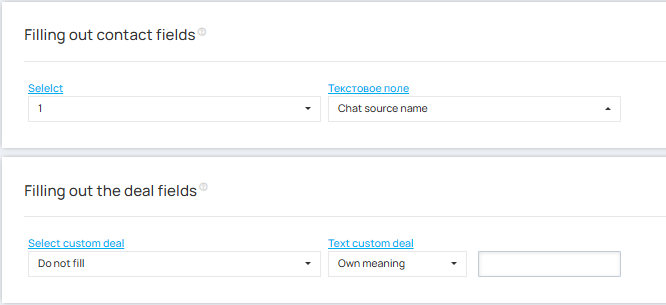
3. Filling out the deal and contact fields
This settings block takes into account dynamic values specific to chats:
- Chat data – link to the chat, client name, communication language, chat source, email (if the chat is conducted via email), and other specific information;
- Unitalk Chat custom field values – if there are no user fields in the entity, this settings block is not displayed;
- Analytics (UTM tags, GoogleId, FacebookId, etc.) – works similarly to calls, but the transfer of analytics data from the chat to Unitalk Chat has not yet been implemented.
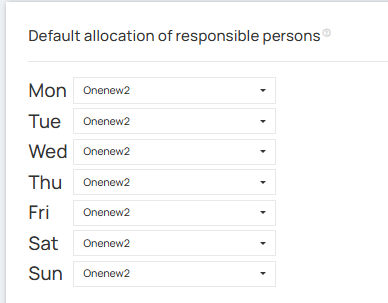
4. Default allocation of responsible persons
Similar to call settings, you can assign an operator for each day of the week. If for some reason it is not possible to automatically determine who is responsible, the created entity (contact or deal) will be assigned to the operator specified in this field.
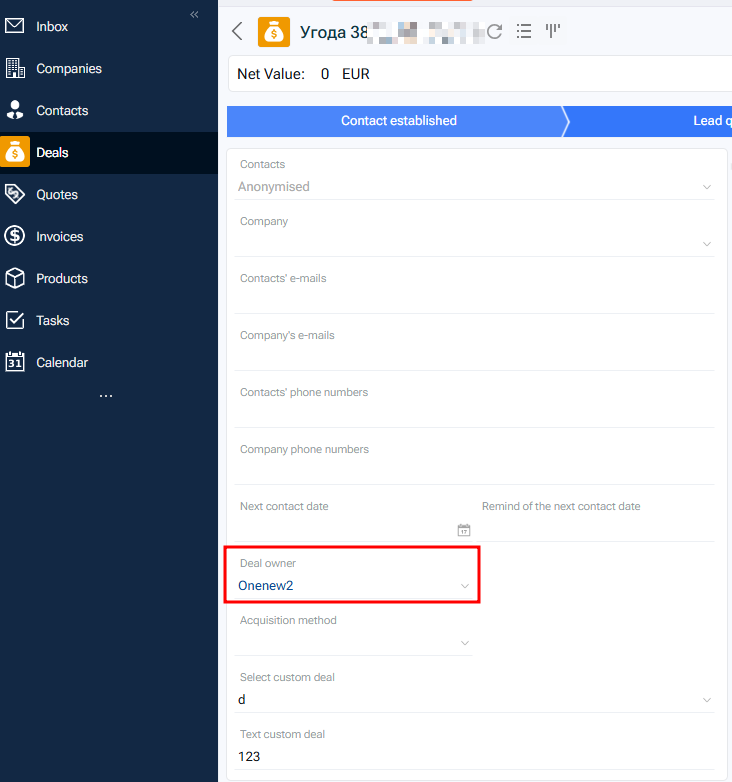
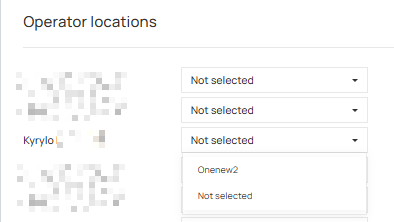
5. Operator locations
Here, Unitalk users (left) are compared with Firmao users (list on the right).
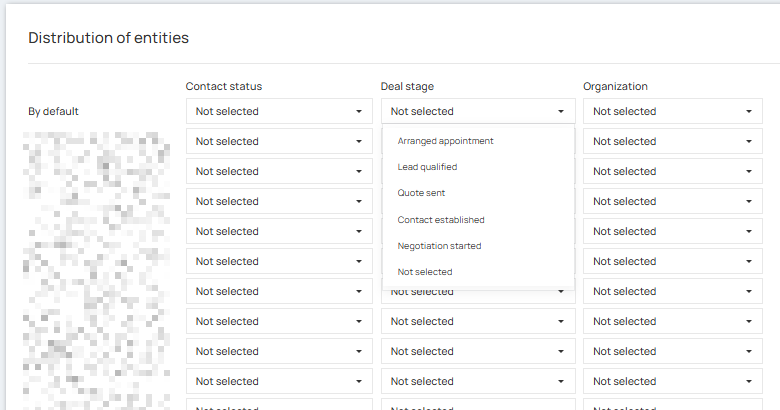
6. Distribution of entities
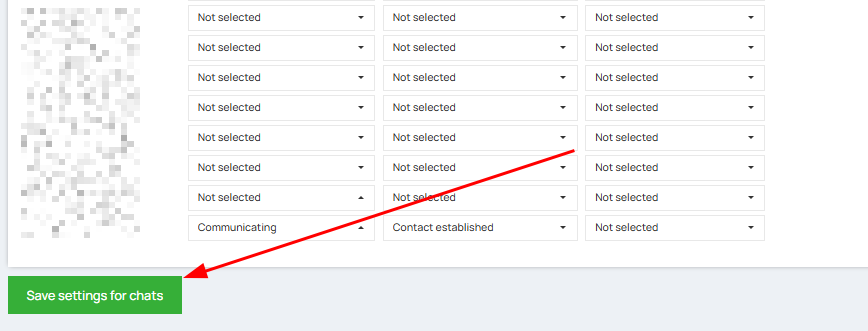
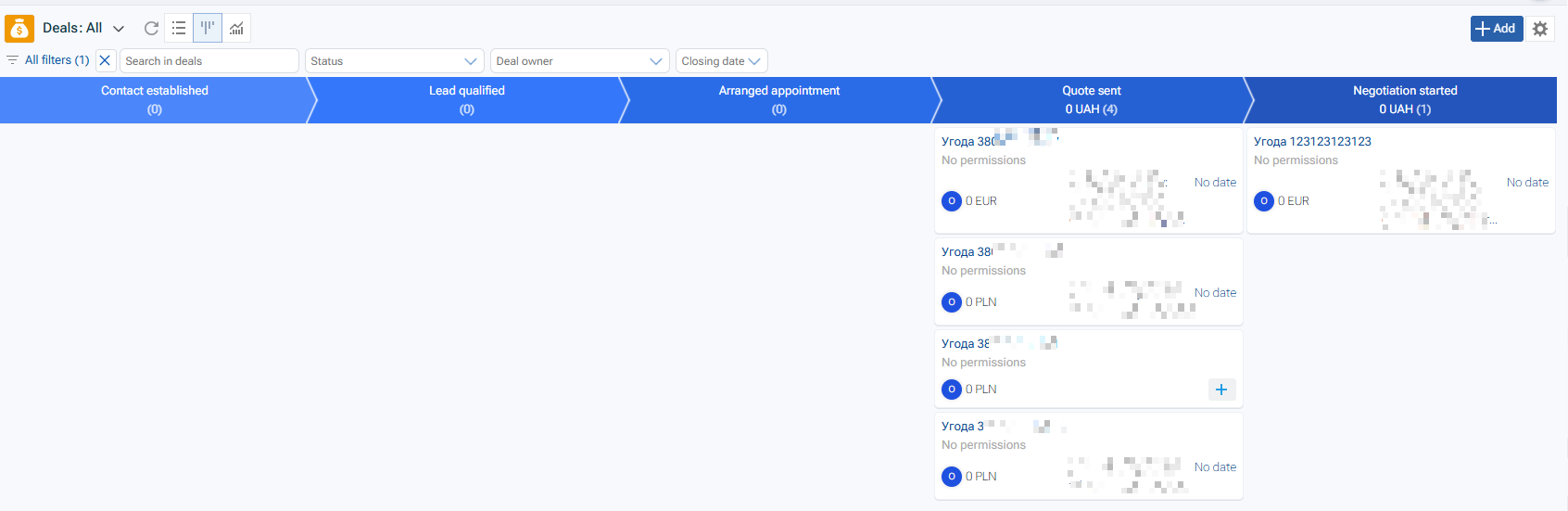
Similarly to call settings, you can distribute deals by funnels and select the status with which the deal will be created.
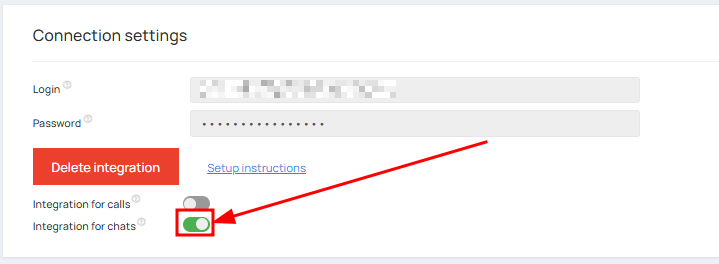
After configuration, you need to save the settings for calls and activate the integration for calls.