


UniTalk and Perfectum CRM Integration: Full Call Automation
Integrating UniTalk IP-telephony with Perfectum CRM enables end-to-end automation of your customer interactions. You can make one-click calls, automatically generate leads, and store call history within CRM profiles, significantly boosting your team’s efficiency.
CRM Perfectum is a Ukrainian CRM system that is suitable for any type of business to automate all processes.
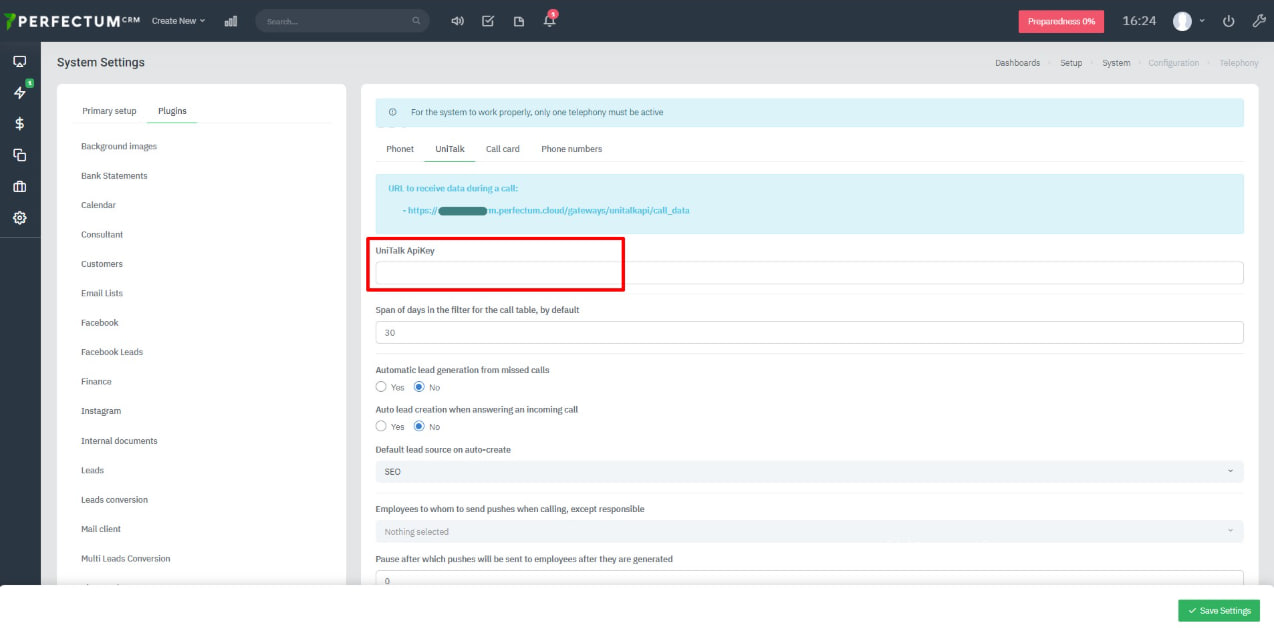
To configure the integration of CRM Perfectum with UniTalk IP telephony, go to Settings – Settings → Configuration → Telephony → UniTalk.

Step 1. The following options are available to configure the module:
- URL for receiving data during a call, which can be obtained in the UniTalk IP Telephony Personal Area.
- UniTalk APIKey from the UniTalk IP Telephony personal account.
- The period of days in the filter field of the call table, by default – you should specify the number in days.
- Automatic creation of a lead from a missed call – yes or no.
- Employees to send notifications to during calls, except for those in charge – select employees.
- Default lead source for automatic creation – specify a lead source from the available ones.
- Pause after which to send notifications to employees after they are generated – specify the number.
- Send notifications about missed calls to the person responsible for the lead – yes or no.
- Send notifications about missed calls from unknown numbers – yes or no.
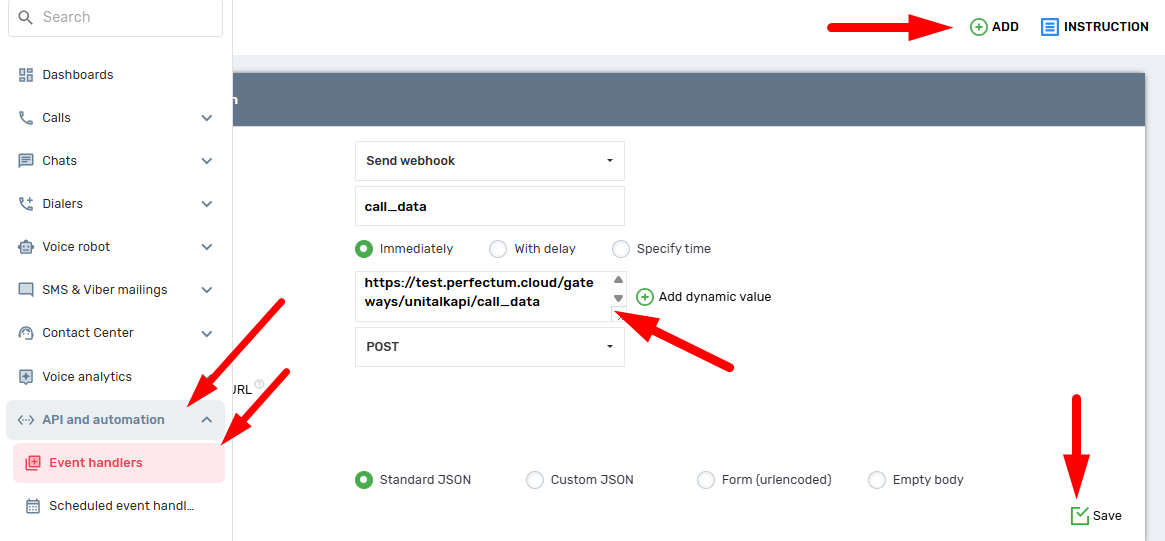
To set up UniTalk IP telephony, follow these steps:
- go to the Unitalk personal account and in the sidebar go to the “Event Processing” section using the “API and Automation” section
- specify the name of the webhook you want to use
- in the URL parameters field insert “URL to receive data during a call”, which can be found in the settings of the UniTalk module in your system
- select the HTTP method “POST”
- click the “Save” button
It is important to remember that you can use any name of the webhook, and when copying the “URL for receiving data during the call”, you need to check that there are no spaces in the address
Step 2. After that, open the sidebar, select the “API and Automation” section, and open the “API”.
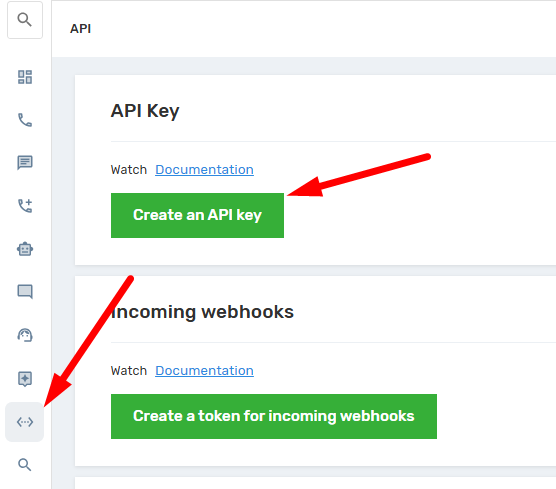
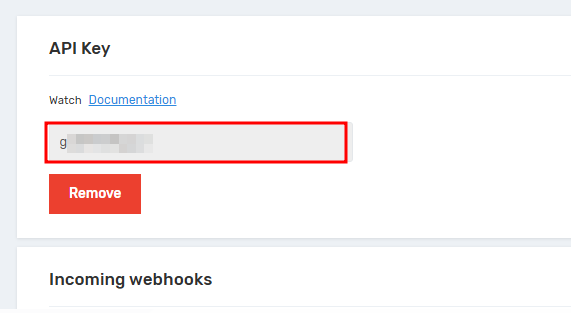
Step 3. Next, click the “Create API key” button, copy the key and paste it into the UniTalk settings of the PERFECTUM CRM system in the “UniTalk APIKey” parameter.
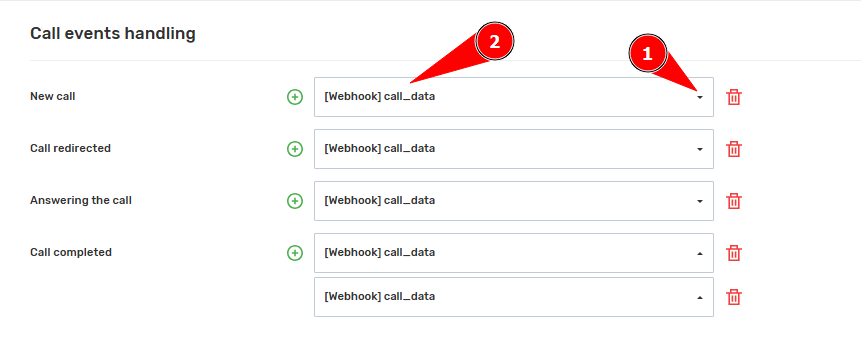
Step 4. Next, find the “Call Event Handling” section in the API section and select the previously created webhook.
- Next to the event, click the triangle.
- Select the webhook you created from the list.
- Repeat the same steps with other events.
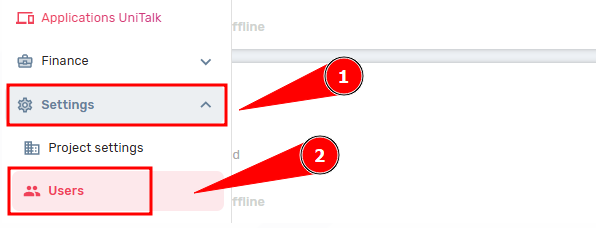
Step 5. Set up extension numbers for employees. Open the sidebar and select the Settings – Users section.
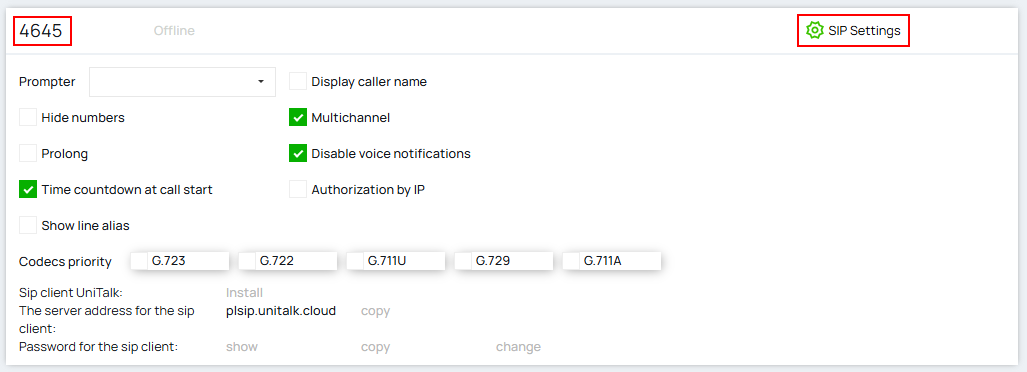
Click the “SIP settings” button, configure by copying the “SIP line” number and paste it into the employee’s profile.
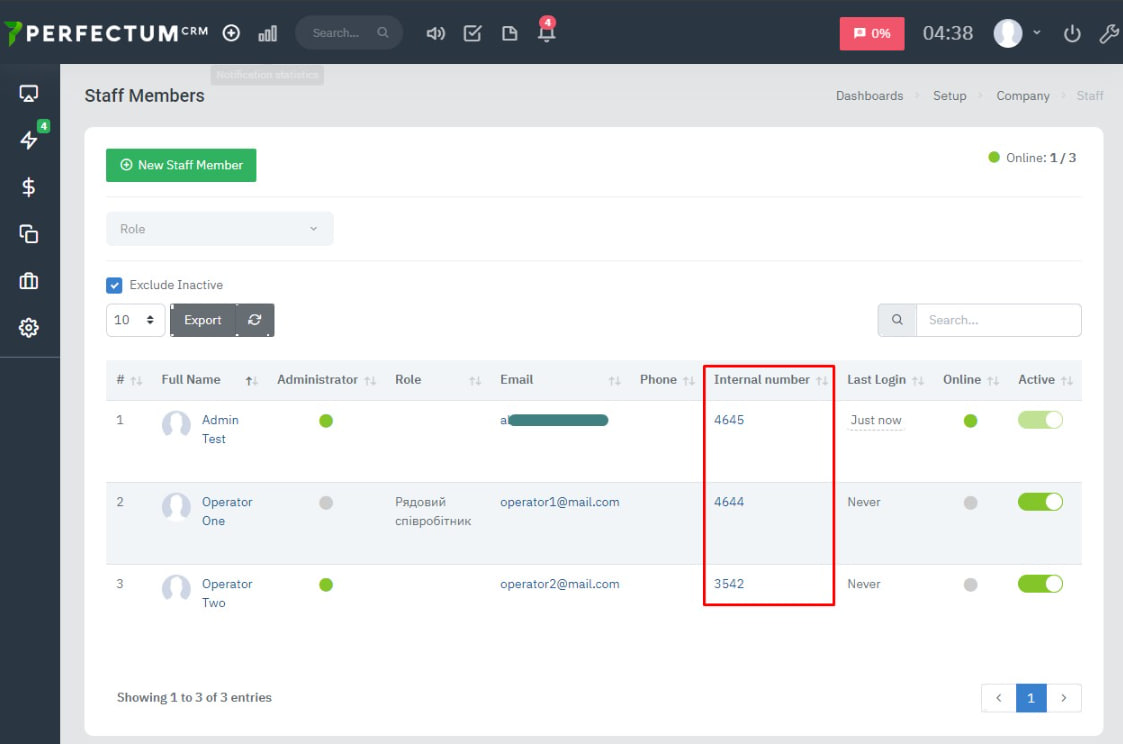
Step 6. Add SIP lines to the employee profile.
Go to Settings → Company → Employees, open the employee’s card and in the Extension number field specify the extension number of the corresponding employee. After that, click the “Save” button.
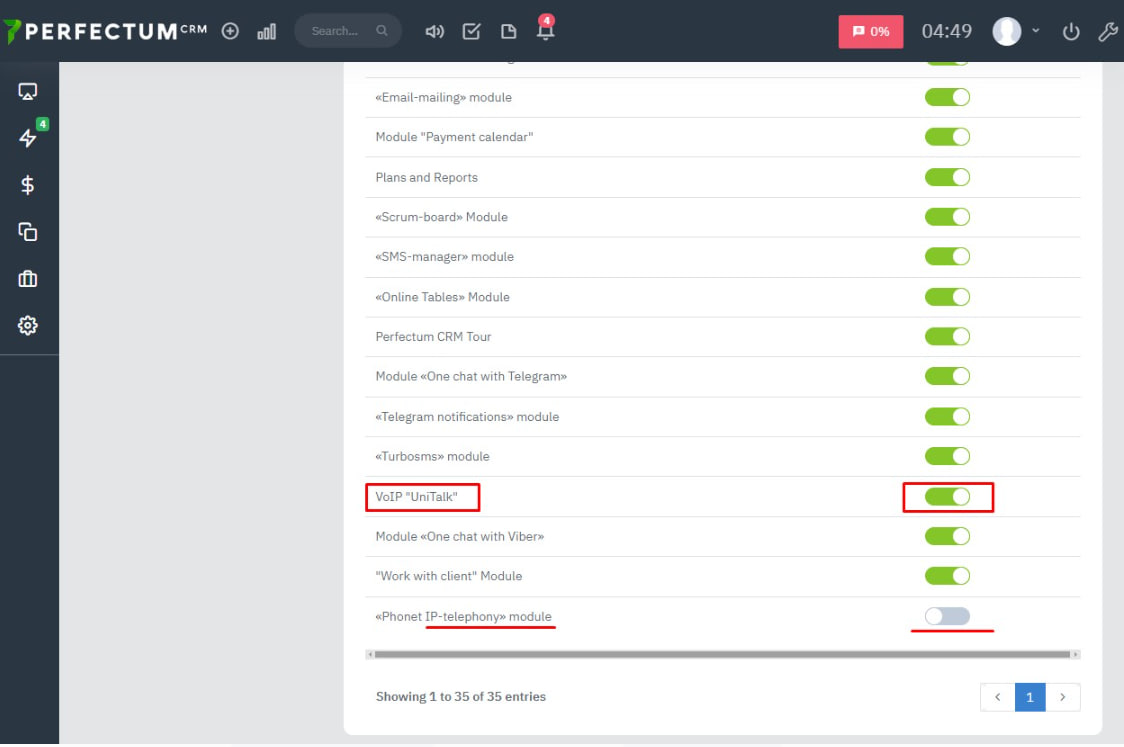
When using UniTalk telephony, it is important to mute any other telephony on your system. To do this, go to Settings > Configuration > Module Management and use the toggle to disable other telephones so that they are not active when using UniTalk.
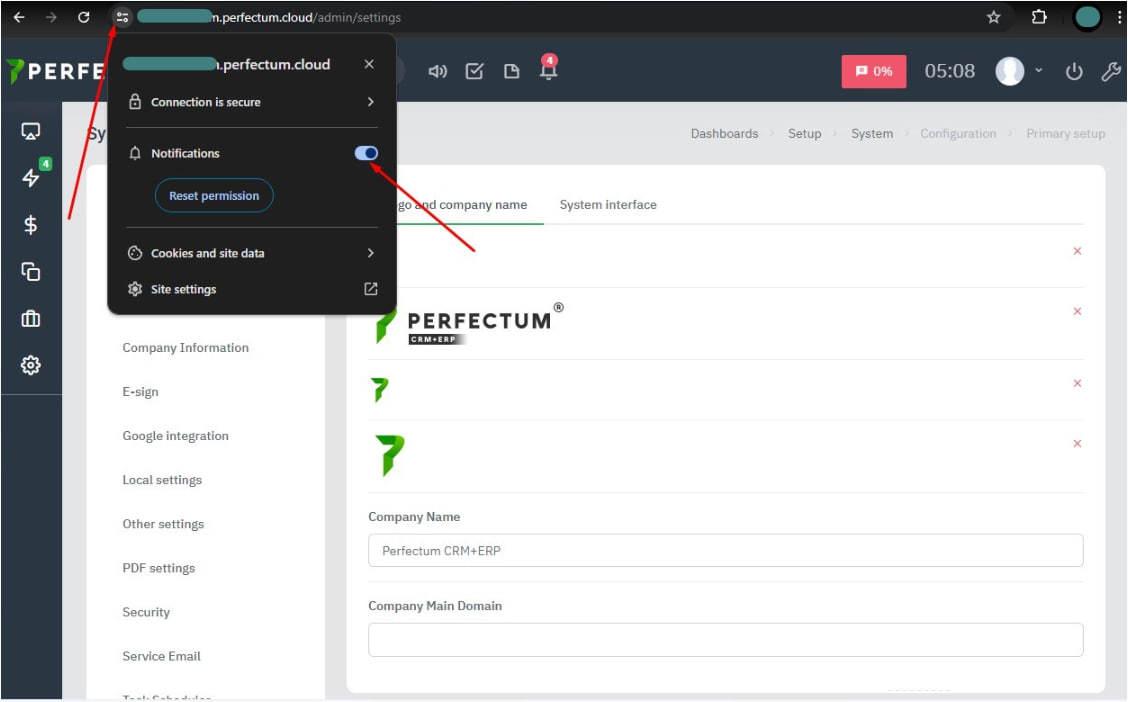
To set up notifications when you receive an incoming call, you need to configure Push notifications. After setting up, make sure you have notifications enabled in your browser.
The setup is complete, and every call now provides objective data directly in your CRM. This streamlines sales management and ensures no potential customer is overlooked. Our support team is available 24/7 to assist with any further configuration.



