


UniTalk Multi-Button: Effective communication in just a few clicks
When a company uses multiple communication channels (from telephony to messengers), there is a problem with their convenient placement on the website. Dozens of scattered icons overload the interface and confuse visitors. The UniTalk multi-button solves this problem by bringing all communication tools together in one compact window.
What is Multibutton?
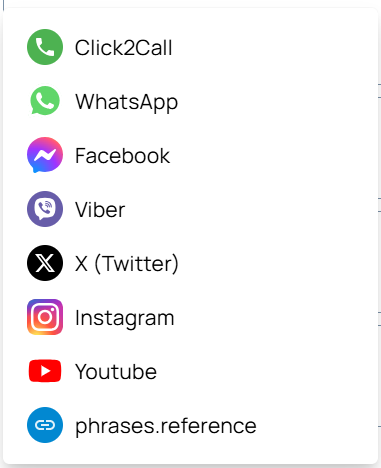
It is a universal feedback widget. Instead of searching for contacts throughout the page, the ‘customer clicks on a single button and chooses the most convenient way to communicate:
- Click2Call – instant call request.
- Online chat — text correspondence directly on the website.
- Messengers and social networks — direct transitions to Viber, Telegram, or Instagram.
This improves the user experience: customers spend less time searching for a connection, and you receive more inquiries.
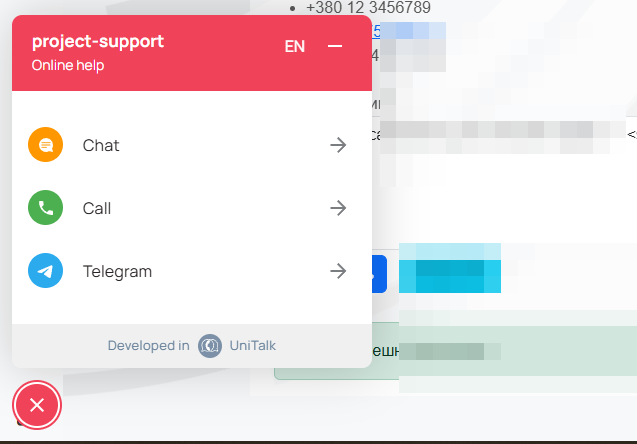
Click2Call: quick connection to a manager
The Click2Call feature allows customers to request a callback by simply filling out a short form.
How does it work for businesses?
As soon as a user leaves a number, the system automatically initiates a call. This removes the barrier of waiting on hold and ensures that no interested visitor is left unattended.
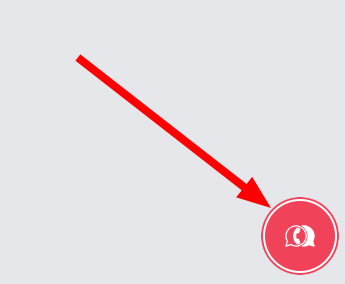
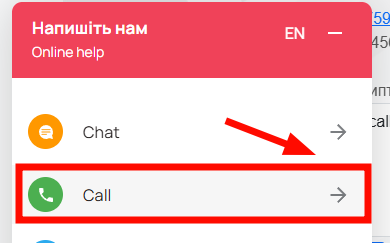
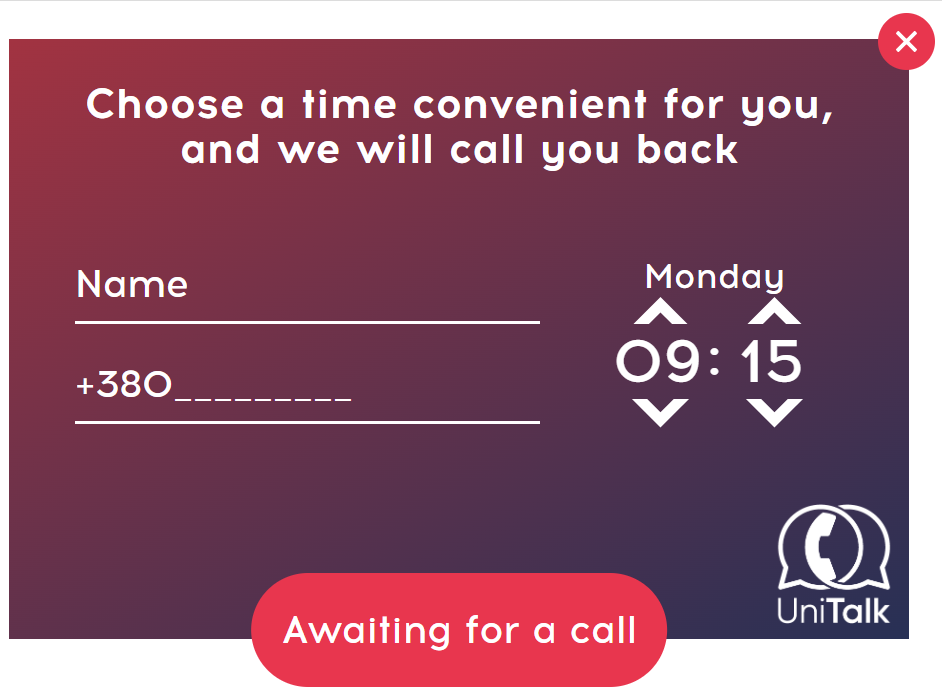
You can configure the widget in your UniTalk personal account in the “Call tracking, widgets” → “Multibutton” section.
Activation and installation
- Add a website: In your UniTalk account, go to “Call tracking, widgets – Sites” Add the name and URL of your resource.
- Connect the service: In the settings of the added site, find the “Multibutton” service and click “Connect.” The system will automatically redirect you to the visual designer section. If the site is already connected, you can go directly to the multi-button link, or to the “Call tracking, widgets — Multibutton” section and start setting it up.
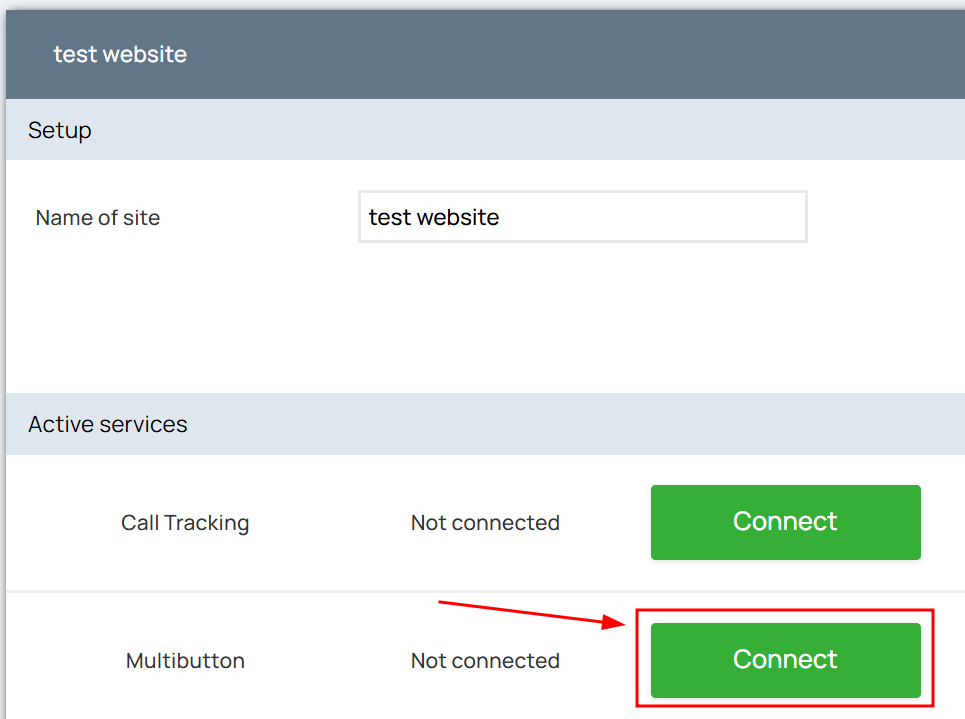

Important: If you have just connected the service, the system will automatically prompt you to go to the settings section. The button will appear on the website immediately after saving the changes and adding the code.
Working with sources
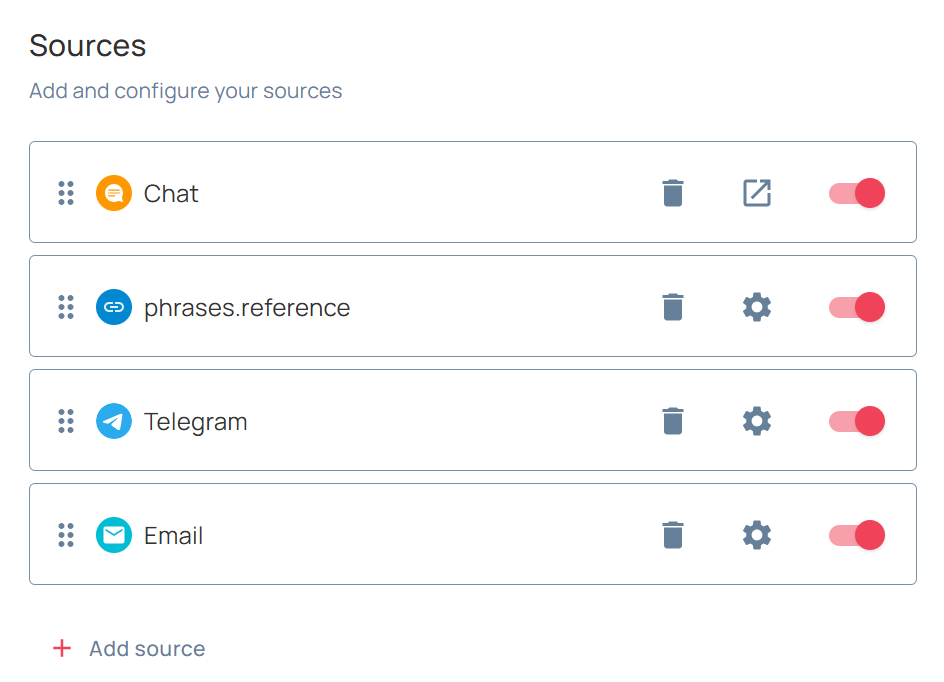
You decide what the button does. It can be:
- Call request form.
- Links to chatbots or personal profiles in messengers
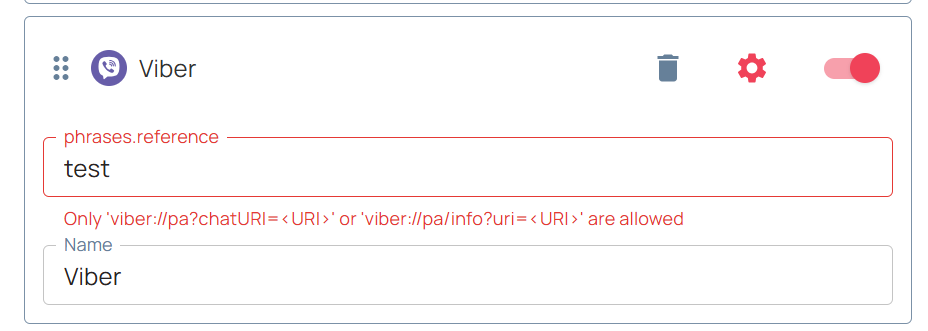
- Important: When adding links to Viber, use the special format:
viber://pa?chatURI=<URI>.
Appearance and adaptation
The widget should match your brand’s style. In the settings, you can:
- Change the color by code (for example, blue –
#0000ff). - Select an icon, change the size or round the corners.
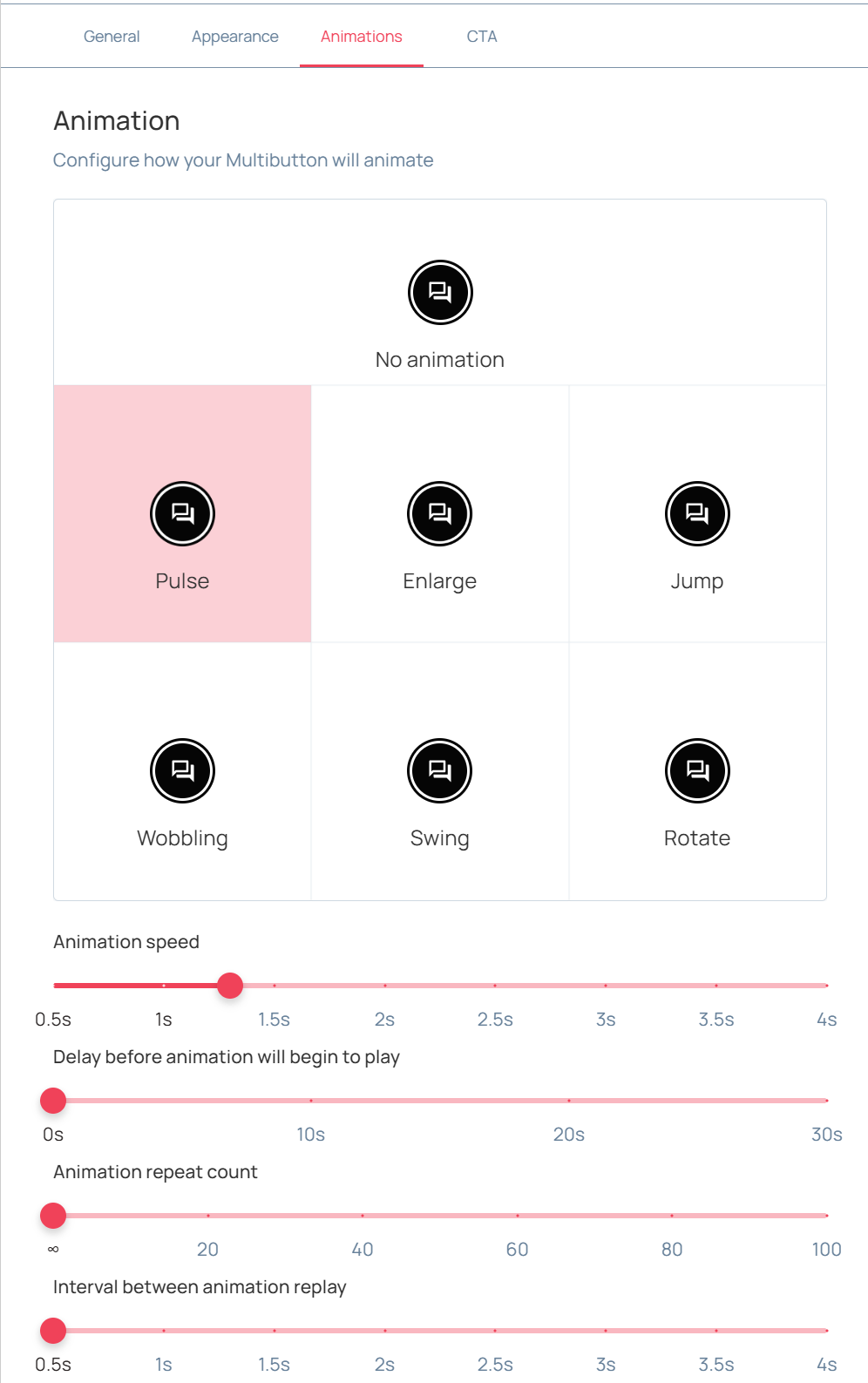
- Customize the animation and its intensity.
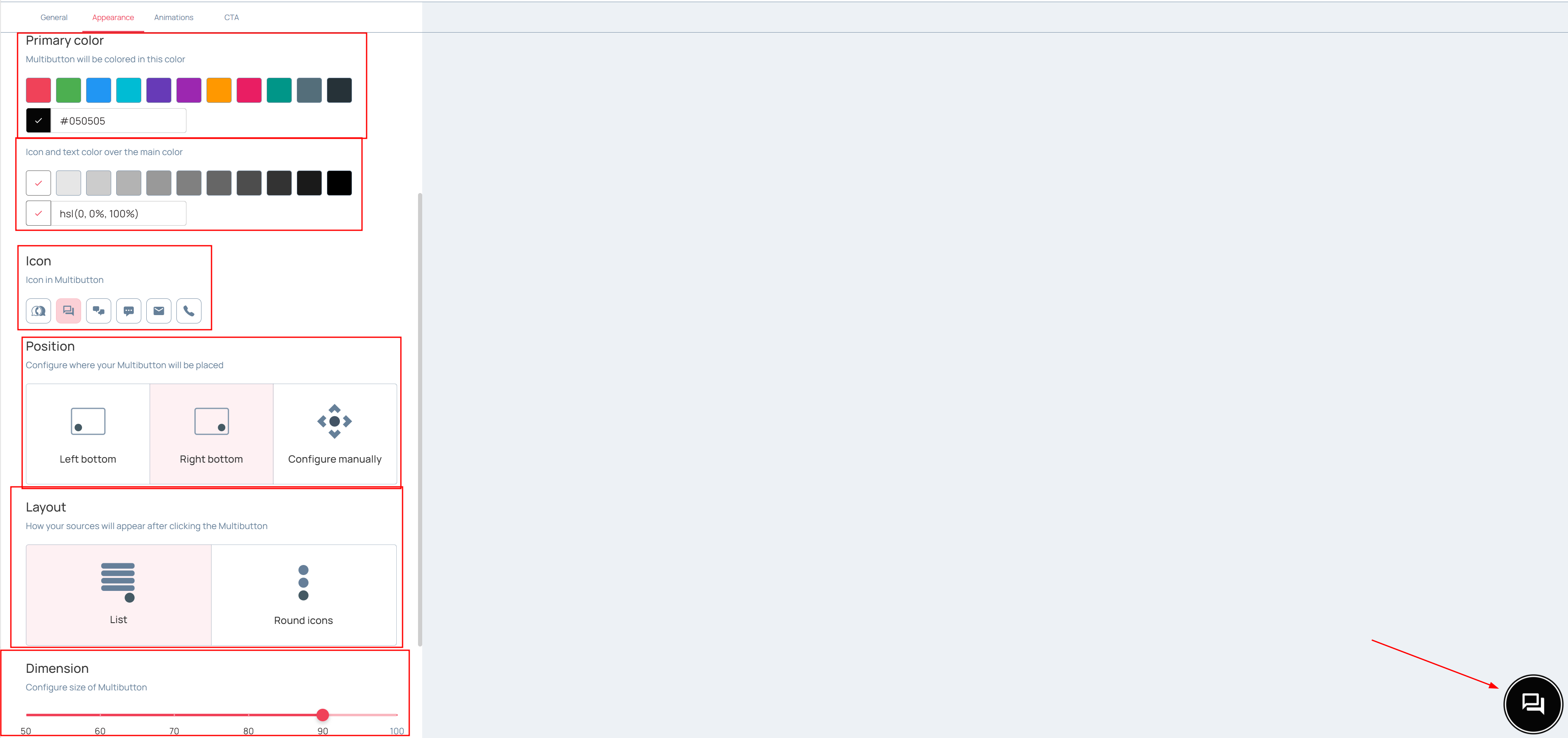
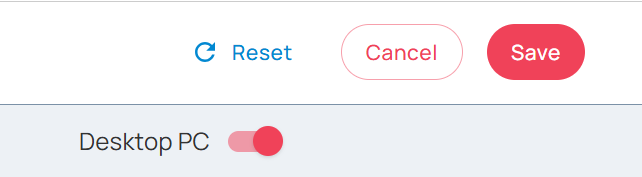
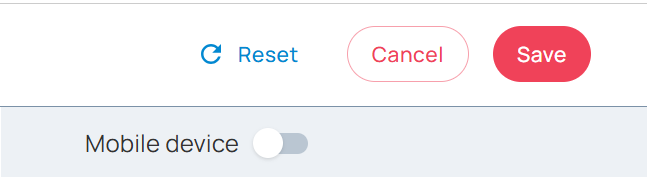
You can also separate settings for PCs and mobile devices: if a button is in the way on your smartphone screen, you can easily move it vertically or horizontally.

CTA messages: intelligent engagement
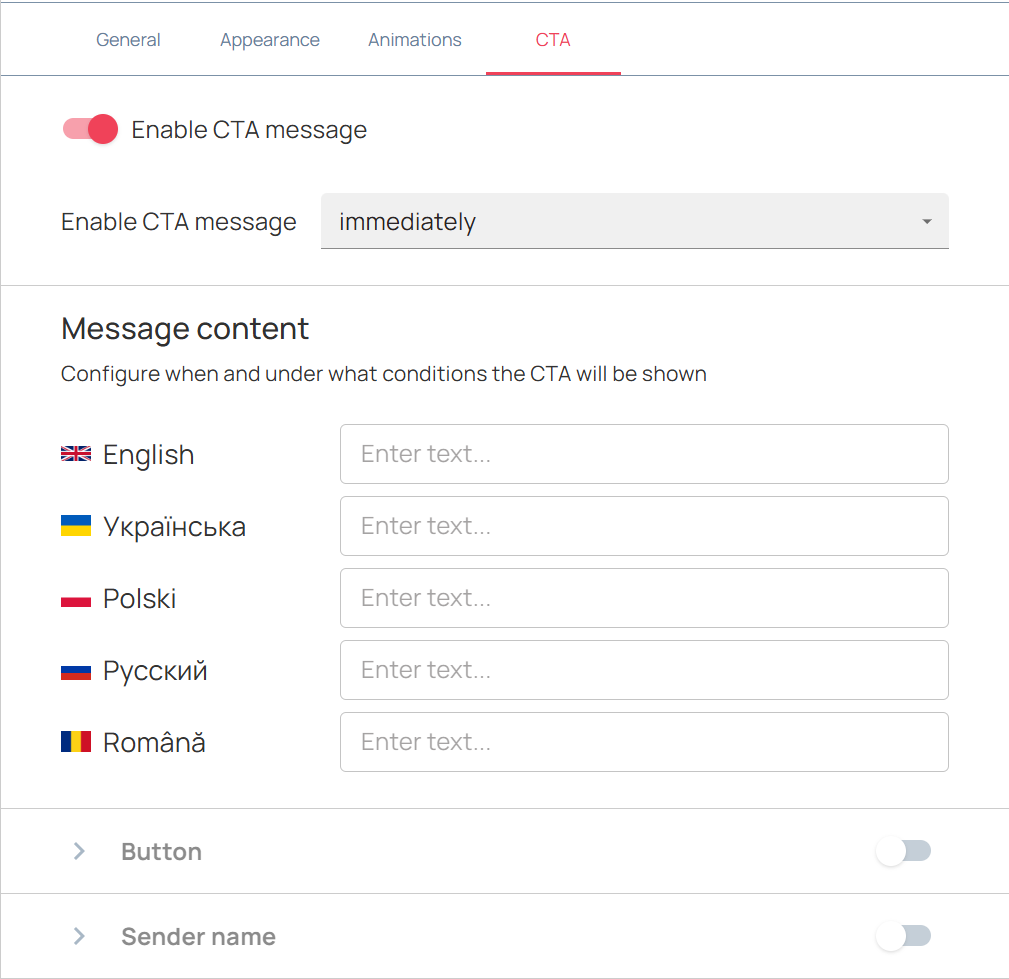
To encourage customers to take action rather than just wait, use CTA (Call to Action) blocks. These are pop-up messages that mimic a real manager’s appeal.
- Flexible timing: display messages instantly or with a delay (for example, after 20 seconds on the page).
- Personalization: add the sender’s name and avatar (photo or initials). This increases trust in the automated message.
- Multilingualism: configure the text of the message and the call to action on the button for each language version of the site in one window. The system allows you to choose a scenario after clicking: open the source selection menu or start a chat immediately.
UniTalk Multibutton is a tool for marketing automation and loyalty enhancement. You create comfortable conditions for the customer, and in return you get structured work with leads.



