


Voice robots history

On the “Voice robots history” page, you can review the results of voice robot operations with convenient filters by date and certain parameters of the selected voice robot.
At the top of the page, the most noticeable element is a link to the instructions, in case the user needs assistance.
The filters available on the page are:
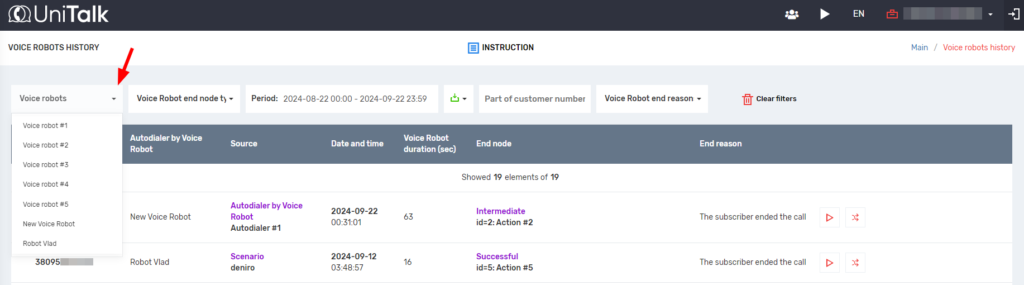
- selection of the voice robot
- filter by the type of the voice robot’s end node

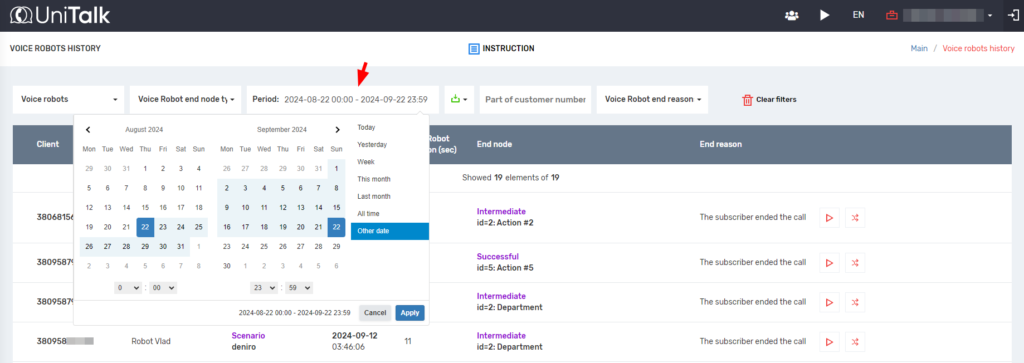
- time period – here, you can choose a specific date, week, or month for which you want to view the history
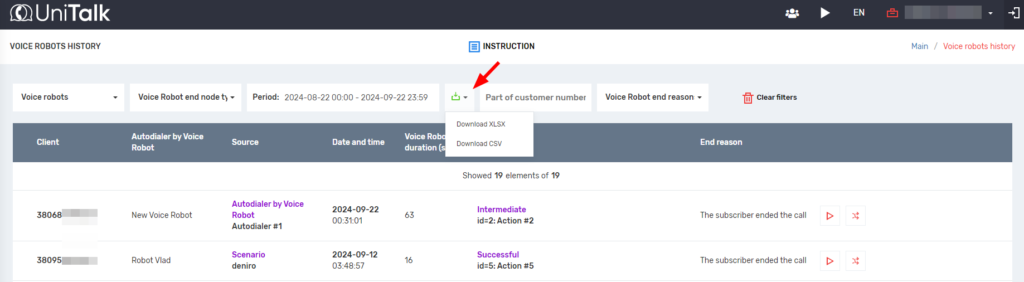
- downloading the voice robot history in table format as .xlsx or .csv
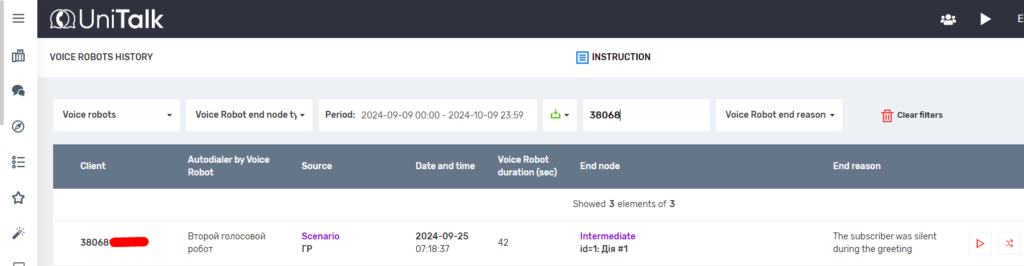
- filter by part of the subscriber’s number. You can enter the full number of a specific subscriber or filter by country code “380” or mobile operator code “38068”
- voice robot termination reason – filter by the status of the voice robot’s termination
- “Clear filters” – resets all filter values on the page to default settings
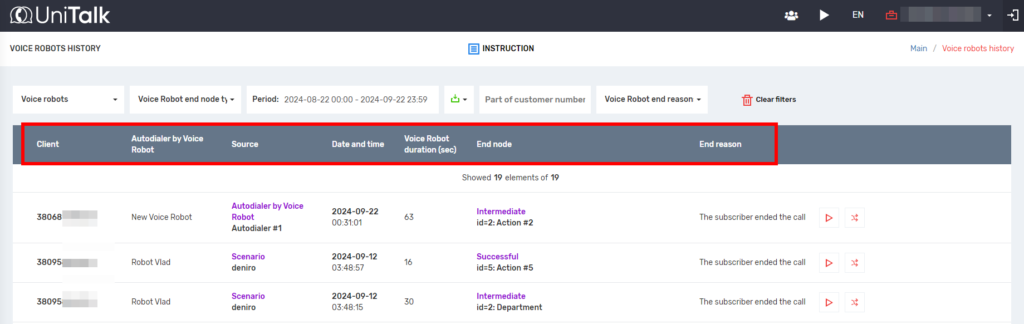
The voice robots’ history itself is displayed in the form of a table with the following columns:
- “Client” – the subscriber’s number for which the voice robot was activated
- “Autodialer by Voice Robot” – the name of the voice robot call from which the call to the subscriber was made
- “Source” – indicates where the voice robot was called from, with the type of source on top and the name of the source below
- “Voice Robot duration (sec)” – how many seconds the voice robot was active during the call
- “End node” – shows the type of node, as well as the ID and name of the action node where the voice robot finished its operation
- “End reason” – indicates the reason for the termination of the voice robot, one of those listed above in the filter with the same name
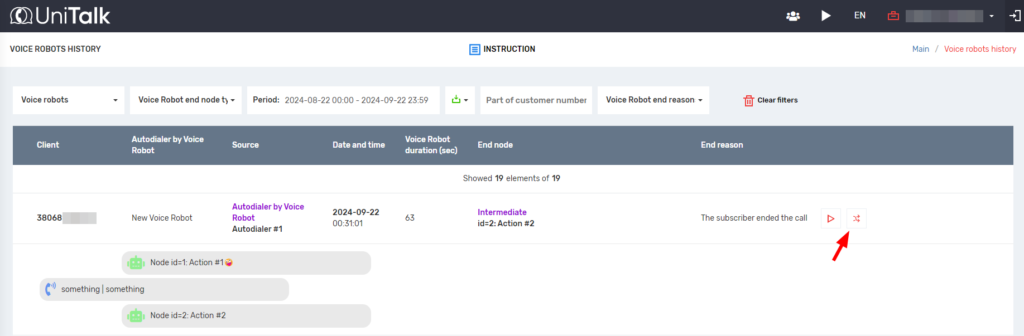
For each entry in the history, buttons are also available to listen to the recording of the client’s dialogue with the voice robot
and to view the path the client followed through the voice robot’s decision tree.
The path taken by a customer is called a redirect.
Routes consist of different types of steps:
a node (with a green robot icon) shows:
- node id
- name of the node action

- recognized dates (with a dark blue hourglass icon) are displayed in a block with recognized text


Access to the page for operators and managers is regulated on the users’ page using the “History of Voice Robots” setting.



