Multi-button and Website Chat: Setting Up Design and CTAs to Increase Conversion by 15%
Having more communication buttons on a website does not guarantee more requests. Most of the time the opposite happens. When the screen is overloaded with separate icons for Telegram, Viber, a callback request, and a chat window, the client simply gets lost. Instead of making a purchase, a person wastes time looking for the right contact or even closes the tab due to visual noise.
The UniTalk Multi-button solves this problem. It gathers all communication channels in one compact widget. The client clicks once and chooses the most convenient communication format. This can be a message in the online chat right on the website, a transition to a familiar messenger, or a callback request. This approach keeps the interface clean, improves the user experience, and helps increase website conversion by an average of 15%.
Why the Multi-button Design Affects Conversion
A communication widget should not look like an alien element. It must be a logical extension of your brand. When the colors, icons, and style of the multi-button match the design of the page, it automatically builds trust with the visitor.
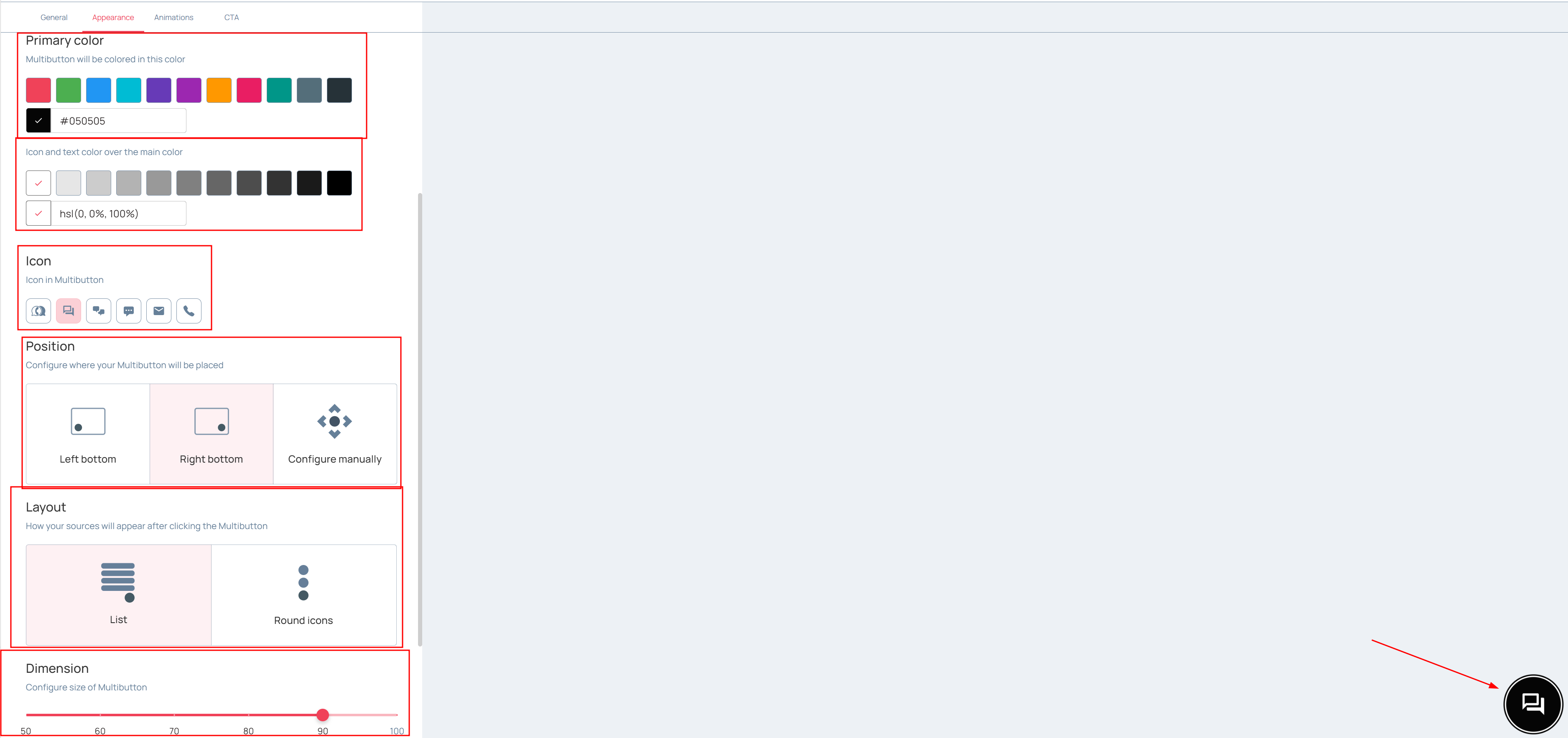
You can adapt the visual part of the widget to your own needs:
- Change color by code. Enter the required HEX code so the button fits perfectly into your website’s palette.
- Choose icons and shape. Adjust the size and corner rounding for a harmonious look.
- Manage animation. Add a light pulsation or smooth movement to attract attention without annoying the user.
- Adapt for mobile devices. If the widget overlaps important text or the cart button on a smartphone screen, it can be easily moved vertically or horizontally.
UniTalk Chat as the Heart of Your Multi-button
The multi-button is a great shell, but the main communication happens inside. Most often, clients choose the online chat for a quick connection. This is where the UniTalk Chat functionality comes into play.
For the client, it is an opportunity to get an answer instantly without needing to call anywhere. For your business, it is a complete “single window” concept that radically simplifies the work of the sales department.
Here is what you get when connecting the UniTalk Chat system to your multi-button:
- Everything in one interface. Clients write from different sources (website chat, Telegram, Instagram, Viber, Email), and your managers reply from one single window. There is no need to constantly switch between dozens of tabs.
- Saved history. The history of communication with the client is saved and available upon their return visit. The system automatically recognizes the user by data from previous sessions even without logging into the site.
- Teamwork. Managers can easily transfer dialogues between each other. Thanks to the “whisper” mode, employees can text each other right inside the chat with the client, and the client will not see it. This is an ideal feature for quickly agreeing on a discount or consulting with a technical specialist.
Proactive CTA Messages for Chat Engagement
Just a beautiful button works well, but a proactive approach gives much better results. A pop-up CTA message near the widget gently invites the visitor to a conversation and encourages them to write first.
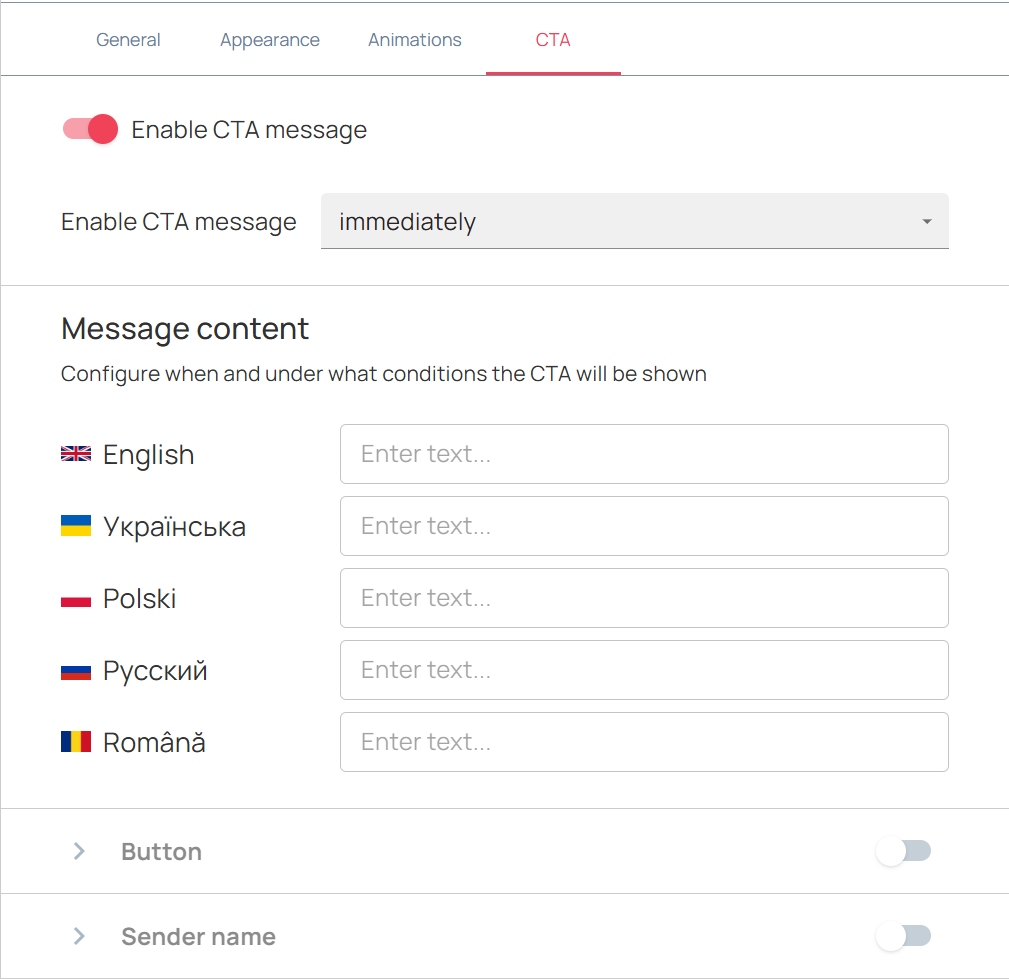
To stimulate the visitor to write, we added a new “CTA” (Call to Action) tab. These are pop-up messages near the multi-button that imitate a live greeting from a real manager.
You get the following engagement tools:
- Flexible timing. Set the message to show immediately or with a delay. For example, the message will appear after 20 seconds when the person has already had time to look at the product.
- Personalization. Add the sender’s name and avatar in the form of initials or a real photo of your manager.
- Multilingual support. Configure the message content, the text on the action button, and the sender’s name for each language version of the site in one window.
- Action after click. You choose the best scenario. The system can open the general menu of source selection or instantly start a dialogue in the online chat on the site.
Tip: A CTA with a manager’s photo works much better. People always react more actively to a human face and will start a dialogue faster than they would react to an anonymous system button.
Examples of Hooks for Different Funnel Stages
Depending on the specifics of your site, you can adapt the message text for maximum efficiency. Here are successful universal options for engagement in communication:
| Niche | CTA Message Example |
|---|---|
| E-commerce | Welcome to our store! Can I help you choose the right product? |
| Medical clinic | Hello! I am Anna, the administrator. Would you like to pick a free time for a doctor’s appointment? |
| B2B services | Looking for an automation solution? Write here, and I will send you our latest case study. |
| Real estate | Interested in available apartments in this residential complex? Write to me, and I will send you the available layouts in a convenient messenger. |
Step by Step: Setting Up the Multi-button in UniTalk
All settings are located in your UniTalk Personal Account. The process is intuitive and takes only a few minutes.
- Activation. Add the site in the “Call-tracking, widgets” section. Find the “Multi-button” service and click “Connect”.
- Communication sources. Be sure to add the online chat to the site, as well as the callback request form and the necessary messengers. When adding a link to Viber, use the format viber://pa?chatURI=<URI>.
- Appearance. Configure corporate colors, icons, animation, and a convenient location on computers and mobile devices.
- CTA setup. Go to the new “CTA” tab. Create personalized messages with a photo, text, and choose an action for the client after the click.
Want to dive into all the technical details? Read the detailed instructions for setting up the multi-button and its features at this link.
Save the changes, add the generated code to your site, and the widget will start working instantly.
The Multi-button with integrated UniTalk Chat gathers all communications in a single window and creates comfortable conditions for the client. You get a convenient tool for marketing automation, save managers’ time, and increase the number of requests without expanding the advertising budget.
UniTalk: Manage communications. Drive results.