HOW TO CONNECT YOUR GOOGLE ADS ACCOUNT TO GOOGLE ANALYTIC 4 AND IMPORT CONVERSIONS
This article is for those who are planning or already using paid traffic from Google Ads. In it, we will export the UniTalk IP telephony conversions we have just created.
Setting up conversions in Google Ads is important for analyzing the effectiveness of advertising campaigns and determining their impact on user actions on your website. Conversions are the desired actions that users take on your website, such as purchases, form submissions, phone calls, newsletter subscriptions, and other targeted actions.
Here are some reasons why it is important to set up conversions in Google Ads:
- Measuring the effectiveness of your campaigns
Setting up conversions allows you to measure exactly how many times the desired actions on your website were performed thanks to your ads. This helps you evaluate how successful your campaigns were and which ones brought the most results.
- Campaign optimization
Knowing which campaigns and keywords lead to more conversions allows you to optimize your advertising efforts. You can focus your resources on the most effective campaigns, which will help you save money and improve your ad performance.
- Determine ROI
With conversion setup, you can calculate the cost of each conversion and find out which advertising method is most profitable. This helps you determine the return on investment in your advertising campaigns and evaluate the effectiveness of your advertising strategy.
- Automatic optimization
Google Ads uses conversion data to automatically optimize your ad campaigns. As a result, your ads will be shown to more potential customers who have a higher potential to perform the desired actions on your website.
Exporting conversions from Google Analytics 4 to your Google Ads account takes place in several stages. First, let’s make sure that these two services become friends.
Connection with Google Ads
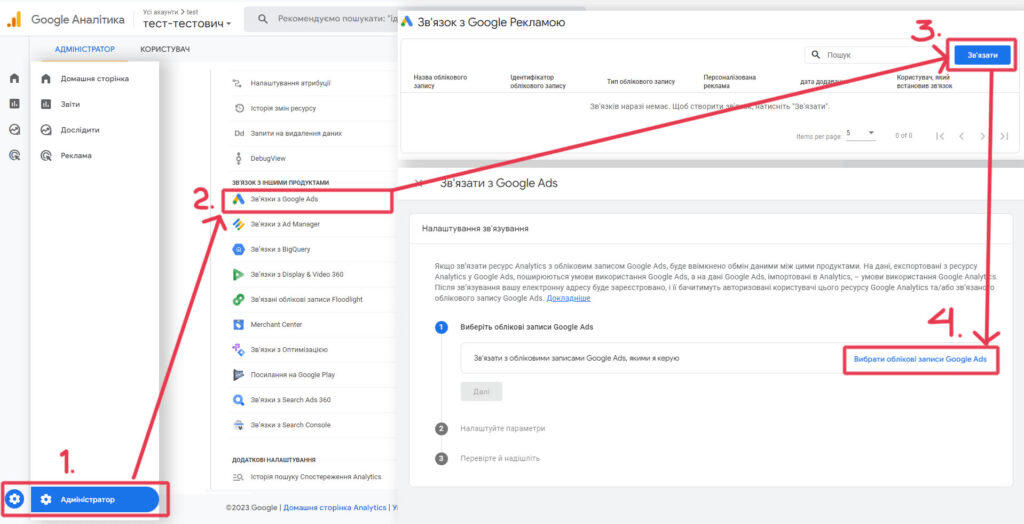
Step 1: In the admin mode (the “gear” in the lower left corner), find the “Resource” column. At the very bottom, there is a section called “Connections with other products” and right next to it, “Connections with Google Ads”.
Step 2: Go to the “Linked Google Ads accounts” section. This is where you will find a list of all advertising accounts to which the analytics resource transfers data about traffic sources, visitors, events, and conversions.
Step 3: Click on the blue “Link” button. An attachment will open with step-by-step instructions for setting up the Analytics resource with your Google Ads account.
Step 4: To start the procedure, click on the “Select Google Ads accounts” button.
Step 5: In the list, select the account that you need and to which you have administrator access. If you don’t have such access, contact your Google Ads account administrator to get the rights. By the way, this is exactly what the corresponding window says.
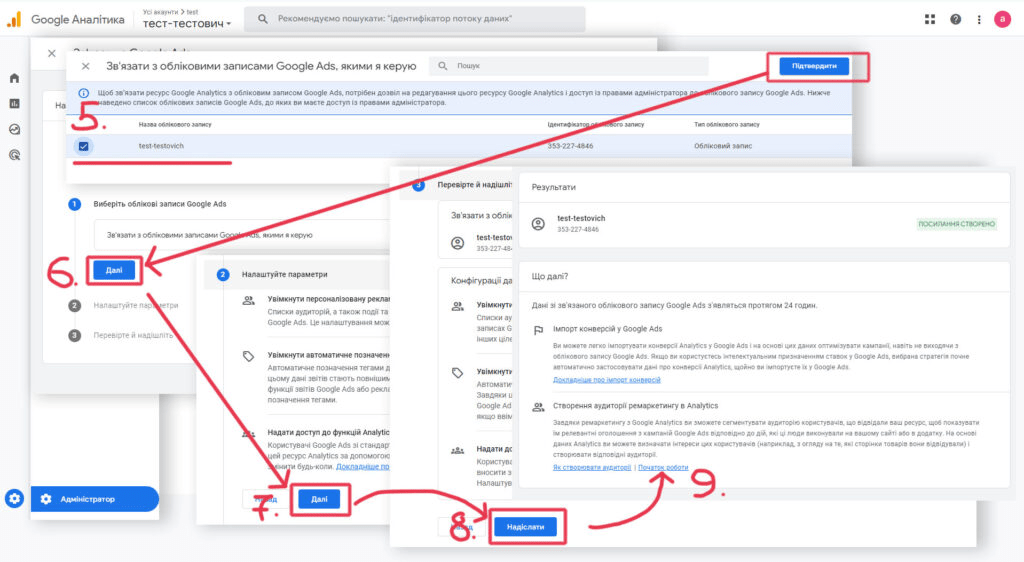
Put a blue check mark on the required advertising account, click “Confirm”.
Step 6: After this action, the account will be added to the selector, where you need to click “Next”.
Step 7: You will be automatically transferred to the next step “Setting up parameters”, here you can leave all the default settings and click “Next”.
Step 8: In the final step, check if everything is okay, click the “Submit” button, and Google Analytics will think about it for a while and report that the connection has been created if everything went well. You can close the tab. Your Google Ads account should appear in the list of those that are connected to Google Analytics.
Export generated conversions to Google Ads
Now you need to make sure that your ad account sees the newly created conversions. To do this, go to the Google Ads account we just connected, click on the Tools & Settings wrench (Step 1), which is located closer to the upper right corner. In the Measurements column, find the Conversions option (Step 2), click on it, and then go to the Summary section (Step 3).
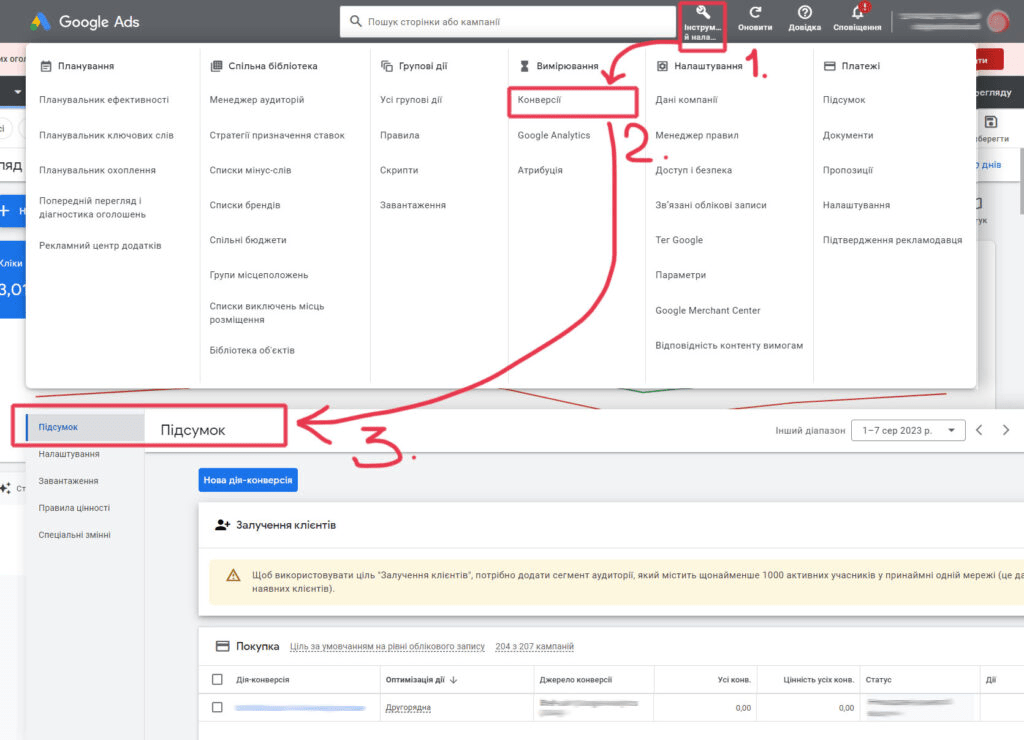
If you have the new Google Ads interface, find Goals on the left, then Conversions and the Summary item.
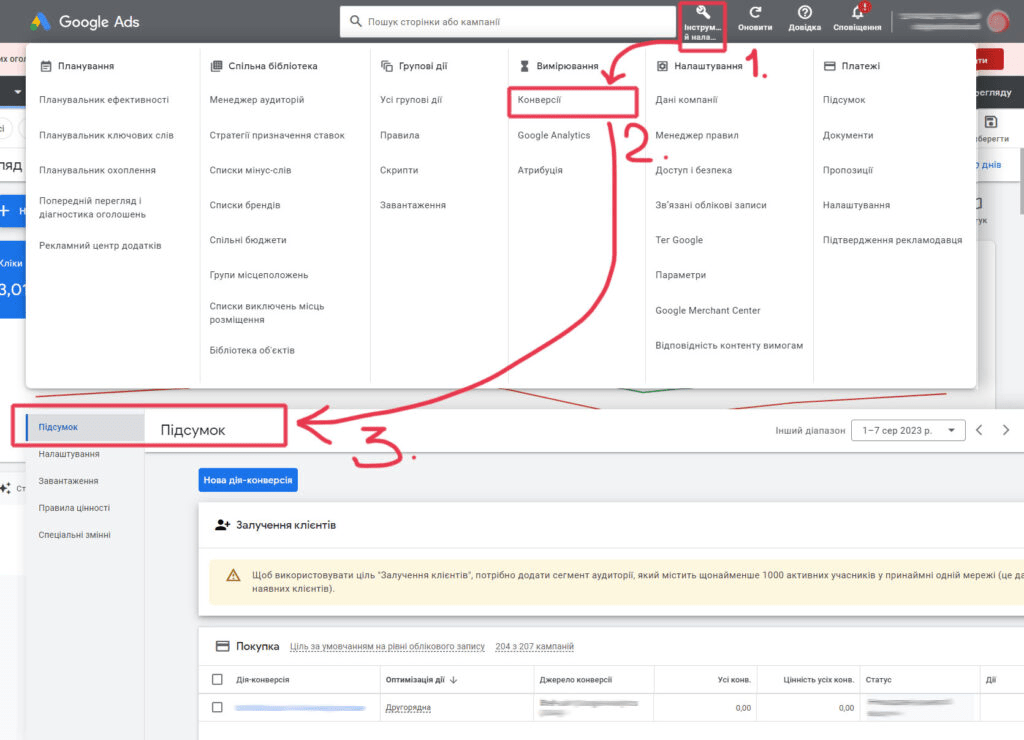
This is the “Summary” of conversions for which advertising campaigns are optimized. Any new conversions created in Google Analytics 4 that you want to use to optimize your advertising activities must be transferred manually.
To do this, click on the “New conversion action” button. On the page that opens, select the “Import” option, and then check the “Google Analytics 4 resources” and (here carefully!) “Web” boxes. It should look like this:
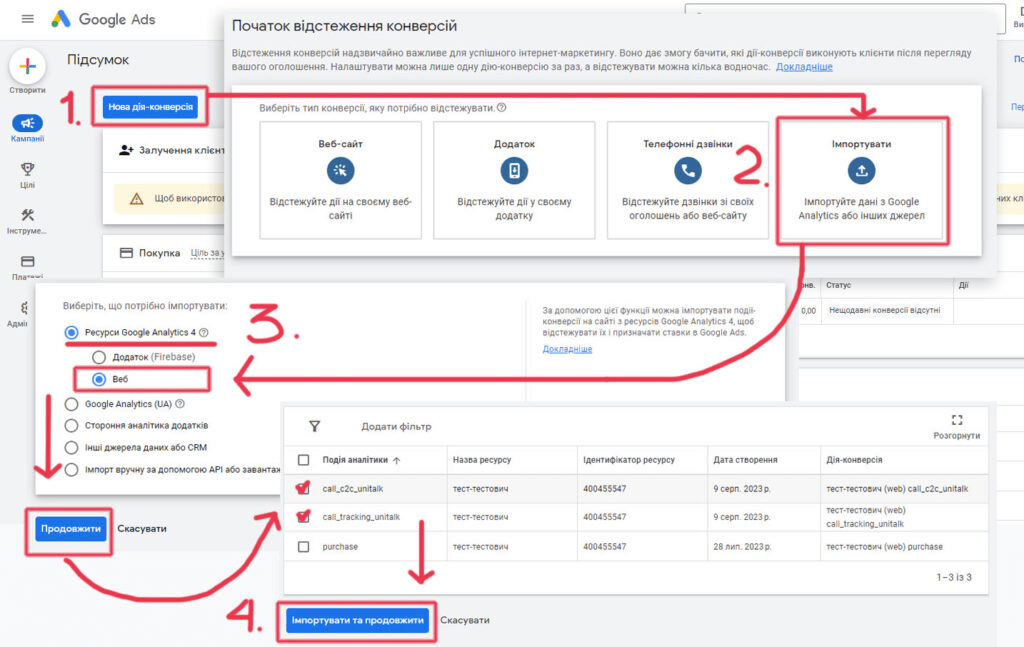
Click “Continue”. In the next window, Google Ads will offer a list of conversions that have not yet been imported to your ad account from the connected Google Analytics. We select the conversions that we need with check marks. In our case, these are call_tracking_unitalk and call_c2c_unitalk.
Next, click “Import and continue”. The next step will depend on whether you have used Universal Analytics in your Google Ads account. If not, Google will write something like:

This means that after you click the “Finish” button, this “Conversion Action” will be assigned the “Main” status, added to the “Conversions” and optimized for your account. And then no additional actions are required on your part.
If you switch from the old analytics to the new one, Google Analytics 4, Google will notify you that your “conversion action” will have the status of “Secondary”, it will not be included in the calculation of “Conversions” in the general statistics of Google Ads and will not be optimized for this event.
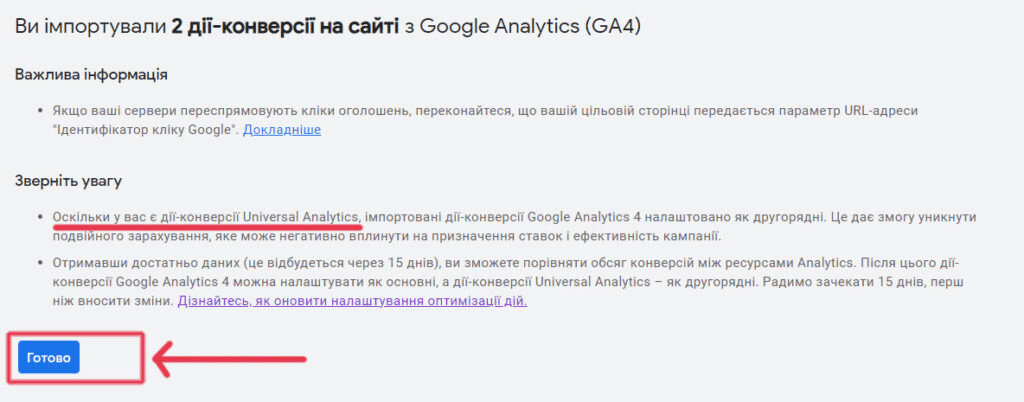
You can change this immediately or wait 14 days, as Google recommends in the notification. If you want to change it right away, click the Done button. The import of conversions is complete. If you have Universal Analytics, you will have to take a few more steps.
Setting up conversion prioritization
First, in the Conversion Summary, we need to find the conversions we just imported from analytics. Google has a habit of complicating this task by adding the name of the conversion to the name of the Google Analytics 4 resource and GA4 (web). This way, Google believes, it will be easier for you to identify conversions among others.
That is, you need to search for vasha-analytica – GA4 (web) vasha_conversia
If you’re setting up from scratch, conversions should look like this:
test-tester (web) call_c2c_unitalk
test tester (web) call_tracking_unitalk
If you have Universal Analytics installed, then look for conversions in the form:
GA4 test test (web) call_c2c_unitalk
GA4 (web) test call_tracking_unitalk
Now you have two types of conversions in your Google Ads account. From Universal Analytic (old version) and Google Analytic 4 (new version). The conversions that were used to optimize your campaigns earlier have the “Basic” status in the “Action Optimization” field. The newly imported ones are set to Secondary, and ad campaigns still do not take them into account when driving traffic.
You need to swap the conversions. Set the newly created ones to Primary, and those that belong to the old Universal Analytics to Secondary.
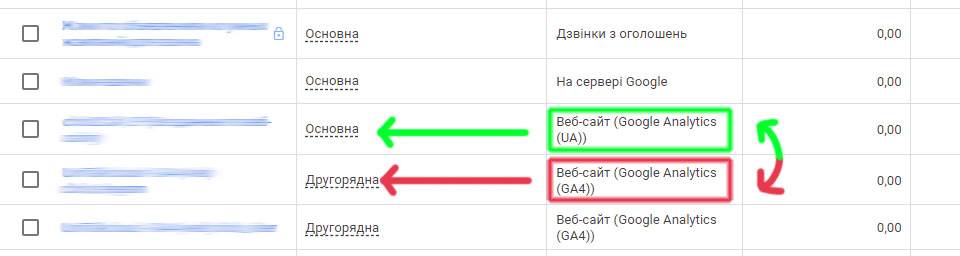
First, let’s get rid of the conversion priority from the old analytics. It is important to change this setting rather than remove the conversion from your account. Because if you delete this action, you may lose data for previous advertising periods.
Next, you should choose a conversion from Universal Analytics. For example, the one related to call tracking, click on it, in the settings window in the lower right corner, click “Change settings”. Next, select the second line “Optimization of goals and actions” and set the switch to “Additional action (not used for bid optimization)”.
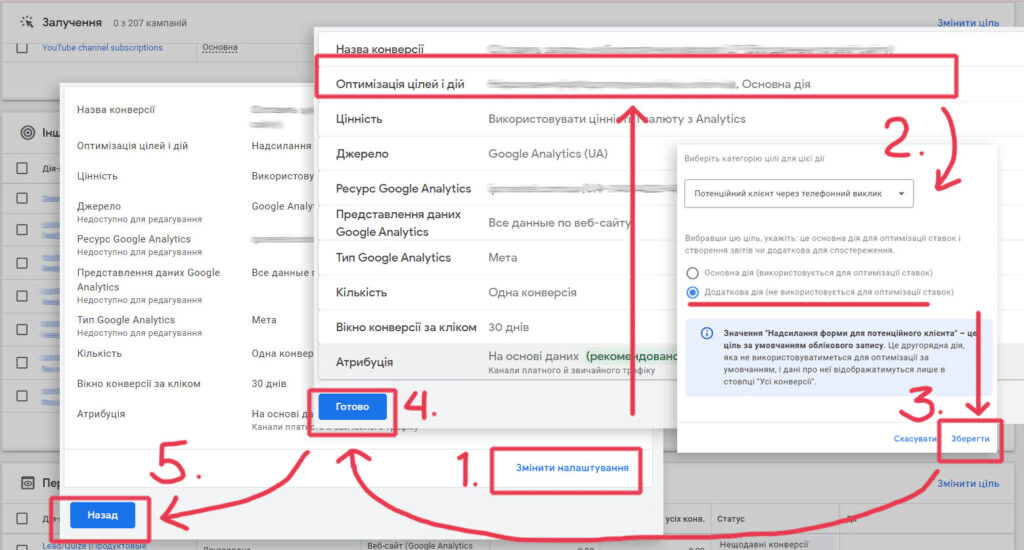
After that, click “Save”, “Done”, and then “Back” in turn to return to the Conversion Actions Summary.
Now you need to prioritize the conversions you just imported. The procedure is almost the same. Select the desired conversion action and click on it. On the conversion settings page, click “Change settings”, and then select the “Optimization” line, where you should set the switch to “Main action (used for bid optimization)”.
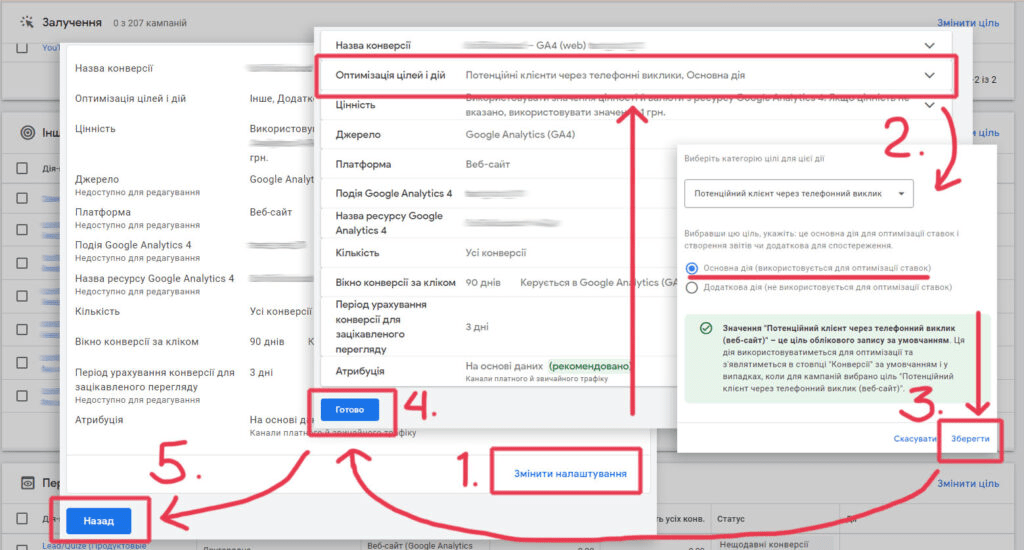
Click Save, select Done in the next window, and then click Back.
In this way, you specify which conversion is important and you want it to participate in the optimization of advertising campaigns, and which serves as an additional event for optimization and its values are not taken into account in the main table when calculating conversions.
Repeat this process for each imported action.
Congratulations! You have successfully connected the new Google Analytics 4 to UniTalk IP Telephony and Google Ads and imported conversions.