


Access Rights in the UniTalk Personal Account: Maximum Control and Security
An efficient contact center requires not only powerful tools but also a clear structure. Granting employees only the necessary access rights ensures data security, prevents accidental configuration errors, and allows managers to focus on strategy. UniTalk offers a flexible role system (from Owner to Operator) that perfectly adapts to your company’s hierarchy. Let’s examine how to correctly configure access rights and what capabilities each employee receives.
Configuring Access and Creating Users
When creating a project in the UniTalk personal cabinet and adding employees in the “Users” section, create a sip-line for each employee, for this you need to “Add sip-line” (example below). Their number is equal to the number of employees and should correspond to your tariff plan.
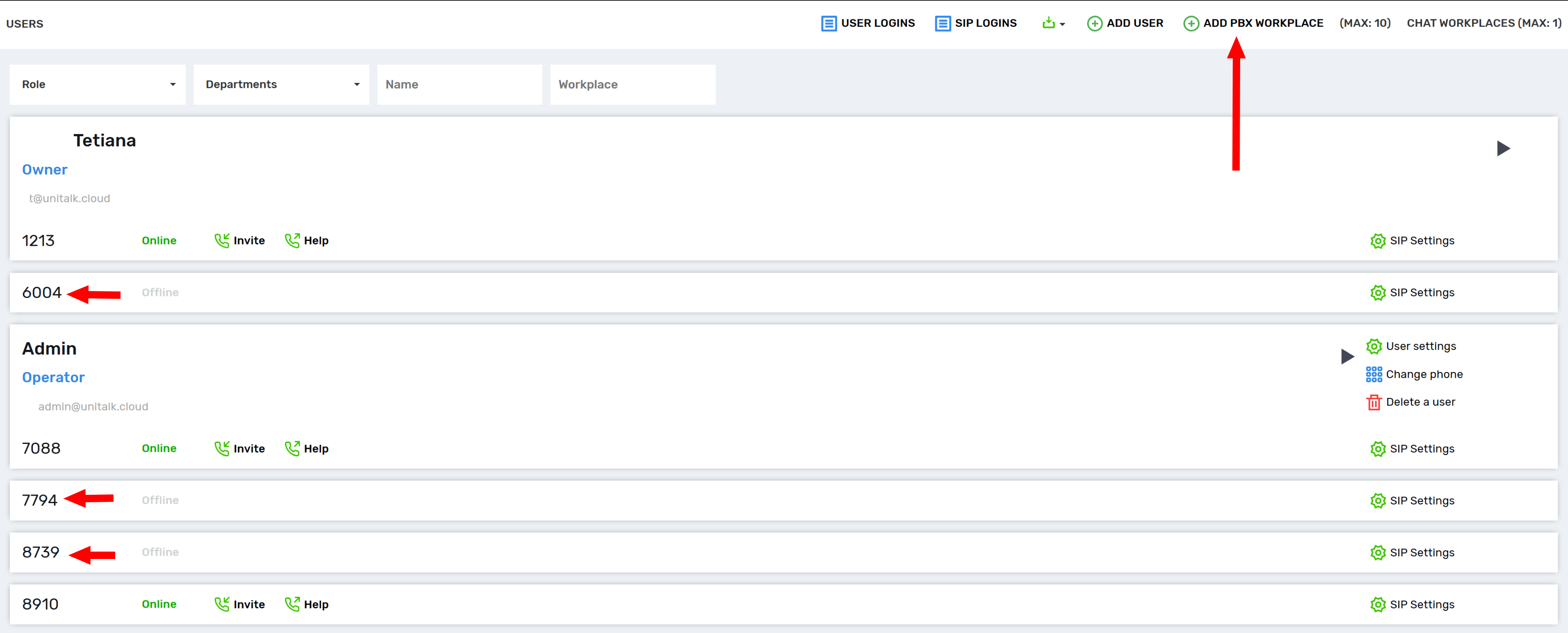
To assign a specific role with corresponding access rights to each employee, select “Add User” in the same “Users” section. The fields to be filled in will app
-
e-mail
-
part
-
inner line
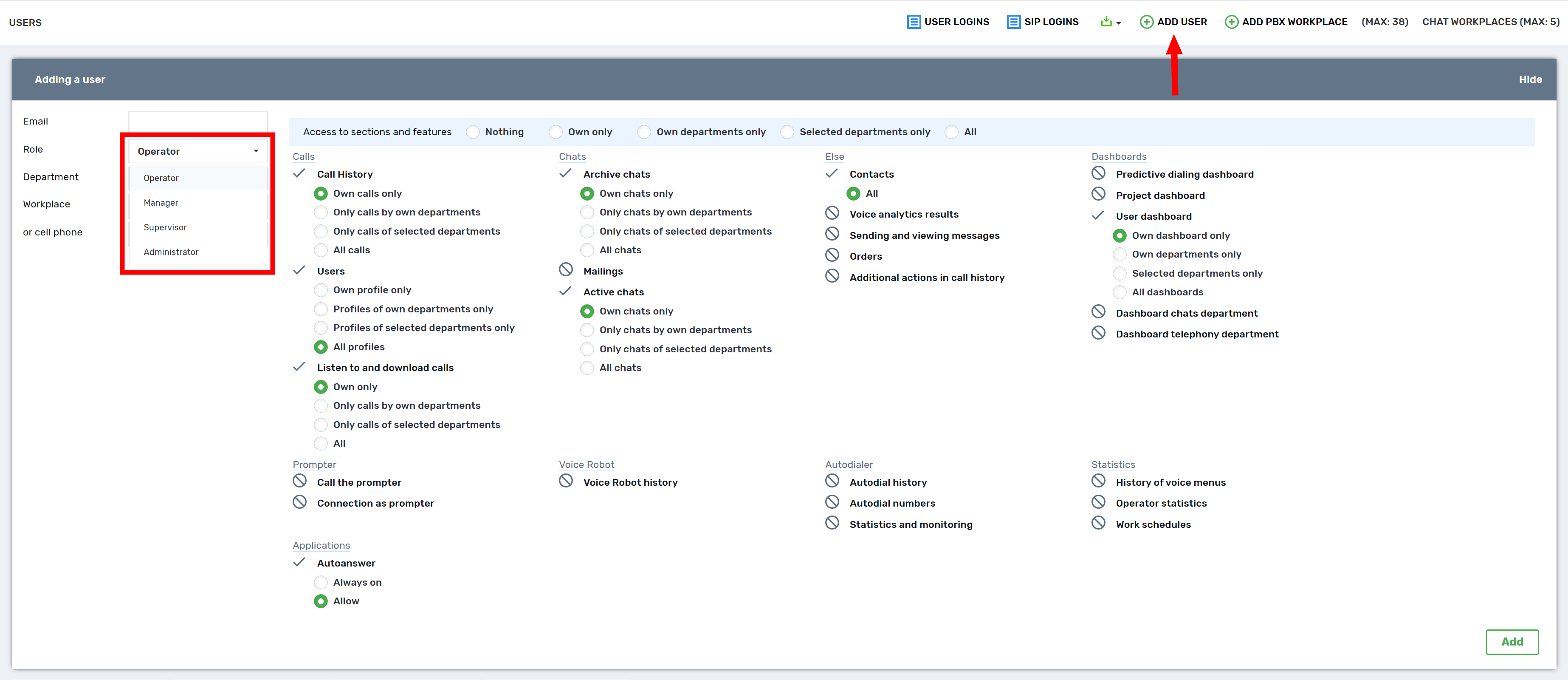
You can assign each user a specific role (owner, supervisor, administrator, manager, operator), each of which corresponds to certain access rights and has certain functionality and capabilities.
General description of roles
There are 5 access levels, each with its own set of permissions:
- 👑 Owner: Maximum rights. Has access to all functions and settings, including project deletion.
- 🔐
- Administrator: Full access to all functions, same as Owner, except project deletion.
- 👔 Supervisor: Extended rights for team management and viewing full statistics.
- 🧑💼 Manager: Basic access, focused on personal work with calls, chats, and contacts.
- 📞 Operator: Limited access, focused on performing specific tasks (calls, chats).
Below, the access rights for the roles Supervisor, Manager, and Operator are detailed for each functional block. Owner and Administrator have full access to all sections. Owner is the only one who has access to project deletion
Detailed access by blocks
📌 Block «Dashboard»
- Supervisor: Sees all statistics.
- Manager/Operator: See only their own calls. Access can be expanded at the department level in user settings.
📞 Block «Calls»
- Call history:
- Supervisor: Sees the entire call history.
- Manager/Operator: See, listen to, and download only their own calls. Access can be expanded at the department level in user settings. The Call History download button is unavailable.
- Callbacks and Contacts:
- Available to all three roles. Manager/Operator by default see only their own callbacks, but access can be expanded.
- Statistics:
- Supervisor: Sees all statistics blocks.
- Manager/Operator: By default see only «Operator Monitoring». Access to «IVR History», «Work Schedule» and «User Statistics» blocks can be granted individually.
- Settings:
- Supervisor: ✔️ Has access.
- Manager/Operator: ❌ Do not have access.
💬 Block «Chats»
- Chat:
- Supervisor: Sees all chats.
- Manager/Operator: See only their own chats. Access can be expanded at the department level.
- Mailing:
- Supervisor: ✔️ Has access.
- Manager/Operator: ❌ By default, no access, but it can be granted individually.
- Statistics and Settings:
- Supervisor: ✔️ Has access.
- Manager/Operator: ❌ Do not have access.
🤖 Block «Dialers»
- Voice Robot Dialer, Auto Dialer, Predictive Dialer:
- Supervisor: ✔️ Has full access.
- Manager/Operator: ❌ Do not have access.
- Statistics:
- Supervisor: ✔️ Has access.
- Manager/Operator: ❌ By default, no access, but it can be granted individually.
🗣️ Block «Voice Robot»
- Supervisor: ✔️ Sees all section blocks.
- Manager/Operator: ❌ By default, do not see the block. Access to the «Voice Robots History» section can be granted.
📱 Block «SMS and Viber mailings»
- Message history:
- Supervisor: ✔️ Has access.
- Manager/Operator: ❌ By default, no access, but it can be granted individually.
🏢 Block «Contact Center»
- Supervisor: ✔️ Has full access to all sections and can make changes.
- Manager/Operator: 👀 By default, have access to view all sections. The ability to edit «Forms» and «Script Library» can be granted individually.
📊 Block «Speech Analytics»
- Supervisor: ✔️ Has full access and sees analytics results in «Call History».
- Manager/Operator: ❌ By default, do not see the block. Access to view analytics results in «Call History» can be granted.
⚙️ Block «API and Automation»
- Supervisor/Manager/Operator: ❌ No access to this block for all three roles.
🌐 Block «Call-tracking, widgets»
- Supervisor: ✔️ Has access to «Requests» and «Sites».
- Manager/Operator: ❌ By default, no access. Access to the «Requests» section can be granted.
💳 Block «Finance»
- Rates:
- Supervisor/Manager/Operator: 👀 All have access only to view rates.
🛠️ Block «Settings»
- Users and Departments:
- Supervisor: ✔️ Sees sections, can create and edit users with Manager and Operator roles.
- Manager/Operator: ❌ By default, no access. Access to view the list of users can be granted.
The UniTalk access rights system is your tool for scaling and control. It allows you to delegate tasks without risk, ensuring that every employee has everything needed for productive work but does not have access to critical settings. Clear role differentiation enhances your project’s security, optimizes internal business processes, and guarantees that only administrators make changes in key blocks. Create a hierarchy that works for you!



