


Condition profiles
Condition profiles are sets of conditions that can be saved in advance and referenced in the transition conditions of the voicebot tree. They can be especially useful when a client can express the same intent in different ways.
For example, a consent conditions profile might include phrase options such as “yes,” “good,” “okay,” “sure,” and a couple more consent options, allowing the system to correctly respond to different forms of client responses.
The key advantage of condition profiles is the ability to create them once and then use them in multiple nodes of all voice robots in the project.
Page Contents
The profile page displays:

– Add: the key button of this section, which allows you to create a new conditions profile.

When you click it, by default a conditions profile is created with the name “New Profile” and empty content.
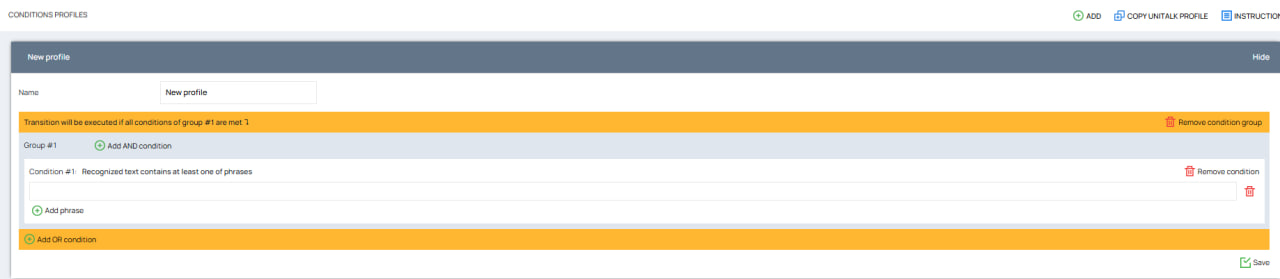
Copy UniTalk profile – a button that allows you to copy the profiles of conditions that we have previously created. At the moment, one public profile of conditions is available in Ukrainian and Russian – consent

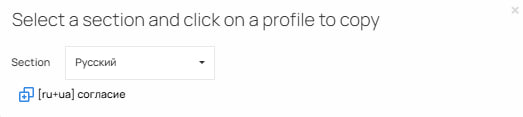
To copy, select a section and click on theprofile, after which this profile will be automatically copied to your project:

All you have to do to successfully save this profile is to click “Save to project”.
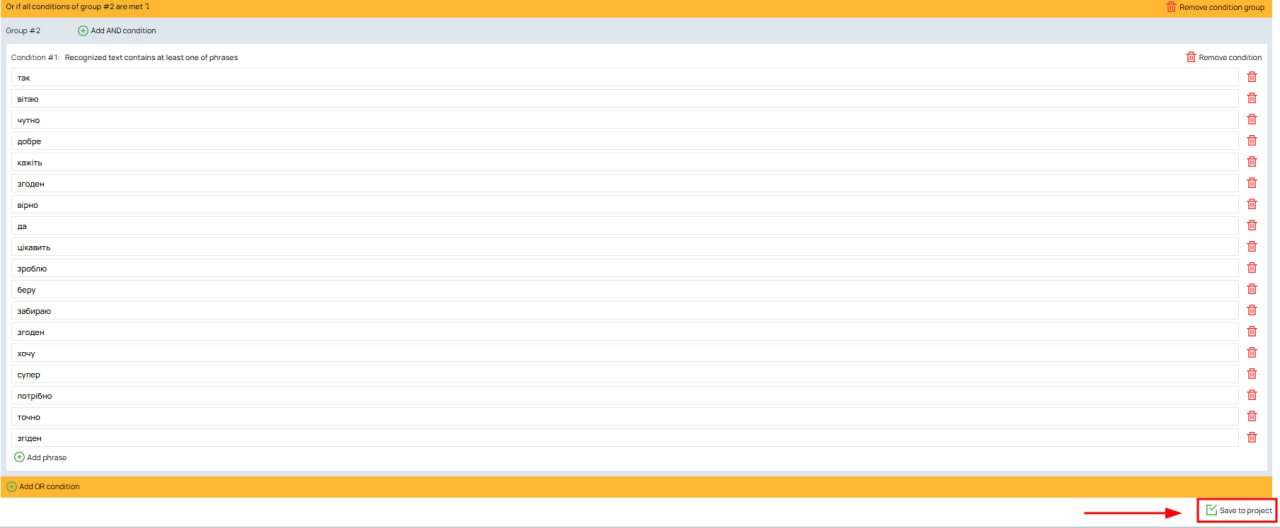
After that, this profile of conditions will be saved in your project and will be available for further editing. You can also supplement it with other phrases or delete/add conditions. How to do this will be discussed further in the article.
Working with condition profiles
On the Conditions Profiles page you can:
- add profiles
- edit profiles
- delete profiles
- copy project profiles
To proceed to editing the conditions profile, select the conditions profile you need and click “Show”

The conditions profile consists of the profile name (1) and the transition conditions block (2):
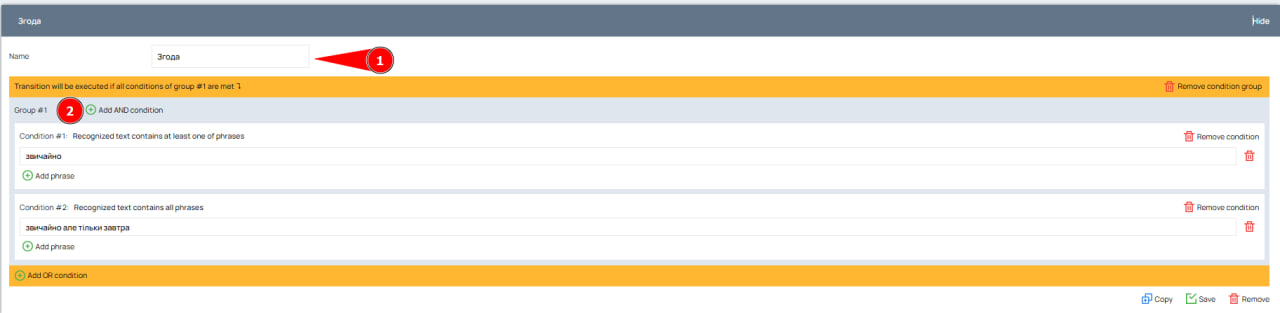
Name is what your condition profile is called. The name is unique for each condition profile and cannot be repeated.
We recommend naming condition profiles in this way so that in the future you can intuitively select the required condition profile when creating a voice robot.
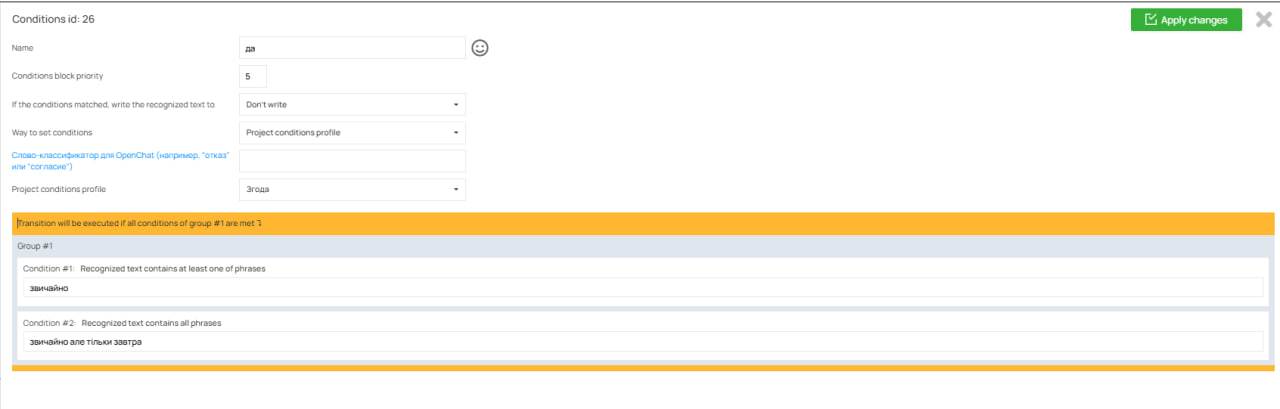
Example of selecting a condition profile in the “Consent” voice robot:
Transition Condition Block
In this block you can add and edit conditions according to the task assigned to the conditions profile.
Adding conditions
There are two possible options for adding conditions in the conditions profile:
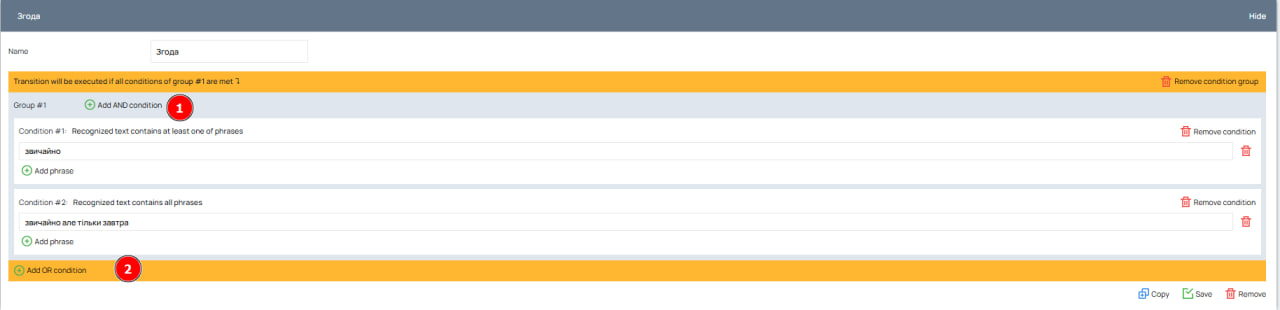
Add condition AND – in this case, the condition will be included in an existing group and will be executed together with the previous conditions, and the transition in the voice robot will be made only if all conditions are met simultaneously.
For example, if a condition specifies that the text must contain one of the consent phrases and not contain the phrase “tomorrow,” the transition will only occur if both conditions are met: ✅ “Of course” ❌ “Of course, but only tomorrow”
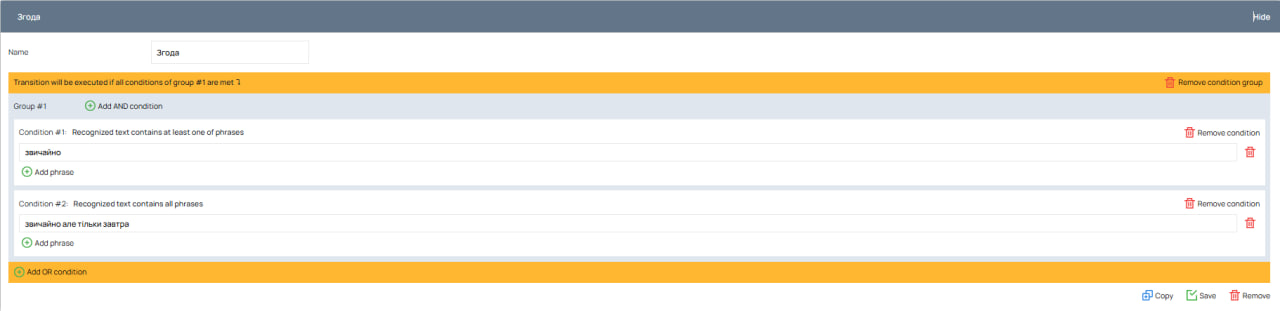
Add condition OR – in this case the condition will be added to a new group of condition
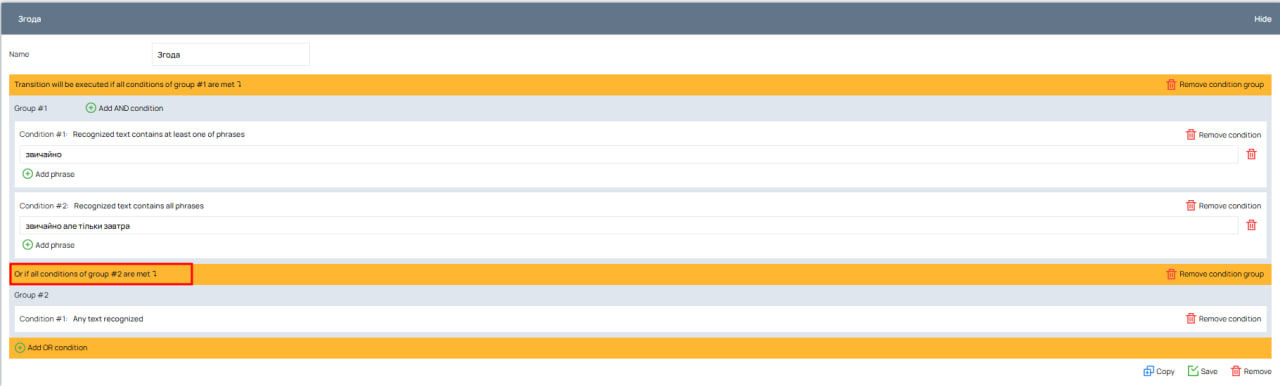
When adding such a condition, they will be executed as a logical OR, which means that the robot will take into account any of the specified phrase options.
Possible conditions for adding
When you add an AND condition or an OR condition, you will be presented with a list of available conditions to choose from.
For convenience, the conditions are divided into blocks:
- Special
- Phrases
- words
- Numbers
- Time
- Text
- Similarity of words
You can view a list of all possible conditions by clicking on the “Show all conditions” button.
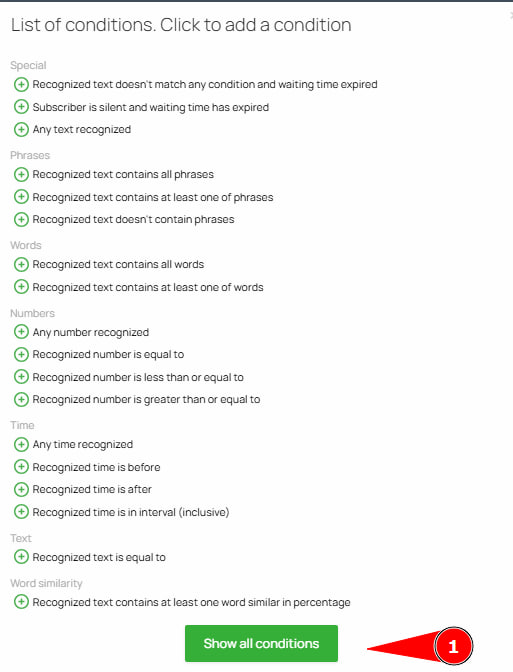
To add a condition, first decide what type of condition you need – AND / OR and then click on the add condition icon  . The condition has been successfully added.
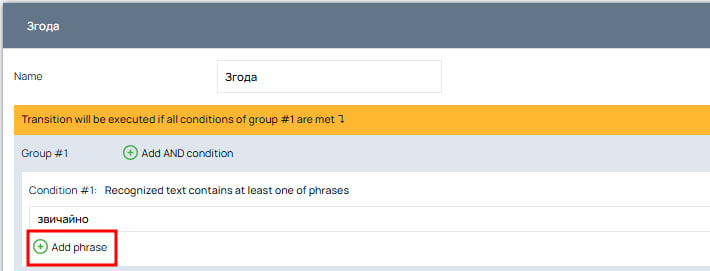
Add Phrase – You can add a new phrase by clicking on “Add Phrase”:
Deleting in Conditions Profiles
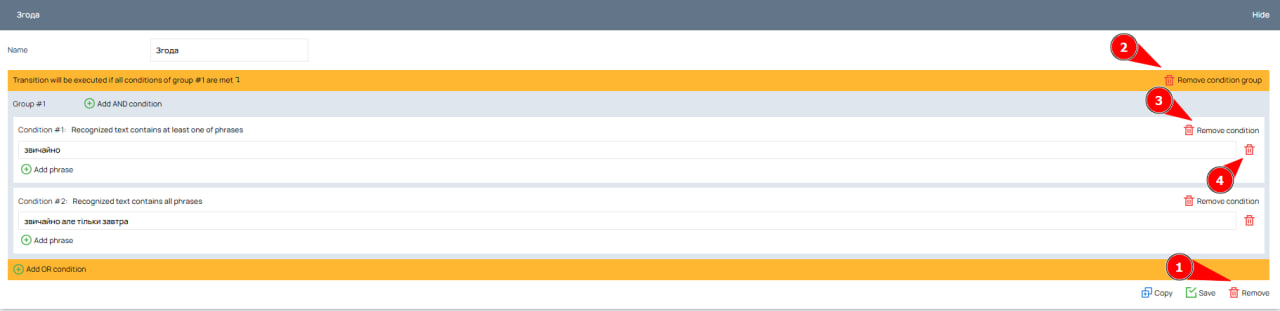
- Delete – You can delete an entire conditions profile
- Delete condition group – in this case the whole group including all conditions AND will be deleted, but other groups will remain
- Delete condition – You can delete one condition from a group, in which case the other conditions will remain
- You can also remove a phrase from the condition
Saving the changes made
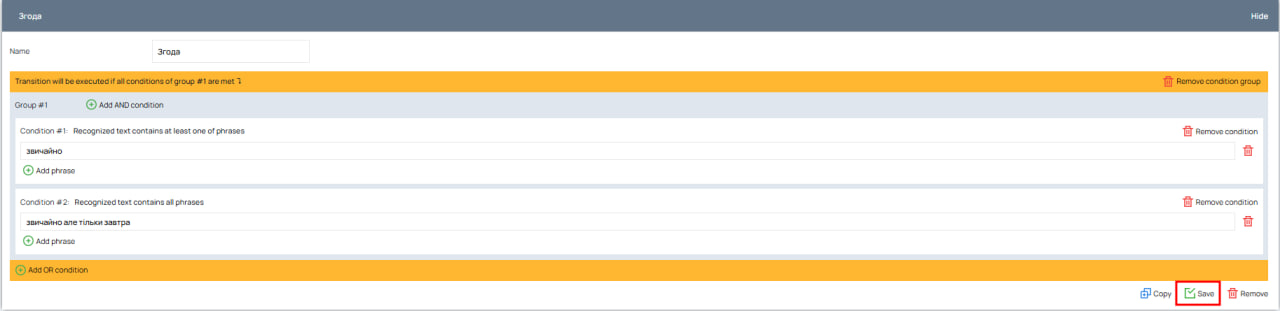
To save the changes you have made, click the “Save” button.
Copying condition profiles
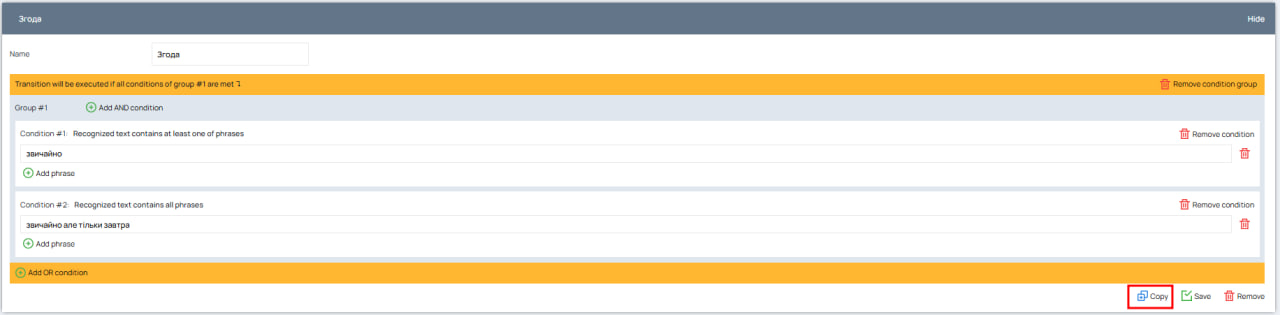
To copy a condition profile, click the “Copy” button. In this case, a duplicate of this condition profile will appear with the “Copy” prefix.



