


Configuring UniTalk IP Telephony Integration with HubSpot CRM
Configuring the integration of UniTalk IP telephony with the HubSpot CRM will allow you to efficiently manage your company’s relationships with customers. To connect HubSpot, follow these steps:
Integration Setup
- Go to the UniTalk dashboard on the HubSpot integration page and click “Connect.”

- Select the HubSpot account you want to connect to the UniTalk application.

- Confirm your consent to connect to the UniTalk app.

Integration Settings
1. In the UniTalk dashboard, in the HubSpot integration section under the “Settings” block, enable the appropriate options.

If the “Create Contacts” option is disabled, then with the “Create Deals” option enabled, deals will only be created if existing contacts are present.
If you enable the “Create Deals if None are Open” option, a new deal will be created only if the last created deal for a contact has a closed status.
2. If you enable the “Create Entities During Outgoing Calls” option, the CRM system will create contacts and deals during outgoing calls to mobile numbers of contacts.
3. If you enable the “Create Entities Only for Incoming Calls Answered” option, the CRM system will create contacts and deals only for phone calls that have been answered.
4. If you enable the “Display Responsible Party During Incoming Calls in the SIP Client” option, additionally, in the UniTalk dashboard, under “Users,” for each user in the “SIP Settings” section, turn on the “Display Subscriber Name” option.
5. To input call information into the CRM system, enable the “Send Calls” option.
6. Fill in the contact and deal fields that will be populated with data from UniTalk during creation.

7. Select those responsible for missed calls.

8. Enter the phone numbers of HubSpot users, separated by commas. These can be internal lines or GSM numbers.

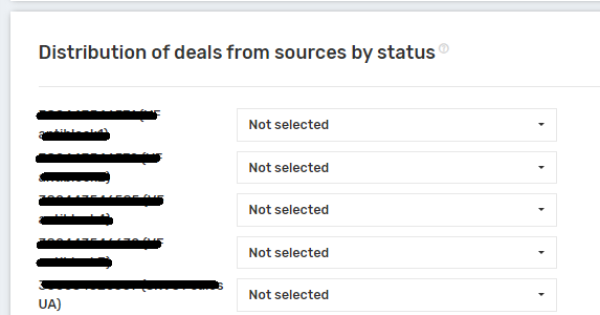
9. Choose which funnels and statuses to allocate deals to during creation.
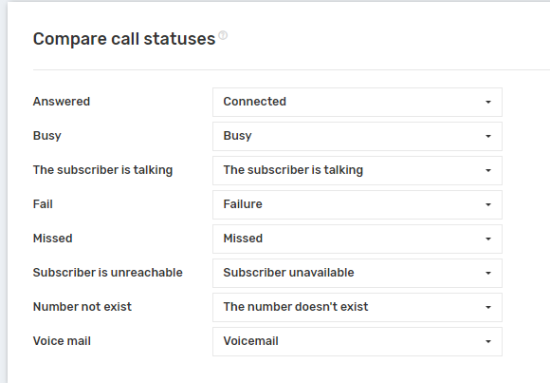
10. For each UniTalk call status, select the corresponding HubSpot call status.
11. After making changes to the integration settings in your UniTalk dashboard with HubSpot, click “Save.”

12. To disable the integration of your UniTalk account with HubSpot, click the “Remove Integration” button, and then in the confirmation window, click “Delete integration.”

Configuration options for HubSpot and Unitalk Chat
1. Basic settings
There are three events for which specific actions can be defined separately:
- chat start,
- chat end,
- chat fields update.
In each of these cases, you can configure whether to create comments, tasks, and specify actions related to contacts and deals.



Available scenarios for each entity:
- Contact not found: do nothing or create a new contact
- Contact found: do nothing or update fields
- Deal not found: do nothing or create a new deal
- Deal found (open): do nothing or update fields
- Deal found (closed): do nothing, create a new deal, or update fields
Description of available actions:
- Do nothing – the system ignores this entity and performs no actions
- Create new – a new entity (contact or deal) is created
- Update fields – data within the existing entity is updated
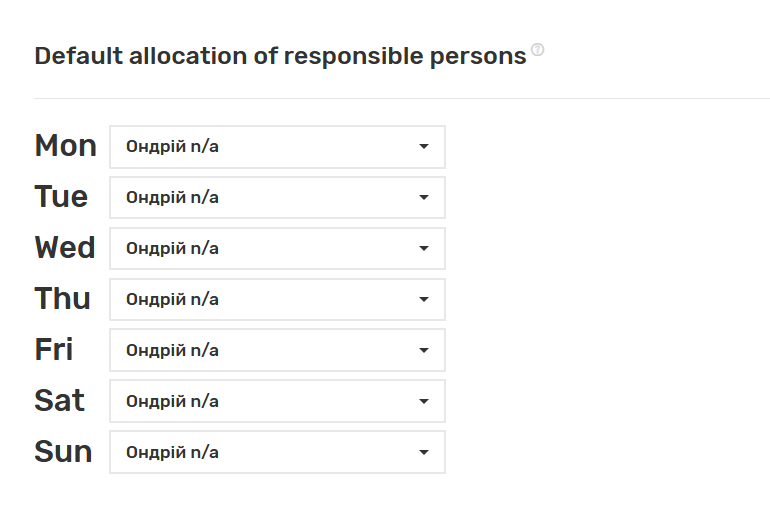
2. Default owner
Similar to call settings, an operator can be assigned for each day of the week. If the responsible person cannot be determined automatically, the newly created entity (contact or deal) will be assigned to the operator specified in this field.
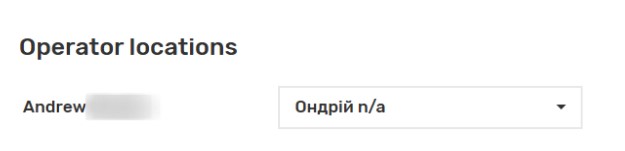
3. Operator locations
This is where Unitalk users (on the left) are matched with HubSpot users (list on the right).
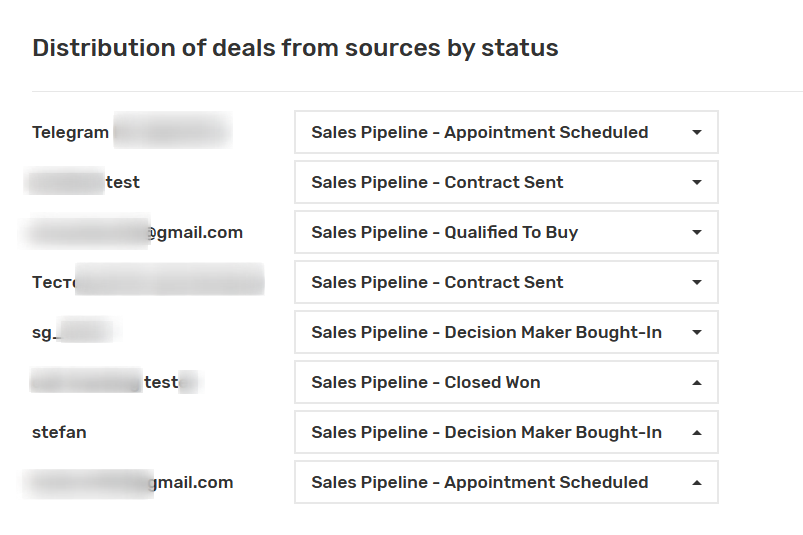
4. Distribution of deals from sources by status
Similar to call settings, you can choose which sales pipelines and statuses to use for distributing deals upon creation.
5. Similar to call settings, after making changes to the UniTalk Chat integration settings with HubSpot, click “Save settings for chat”

The setup is complete. Your HubSpot is now synchronized with UniTalk calls and chats, enabling the automatic collection of objective data for every contact. This eliminates routine tasks for your team and helps make data-driven decisions based on real conversation statistics. Should you have any questions regarding deal distribution or status mapping, our support team is available 24/7.



