Contact UniTalk technical support via Viber or Telegram
To contact UniTalk technical support, you need to be verified in Viber or Telegram
Why is this necessary? How do I verify my account?
Verification is a protective measure that allows you to make sure that you are the owner of the project or are related to the project you are contacting. UniTalk cares about the security of its customers’ data, as many business processes depend on this data.
If you have an unverified account, UniTalk support will only be able to provide general information (this information will not apply to existing projects).
Authorization in the UniTalk Telegram chat:
On the main page of the site, click on the Telegram icon

Or if the user is already authorized in the personal account, you need to go to the “Support” page
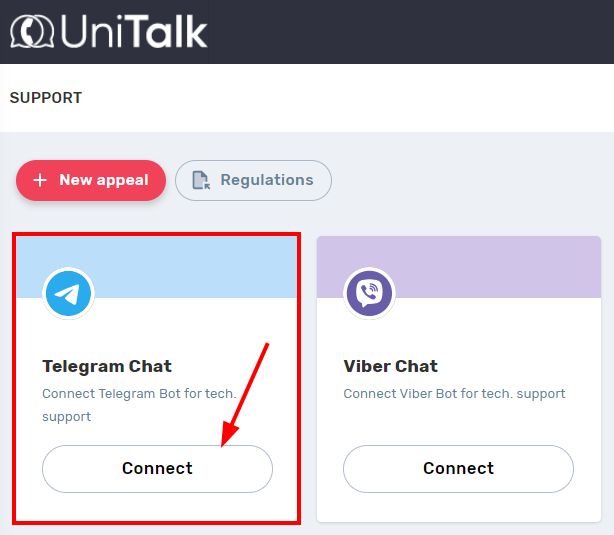
And in this window, in the “Telegram chat” block, click on the “Connect” button
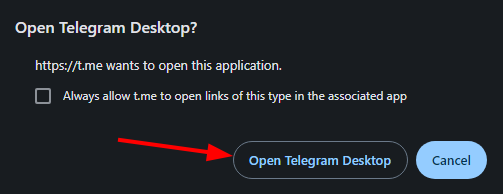
After clicking, a page will open with a proposal to open the Telegram application, in the dialog box you need to click on the “Open Telegram Desktop” button
If the user does not have the application installed, it can be downloaded on the official website
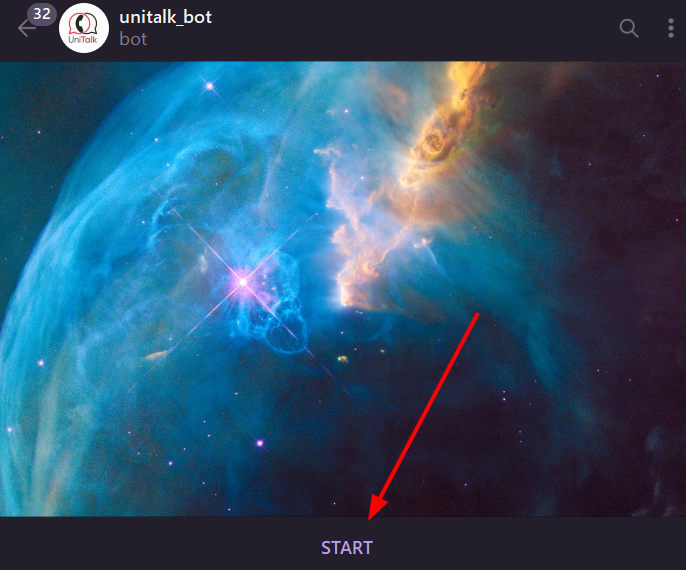
Next, the chatbot will open, click on the “Start” button
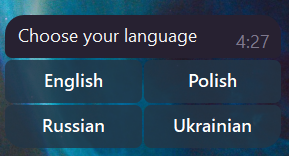
Select the desired language for the chat interface, and the selected language will be set as the default language for communication with the user
Next, select the “Yes (login)” option

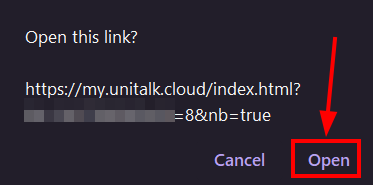
In the next window, click on the “Open” button
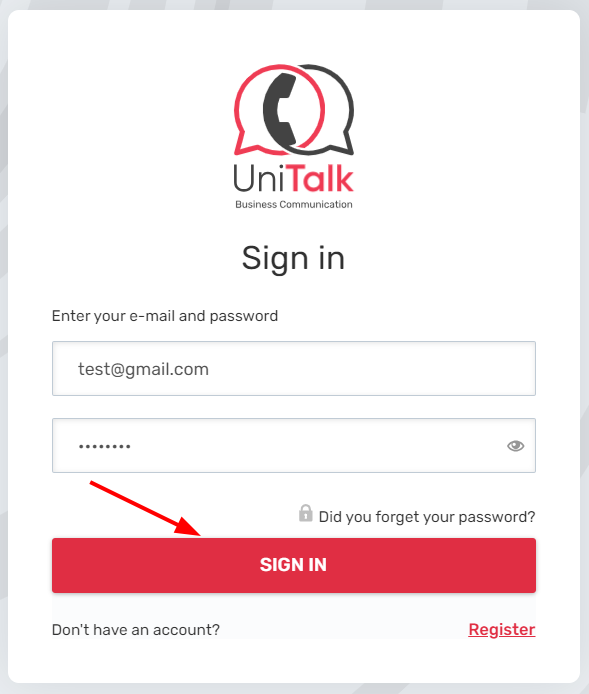
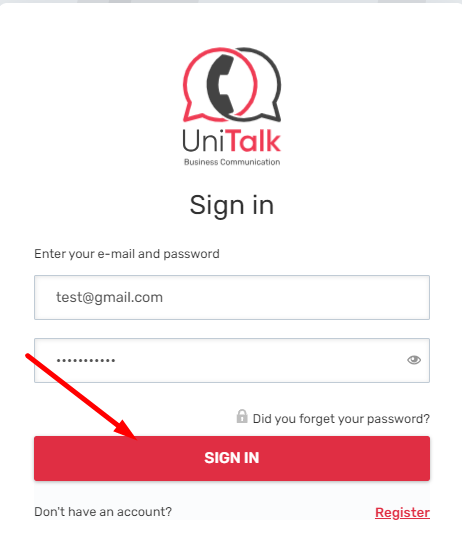
If the user is not currently authorized in the UniTalk personal account, the user will be redirected to the authorization page, in this form you need to enter the email address and password from the personal account, and then click “Sign in”
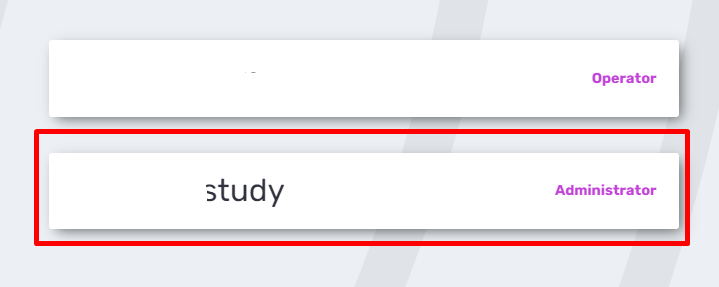
After successful authorization, the list of projects in which the user is located will be displayed, you need to select the project you currently need
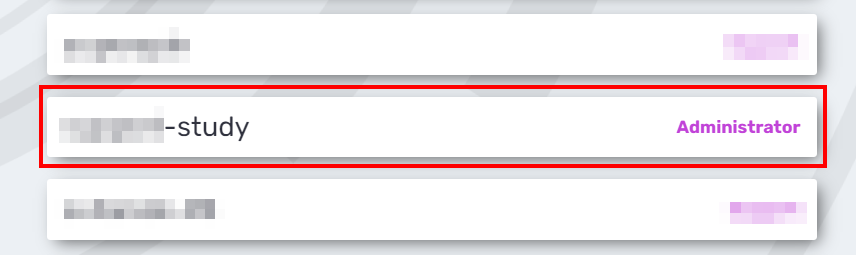
Go back to the Telegram chat and click on the “Yes (login)” button again

In the next window, click on the “Open” button
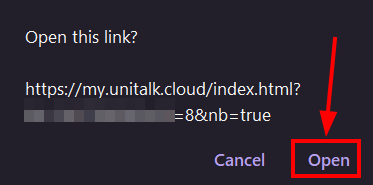
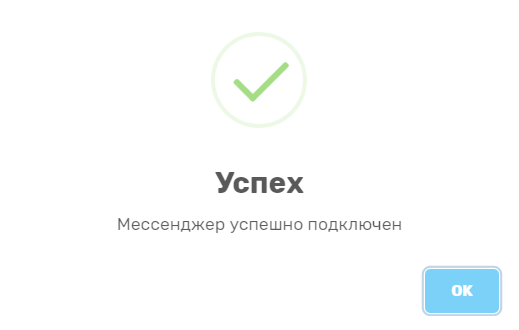
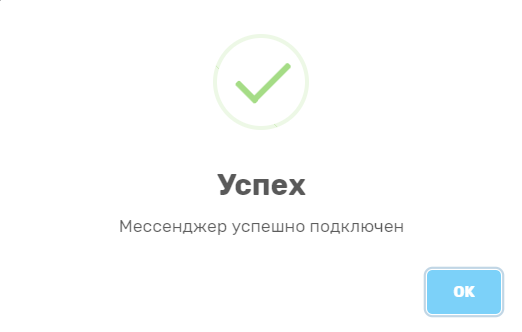
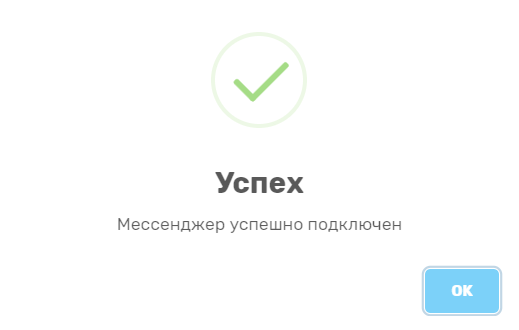
If the authorization was successful, a dialog box will be displayed in your personal account with a corresponding message
Також Telegram чаті буде відображено наступне повідомлення, яке свідчить про успішну авторизацію

Next, to initialize a new request for technical support, click on the “Start a conversation” button

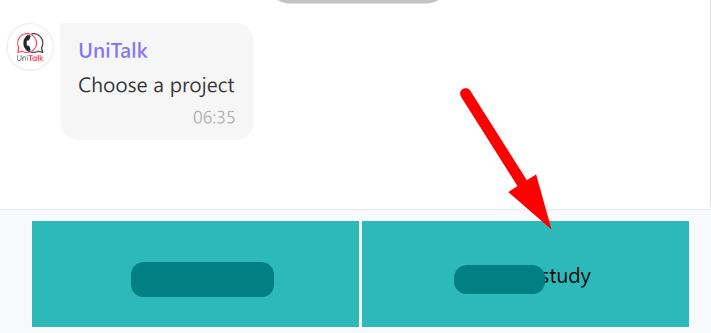
Next, you need to select the project in respect of which the appeal is initiated
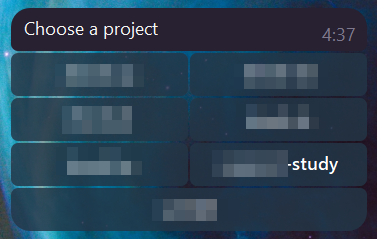
A message will be displayed informing you that a new request has been successfully started, in the text field you need to enter a request and send a message
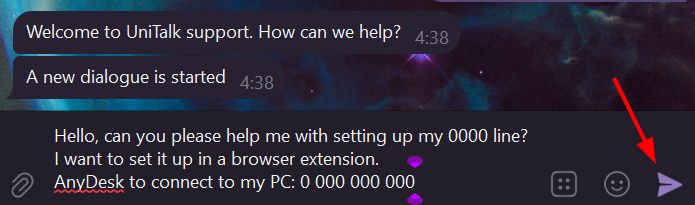
To end the dialog with technical support, click on the “End the conversation” button

To confirm the end of the dialog, click “Yes”
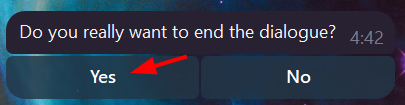
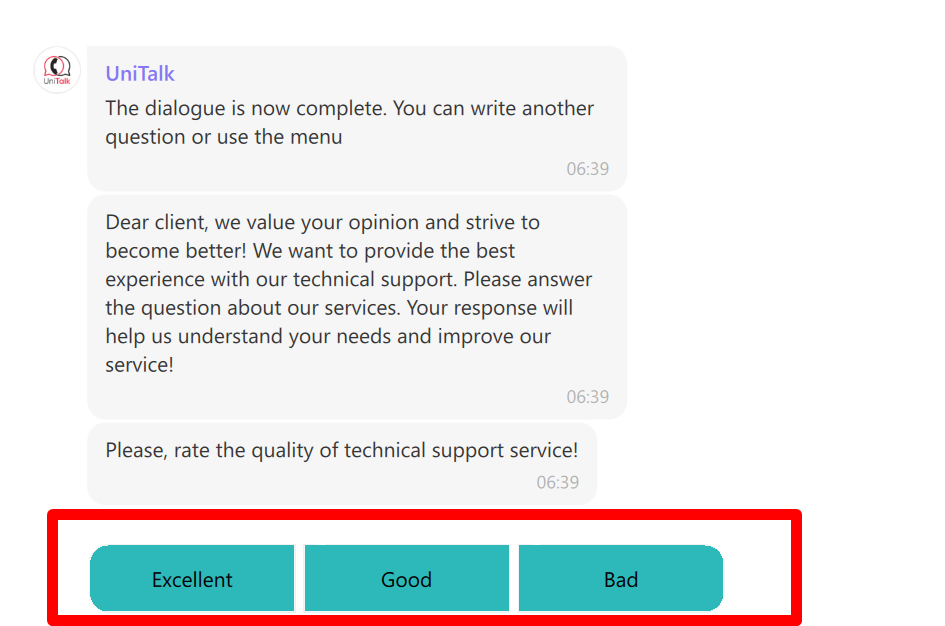
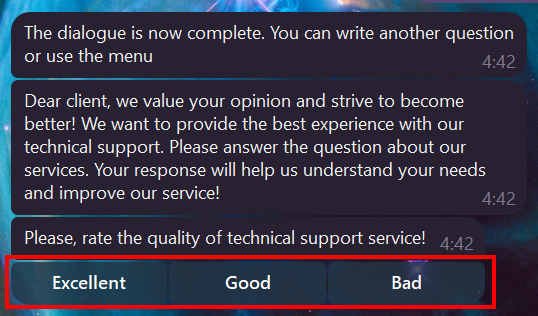
Great, the dialog is over, and the user can also rate the quality of technical support service
Authorization in Viber chat UniTalk
On the main page of the site you need to click on the Viber icon
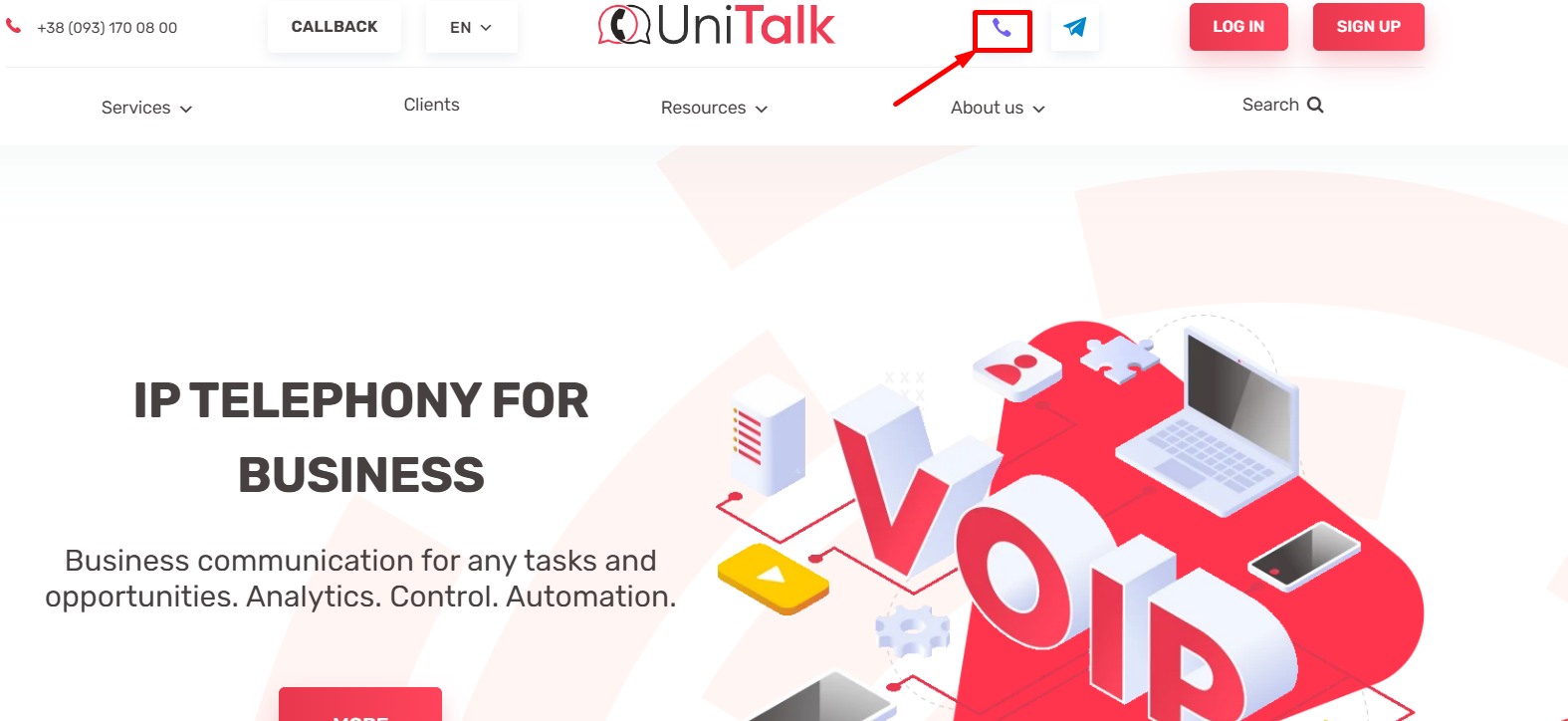
Or if the user is already authorized in the personal account, you need to go to the ” Technical support ” page
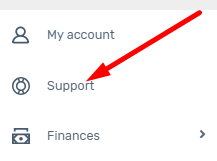
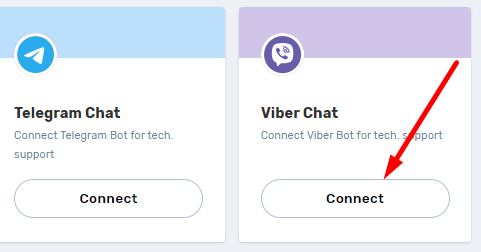
And in this window, in the “Chat in Viber” block, click on the “Connect” button
After clicking, a page will open with a suggestion to open the Viber application; in the dialog box, you must click on the “Open Viber application” button
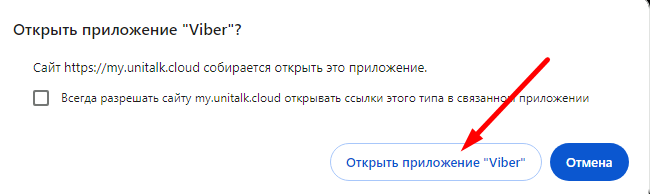
If the user does not have the application installed, it can be downloaded from the official website
Next, a chat bot will open, you need to write any text and click on the send message button

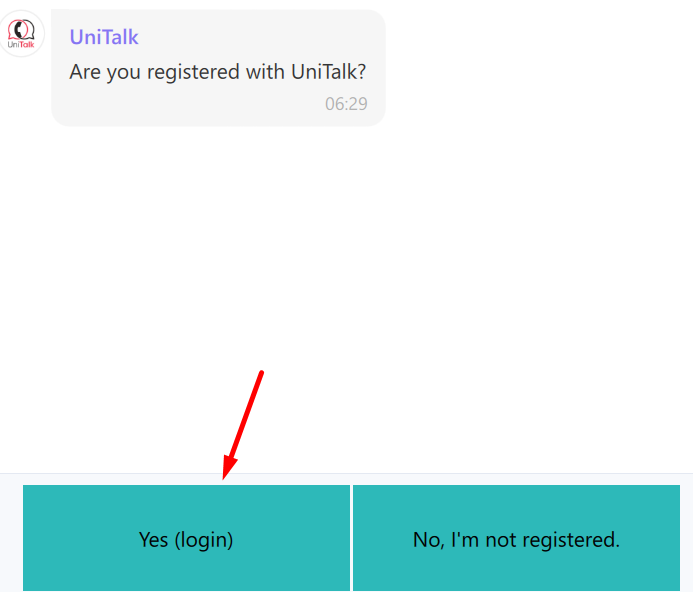
After this, you need to click on the “Yes (log in)” button.
If the user is currently not authorized in the UniTalk personal account, a redirection will take place to the authorization page , in this form it is necessary to enter the e-mail address and password from the personal account, after which it is necessary to click “Log in to the account”
After successful authorization, a list of projects in which the user is located will be displayed, it is necessary to select the currently required project
If the authorization was successful, a dialog box with a corresponding message will be displayed in the personal account
Next, you will be asked to choose the project in relation to which the appeal is initiated
A message about a successfully started new request will be displayed, you need to enter a request in the text field and send a message
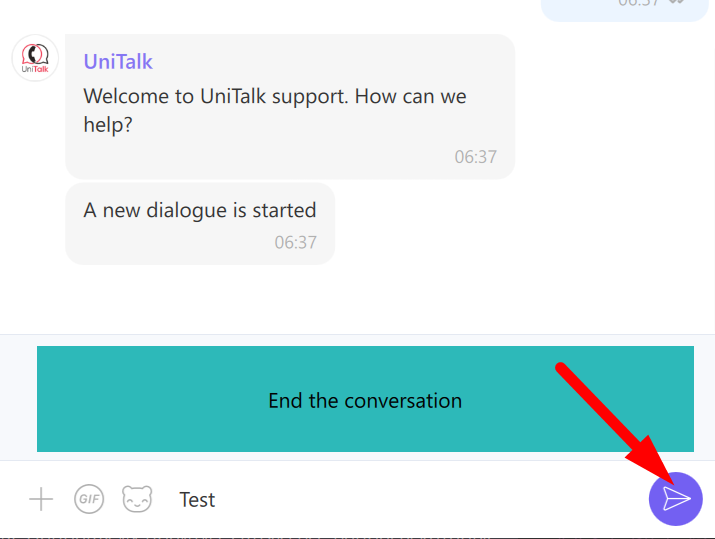
To end the dialog with technical support, click on the “End dialog” button

To confirm the completion of the dialog, click “Yes”
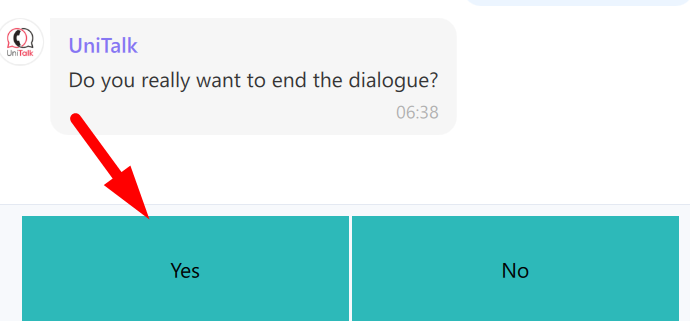
Great, the dialogue is completed, also the user can rate the quality of service of technical support