


How to Upload a Contact Table for Auto-Dialing
UniTalk’s auto-dialing feature significantly speeds up operations with large customer databases. To launch a campaign, you don’t need to enter each number manually — the system supports quick contact uploads via .xls and .xlsx files. Follow this guide to correctly prepare your file and instantly add your list of numbers to the system.
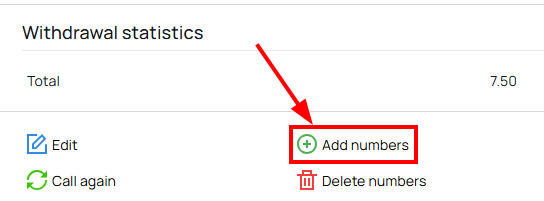
To add a contact list to the automated dialing campaign, please click the “Add numbers” button.
Uploading a file
- In the menu that opens, select “From file”
- Click the “File not selected” button
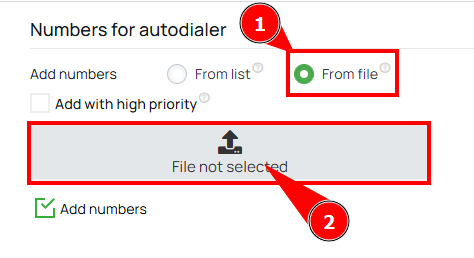
- In the window below, select the desired file in .xls or .xlsx format. After selecting the file, its name will appear on the gray button.
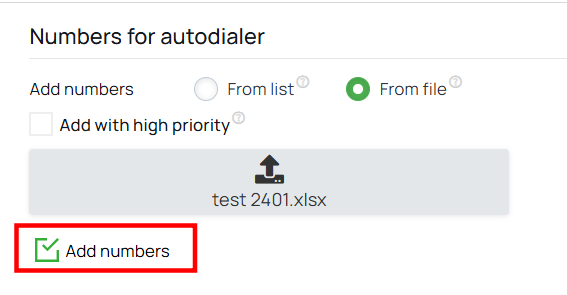
- To upload numbers to the auto-dialer, click the “Add numbers” button.
File requirements
To add a file to an automated dialing campaign, the file may contain the following columns:
- number — this column is mandatory. It should contain the phone numbers to be called.
- name — the subscriber’s name.
- note — notes related to the number.
- link — a link for the Web Dialer.
- param1, param2, param3, param4, param5, param6, param7, param8, param9, param10 — additional parameters associated with the number.
📌 Important:
- The number column is required, the others are optional.
- The columns can be arranged in any order.
- It is not necessary to convert the data in the cells to text format.
Sample file:

Result
After clicking the “Add numbers” button and successful processing of the file, all correctly filled in numbers will be added to the auto-dialer and will be available for use in the selected auto-dialer.
If there are errors in the file, the system will notify you and indicate the reason why certain numbers were not added.
Example of added numbers:

Uploading contacts via a file is the most reliable way to ensure the seamless operation of your sales department or call center. Once the numbers are successfully added, the system will automatically distribute them according to your project settings. If errors occur regarding the number format during the upload, ensure the number column is filled correctly, or contact our technical support for assistance.



