Instructions for Connecting and Configuring the Integration of UniTalk with Leeloo.ai
Connecting the integration
Go to the Leeloo.ai integration page in the UniTalk Personal Account and click “Connect”.

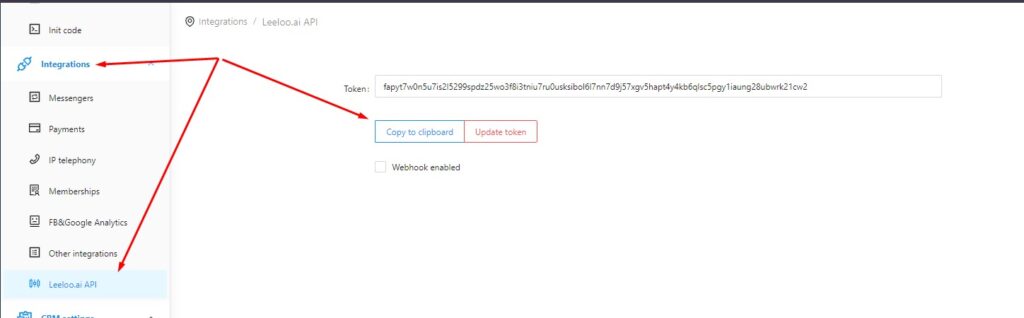
The authorization token is specified in the Leeloo LC under “Setup/Integrations/Leeloo.ai API”.
Integration customization
- In your UniTalk personal cabinet in the section of integration with Leeloo.ai in the “Settings” block, enable the checkboxes to perform the corresponding actions and set the required field values.
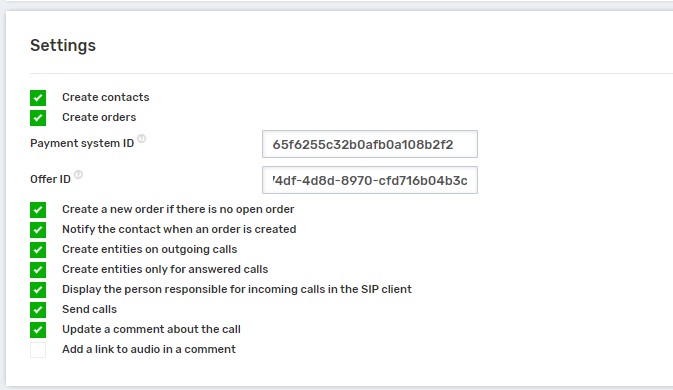
- When you enable the “Create Orders” checkbox, specify the payment system and offer IDs.
The payment system ID is specified in the Leeloo LC under “Settings/Integrations/Payments” in the “Payment Systems” tab in the card of the selected payment system in the “Id for API calls” field.
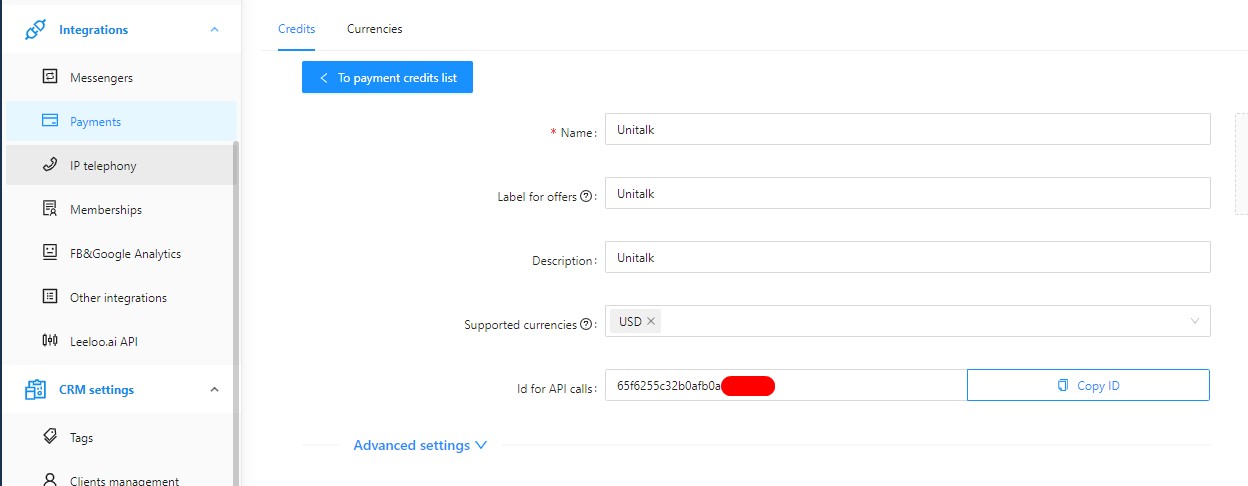
When specifying the payment system ID, select only the merchant’s payment system for manual payments.
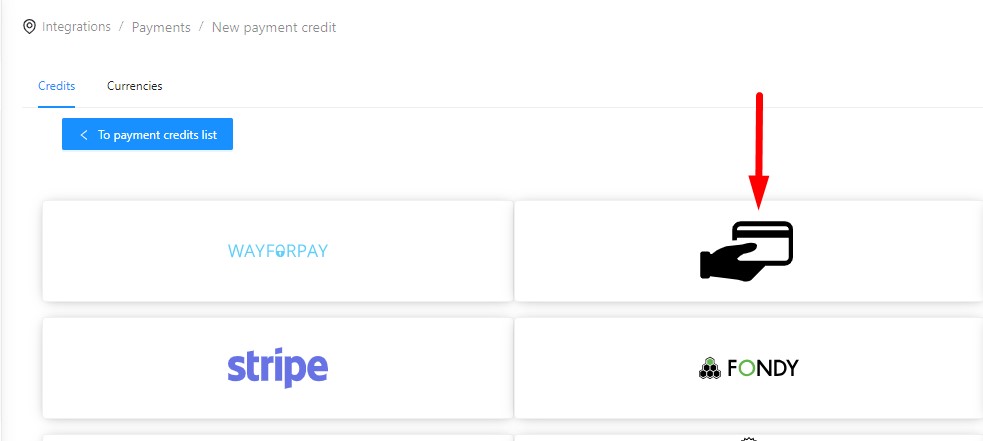
The offer ID is listed in the Leeloo LC under “Sales Tunnels/Offers” in the row of the selected category when clicking on the “Offers” button.

- If you enable the “Create new order if there is no open order” checkbox, a new order will be created only if the last created order has a closed status.
- If the “Notify contact about order creation” checkbox is enabled, a notification about order creation will be sent to the contact via the connected communication channel in messenger.
- If the “Create entities on outgoing calls” checkbox is enabled, contacts and orders will be created in the CRM system when outgoing calls are made to contacts’ mobile numbers.
- If you enable the “Create entities only for answered calls” checkbox, contacts and orders will be created in the CRM system only for answered phone calls.
- If you enable the “Display responsible person for incoming calls in SIP client” checkbox, you should additionally enable the “Display caller’s name” checkbox in the Users section of your UniTalk personal cabinet for each user in the “SIP settings” block.
- To enter information into the CRM-system about the made calls, enable the “Send calls” checkbox.
- To add a comment about the call, enable the “Leave a comment about the call” checkbox.
- To add a link to listen to the audio in the comment, enable the “Add link to audio in comment” checkbox.
- Fill in the contact fields that will be populated with data from UniTalk when created. To fill the field you should specify the field type and its name and set the value.

Custom fields are listed in the Leeloo LC under Settings/Content/Fields.

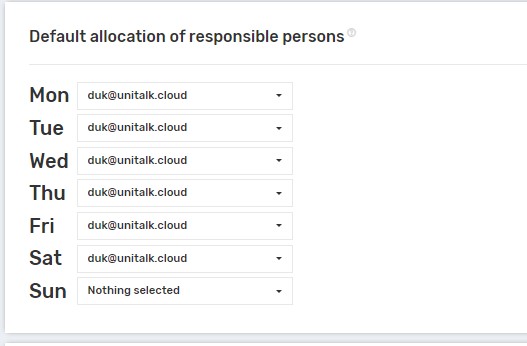
Select who is responsible for missed calls.
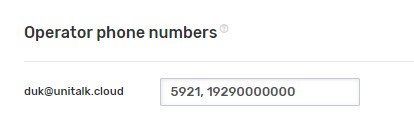
Specify the phone numbers of Leeloo users separated by commas. These can be internal lines or GSM numbers
Select the contact distribution settings when creating.
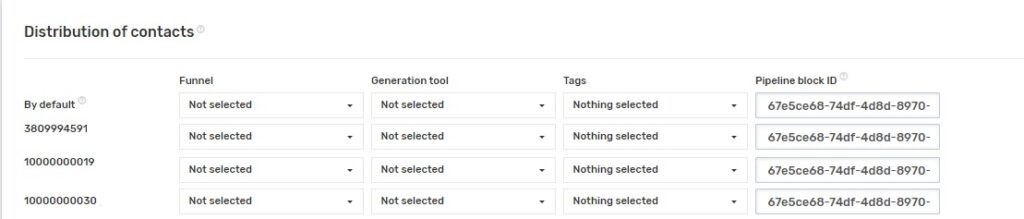
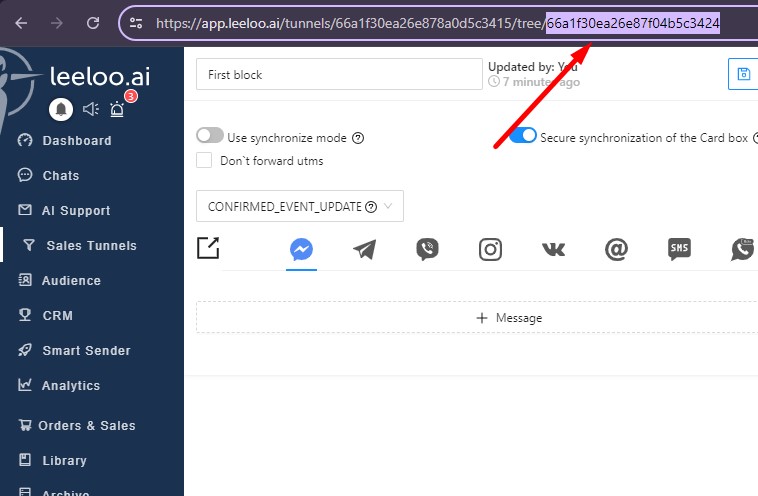
The ID of the funnel block is specified in Leeloo LC in the “Sales Tunnels\/Tunnels” section in the tunnel tree when clicking on the selected block.