


INSTRUCTIONS FOR CONNECTING AND SETTING THE INTEGRATION OF GOOGLE ANALYTICS 4 AND UNITALK
Moving from Blind Spots to Clear Business Insights
Hello! Do you want to know exactly which of your ads are bringing in paying customers? Google Analytics 4 (GA4) converts calls from UniTalk into measurable events, giving you the full picture. This is the direct path to saving your marketing budget and scaling successful campaigns. Let’s break the setup into two simple parts.
Google Analytics 4 is a new version of Google Analytics and provides more accurate and useful data about visitors and user experience than the previous version. GA4 uses a new method of tracking users and events, which allows you to collect more complete information about user behavior on a website or application. Now you can collect data not only on visits and pages, but also on events, such as button clicks, form completions, and video views. This gives you a more complete picture of how users interact with your content and what actions they take on your website or app.
Setting up Google Analytics consists of 2 parts:
- Setting up the Google Analytics service itself (creating a data stream, connecting and configuring analytics on the required website);
- Setting up integration in the UniTalk account to transfer analytics data on call events (call tracking and click to call)
Step-by-step setup of Google Analytics on the service’s website:
- Go to the Google Analytics page
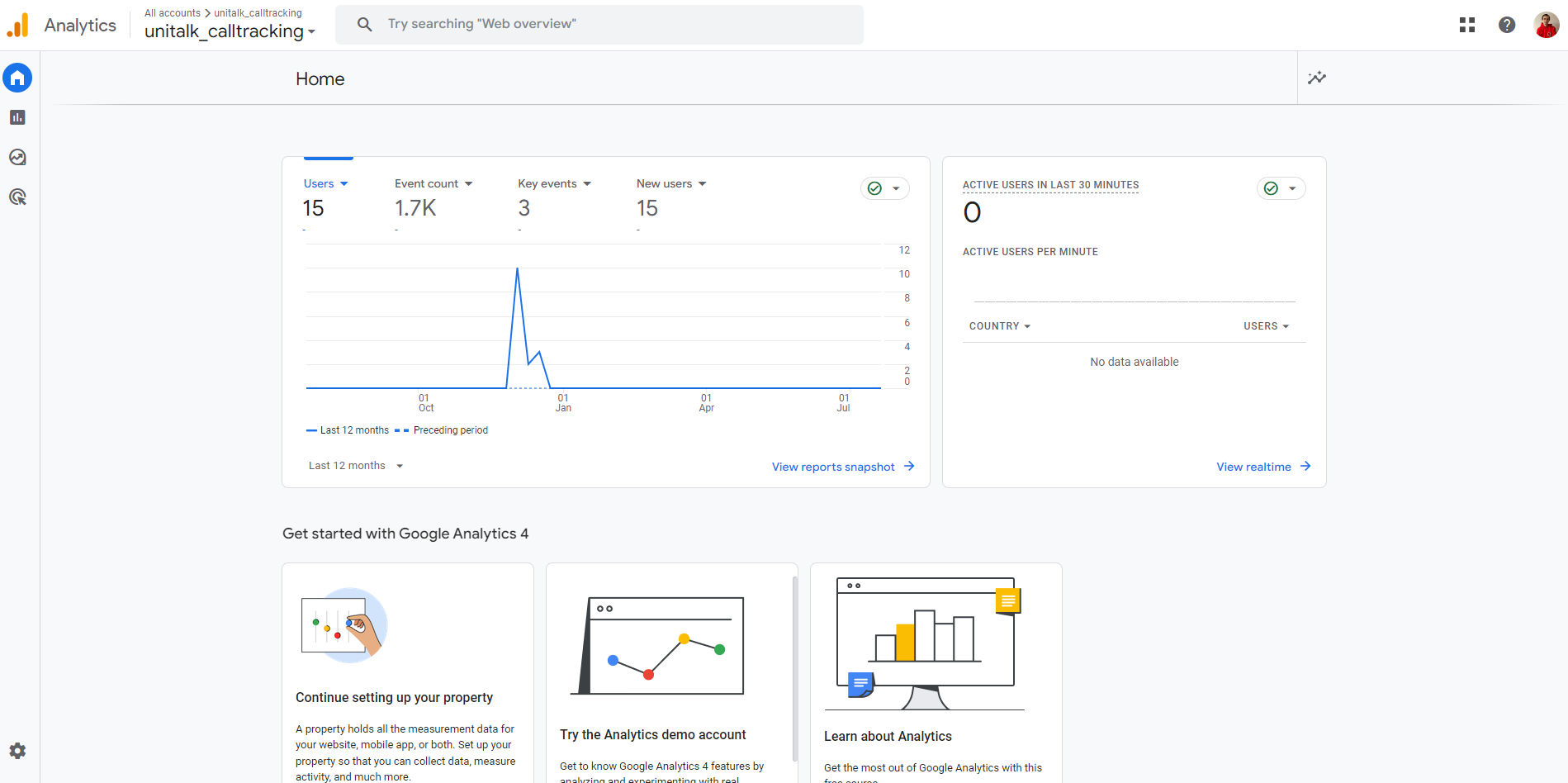
2. Go to the Admin settings on the main page

3. Click on “Datas streams.”
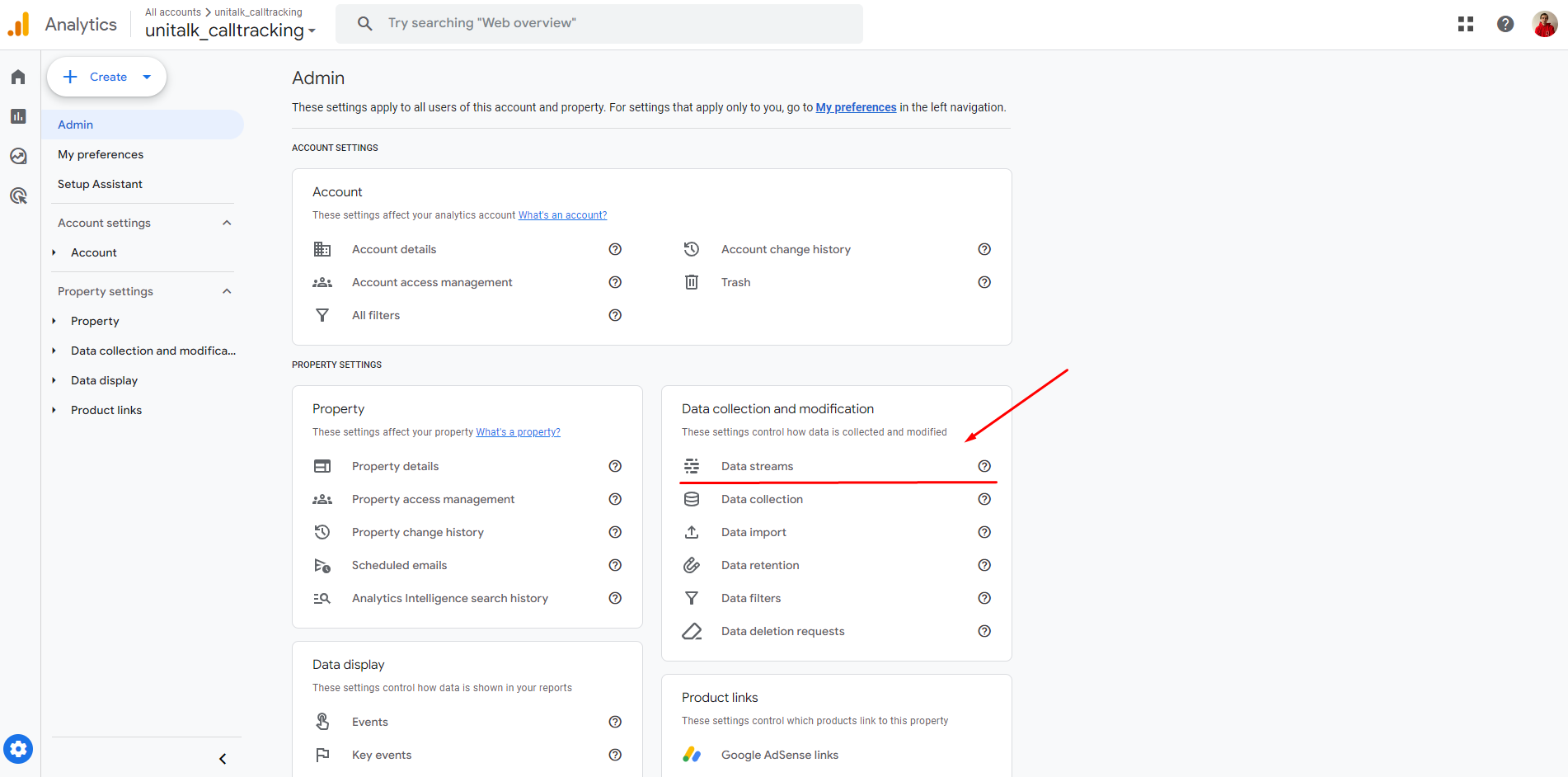
4. Select the platform on which you want to collect data. In this case, select Web to work with the website

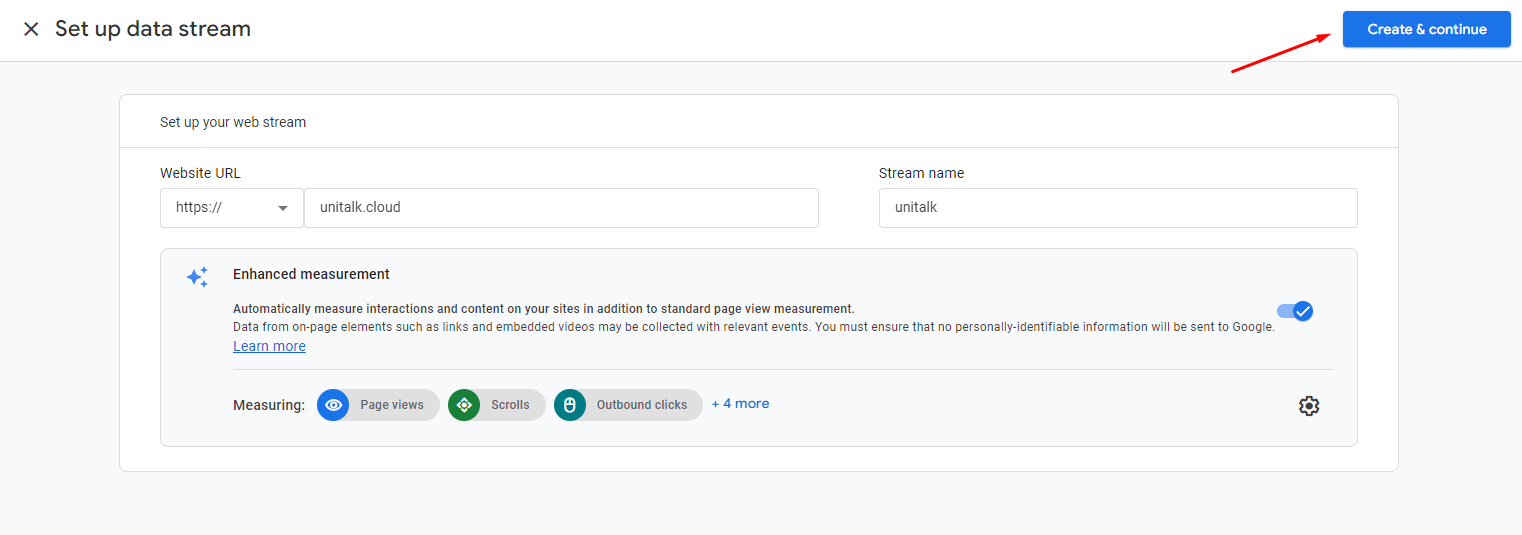
5. After selecting Web, you will be prompted to enter the address of the website where Analytics will be launched and the name under which it will be saved in the Google Analytics account.
You can also (optionally) set up more advanced analytics on various events that take place on the website.
After filling in the necessary data, click “Create a stream”
6. After the creation of a new Data Stream is completed, a page is opened with more detailed information and settings for this Data Stream.
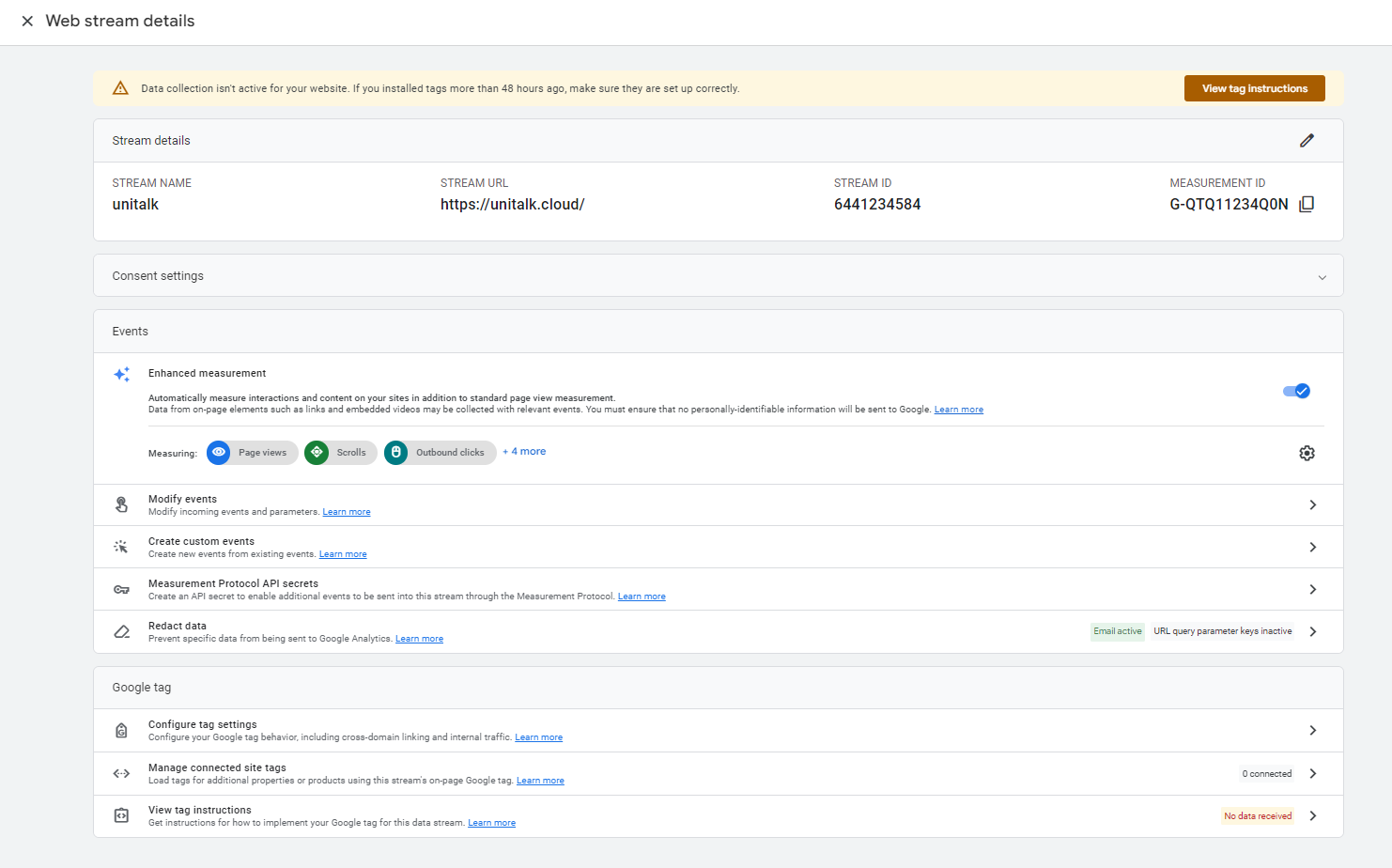
To set up and transfer information from the UniTalk system to Google Analytics, you need 2 main parameters:
- Google Analytics tracking ID (metric) is a unique code that is assigned to each website or application and is used to identify and track user traffic;
- secret API token (API key) is a secret key that allows other services and applications to access the data in Google Analytics.
Google Analytics Tracking ID is automatically created and assigned to each Data Stream and is always written in the format “G-XXXXXXXXXXXXXX”. This identifier is displayed in the general information about the stream.
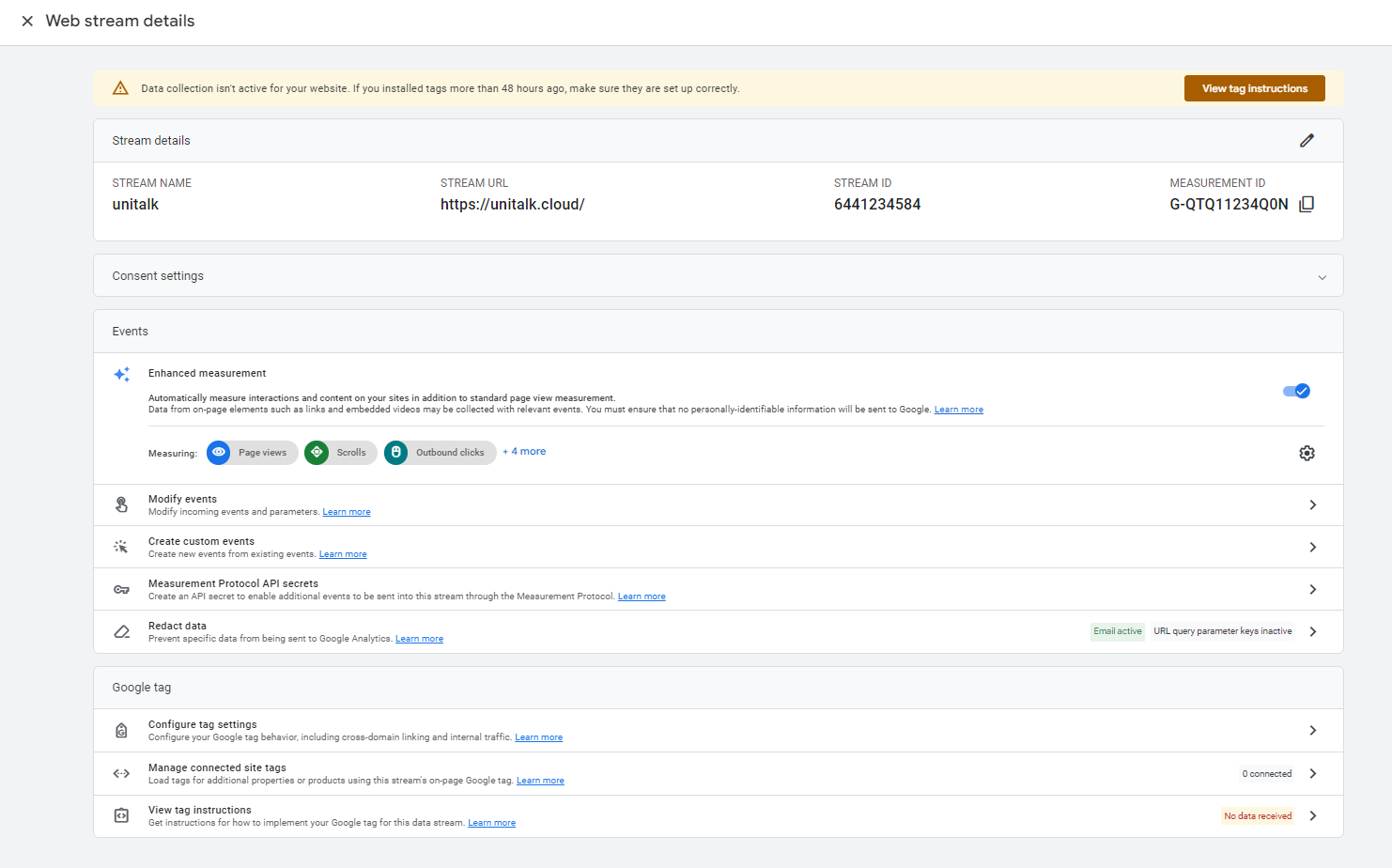
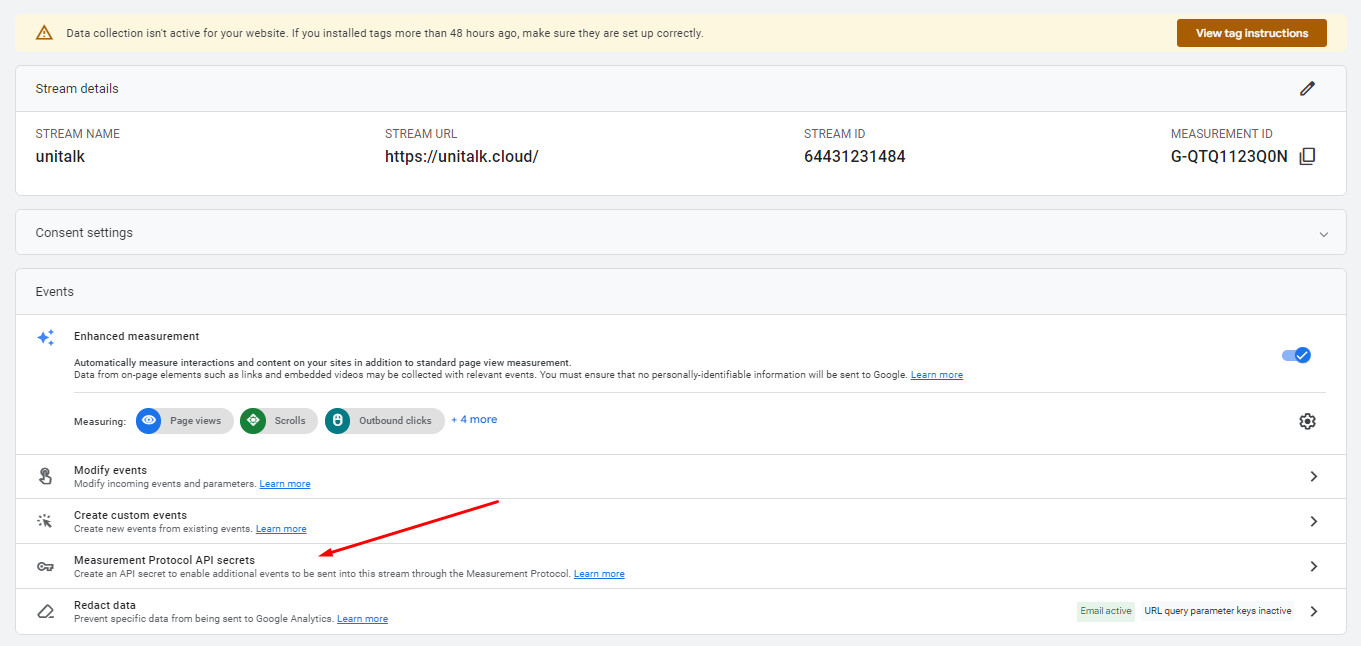
The Secret API Token, unlike the Google Analytics Tracking ID, is created manually only. This is done for data security purposes, as this token allows you to access your Google Analytics data and perform actions within the Data Flow. To create this token, go to the “Secret API tokens for Measurement Protocol” page and click “Create”.
You will need to enter a nickname (the name under which this token will be saved and displayed on the Analytics page) and then a new token will be generated.

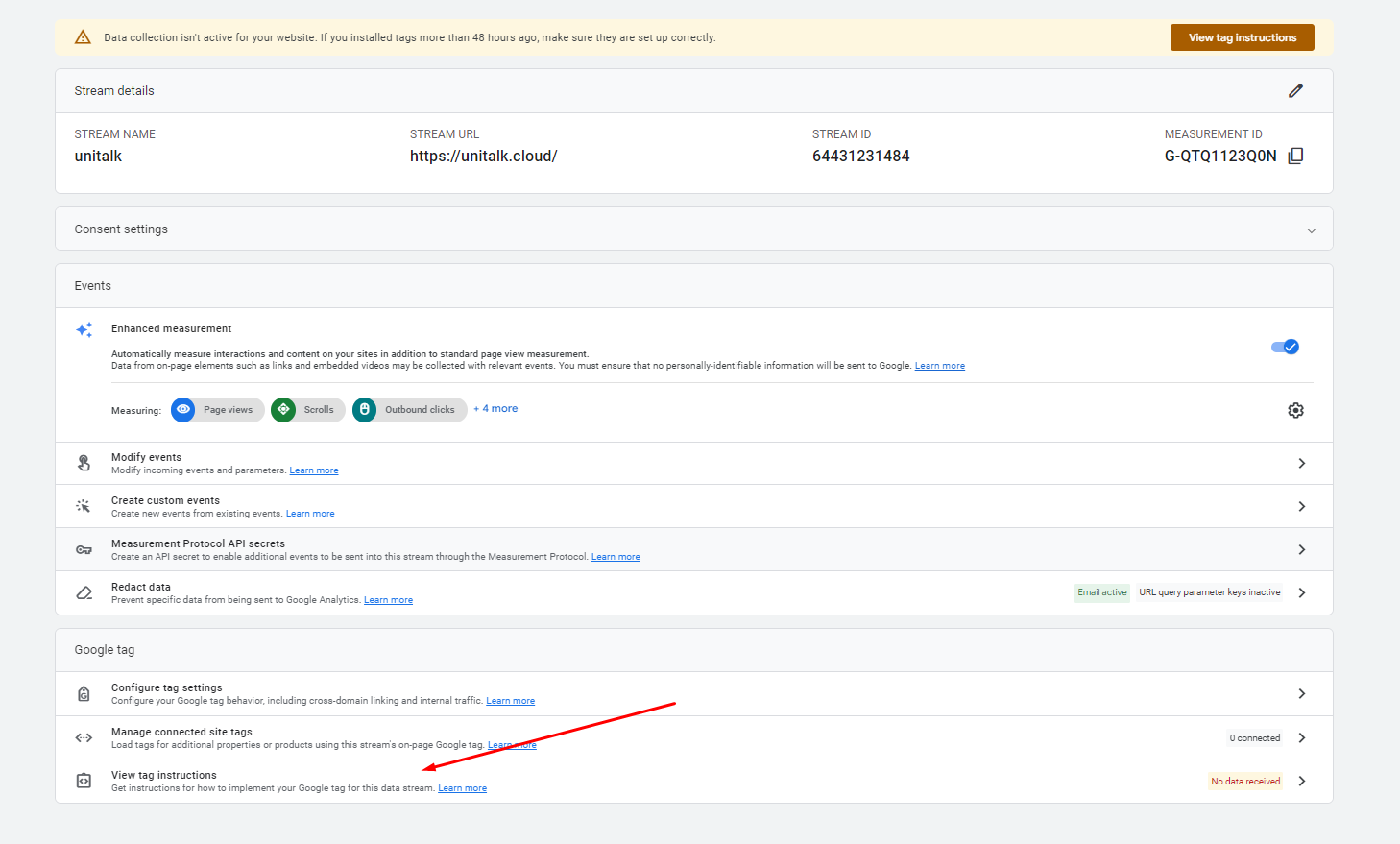
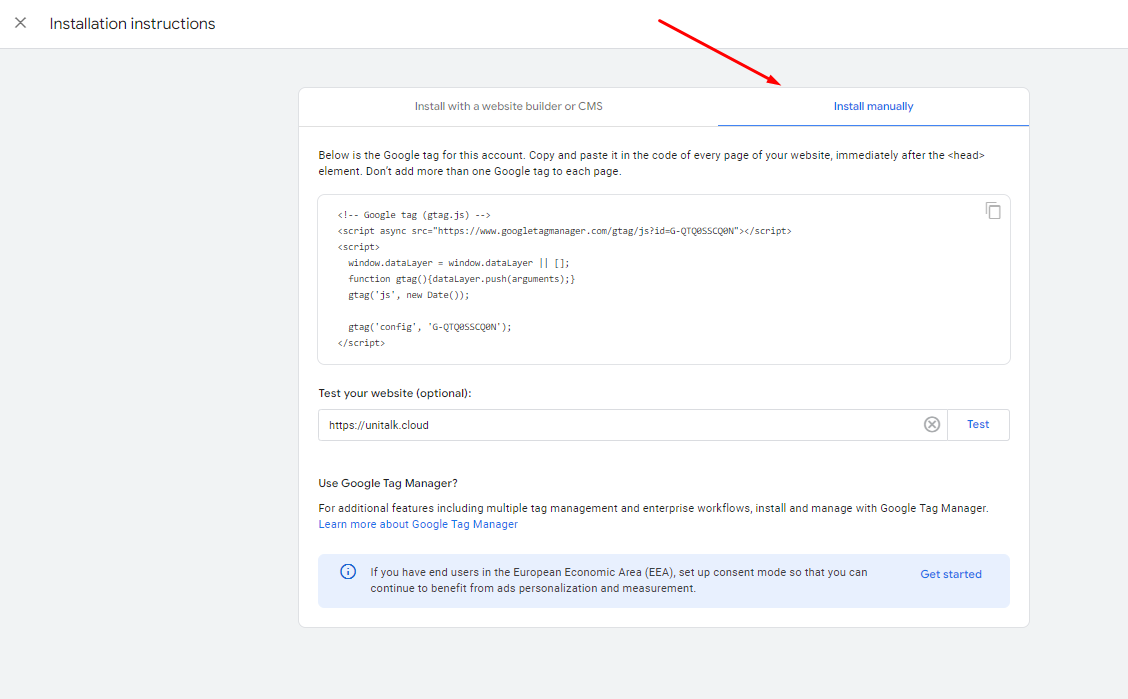
7. After this setup, you need to install the Google Analytics script on your monitored website. This can be done in different ways using special plugins for different platforms or you can manually paste the code on each page of the site.
After these parameters have been configured and saved, you can start setting up Google Analytics in your UniTalk personal account.
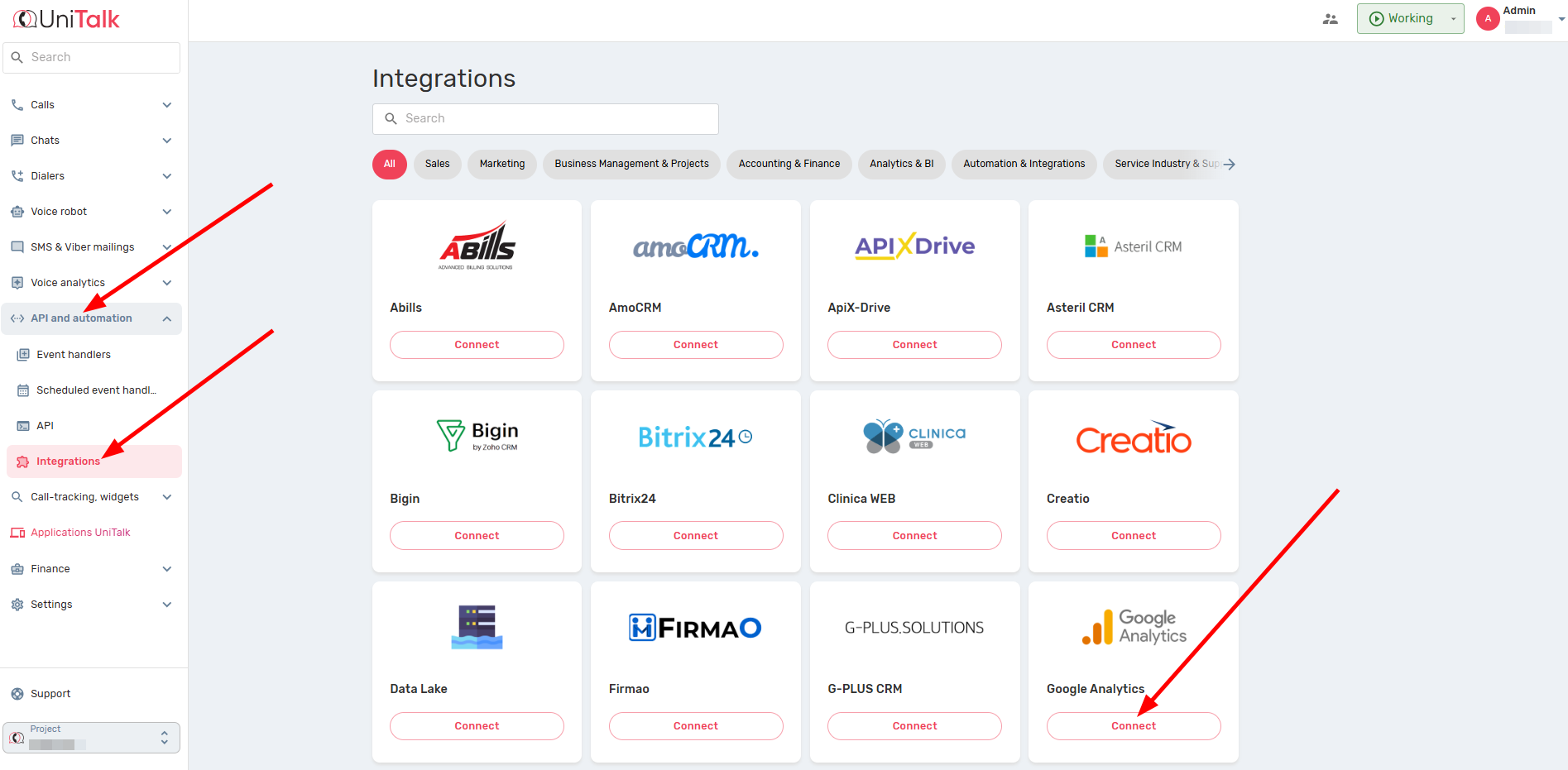
1. To do this, go to the “API and automation” tab – “Integrations”. This is an integration with the 4th version of Google Analytics.
2. After going to this page, you will be taken to a page that displays previously created sites with dynamic call tracking and a list of numbers that can be used for static call tracking.
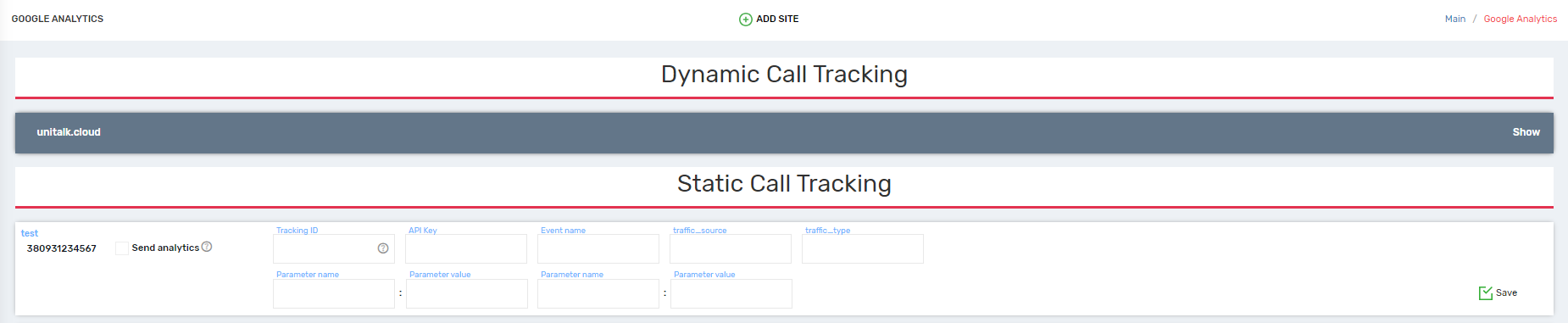
3. When you add a new site for tracking in the UniTalk system, a menu opens in which you need to specify the name of the site (or any identifier) and the Google Analytics tracking ID, which you need to copy from the Google Analytics service page.

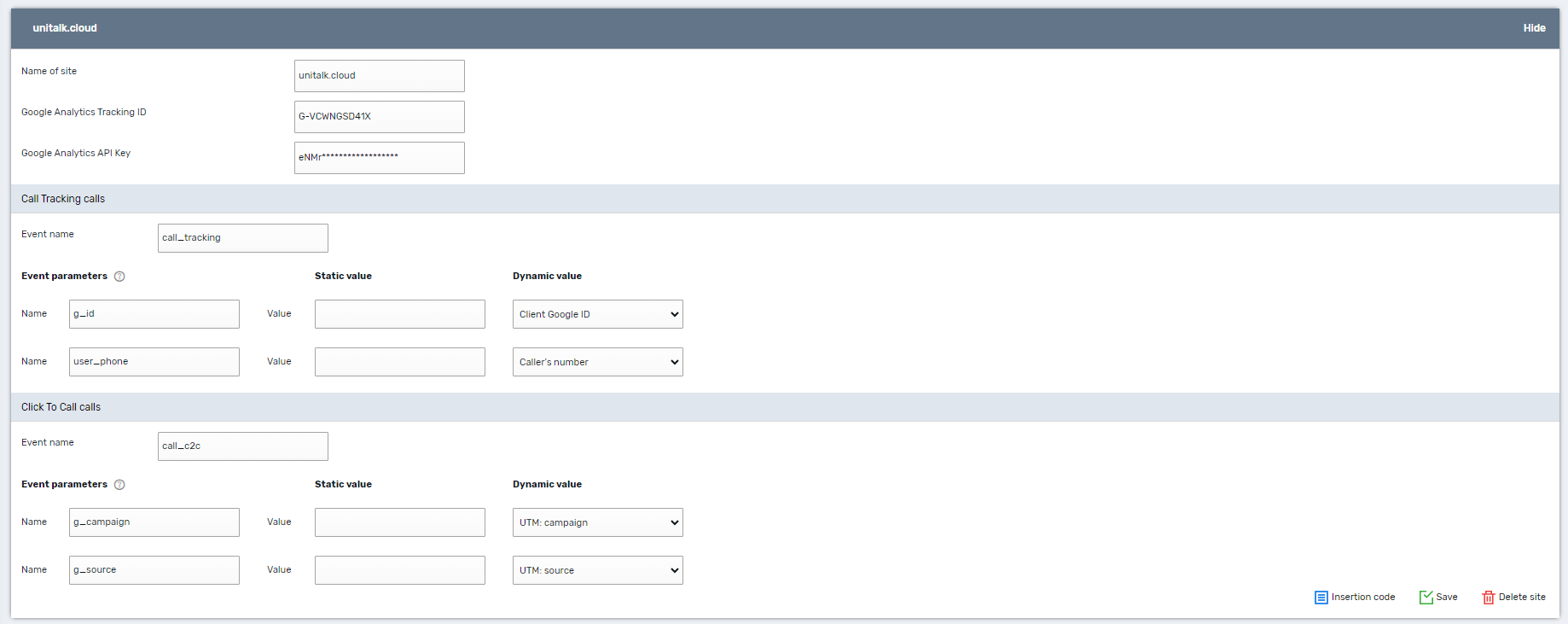
4. When you open the settings for collective tracking, the settings menu for this site opens. For convenience, all settings are divided into 3 blocks:
Block 1 contains basic information that allows you to identify and work with this particular website.
The Google Analytics Tracking ID and Google Analytics API Key must be filled in with data previously obtained from the Google Analytics service.
Thanks to this data, UniTalk can transmit information to a specific web stream about calls
The API Key is displayed in a hidden form after saving, which allows you to avoid its unauthorized reuse
The 2nd and 3rd blocks have the same structure, but they are responsible for different types of calls:
- The 2nd block is responsible for Call Tracking calls;
- Block 3 is responsible for C2C calls.
The main parameter in these blocks is the name of the event that is transmitted when a call occurs.
IMPORTANT!
The name should not contain spaces. If there are spaces in the event name, the event is filtered on the Google Analytics side.
Optionally, there are 2 additional event parameters that can be configured to transmit both static and dynamic values.
A fully configured integration for dynamic color tracking looks like this:
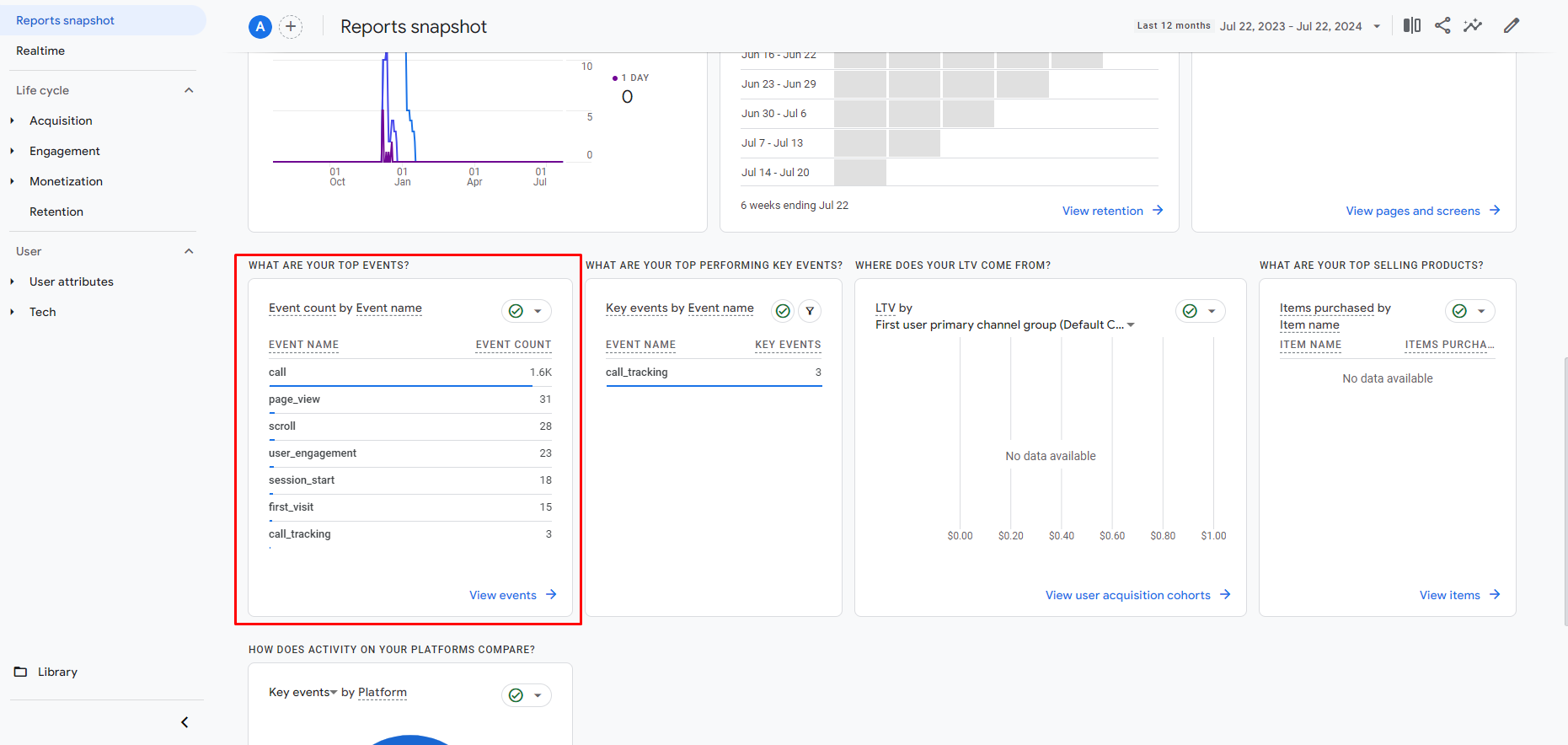
You can check the operation of event transmission on the Google Analytics page in the “Reports” block
What Did You Gain?
Congratulations, the integration is complete!
Your benefit: You have successfully converted calls into measurable events. This means:
- Marketing Clarity: You know exactly which ads are generating sales.
- Budget Savings: You stop wasting money on ineffective channels.
- Objective Decisions: Your strategies are based on clear data, not assumptions.
You have taken a critical step towards business stability and efficiency.



