


INSTRUCTIONS FOR CONNECTING AND SETTING UP UNITALK AND PIPEDRIVE INTEGRATION
Integrating UniTalk IP-telephony and UniTalk Chat with Pipedrive turns your CRM into a powerful communication hub. This setup allows your team to make one-click calls, automatically generate deals, and log chat history directly within customer profiles. It streamlines the sales process, allowing managers to focus on closing deals rather than manual data logging.
Connecting Integration
Note. Before proceeding with the steps according to the step-by-step instructions, you must be logged into the personal accounts of UniTalk and PipeDrive with administrator rights.
1. To connect the integration with PipeDrive, go to the company settings in the CRM system.

2. Copy the company domain in the appropriate field.
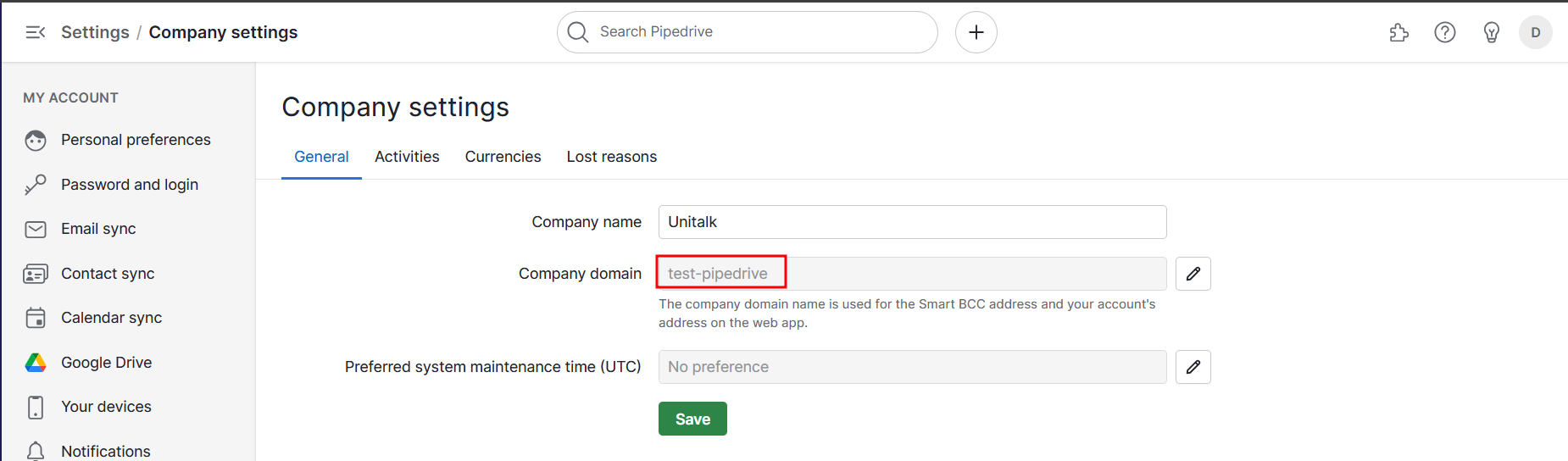
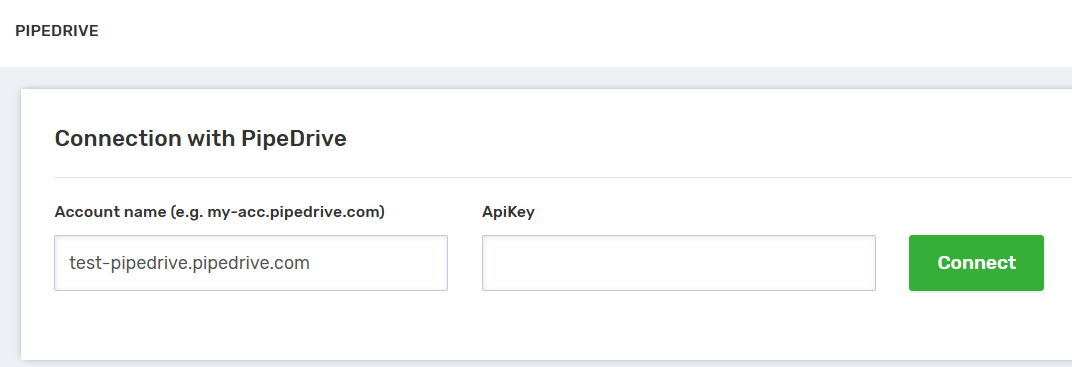
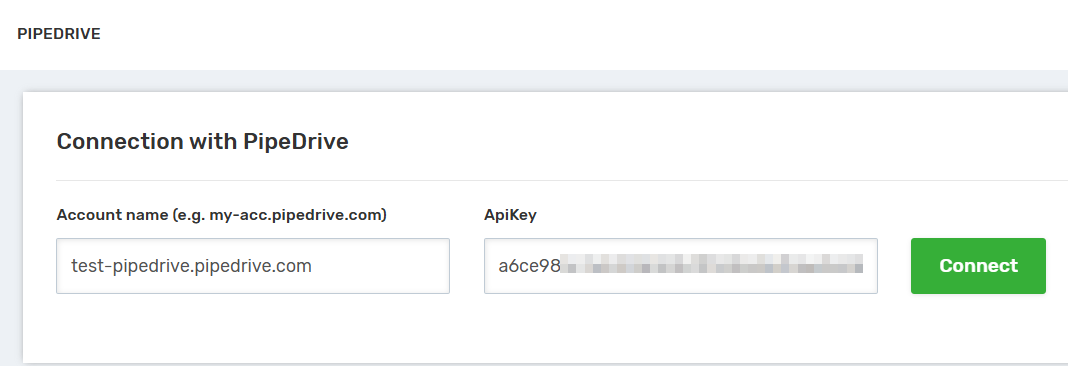
3. Go to the tab “PipeDrive” in the “Integration” section and insert the copied domain into the “Account Name” field, adding “.pipedrive.com” at the end.
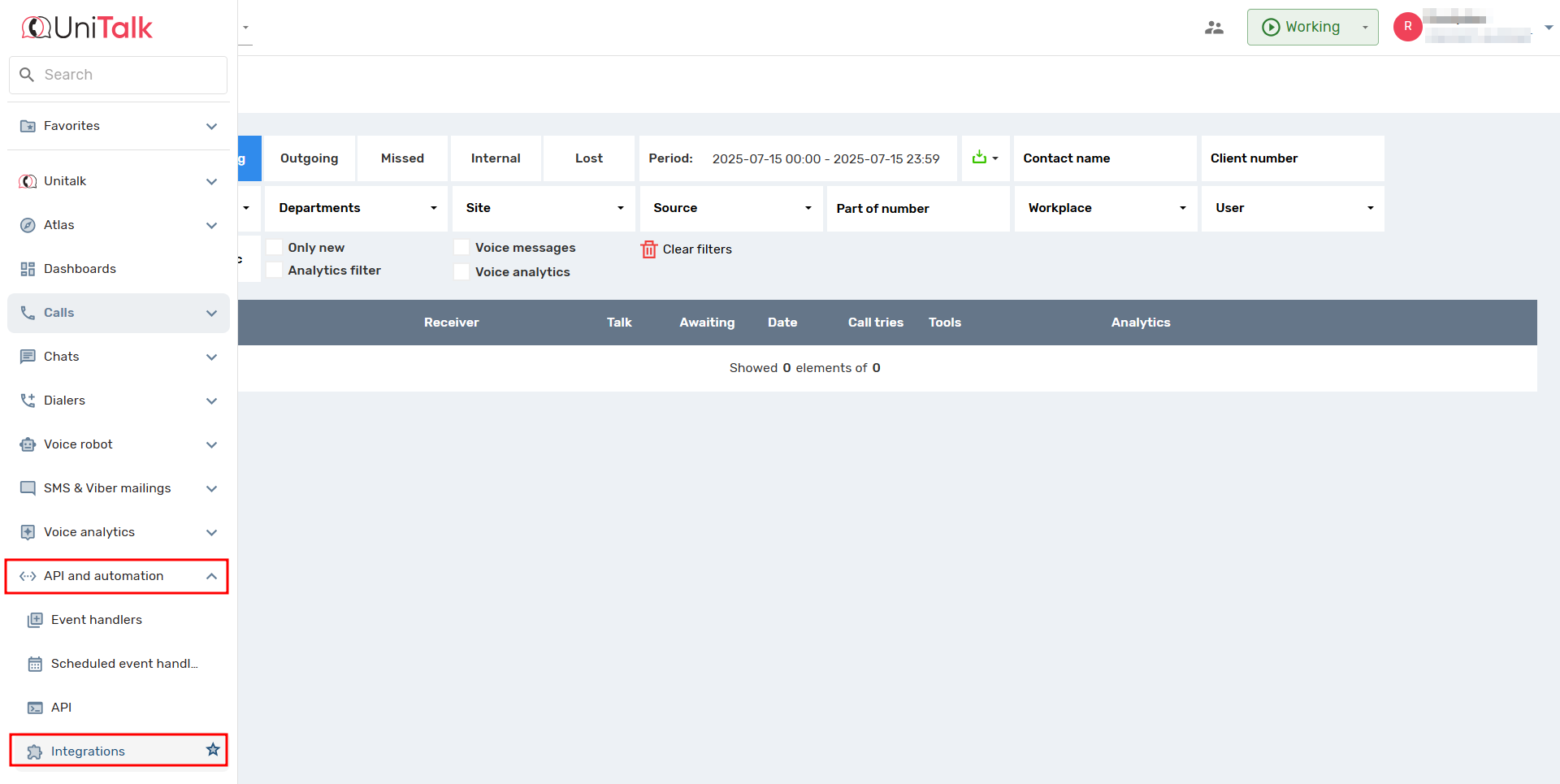
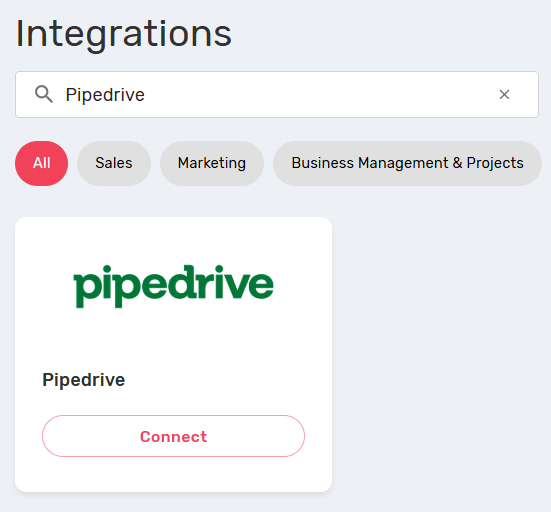
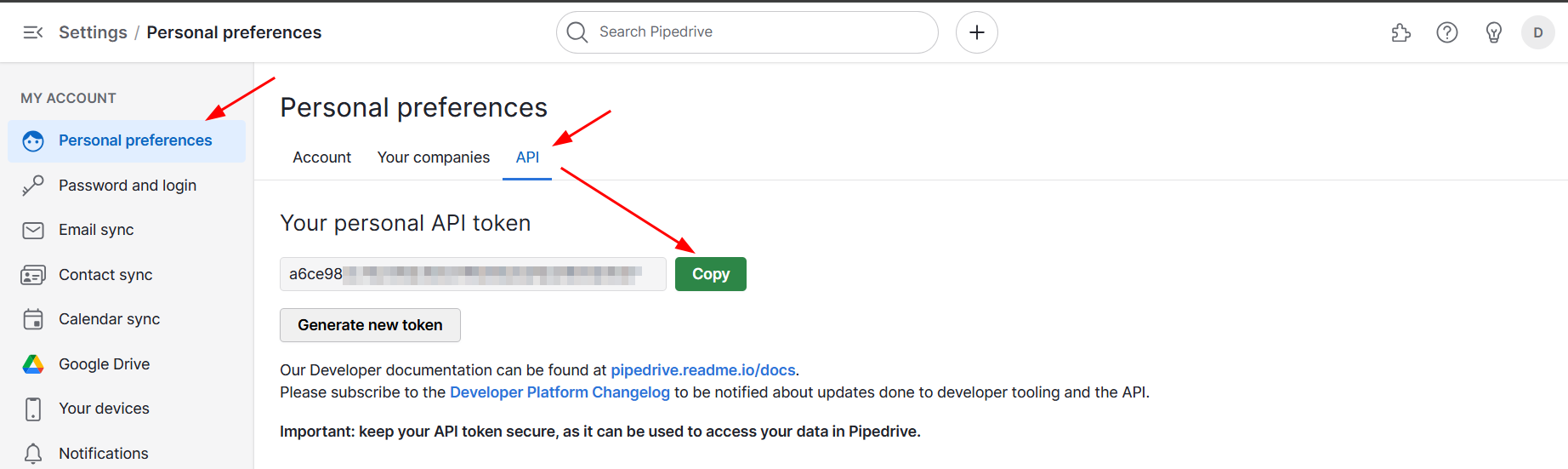
4. Next in the CRM system, go to the “Personal Settings” section, “API” tab, and copy the key.
5. Paste the copied key into the “API Key” field in the UniTalk personal account and click “Connect”.
6. Integration is connected. You can now make settings depending on your needs.
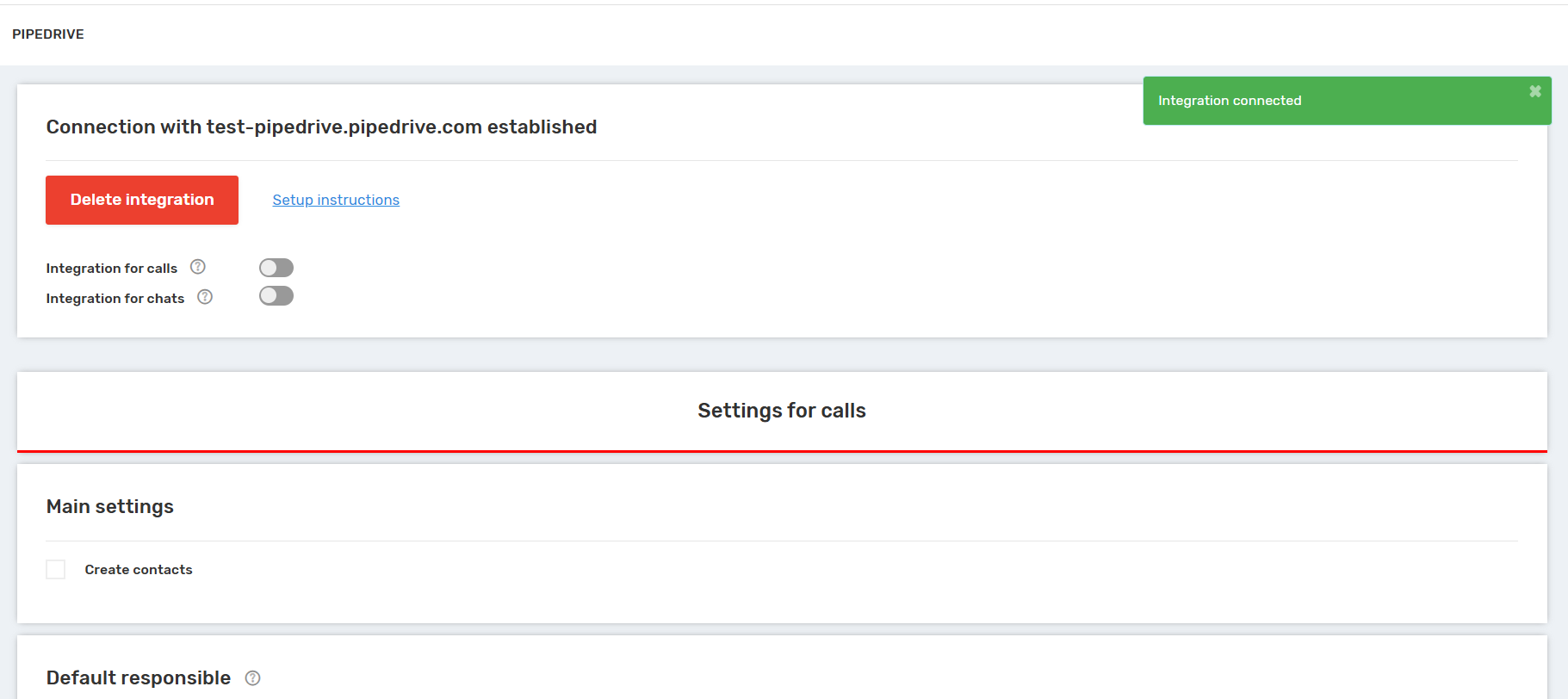
The “Main settings” section allows you to set the following parameters:
- Enable/disable creation of entities when making outgoing calls;
- Select types of entities to be created
Note that when creating contacts and deals/leads, tasks containing call information will be created.
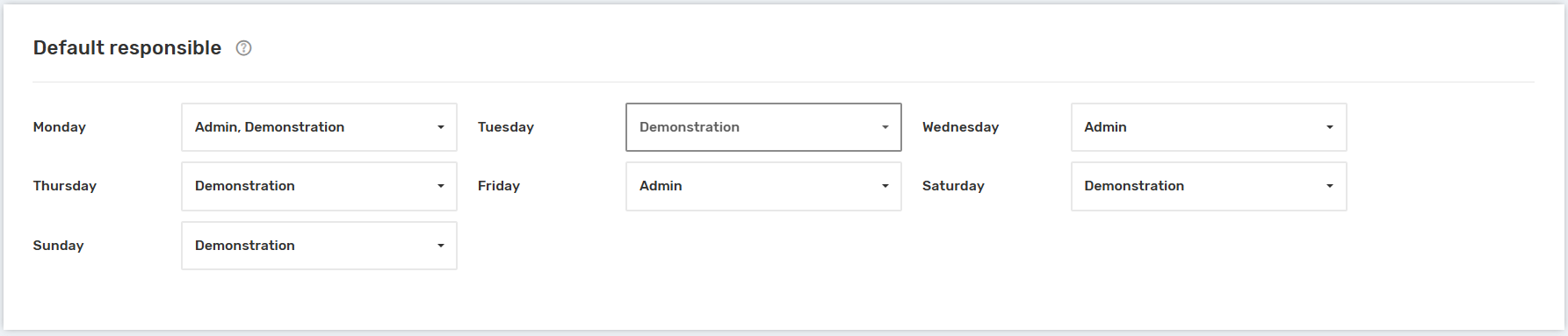
“Default Responsible” section:
Allows you to select a responsible person for missed calls from the list of PipeDrive users for each day of the week.
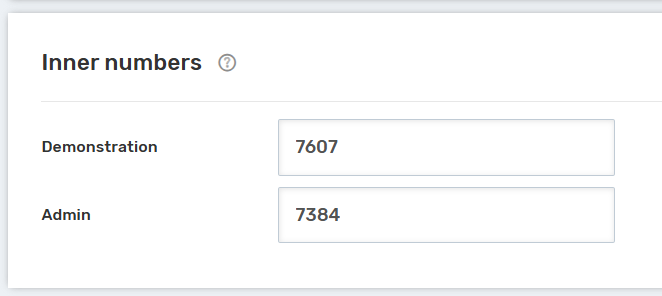
“Inner numbers” section:
To set up automatic calls from the contact card of the CRM system – in the “Internal Numbers” section, it is necessary to specify the internal line number for each PipeDrive user. These numbers can be viewed in the section “Users” of the UniTalk personal account.
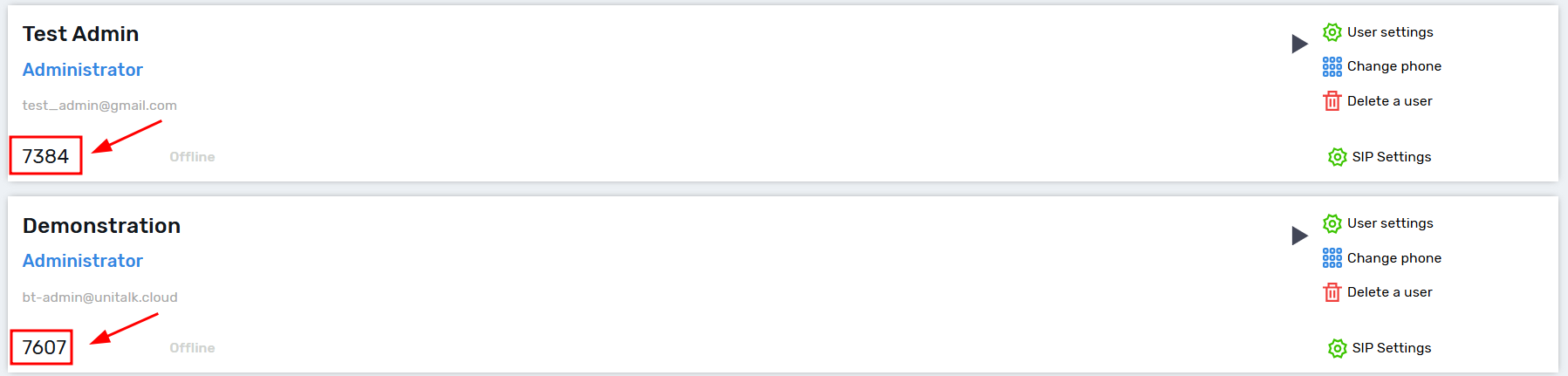
Integration settings are complete. If you encounter any difficulties during the process, you can always contact the Telegram chat-bot of UniTalk technical support, we will be happy to assist you.
Settings Chat UniTalk
The integration can automatically create or update contacts, deals, and leads, as well as add comments on chat events and create tasks in such cases:
- when the chat starts,
- when the chat ends,
- when chat fields are filled in
The PipeDrive integration page contains 2 blocks of settings – for calls and for chats. Each of these blocks has separate settings and its own button for saving settings*.




There are also two separate integration control switches:
- for calls,
- for chats.
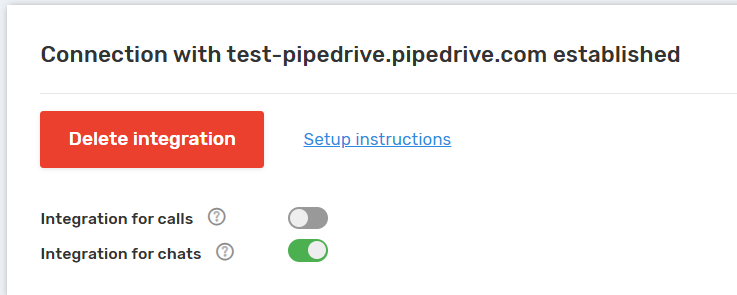
If you need integration for only one of the areas (for example, only for chats), turn on the corresponding switch and turn off the other.
When an integration is disabled, you can edit its settings. If the settings are incorrect, you cannot enable the integration until they are saved in a valid form.
Customization options for PipeDrive and Unitalk Chat
1. Basic settings
There are three events for which you can separately specify the necessary actions:
- chat start,
- chat end,
- chat fields update.
In each of these cases, you can configure whether you want to create comments, tasks, and define actions with contacts, deals, and leads.
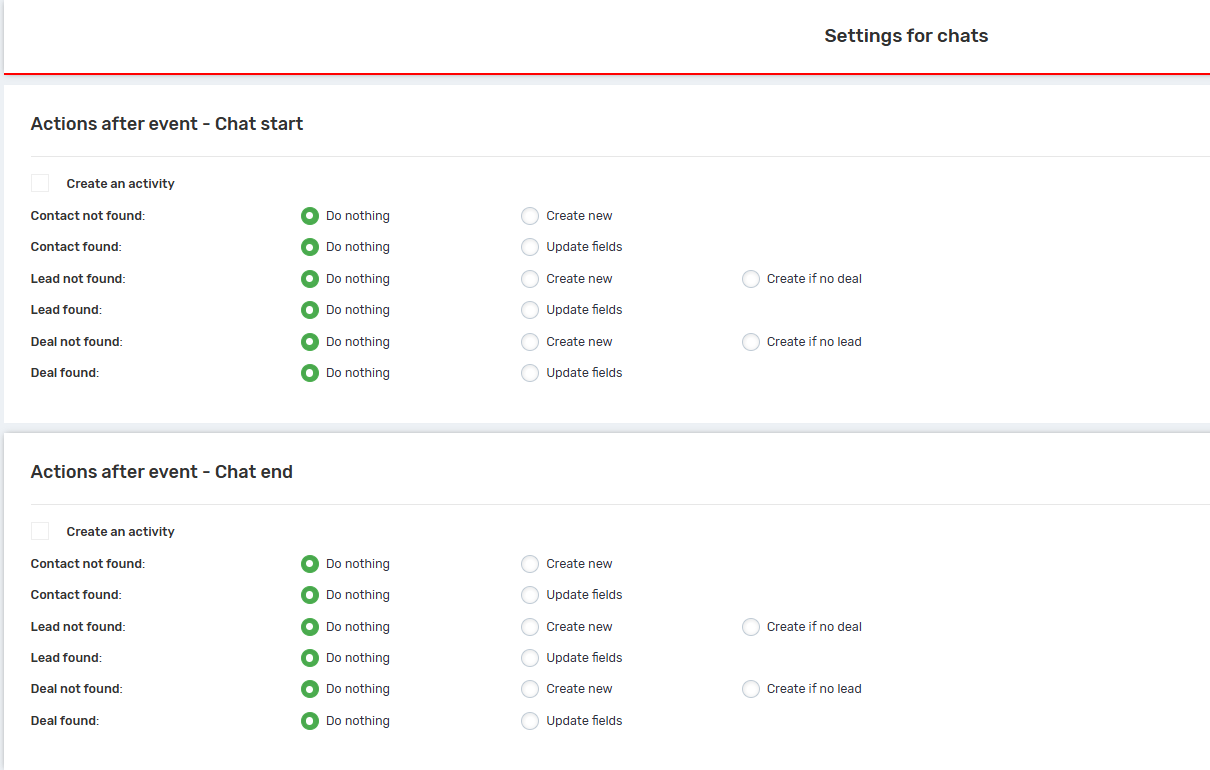

Scenarios are available for each entity:
- Contact not found: do nothing, or create a new contact;
- Contact found: do nothing, or update fields;
- Lead not found: do nothing, or create a new lead, or create a lead if there is no deal;
- Lead found: do nothing, or create a new lead;
- Deal not found: do nothing, either create a new deal or create a new deal if there is no lead;
- Deal found: do nothing, or update the fields.
Description of available actions:
- Do nothing – the system ignores this entity and does not perform any actions with it.
- Create new – a new entity (contact, transaction, or lead) is created.
- Update fields – the data within the existing entity is updated.
- Create if no deal/lead – the entity is created only when there is no deal/lead with this phone number in CRM
2. Default responsible
Similar to the settings for calls, you can assign an agent to each day of the week. If for some reason the responsible person cannot be identified automatically, the created entity (contact, deal, or lead) will be assigned to the agent specified in this field.

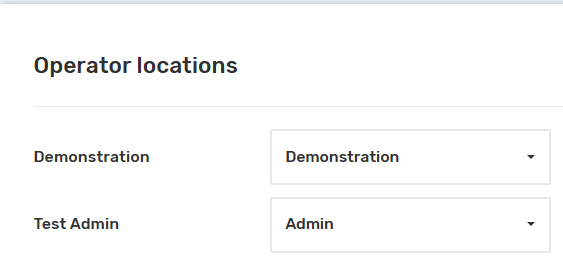
3. Operator locations
This is where Unitalk users (on the left) are mapped to PipeDrive users (list on the right).
The setup is complete, and your Pipedrive is now fully synchronized with UniTalk’s communication channels. You gain access to objective data for every interaction, from call recordings to auto-generated tasks following chat sessions. This ensures process transparency and helps move prospects through the sales funnel faster. Should you have any questions regarding operator mapping or entity configuration, our support team is available 24/7.



