


Instructions for setting up Speech Analytics
Speech analytics is a tool that allows you to analyze the content of phone conversations.
Speech analytics helps you monitor the quality of customer service provided by your employees. This solution allows you to significantly reduce the amount of manual work of the quality control department or company managers who are involved in evaluating and analyzing employee conversations. In addition, Speech Analytics allows you to receive automatic notifications about important calls.
To set up Speech Analytics, follow the steps below.
1.Go to your UniTalk personal cabinet, go to the Speech Analytics page. If you do not see this page, you need to contact support to activate this functionality.
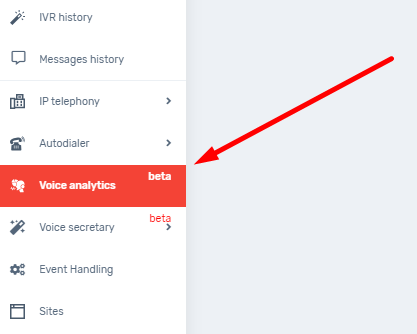
2.After opening the page, you will see the list of analytics profiles set up for your project – a system of parameters and criteria by which conversations between employees and clients will be analyzed. To add and customize a new profile, you should press the “Add profile” button.
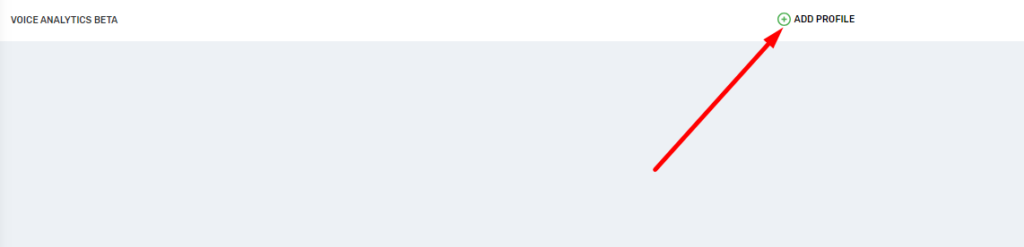
Analytics profiles can be created and customized for specific tasks (e.g., calls from different company departments). Profiles can be activated or deactivated as needed. The settings templates in them remain saved, so you can reactivate call analytics for a specific profile at any time.
3.After adding a new profile, you will be presented with a menu with filter settings. The settings are flexible and you can select the necessary parameters and types of calls to be analyzed.
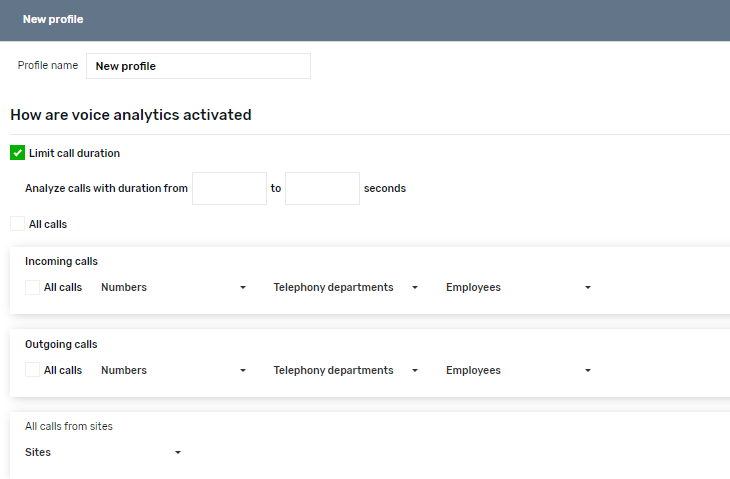
The following options are available in the settings:
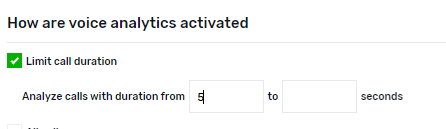
limit call duration – a setting that allows you to select a range of call durations that are subject to analytics.
For example, you can filter the duration of calls
call types customization block – a setting that allows you to customize the types and kinds of calls that are subject to analytics. Possible options:
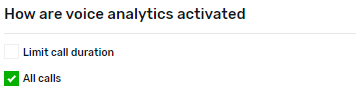
- all calls – analyzing all calls in the project (incoming/outgoing).
Important! Only 1 profile is possible in a project, which will analyze “All calls”.
- incoming calls – analyze incoming calls. You can filter all calls or calls by external line, by employee departments, by individual employees.
Important! Only 1 profile that will analyze “All incoming calls” is possible in the project




- outgoing calls – analytics of outgoing calls. Additional filters are the same as in incoming calls;
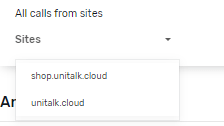
- websites – analytics of calls from the feedback form button.
4.Next, customize the selection of parameters to display analytics results by call.
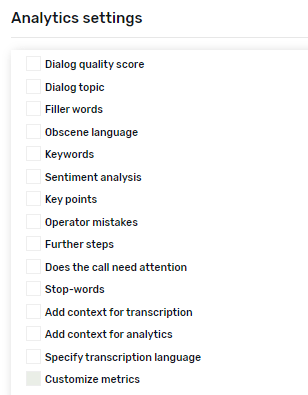
- dialog quality assessment – a numerical value assigned after dialog analysis, based on clarity and logicality of statements, maintenance of a certain topic of conversation and other parameters;
- dialog topic – a brief definition of the main topic of the conversation between an employee and a client;
- parasite words – definition and display of words that do not carry a semantic load, but are often repeated in a dialog;
- foul language – definition and display of foul words that may be used in the dialog;
- key words – definition of the main words in the dialog, which highlight the main ideas of the conversation and allow you to better understand what the conversation is about;
- mood analysis – determining the emotional coloring of statements and communication;
- key moments of dialog – the main phrases or statements that define the course of the conversation and allow to get semantic information in a brief form;
- operator’s mistakes – identification of possible mistakes of dialog construction by the employee;
- next steps – recommended actions or responses that can be performed after the current dialog;
- whether the call needs attention – identifying and highlighting conversations that require special attention from the supervisor (e.g., product problems, complaints, etc.)
- stop words – own certain words that are not allowed in the conversation;
- add context for transcription – additional hint information that can influence a more accurate and correct understanding of the dialog topic;
- add context for analytics – additional hint information that helps to better understand the results and conclusions of the analysis;
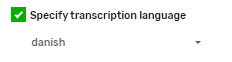
- refine recognition language – activate the selected language for text transcription and further analytics;
- customize metrics – define the parameters that are used to measure and evaluate dialogs, allowing you to build more accurate analytics specifically for your business and possible dialog topics;
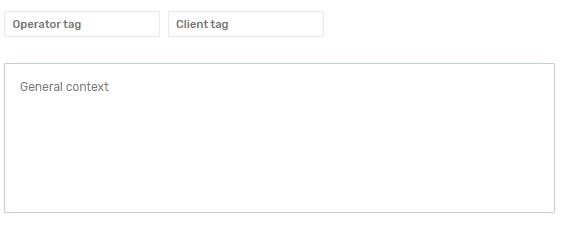
The operator tag identifies the employee in the speech analytics view, the client tag identifies the client respectively. General context is a short description of the task on the basis of which further analytics will be performed.
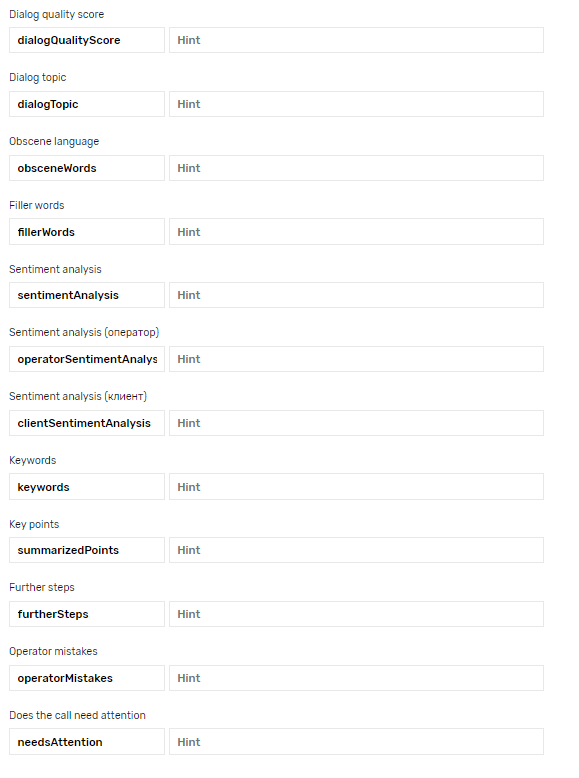
These parameters are mandatory and are the minimum data set for building call analytics. However, for a better analysis of the call you should fill in the prompts to evaluate certain categories and parameters that are important to you: assessing the level of customer satisfaction, identifying the key points of the conversation or resolving possible problems.
Filling in the prompts helps the system better understand your point of view, your interests or business interests and draw more accurate conclusions from the conversation.
5.For prompt notification of problematic or important calls you can set up notifications in the system. To do this, you need to configure an event handler, which can be in the form of sending a webhook with standard or custom content, SMS, Telegram message. A maximum of 10 event handlers can be added for one notification sending condition.
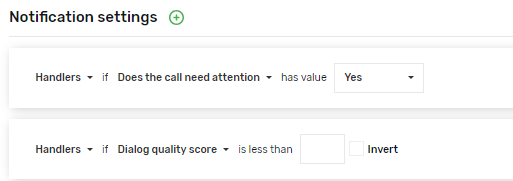
Conditions for sending event handlers can be:
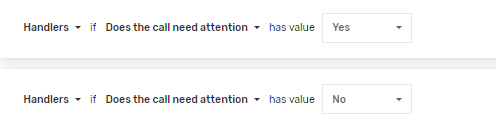
- whether the call needs attention – can take the values “Yes”/”No”;
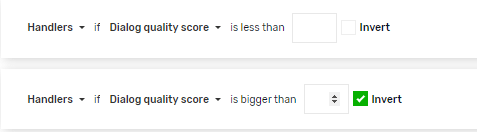
- dialog quality assessment – introduction of the minimum/maximum value of dialog assessment;
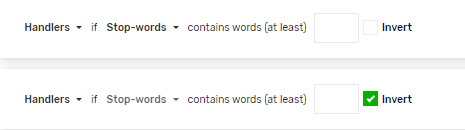
- stop words – the minimum/maximum number of stop words encountered in the dialog;
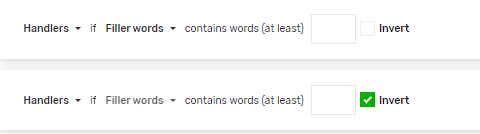
- words-parasites – the minimum/maximum number of words-parasites encountered in the dialog;
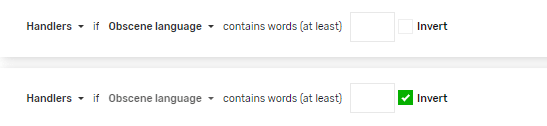
- foul language – the minimum/maximum number of foul words encountered in the dialog;
- any call – notification will be sent to any call

6.After entering all the necessary filters and parameters, you should save the customized speech analytics profile by clicking the “Save” button in the lower right corner;
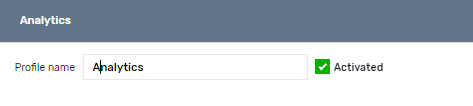
7.After saving an analytics profile, it is automatically activated and ready to work. Visually it is shown by expanding the settings and the presence of a check mark near the word “Activated”
The basic configuration of analytics is complete. Now calls that match the parameters specified in the analytics profile will be analyzed. The results of speech analytics can be seen by users with the roles of Supervisor, Administrator, Owner. Speech analytics is performed at the end of the call and can take several minutes to generate a result.
Speech analytics display
The Call History page has a separate filter for calls with speech analytics, i.e. only those for which analytics have been performed.

On the “Call History” page, there is a separate button next to the call that opens analytics for this call. If the button is not displayed, this call has not been analyzed for some reason (the appropriate analytics profile has not been found, analytics is not available for this project, etc.).

If you click on the button, you can see a detailed analytics report on the call, which contains 3 blocks:
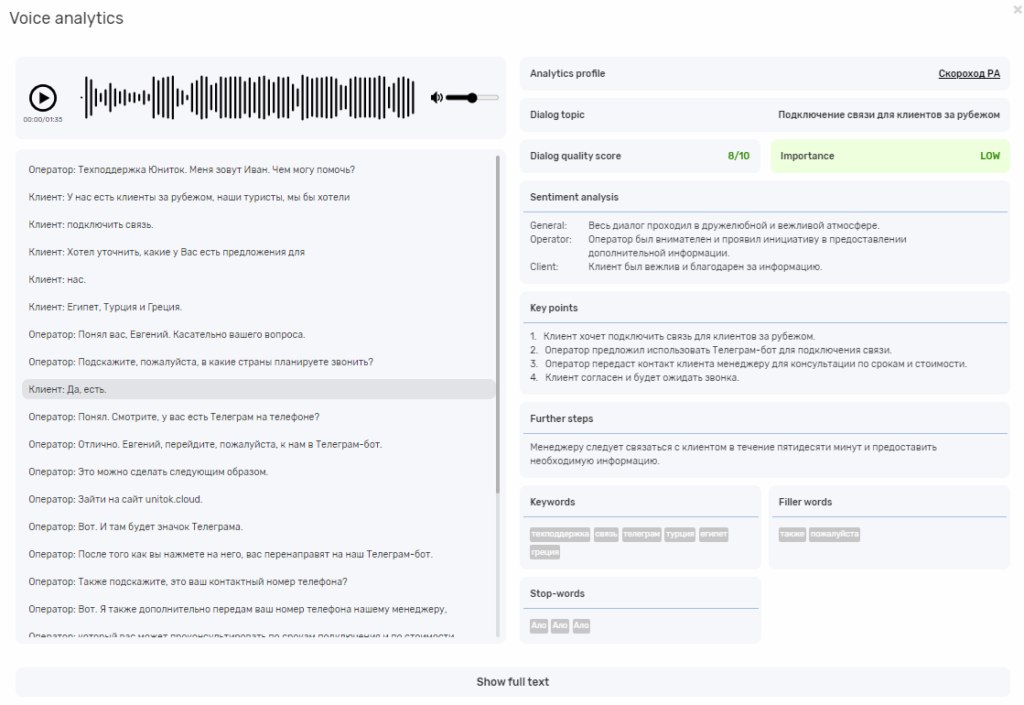
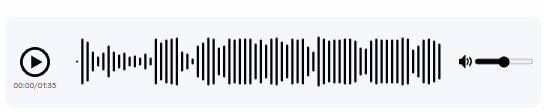
1.audio block – display of the player for the possibility to listen to the given conversation.
2.text transcription block – displaying in text form the phrases of the employee and the client that were spoken during the conversation.
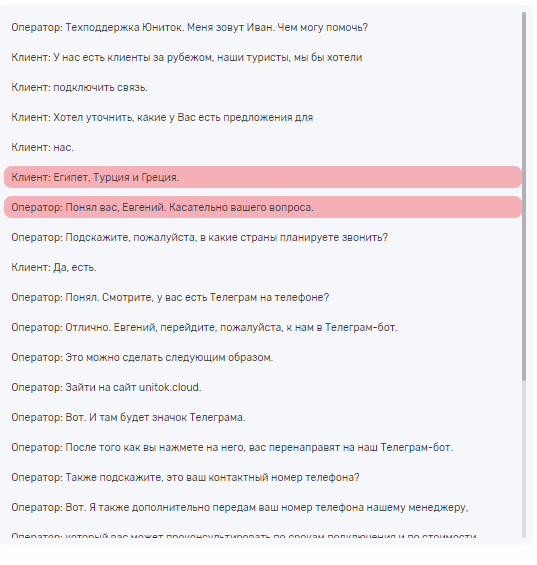
3.call analytics block – a combined block for displaying all analytics results: analytics profile, dialog topic, dialog quality assessment, importance, mood analysis, key dialog moments, operator errors, next steps, key words, parasite words, stop words, foul words, show full text.
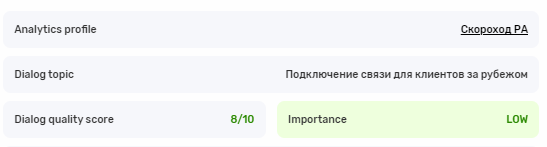
Dialogue topic – a brief description of the content of the dialog.
Dialogue quality assessment – numerical assessment.
Importance – the result of analytics on the parameter “Should pay attention to the call“. Visually the field can be green or red, which shows the degree of importance of the call.
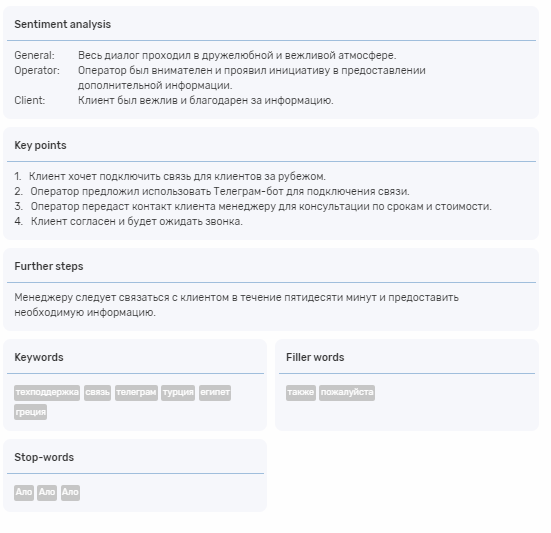
Mood analysis – value separately for evaluating the dialog between the operator and the client and the conversation as a whole.
Operator’s mistakes – description of incorrect behavior of the operator or his mistakes in the conversation.
Next steps – recommendations on possible actions of the operator towards the client.
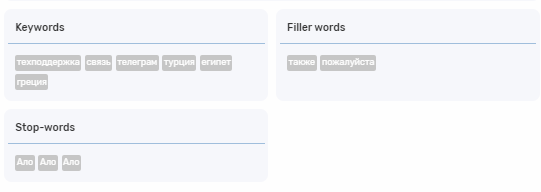
Key words, parasite words, stop words, profanity words – this is a list of words that were encountered in the conversation. When you click on a word, the audio of the moment of the dialog where it was spoken will be played. If there are several such words, then if you press on it again, the next part of the dialog with this word will be played.
Show full text – display the entire conversation in full.




