


Instructions for setting up the Unitalk Mobile App on Android: Your Office in Your Pocket
IP Telephony That Travels With You
The demands of modern business are not limited to office walls. To ensure the stability of your communication and the flexibility of your operations, UniTalk offers a mobile application that turns your smartphone into a fully functional business tool.
The UniTalk Mobile App allows you to make and receive calls using your work number from anywhere in the world. This is not just a dialer; it is a full part of your PBX: complete with operator statuses, project contacts, and call history.
Here is a step-by-step guide on how to quickly download, set up, and start using the app on Android.
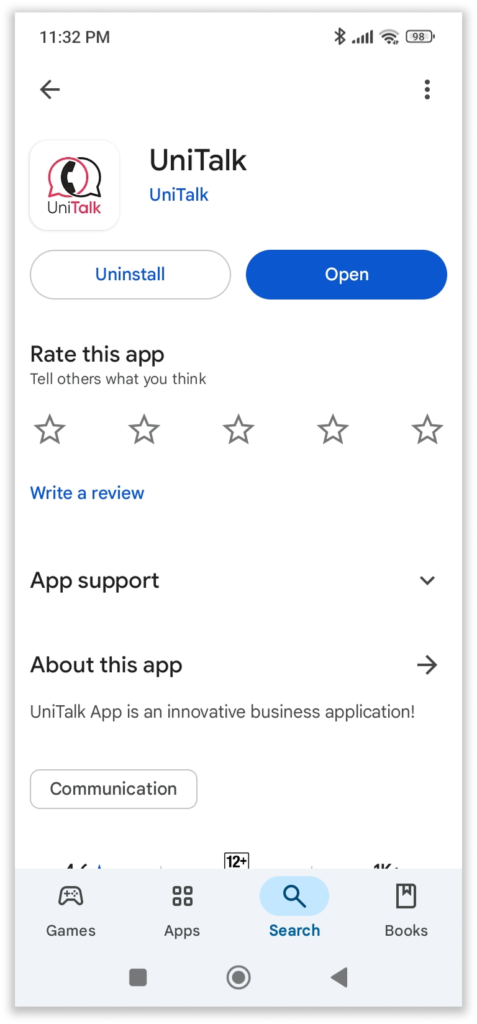
To download the UniTalk app to your smartphone, follow the link in Google Play and click “Install”. After downloading the application, click “Open”:

You will be offered two options for authorization:
- Using your Unitalk account credentials
- Using SIP account credentials

Authorization with data from the Unitalk personal account
Authorization in the UniTalk Mobile App is available using the data from your project’s UniTalk personal account. However, for this to work, your account must have a working SIP line assigned to your project.
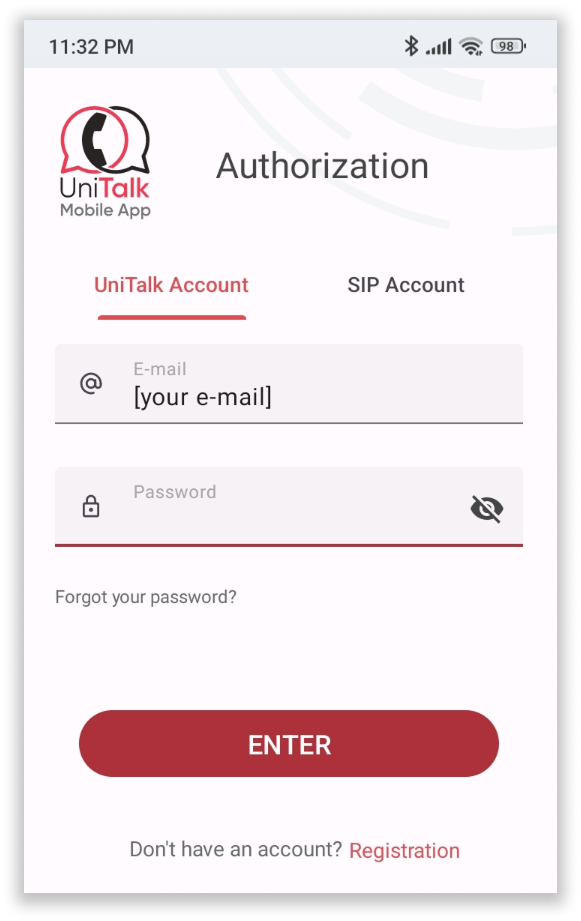
For authorization, you need to enter the data (login and password) from your project’s UniTalk personal account, where [your e-mail] is your e-mail address that was specified during registration in your UniTalk personal account and click “Enter”.
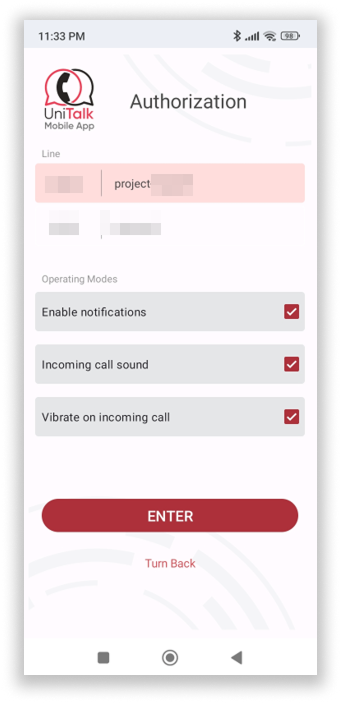
If your account has been added to more than one project, select the desired project. Next, select the settings you want for incoming calls and click “Enter”.
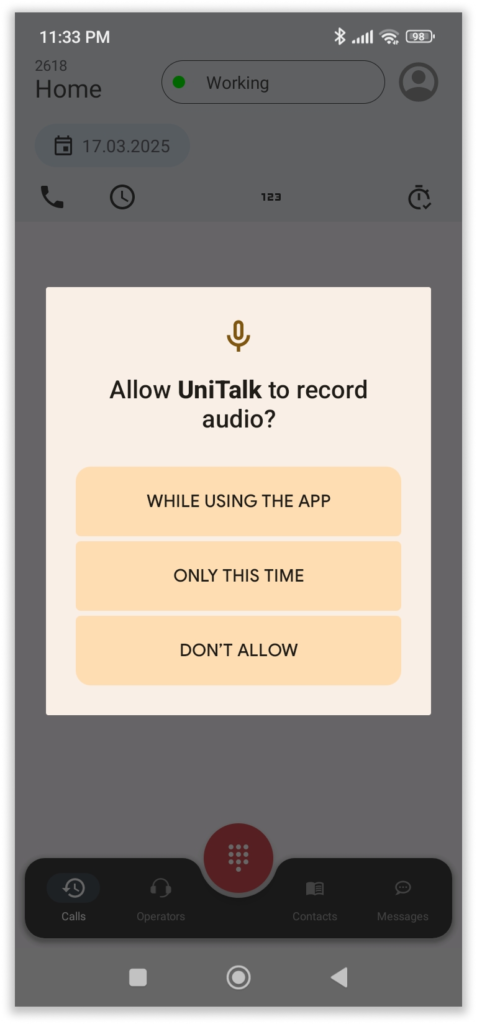
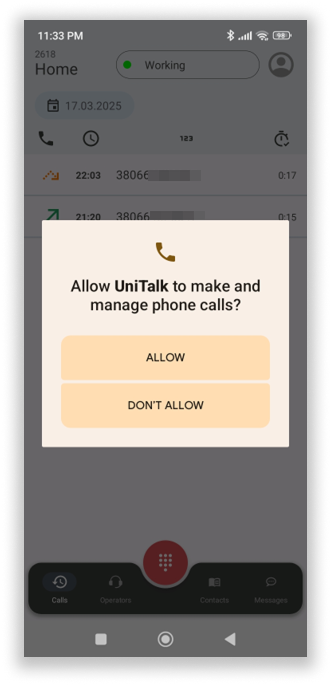
Authorization has been completed! When you open the app for the first time, you need to grant permissions to: record audio, send notifications, and make phone calls:

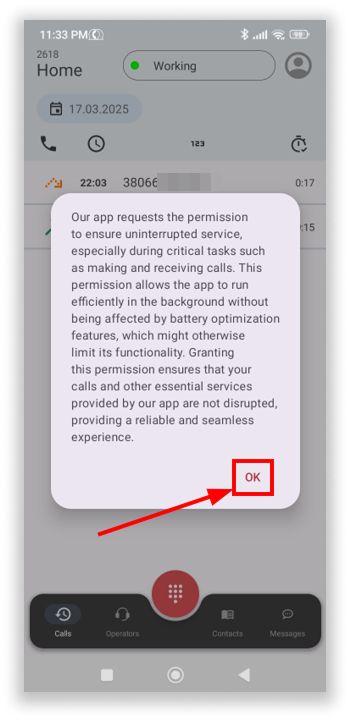
In addition, to ensure that the application runs smoothly in the background, you need to cancel system restrictions on its operation:
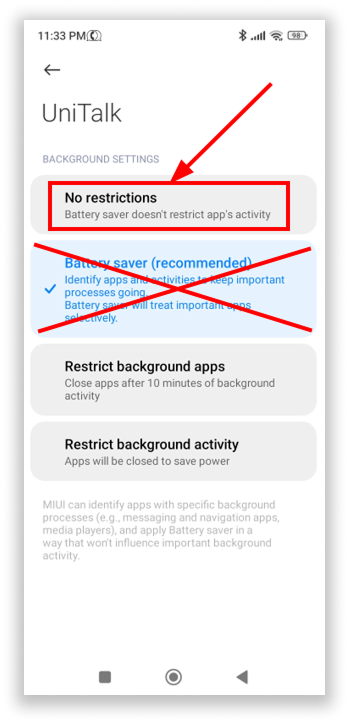
You’re done! You can use the application to make and receive calls.
The main screen of the application contains all the main elements:
1. Your work line number
2. Button to control the status of work
3. Button to go to the account settings
4. Call history (with the ability to view call history for a specified day)
5. Button to call the number pad to dial the number
6. Button to go to the “Calls” section
7. Button to go to the “Operators” section
8. Button to go to the “Contacts” section
9. Button to go to the “Messages” section

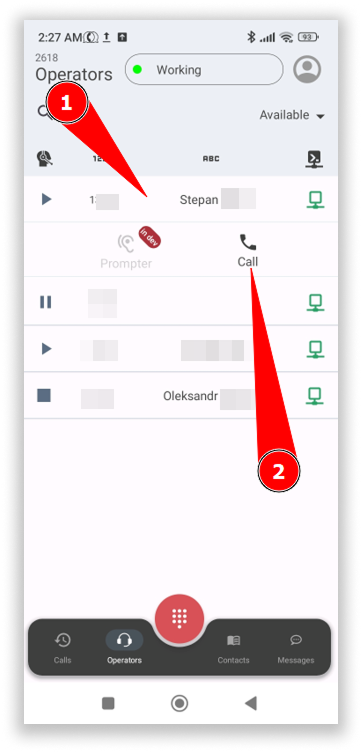
The “Operators” section displays other project users whose PBX workstation is in the “Online” status, i.e. the SIP line is registered. When you click on one of the users, you can call him or her:
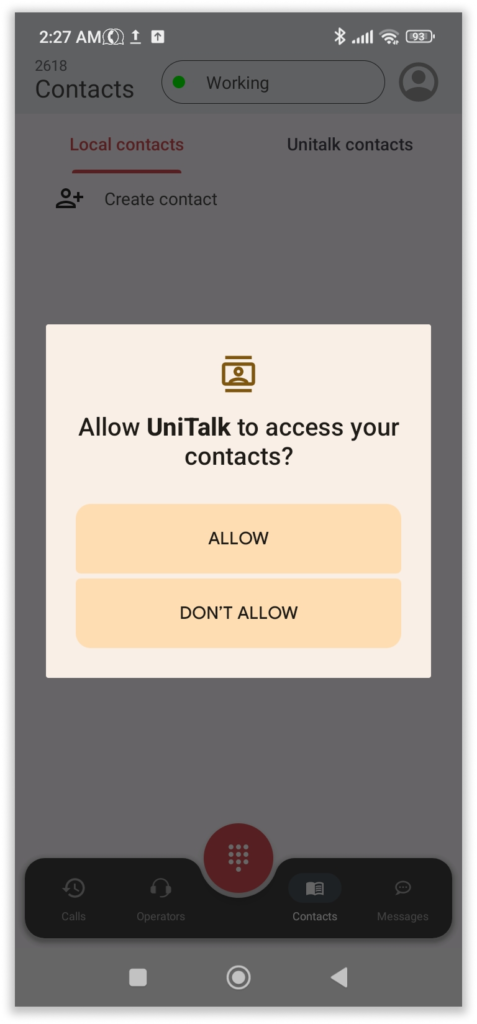
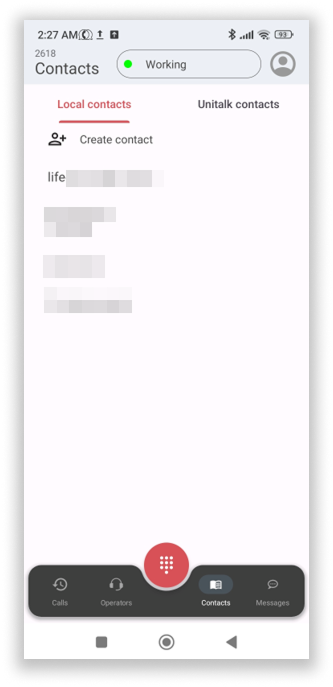
In the Contacts section, you can work with the phone book of both the local device and the contacts that are available in the project in the UniTalk system. To access local contacts, you must grant permission to the application:
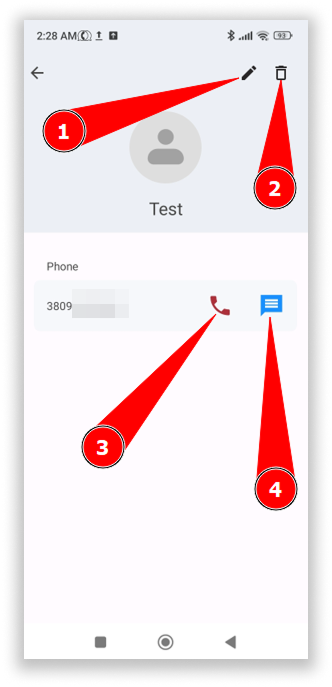
By clicking on the contact itself, you have the opportunity to:
1. Edit it
2. Delete it
3. Call it
4. Send a message
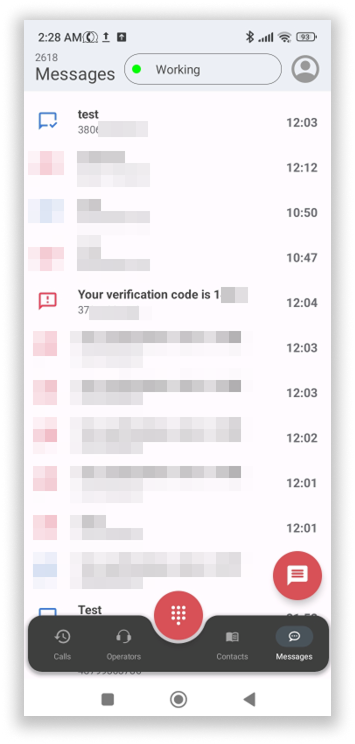
As for the Messages section, they will be displayed only to users who have been granted access to view them in the user settings:
To change the status, click on the button with the current work status.
There are 3 categories of job statuses:
1. Working
2. Paused
3. Finish working
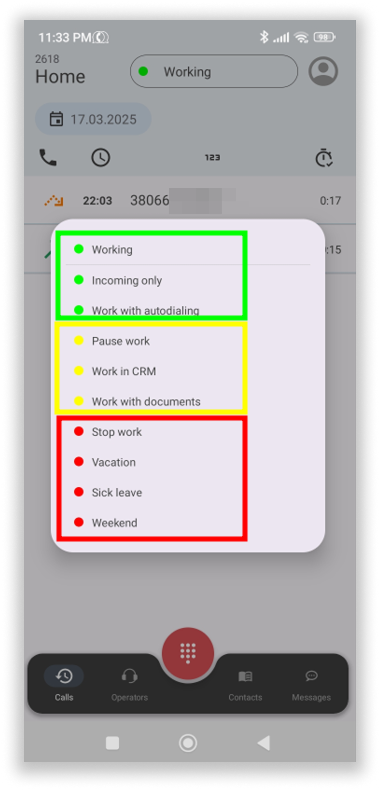
Each category can have several custom statuses, which can be created and customized in your UniTalk account.
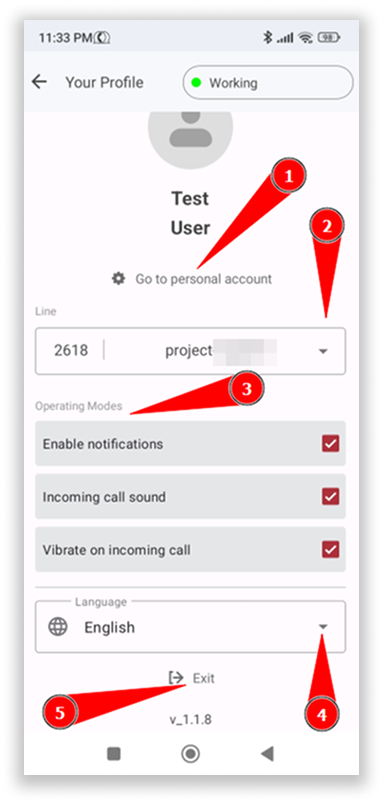
When you go to the account management screen, you can:
1. Go to the UniTalk personal account page in your browser
2. Switch between project workflows
3. Additional settings for the application
4. Change the interface language
5. Log out of the account
Authorization using SIP line data
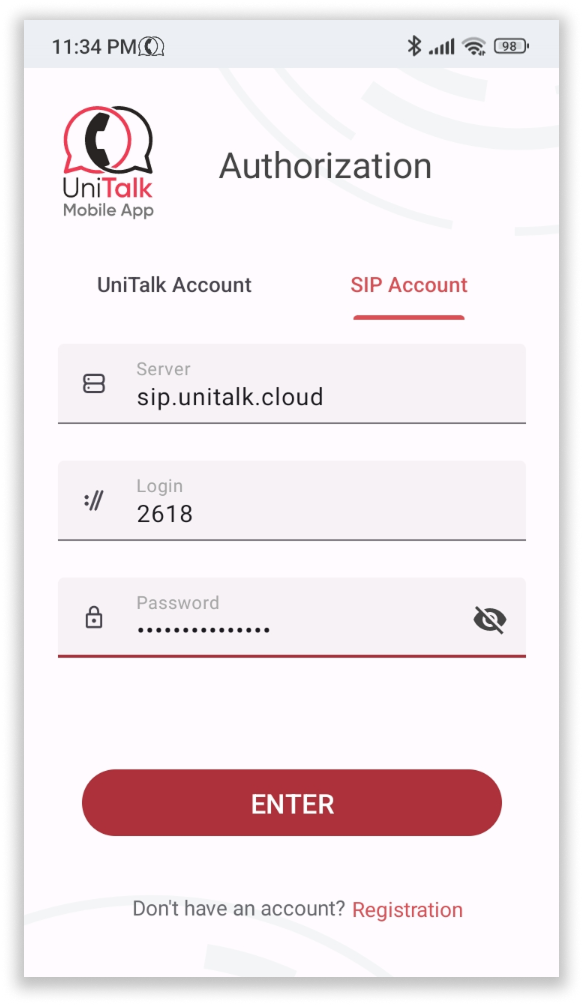
You can also log in to the application using data from a working line. In this case, there is no need for the line to be assigned to a UniTalk project user.
To do this, select the SIP account tab and enter the line registration data:
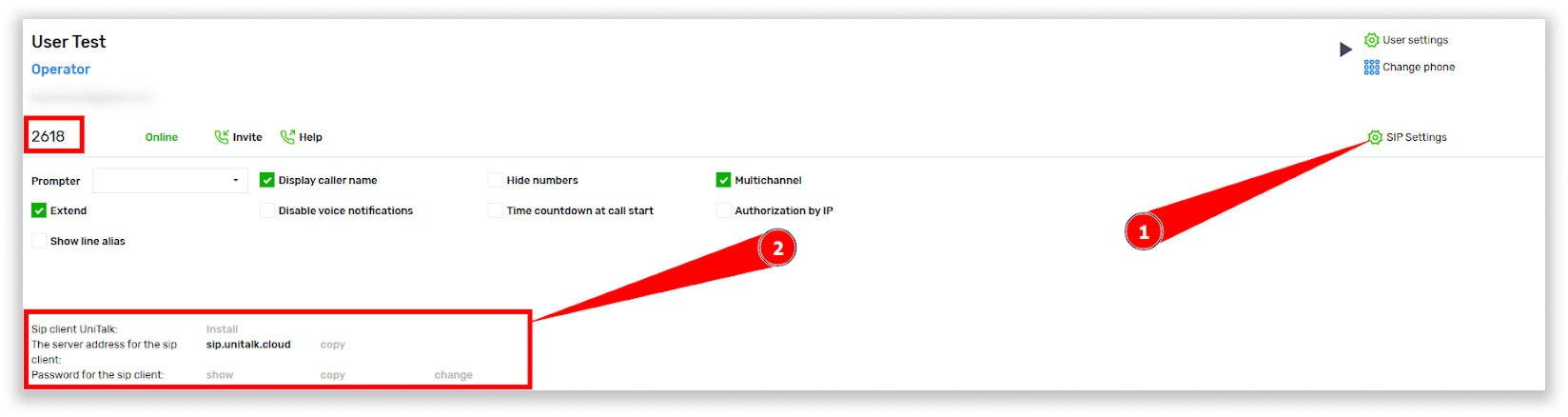
You can find this information in your project’s UniTalk account, in the Users section. Go to the SIP Settings section and copy the data from the work line:
- Server: address of the registration server
- Login: sip line number
- Password: password for the sip client
After filling in all the fields, click “Enter”:

Done! Authorization is complete. You can use the program to make/receive calls.
Your Mobile Efficiency
You have successfully set up the UniTalk Mobile App.
- Flexibility: Conduct work calls, monitor colleague statuses, and manage contacts regardless of your location.
- Stability: Even outside the office, your connection is as reliable as UniTalk’s entire IP telephony system.
- Convenience: Your dedicated work number is always at your fingertips.
The mobile application is the key to the stability and uninterrupted operation of your team.



