KOMMOCRM INTEGRATION WITH IP-TELEPHONY
1. Log in to the UniTalk cabinet, go to the Integration — KommoCRM. Click the “Connect” button.

2. If you are not yet authorized in the KommoCRM cabinet, a window will open where you must enter your KommoCRM account details.

3. Next, select the KommoCRM account in which the integration and UniTalk widget will be connected. Click the “Allow” button.

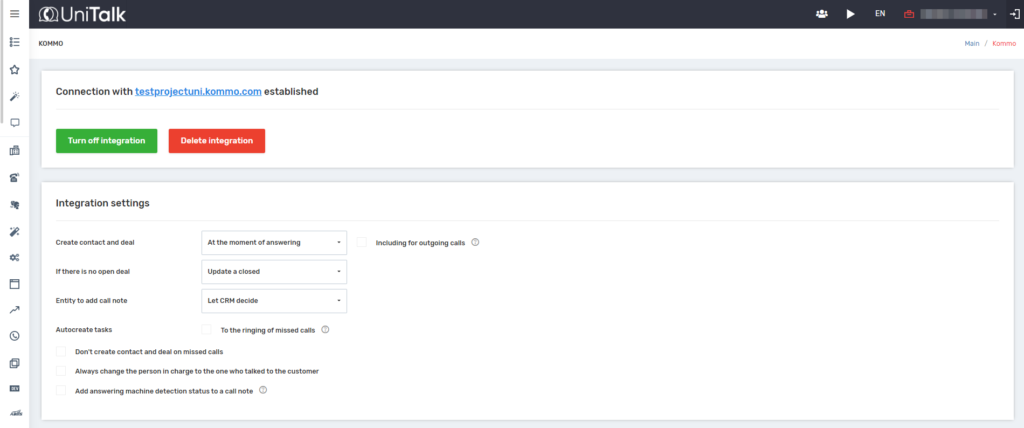
4. After successful authorization, we see that the UniTalk system has a module for integration settings with the CRM system.
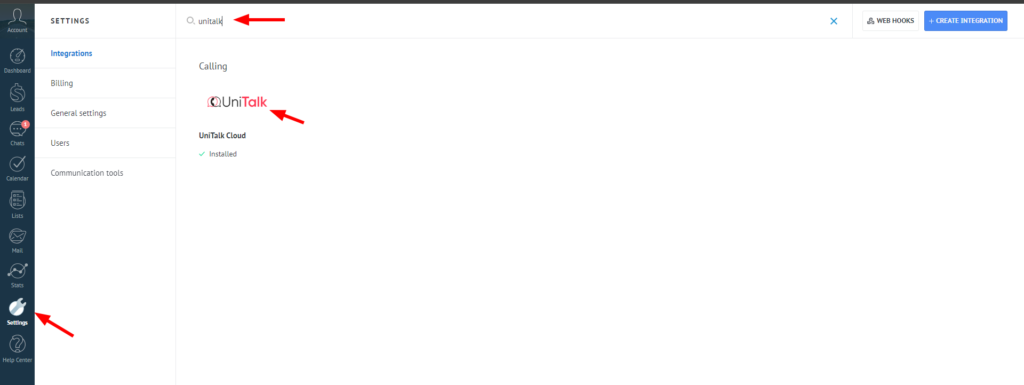
5. Now you need to configure the UniTalk widget from the KommoCRM marketplace. To do this, go to Settings — Integrations. Enter the word “unitalk” in the search bar and open the found widget.
6. In the “Your project name in UniTalk” field, you need to enter the name of your project in our system.

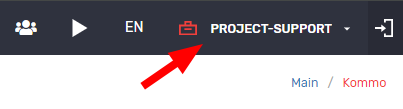
The project name can be viewed in the upper right corner of the UniTalk personal cabinet.
Then click the “Save” button.

Done! Integration with the KommoCRM service is connected.
Let’s take a closer look at the settings:
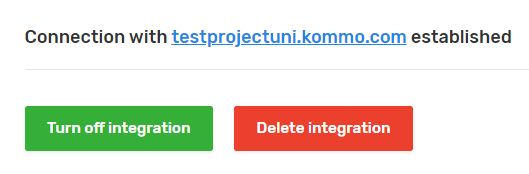
- The first item in the module settings allows you to temporarily disable or delete the integration.
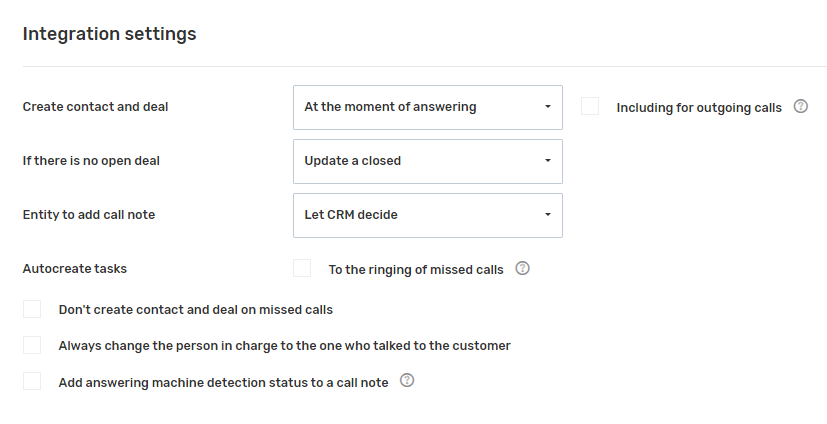
- The second item in the settings presents the general integration settings:
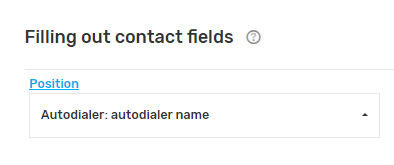
- You can set values that will be automatically inserted into the corresponding fields when creating new contacts. These can be values inserted in real-time or fixed text.
- You can set values that will be automatically inserted into the corresponding fields when creating new deals. These can be values inserted in real-time or fixed text.

- The user who will be responsible for the deal in case the call is missed or the option to create deals during the call is selected.

- Specify which lines your operators occupied. This will allow you to transfer the call to the responsible manager and set them as responsible when they answer the call.
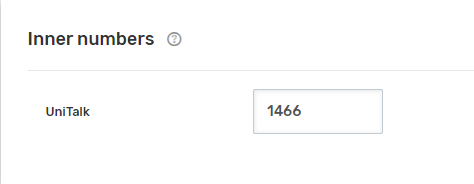
You can view internal employee numbers in the Users section.

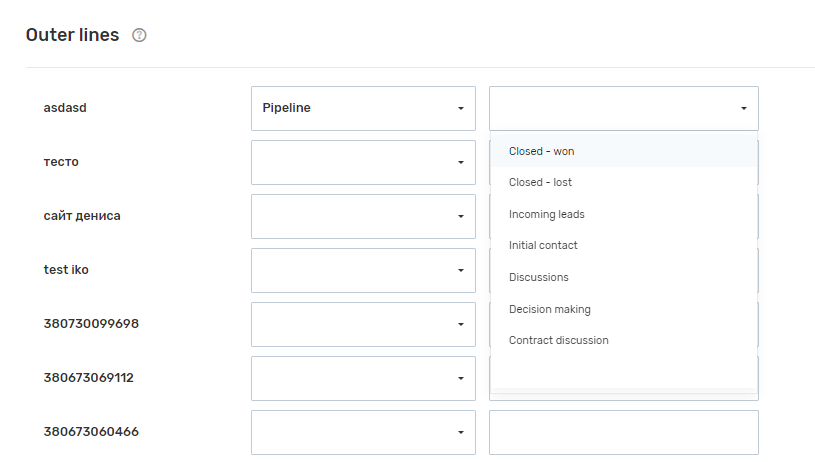
- You can choose in which pipeline and stage to save the new deal when receiving a call from a certain source.
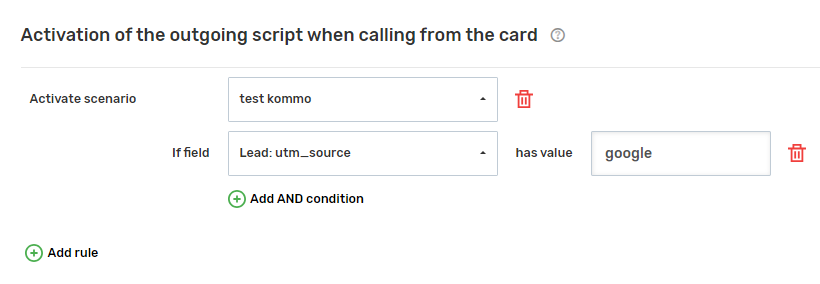
- Depending on the contact/lead field values, the corresponding outgoing scenario will be activated when calling from the CRM card.