


Voice Bot Page Settings
Creating an effective Voice Bot starts with an intuitive interface. The “Voice Bot Settings” page in UniTalk is your command center, where you can centrally manage all dialogue automation. Here, you not only create new bots but also control all drafts, copy successful models to other projects, and quickly obtain technical IDs for API integrations. The benefit for you? You gain complete control over automation and save time on routine processes.
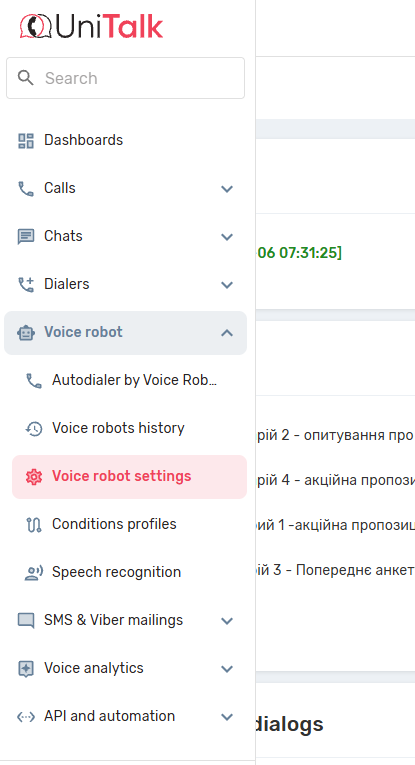
“Voice robot settings” are located in the UniTalk personal account in the “Voice robot” tab:
The Voice robots page looks like this:
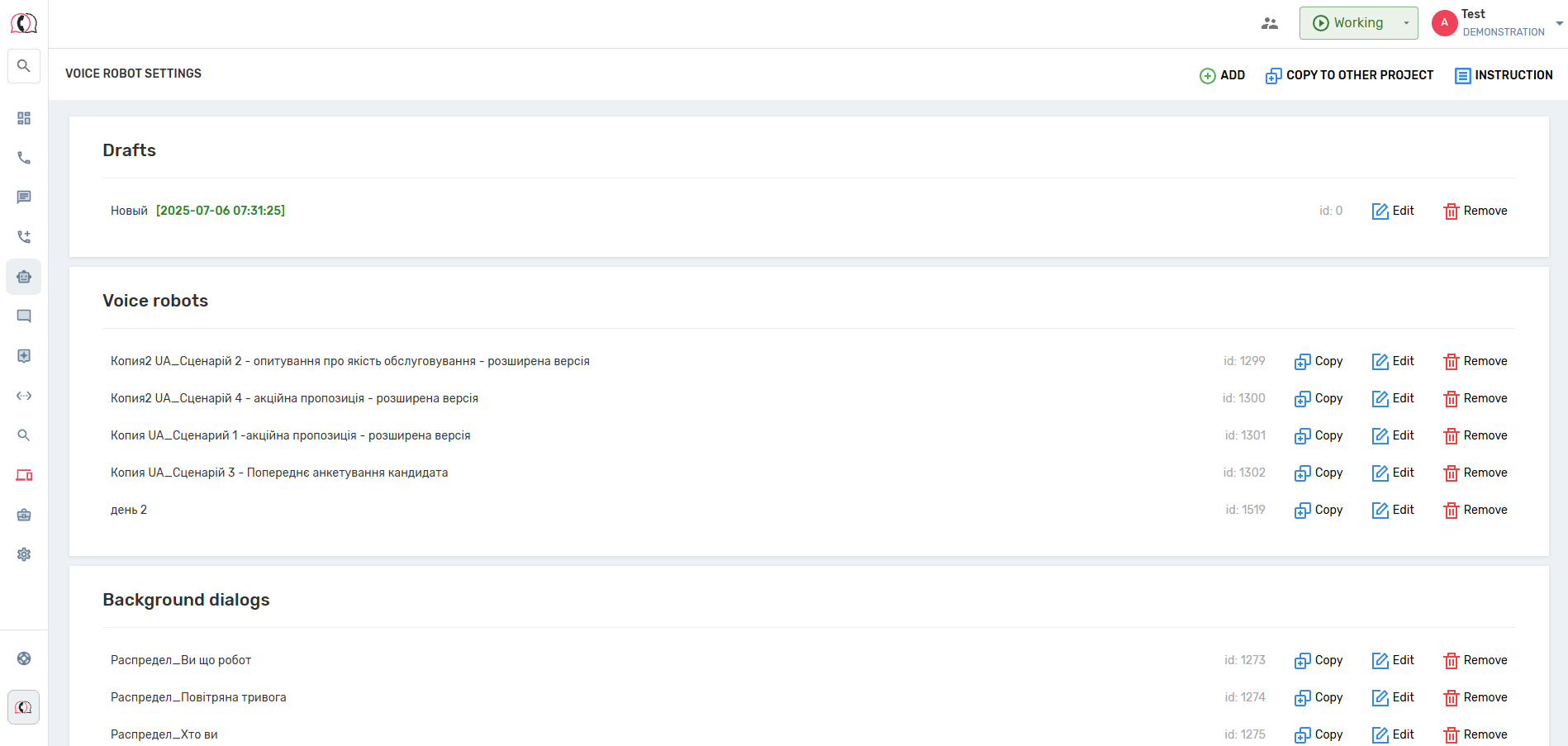
On the Voice robot settings page, you can make the following settings:
- create new robots
- view a list of existing robots and robot drafts
- delete a robot or draft
- go to the robot editing page or open a draft
- copy a robot (a copy of the robot opens on the robot editing page, which can be saved as a new robot)
- copy robots to another project
- find the robot id to use in the API or when receiving webhooks from event processing
There are cases when creating and editing robots is not available:
- if the Voice Robot service is not available in your plan
- if you have not yet added any speech recognition settings profiles to your project
- if you have not yet added any audio to the project in the Voice robots section
Your UniTalk personal account provides all the tools for fast and flexible management of your Voice Bots. Even if the service is temporarily unavailable or necessary speech recognition profiles or audio are missing, the system will provide clear prompts. Knowing how to effectively use this page allows you to scale automation across different projects, save time on re-configuration, and ensure the stable operation of all your dialogue scenarios.



