


Zoho CRM integration with IP telephony
Note. Before performing the steps according to the step-by-step instruction, you must be logged in to UniTalk and ZohoCRM personal accounts with administrator rights.
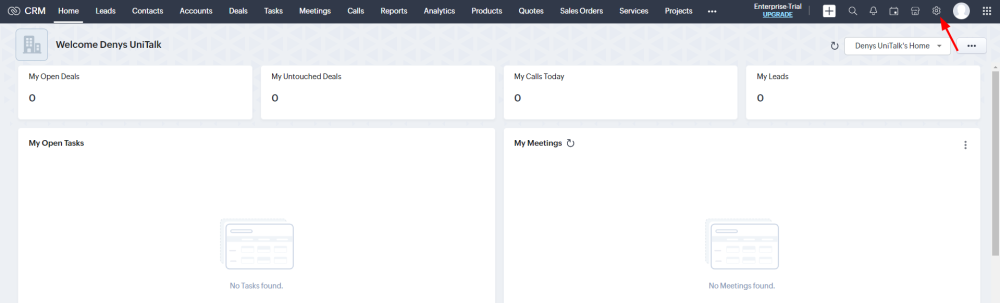
1. To connect the UniTalk integration with ZohoCRM, log into your account and go to the CRM system settings tab.
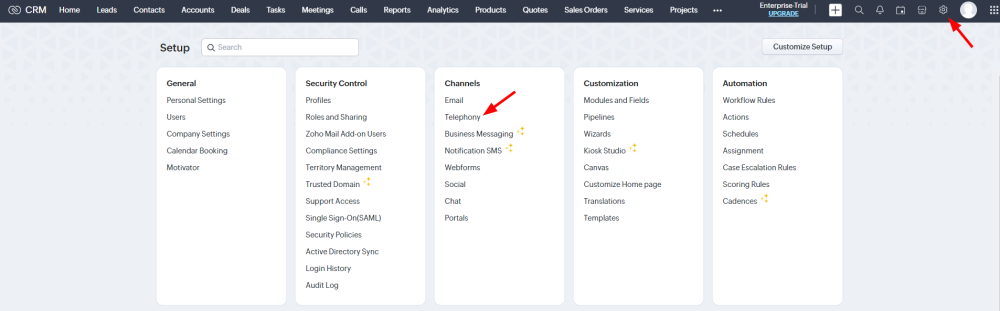
2. Next, select the “Telephony” item.
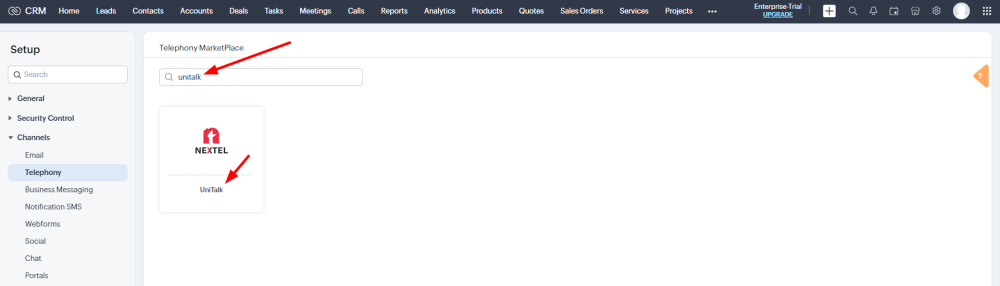
3. In the search field, type “UniTalk” and click on the extension that appeared as a result of the search.
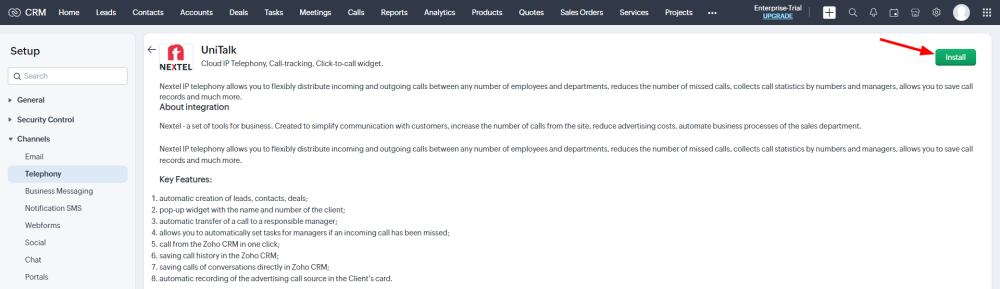
4. Click “Install” to install the extension.
5. In the pop-up window, select “All Users”.

6. In the “UniTalk” personal account, go to the “Integration” section and select the CRM system ZohoCRM from the list of available integrations.
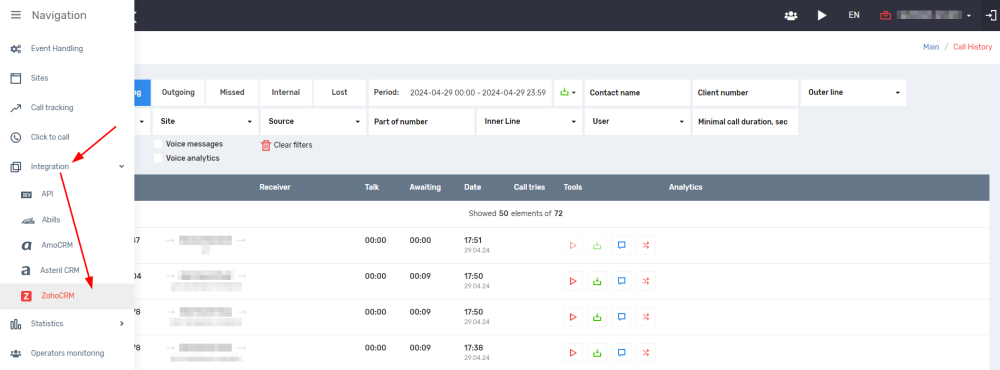
7. Click “Install”.

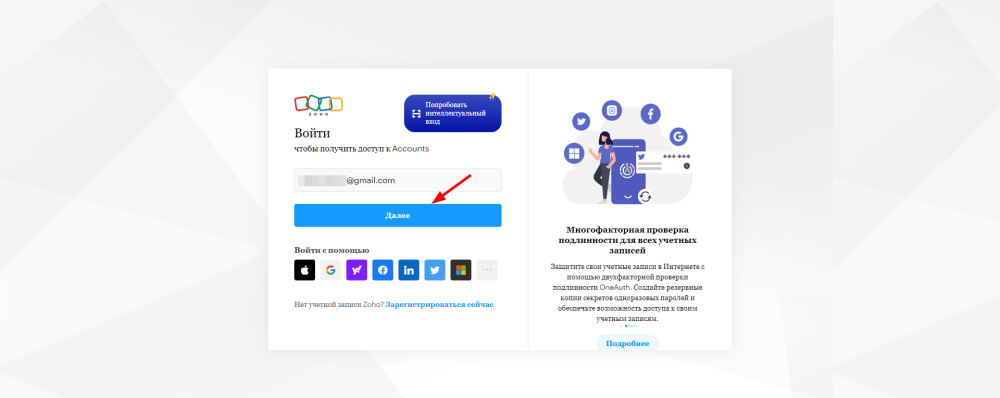
8. Go through the “Authorization” with your ZohoCRM account on the page you were redirected to.
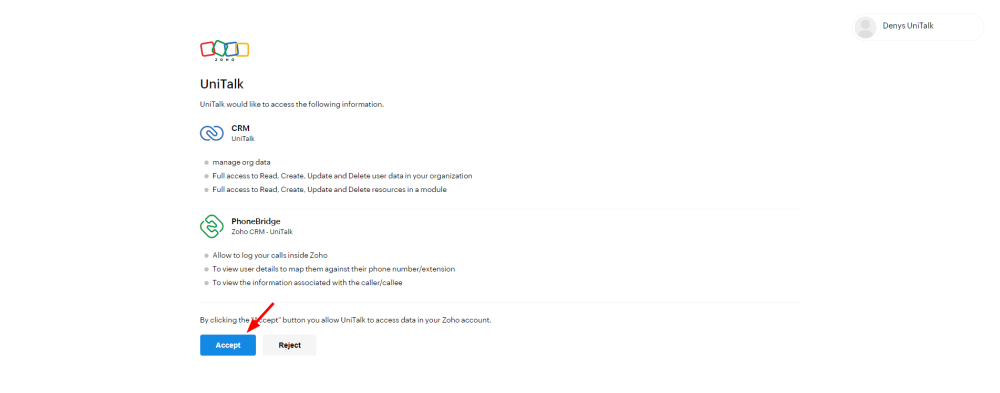
9. Next, click “Accept”.
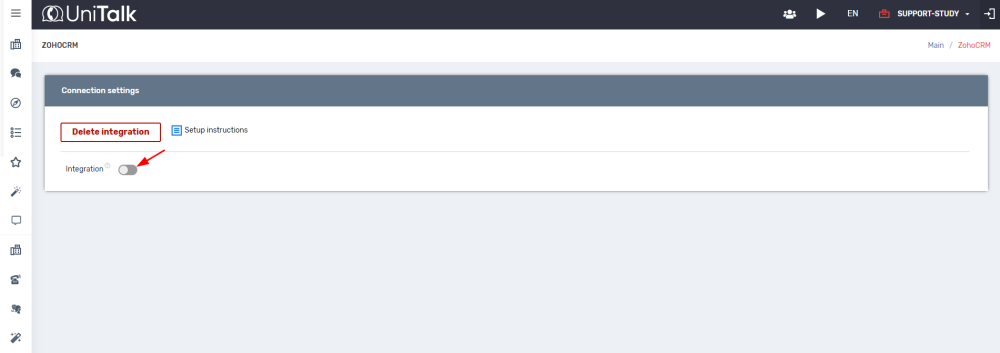
10. The connection is established. Now you need to enable the integration.
11. Now you can perform the integration settings, depending on your needs.

- Create contacts: enable this option to automatically create a contact in Zoho CRM for incoming calls.
- Create deals: activate this function so that a deal is created for incoming calls.
- Create an activity-task: enable this option for automatic task activity creation for missed calls.
- Leave comments about the calls: activate to add comments with call information to the contact or deal after each call.
- Send audio recordings: choose whether call recordings will be sent to Zoho CRM.
Schedule of the person responsible for missed calls – a user responsible for missed calls. The default responsible can be specified separately for each day of the week.
12. The next step is to attach the internal line numbers to the CRM system user accounts.
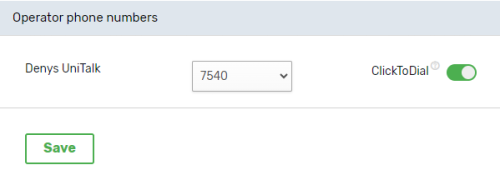
You can view them in the “Users” section of the UniTalk personal account. Additionally, you can enable the “Click to dial” feature. That is, the ability to make a call by clicking from the CRM system.
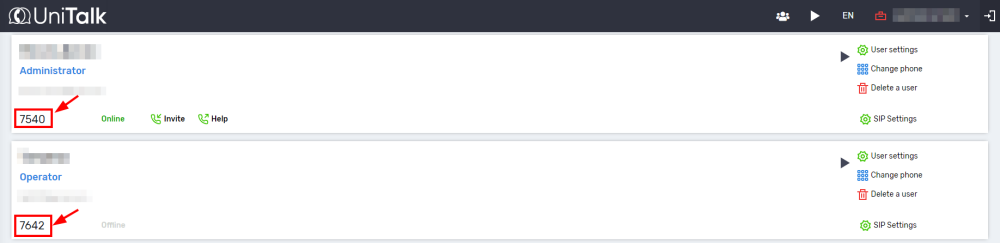
13. Integration setup is complete. To check, you can make several test calls and check if everything works correctly.
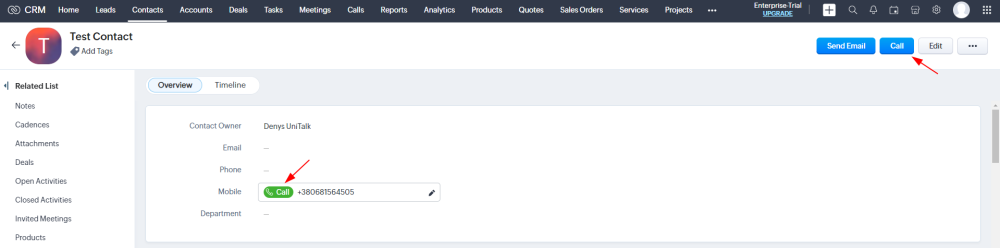
If the “Click to dial” feature is active for a user – they can press the “Call” button on the contact card. This will initiate an outgoing call. To make a call in the SIP client, you need to answer the call.

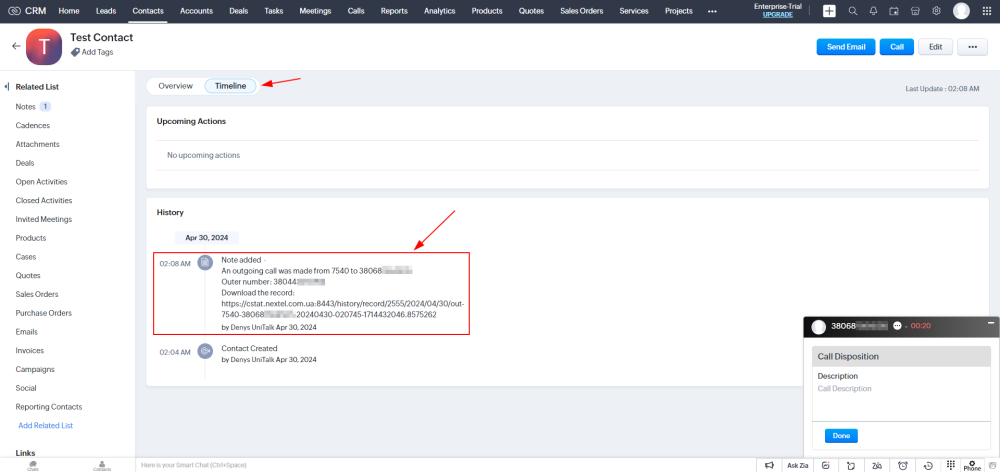
14. After the conversation is finished, a comment with a link to the conversation recording will be added to the contact card.
Integration setup is complete. If you encounter any difficulties during the process – you can always turn to the Telegram chat-bot of UniTalk technical support, we will be happy to help you.



