


How to use the “Contacts” section of UniTalk
Order in Contacts = Speed in Sales
Effective sales performance starts with organization.
The “Contacts” section in UniTalk is your tool for quick customer personalization and call routing automation. By organizing your base, you immediately see the client’s name and, most importantly, can automatically transfer their call to the responsible manager, ensuring stability and speed in your sales process.
When using UniTalk services, you can use one of the subsections of “Calls” — “ Contacts ” for your convenience.
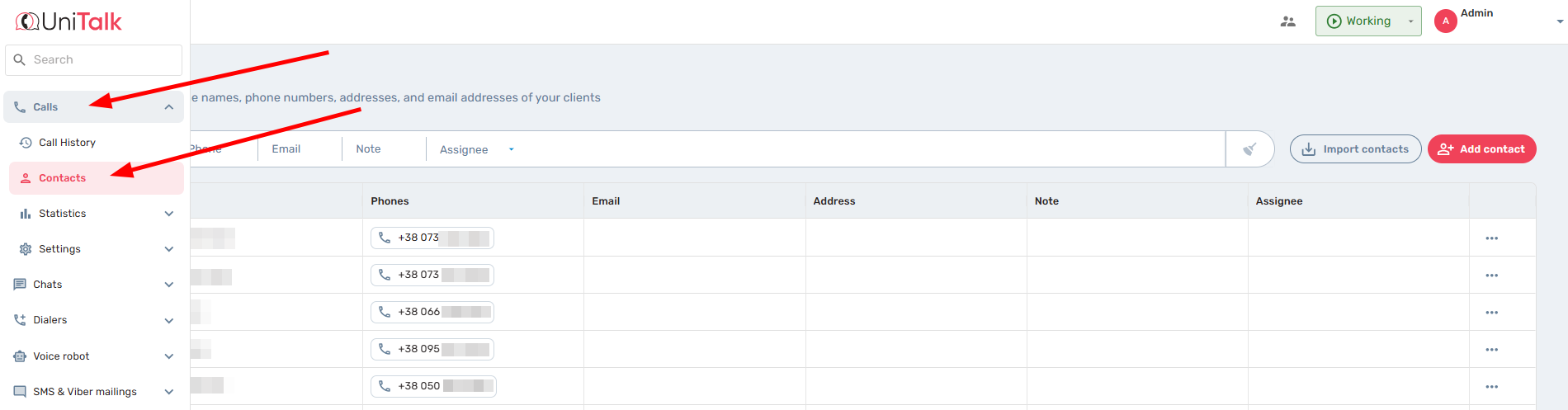
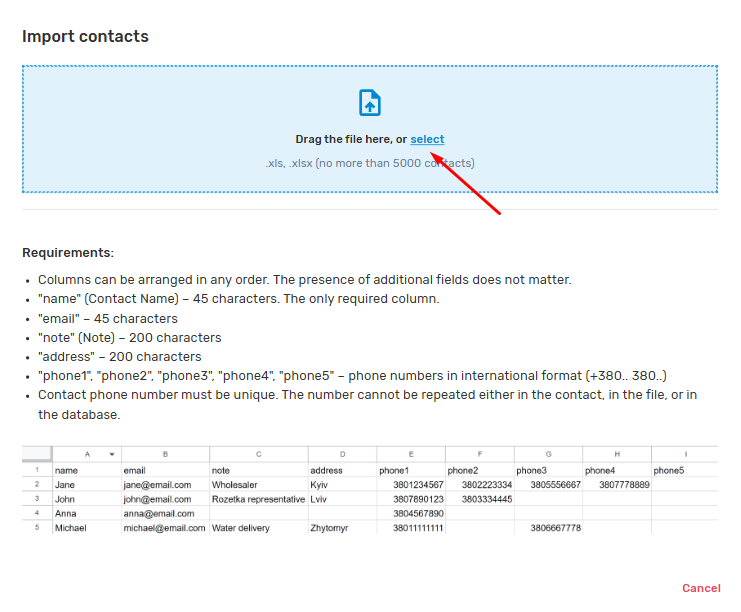
In this subsection, you can add a list of contacts that you plan to use when making calls. To do this, you need to import numbers that you can have in a table, as shown in the example below:

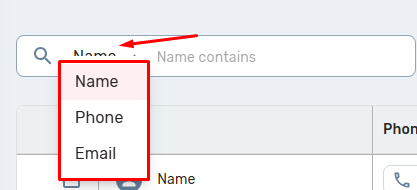
If the number database is large enough, you can use filters to quickly find the necessary contact. If you need to find a contact by name, you just need to specify, for example, the first 3-4 letters of the name and the information will be pulled up. If you choose to search by phone number, then enter the number in full in international format, there is also an option to search by email.

Or you can add contacts manually by filling in the required fields, in the “phones” field, enter the number in international format:

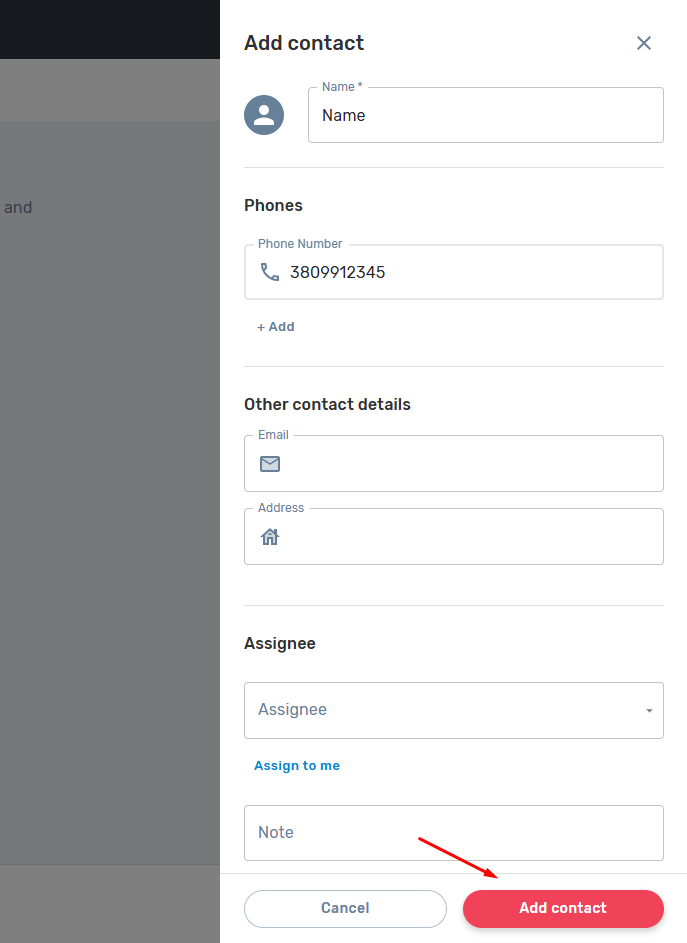
After filling in the data, click “Add contact”.
A previously created contact can be edited or deleted.

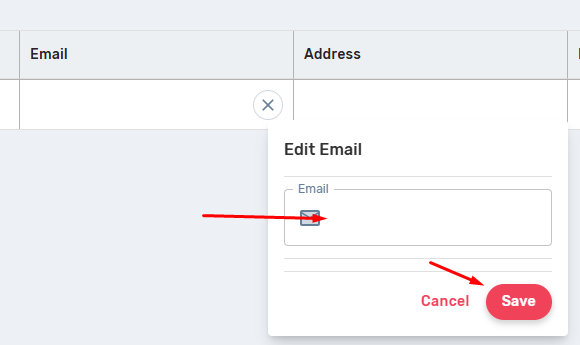
To edit, you need to click on the “Edit” button in the field that needs to be edited, for example Email, after which a modular window will appear in which you need to specify or change the information, and then click the save button.
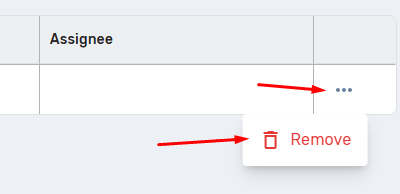
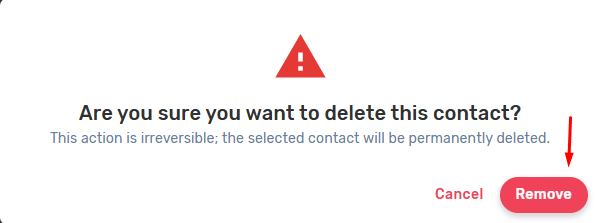
To delete, simply click on the three dots and “Delete” and then confirm the deletion, that is, click “Remove” again in the pop-up window.
It is also possible to specify a responsible operator by contacts. To do this, select the responsible operator from the drop-down list of operators that are in the project.
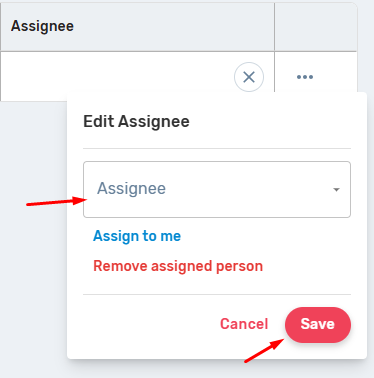
There is also an option to make yourself responsible, so that you don’t have to search for yourself in the list and remove the responsible person.
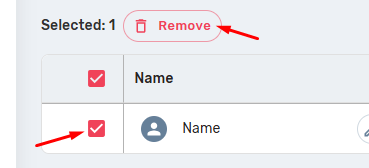
In order not to delete a large number of contacts separately, you can select the necessary contacts by marking them, after which information about the number of selected contacts and the buttons “Delete Favorites” and “Delete All Contacts” will appear.
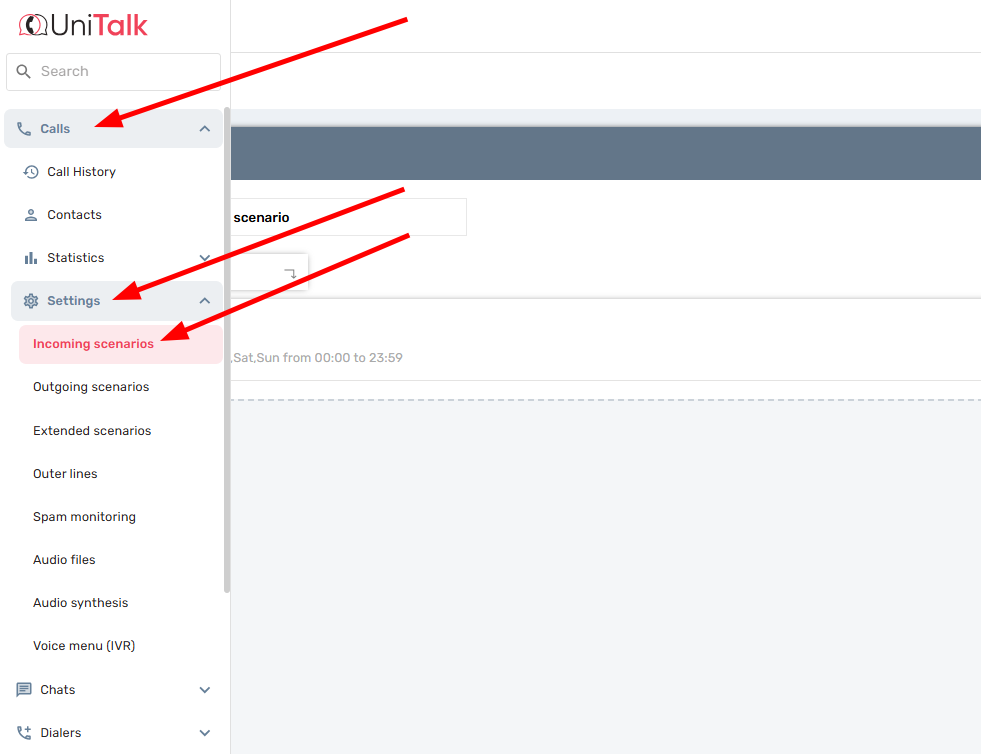
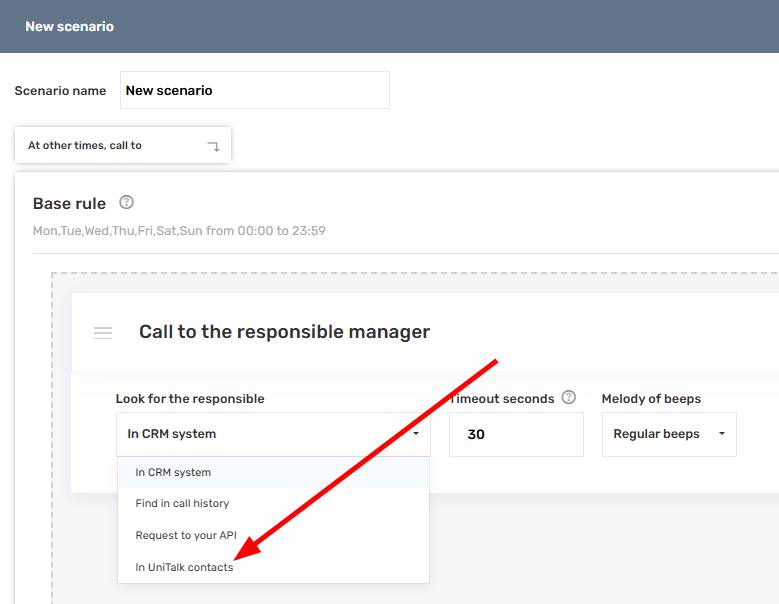
This information can also be used when creating a scenario for incoming calls in the “Calls” -> “Settings” section. Let’s say you want the incoming call to go to the responsible manager, then “search for the responsible manager” select “in UniTalk contacts”, and then save the configured scenario.
There is also an option in the “Call history” section, when you receive a call from a new number, click on it – a list of actions will appear, among which will be “create contact”.
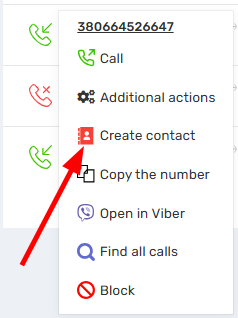
After selecting this item, fill in all the required fields and click save:

Your Benefit from an Organized Database
Investing a little time in organizing the “Contacts” section yields a significant advantage in day-to-day work.
What’s in it for you?
- Speed: Instant search for a client by number, name, or email.
- Personalization: The operator immediately knows who is calling, boosting service quality.
- Time Savings: Automatic call routing to the responsible manager eliminates manual transfers and client waiting time.
Order in your contacts is the key to stable and efficient operations for your sales department.



