


Installation and usage of “UniTalk Web Dialer” in Google Chrome
UniTalk Web Dialer is a browser extension that brings all of your daily business communication into a single interface. Instead of switching between browser tabs and programs, you can make calls, send SMS or Viber messages, and interact with clients through Telegram or Instagram via UniTalk Chat, all through UniTalk Web Dialer. Everything you need is neatly packed into one tool.
1. Installing UniTalk Web Dialer
You may install UniTalk Web Dialer from the Chrome extension store using the following link: https://chrome.google.com/webstore/detail/unitalk/hokefmefppdgmlgeigcmjdlcdnkclbgo/
2. Authorization in UniTalk Web Dialer
In order to use the extension, you need to log in using either UniTalk personal account credentials or SIP line registration details.
Note: Unitalk Web dialer will be displayed only on “dynamic content” tabs: the UniTalk personal account, CRM tabs, Gmail, etc. Thus, it will not be displayed on browser-specific tabs such as the newpage, browser/extension settings, the Chrome Web Store, and tabs generated by extensions (like the special tab created by this extension)
2.1. Authorization using UniTalk personal account data
In order to log into UniTalk Web Dialer using a UniTalk account, first, open the extension from the extensions tab. – its interface will be displayed:
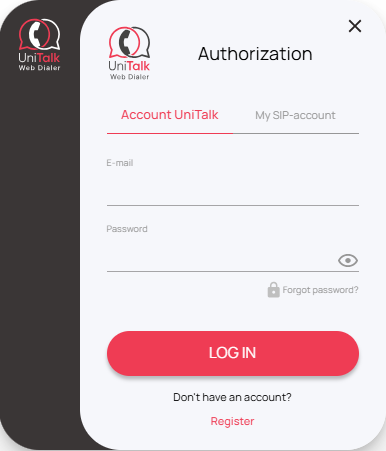
By default, “Account UniTalk” will be opened.
Enter the data (login and password) from your project’s UniTalk personal account:
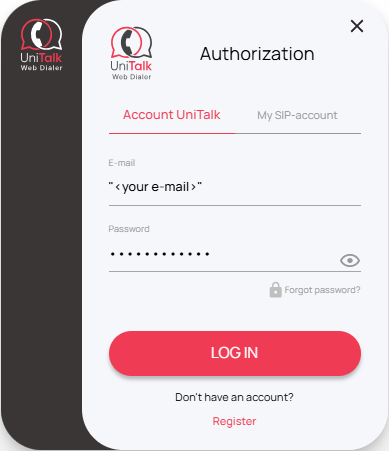
where “<your e-mail>” is your e-mail, which was specified during registration in the personal account of UniTalk and click “Login”.
Select the necessary settings and click “Continue”
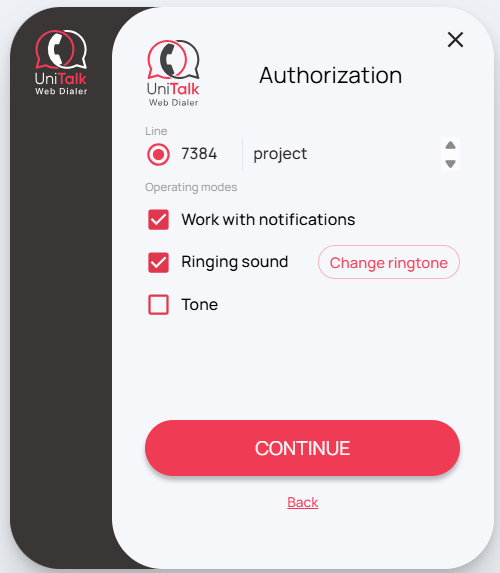
Done! Authorization is complete. You can use the extension to make/receive calls.
2.2. Authorization with SIP line data
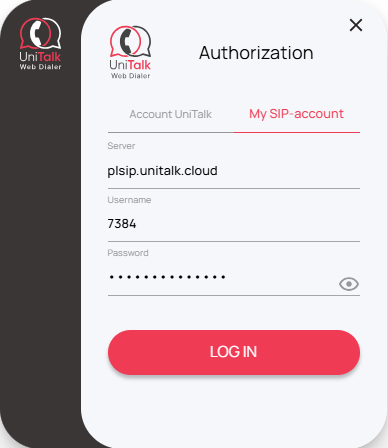
In order to register a SIP line in UniTalk Web Dialer, first go to the “My SIP-account” tab, then enter the SIP line registration data
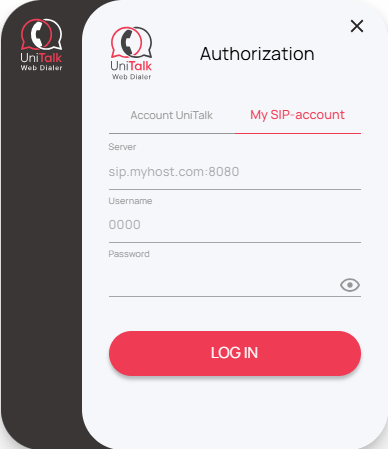
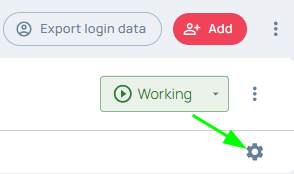
You can find this data in your project’s UniTalk personal profile, in the “Users” section, where you need to access SIP line information using the gear button
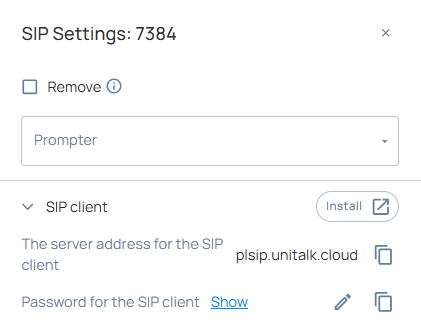
The login for the line is the SIP line number itself (four digits).
– enter the data from the UniTalk Personal Account about the SIP line into the extension:
3. Using UniTalk Web Dialer
3.1. Making Calls
To make a call, first enter the client’s number (the input can be carried out both from the keyboard and from the buttons in the extension):
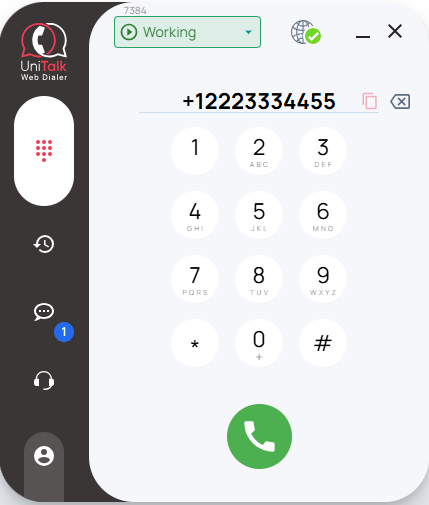
Where “1” is the country code, “222” is the operator code, “3334455” is the subscriber’s phone number.
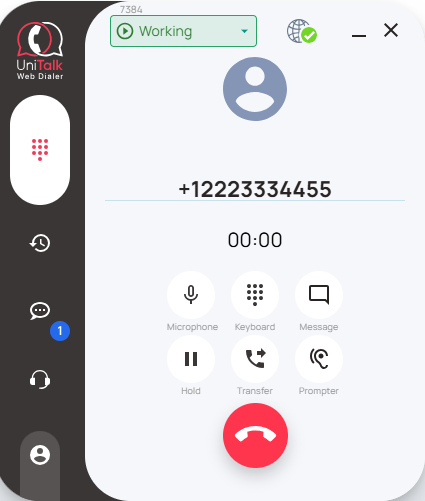
Click on “Call” (the handset in the center of the green circle) or press “Enter” on the keyboard. Result:
3.2. Call transfer
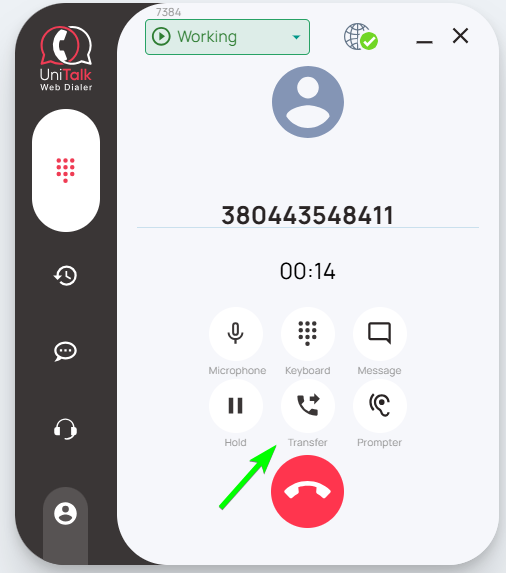
The “UniTalk Web Dialer” extension has the ability to transfer calls. You can transfer a call to another employee from the list, department, or enter a phone number. To do this, click the “Transfer” button in the extension interface.
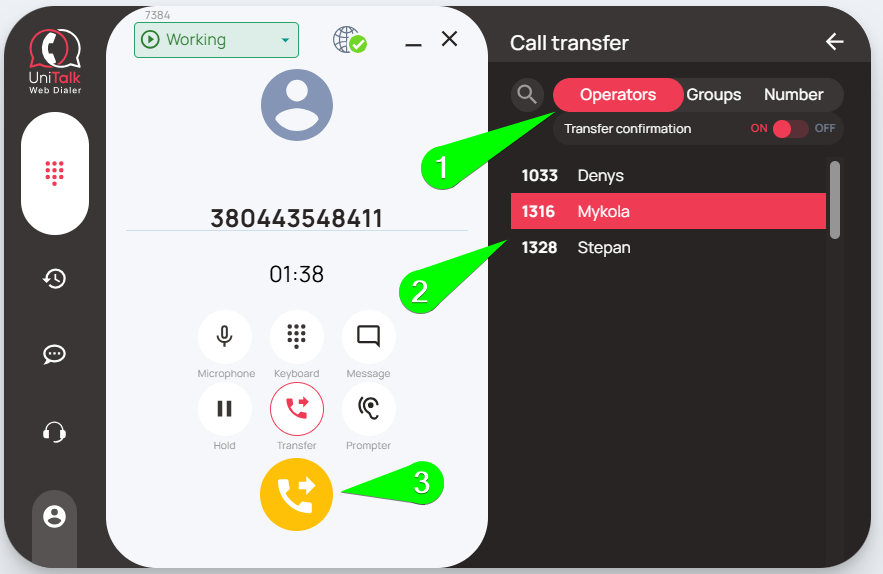
If you need to transfer the call to another employee, you should select the proper name in the “Operators” section of the opened menu.
If you need to transfer a call to another department, select the corresponding department in the “Groups” section of the menu that opens.
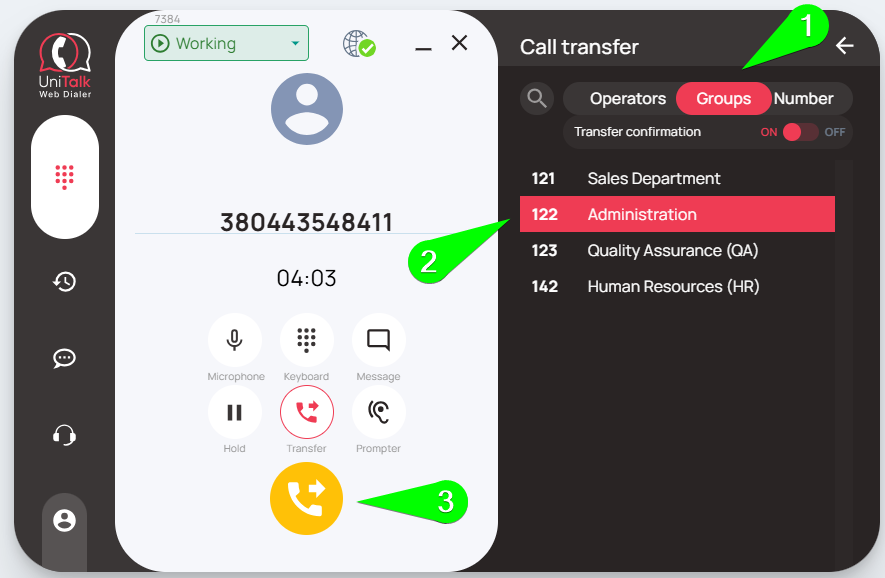
Lists of employees and departments are automatically uploaded from your project in the UniTalk service.
In addition, you can choose whether to use transfer confirmation by clicking the “Trasnfer confirmation” switch in the top of the call transfer list.
3.3. UniTalk Web Dialer settings
If you have logged into UniTalk Web dialer using a UniTalk account, you may quickly access your personal UniTalk account page from UniTalk Web Dialer. To do so, first go to the Account and Settings page (1), then press on the “cog” button (2).
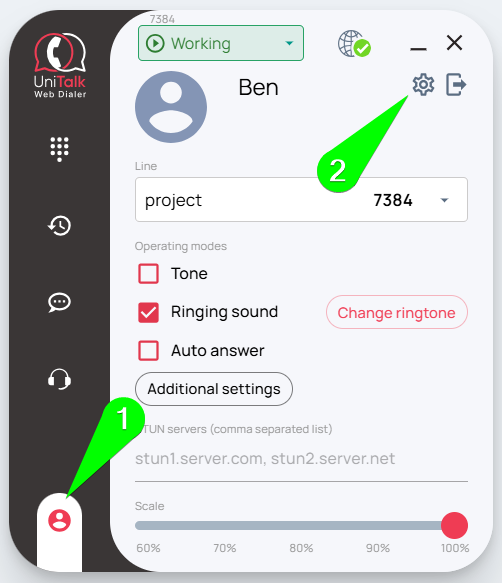
After that, a new tab will open in your browser with your project’s Call History page.
On the same screen as the button above are settings that can customize the look and behavior of UniTalk Web Dialer. These settings include:
- Working with messages
Located in the “Additional settings” tab. Used in case of integration with separate CRM systems, which functionality does not provide information on the number and its transaction. This information is displayed in the UniTalk extension. - Incoming call sound
When this mark is checked in the corresponding field, the iPhone ringtone will be played when there is an incoming call to the extension. If you uncheck the box, the incoming call will not be accompanied by a melody. - Auto answer
If you activate this function in the corresponding field, all incoming calls will be accepted automatically. - Tone
Sound notification of call end - Scale
By default, “100%” is set, it is possible to change the size of the extension interface at your discretion.
Logging out of UniTalk Web Dialer
To log out of the extension, start by going to the profile and settings page (1), then press the “Logout” button (2)
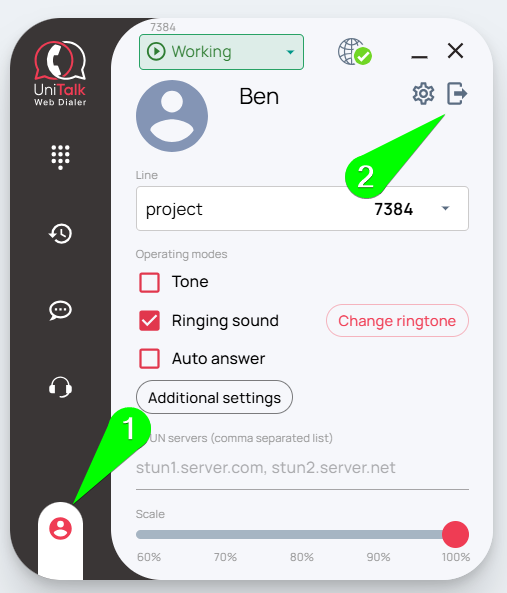
After this, the extension will go back to the login interface.
3.4. Switching Between Lines from Different Projects
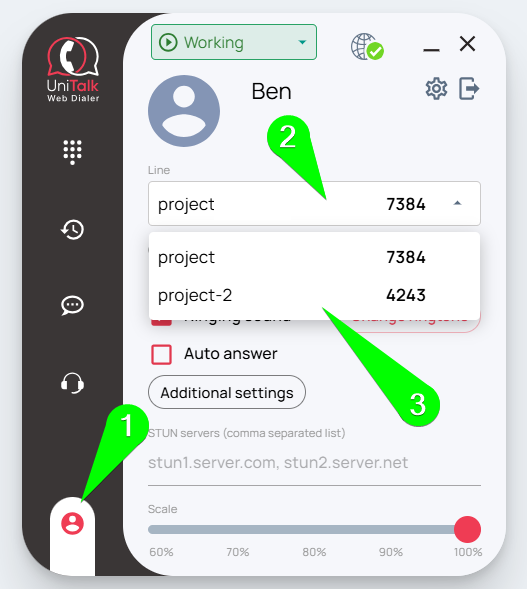
When using UniTalk Web Dialer with a Unitalk account, you may switch between SIP lines assigned to you in different projects. In order to do so, first open the profile and settings page (1), then open the dropdown showing the current selected project and SIP line (2), and select the line you wish to switch to (3)
3.5. Changing work statuses in Web Dialer
When using UniTalk Web Dialer with a Unitalk account, you may change the work status directly from UniTalk Web Dialer.
The work status is assigned to each user in the UniTalk personal account and reflects the employee’s work logic:
– If the employee is working, incoming calls are received on their SIP line;
– If the employee is not working or is on a break, the call is not made to this SIP line.
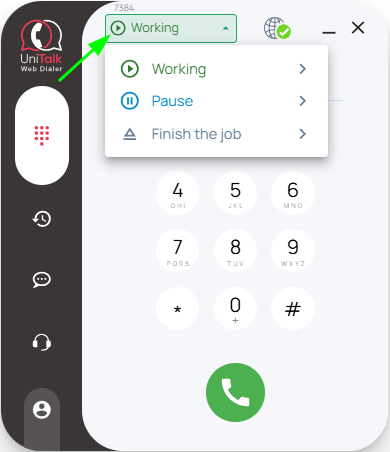
This status menu fully replicates this functionality in the UniTalk personal account, so you no longer need to go to the account to change the work status.

3.6. Sending SMS and Viber messages via Unitalk Web Dialer
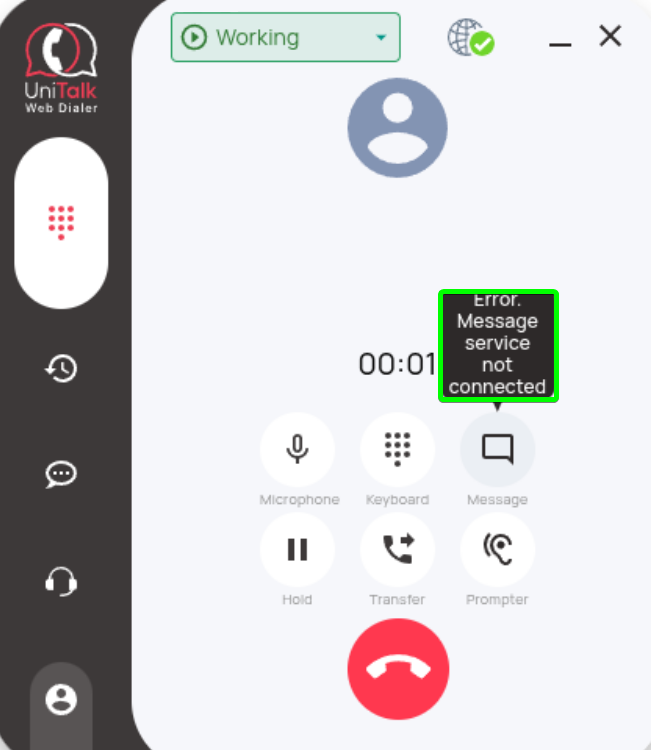
During a call, you may use the “Message” button to send SMS or Viber messages to the client. This functionality requires a message sending service to be configured in UniTalk personal account (on the Alpha names page: https://my.unitalk.cloud/messaging/alpha-names). If the aforementioned service isn’t configured, the “Message” button will be inactive, and hovering over it will display a warning:
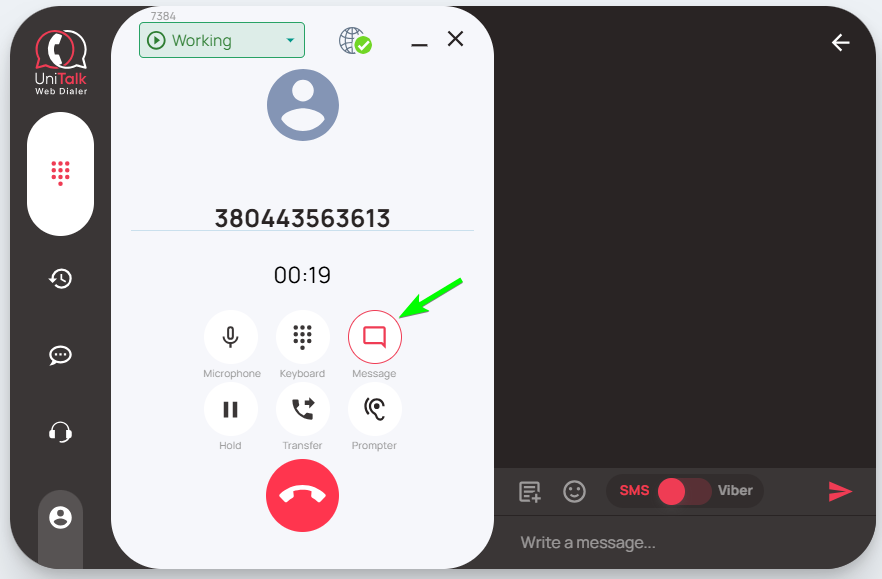
With the integration with the messaging service enabled, the message sending button becomes active — when clicked, a sidebar opens with an area for message input and a display of the message sending history for this number.
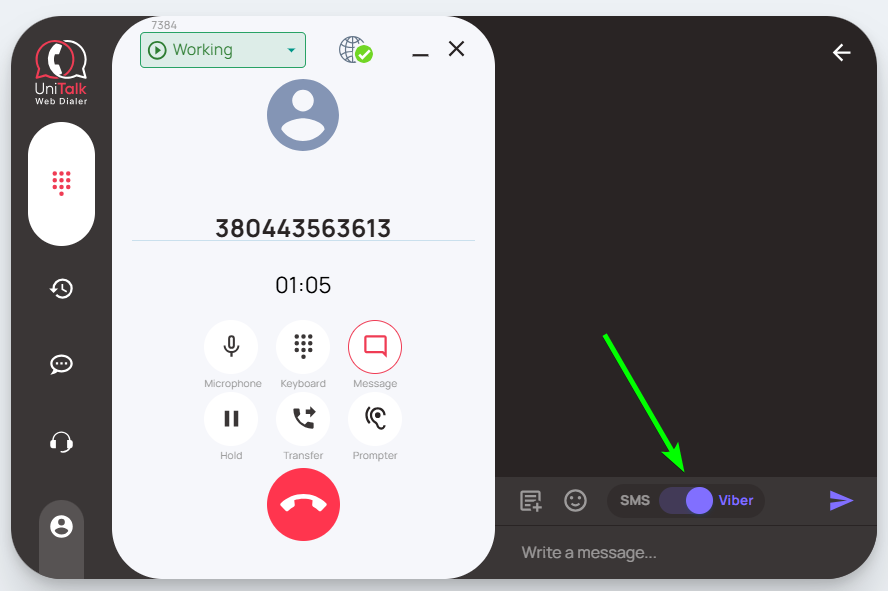
For more convenient switching between SMS and Viber, a mode switch is provided. For visual distinction, the SMS mode is highlighted in red, Viber mode in purple.
If only one mode (SMS or Viber) is enabled in the sending service settings, this switch is inactive and only displays the current message sending option.
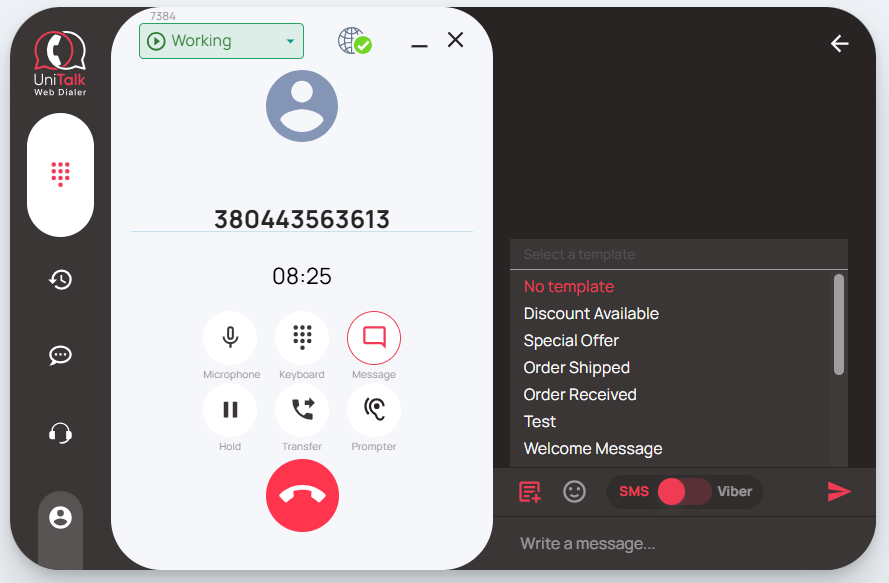
The template selection button allows you to immediately fill the message sending field with a pre-set text template. Before sending the message, it can be edited, for example, to indicate the client’s name.
In case there are too many templates to look through by hand, the search bar on top of the template picker allows to look up templates by their names. You may configure available templates in the UniTalk personal account on the “Message templates” tab (https://my.unitalk.cloud/messaging/templates)
Note: Messages can include and add emojis. However, emoji support depends on each messaging service, and selected emojis may not be supported. If so, the message will not be sent, and an error will be displayed during sending.
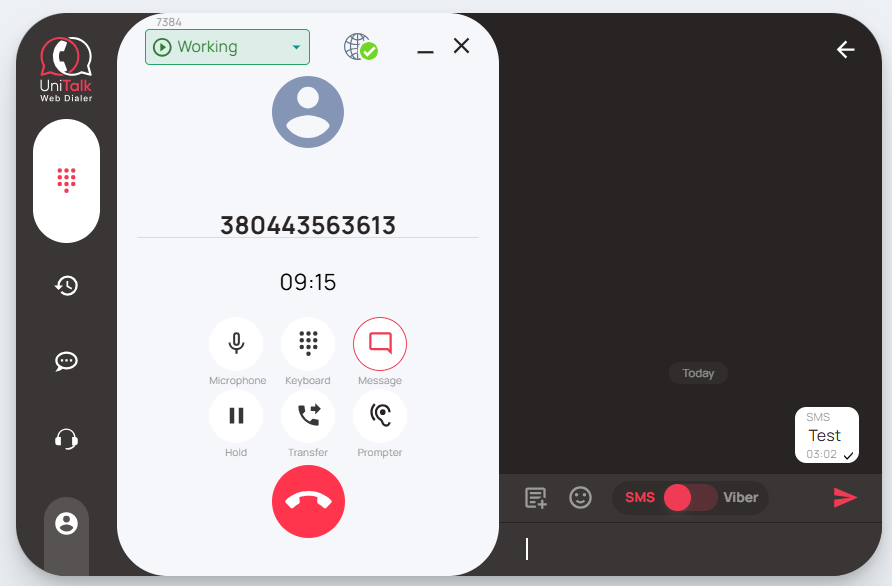
When a message is successfully sent, the extension signals the following information:
– The message sending method (SMS, Viber) is shown above the message;
– A checkmark in the right corner of the message indicates successful message delivery to the messaging service;
– The message sending time.
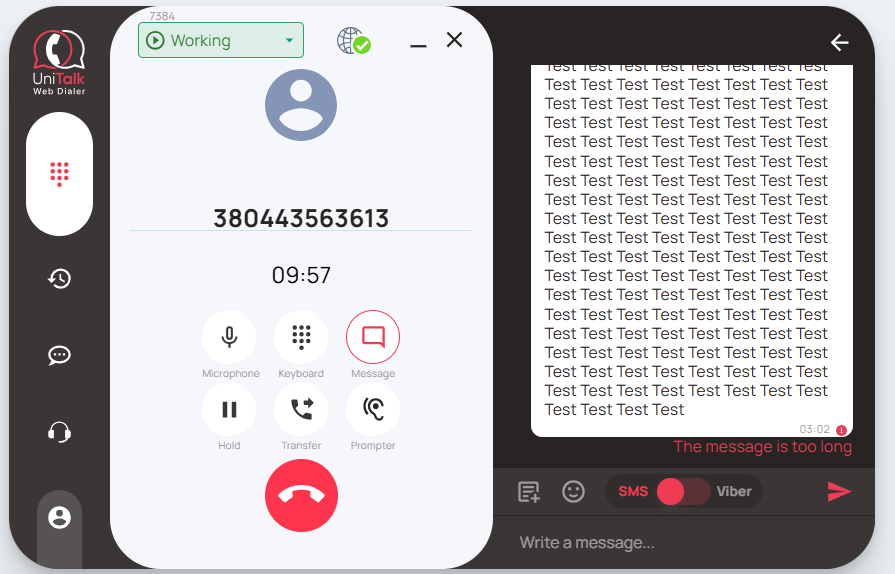
If message sending fails, an exclamation mark will appear next to the message, and below will be a message explaining the reason for the failure.
Note:
— errors related to Unitalk personal account are described in detail in the project language;
— errors that we receive from the messaging service are shown in their original form
— if the error is not clear, you should contact technical support for more detailed information.
3.7. Call history in UniTalk Web Dialer
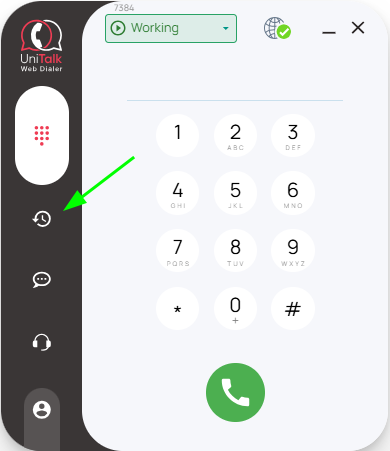
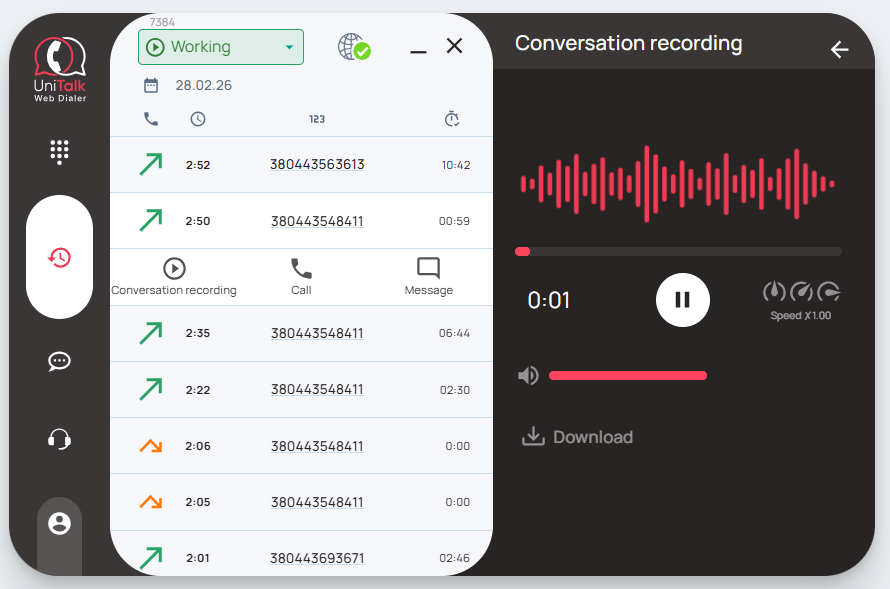
On a separate call history tab in the “UniTalk Web Dialer” extension, the functionality for viewing, listening to calls, redialing, and sending messages to the numbers of subscribers called by the operator is available (available if logged in with a UniTalk account).
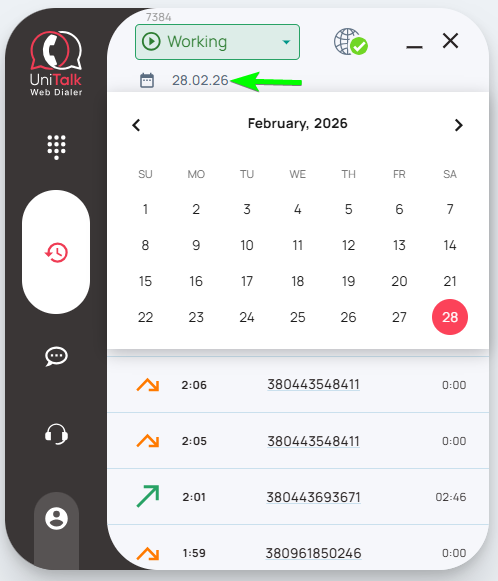
By default, calls for the current day are displayed, but you can also view earlier calls by selecting the desired date in the filter.
If you need to listen to the recording – the extension has a built-in player with the ability to speed up the recording, adjust the volume and even download the call recording:
3.8. UniTalk Chat in UniTalk Web Dialer
You can also communicate via chats through UniTalk Web Dialer.
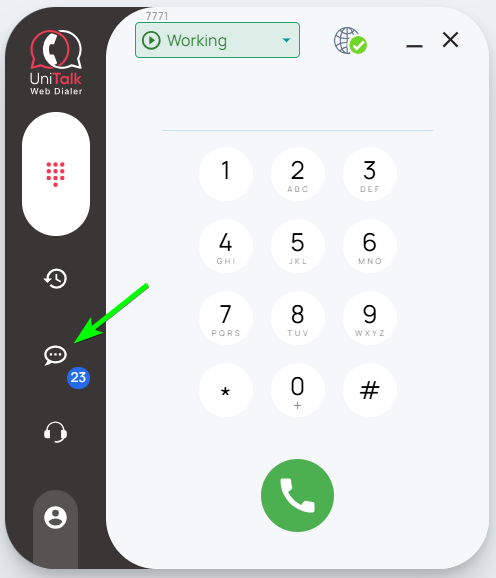
First, click the messages icon to access the chat section.
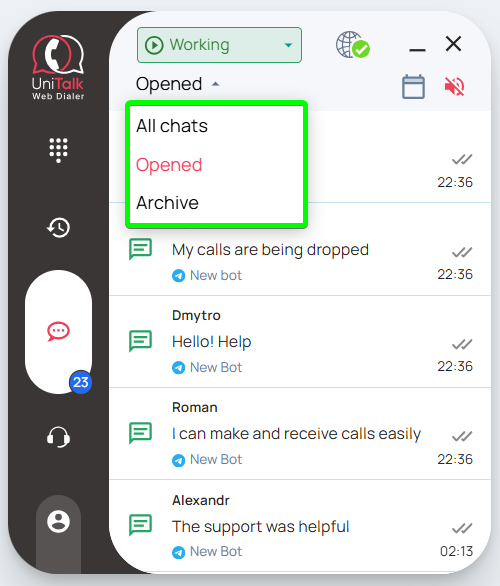
Here you will see a list of chats, which can be filtered at the top by “All chats,” “Open,” and “Archive.”
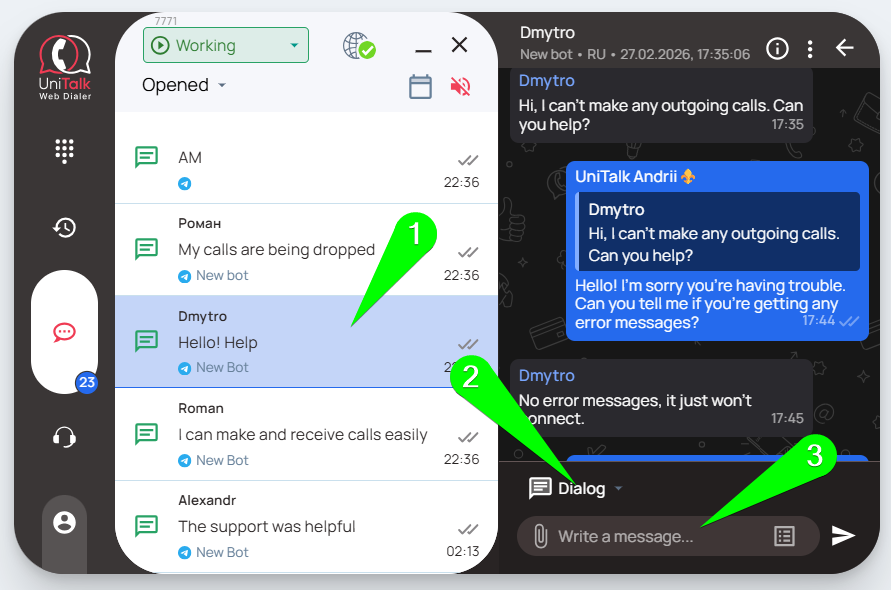
After selecting the desired group, simply click on the chat you want to communicate in. A side panel will appear next to the dialer where you can write and send messages.
3.9. Users in UniTalk Web Dialer
In the “UniTalk Web Dialer” extension, when authorized with an UniTalk account, you can obtain information about which colleagues are online, make internal calls, or connect as a whisperer.
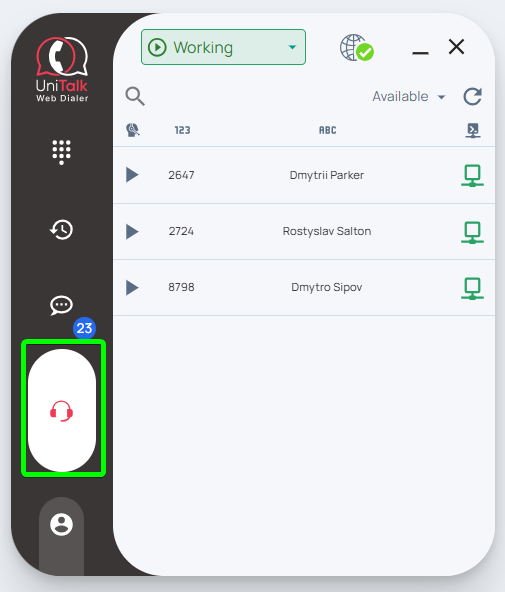
On the left, the user status is displayed (working, on a break, or finished working), followed by their internal number, name, and the status of their workplace in the PBX (online or offline).
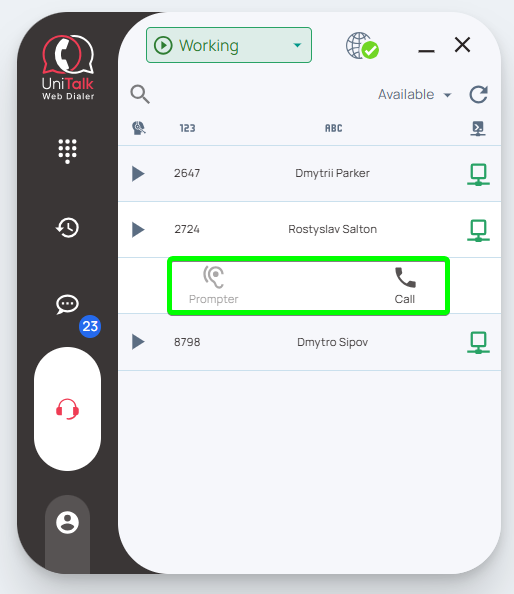
When you click on the cell with the user, a menu will open through which you can call the user’s internal line if they are not busy, or connect as a whisperer if the user is on a call:
3.10. Call a prompter in UniTalk Web Dialer
During a call, an operator can call a prompter directly from the UniTalk Web Dialer interface. A prompter is a third call participant, who can hear both sides of the conversation and give tips to the operator, as the client won’t be able to hear the prompter. In order to call a prompter from the UniTalk Web Dialer interface, first press the “Prompter” button (1), then pick an operator from a lsit to the right (2), and press the “Call prompter” button (3).
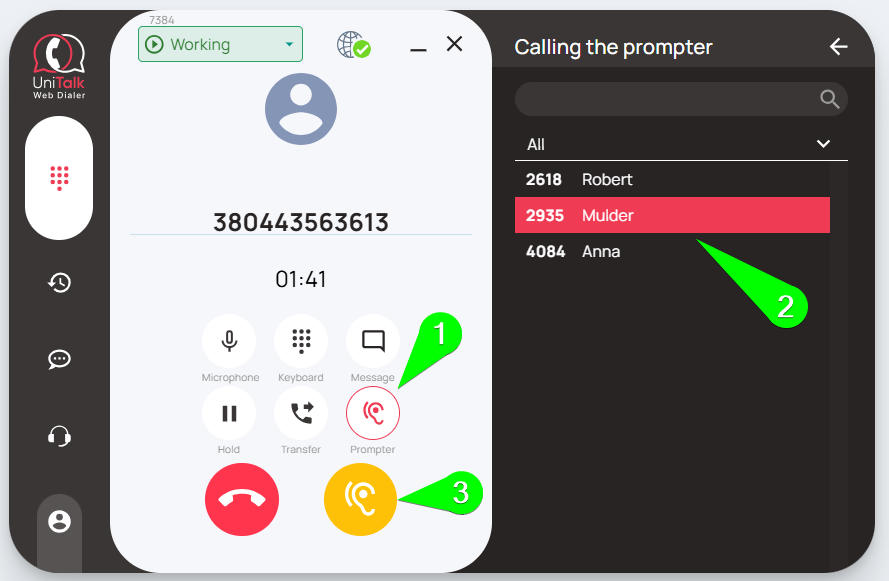
Once that is done, the prompter will recieve a call, and if they accept it, they will join the call as described above



