CONNECT AND CONFIGURE UNITALK IP TELEPHONY INTEGRATION WITH Microsoft Dynamics 365 CRM
Connecting Microsoft Dynamics 365 CRM
Business process automation is not about complex codes, but about your time. UniTalk integration with Microsoft Dynamics 365 allows the sales department to forget about manual data entry and focus on the main thing – communication with customers.
In this article, we will analyze how to connect the system and configure it so that no lead is left unattended.
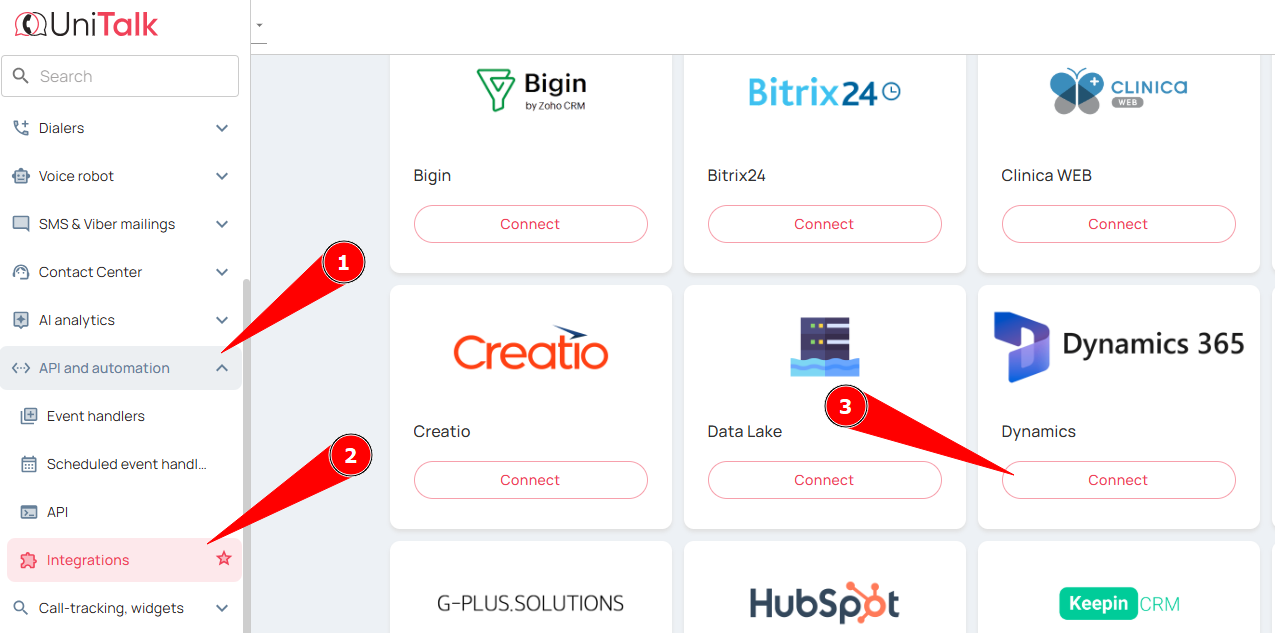
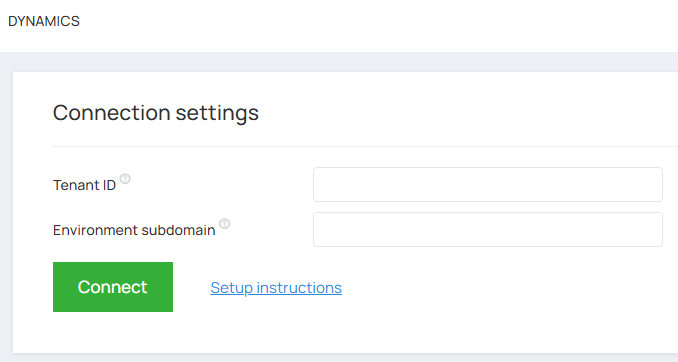
In your UniTalk personal account, go to the ‘API and Automation’ menu item — “Integration”, then to the ‘Dynamics’ menu item. Click on the ‘Connect’ button.
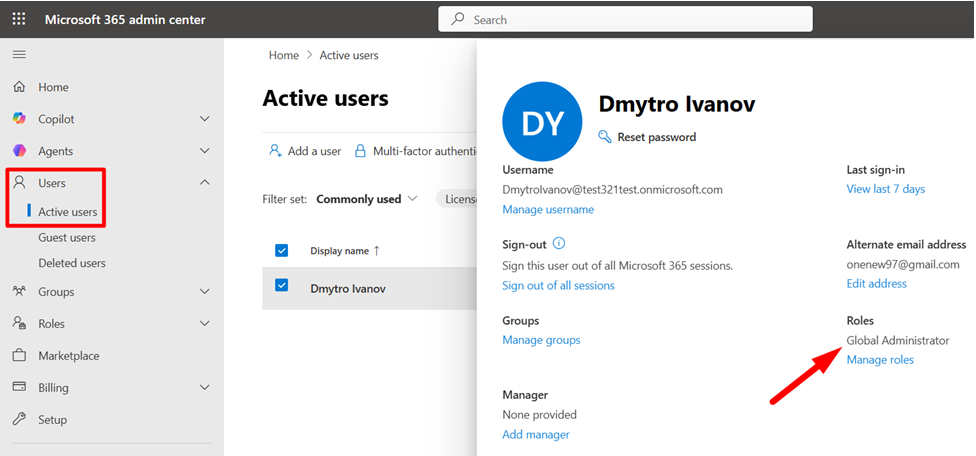
Using your Microsoft account, sign in to the Microsoft 365 Admin Center
In the “Users → Active users” section, select your user and open their profile. In the “Account” tab, in the “Roles” field, select one of the following roles required for the integration to work correctly: Global Administrator, Cloud Application Administrator or Application Administrator.
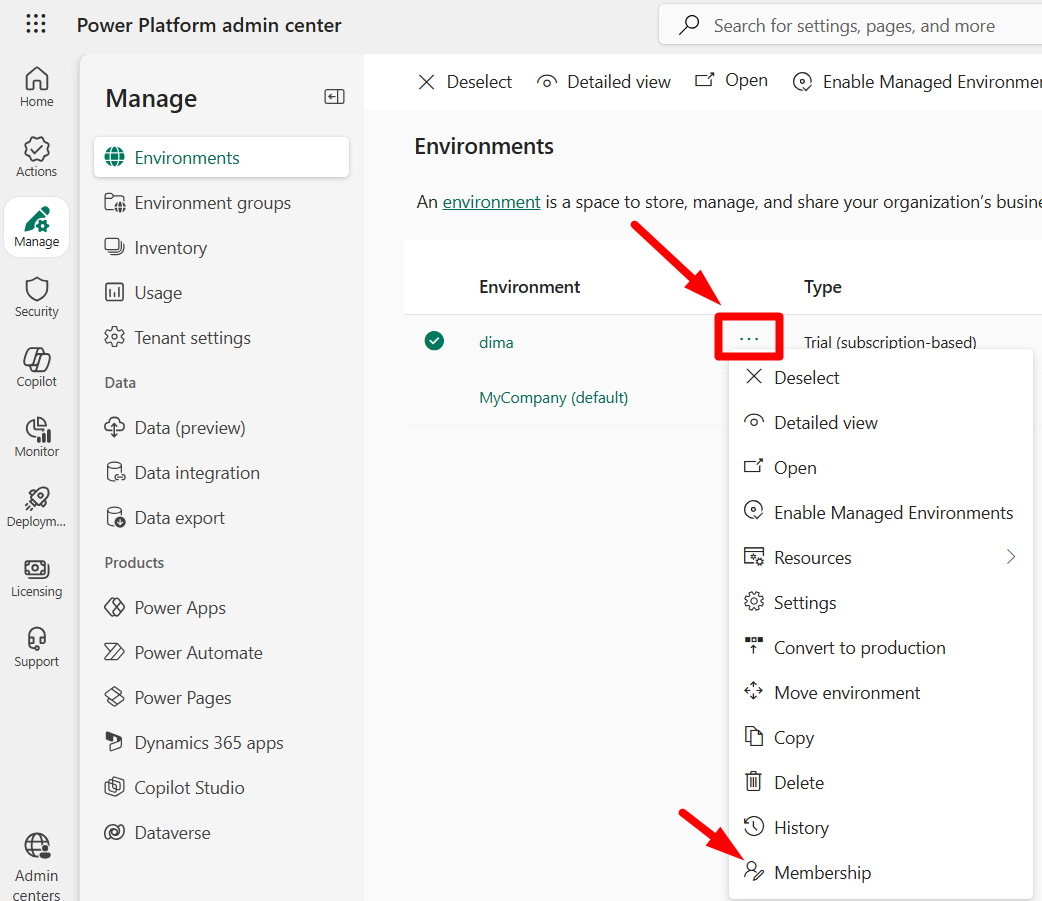
Next, log in to the Power Platform admin center. Go to the Manage → Environments section and select the environment to which the Dynamics 365 web application is connected.
Click the “…” to the right of the environment name and go to the “Membership” section
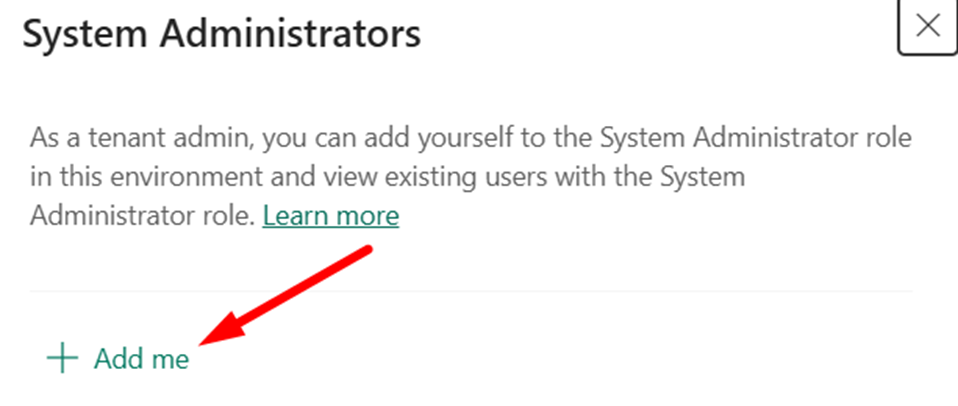
Assign the user the “System Administrator” role in the environment.
Initialize the Dynamics 365 web application: in the menu of the selected environment, go to “Products” → “Power Apps” and open the “Sales Hub” application.
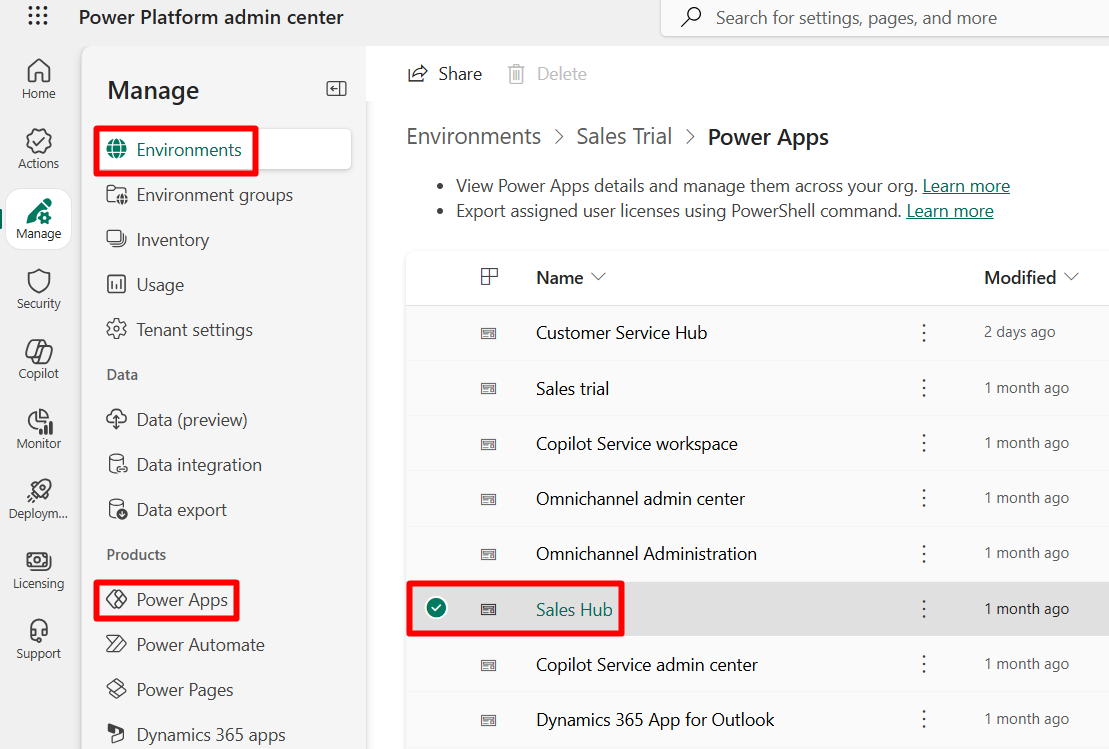
Click on the link and go to the “Sales Hub” application page.

Go to the Dynamics integration page in UniTalk and click connect.
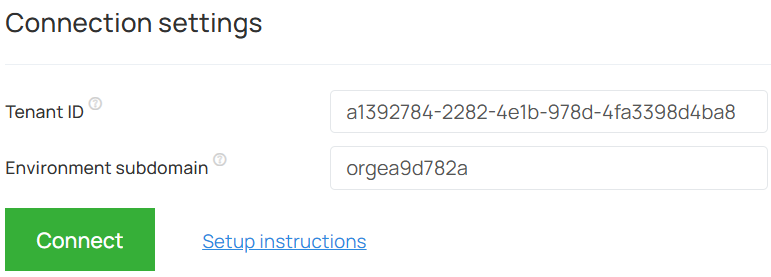
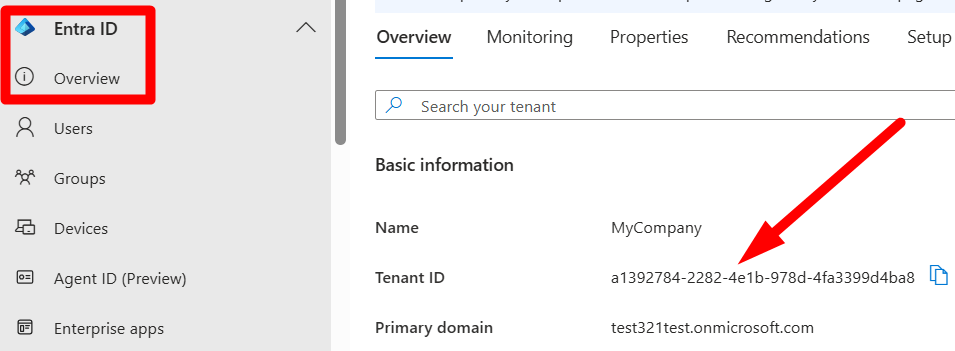
The tenant ID is specified in the Microsoft Entra admin center (Azure AD) – Entra ID → Overview → “Tenant ID” field.
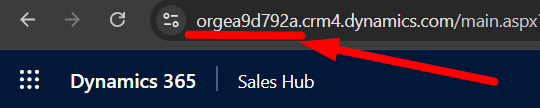
The environment subdomain is specified in the Microsoft Dynamics 365 web application – the part of the URL in the address bar between https:// and .crm4.dynamics.com: https://SUBDOMAIN.crm4.dynamics.com
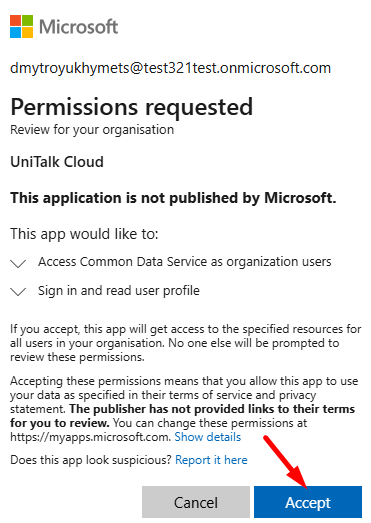
Select a Microsoft account and grant the necessary permissions for the application to work.
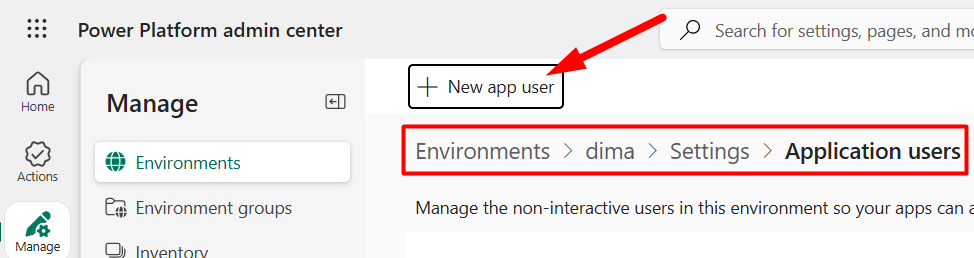
Go to the Power Platform admin center, go to “Manage → Environments → your environment → Settings → Application users” and click on the “New application user” button.
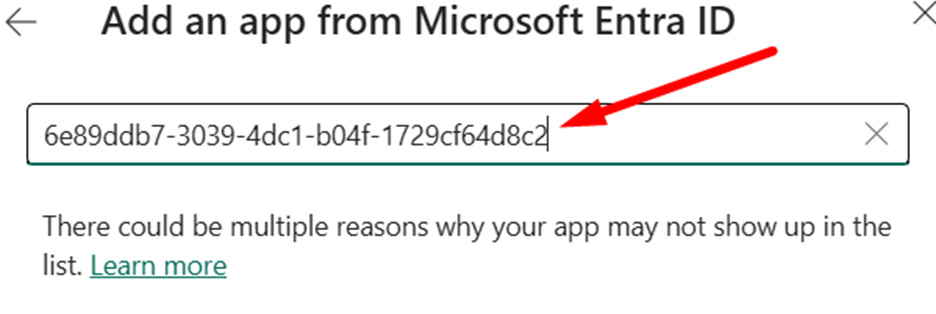
In the search bar, enter the application ID: 6e89ddb7-3039-4dc1-b04f-1729cf64d8c2
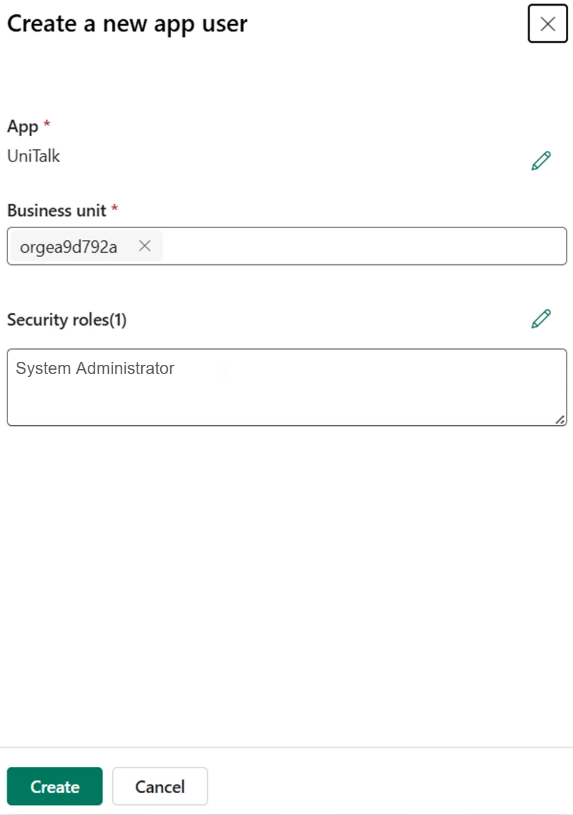
Install the UniTalk application as an environment user assigned the “System Administrator” security role.
Call settings
In your UniTalk personal cabinet in the Dynamics integration section in the “Settings for calls/Main settings” block, enable the checkboxes to perform the corresponding actions.
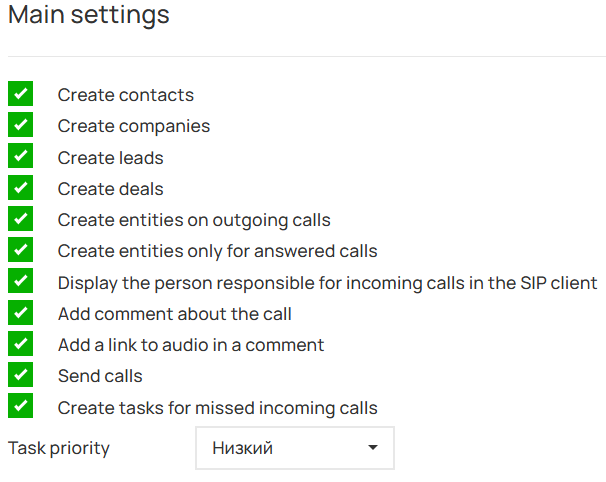
- If the “Create entities on outgoing calls” checkbox is enabled, contacts and transactions will be created in the CRM system when outgoing calls are made to contacts’ mobile numbers.
- If you enable the “Create entities only for answered calls” checkbox, contacts and deals will be created in the CRM system only for answered phone calls.
- If you enable the “Display the person responsible for incoming calls in the SIP client” checkbox, you should additionally enable the “Display caller’s name” checkbox for each user in the “SIP settings” block in the Users section of the UniTalk personal profile.
- To add a link to audio in a comment on entities cards, enable the “Add a link to audio in a comment” checkbox.
- To create tasks to return calls on unanswered incoming calls, enable the “Create tasks on missed incoming calls” checkbox and specify the task priority
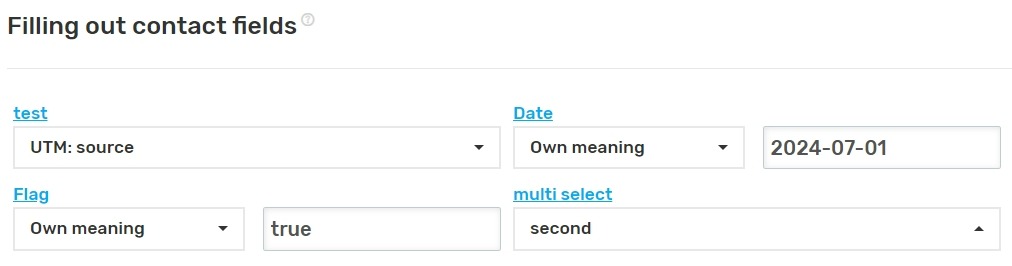
- Fill in the fields of entities, which will be filled with data from UniTalk when creating.
- The value of the field of type “Logical value” should be false – off, true – on.
- The value of the field of type “Date and time” should be entered in the format 2026-03-23T16:30:00+02:00.
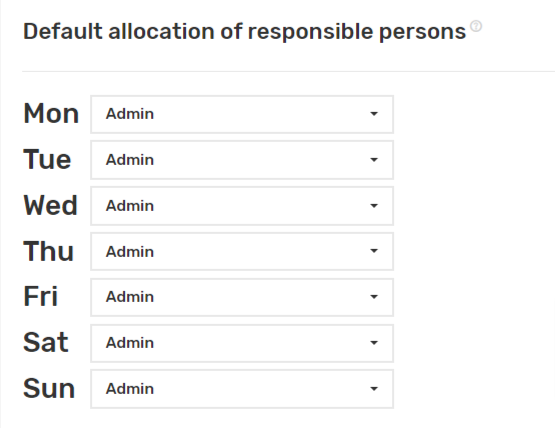
Select who is responsible for missed calls.
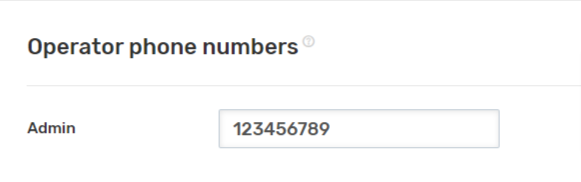
Specify the phone numbers of Dynamics users, separated by commas. These can be internal lines or GSM numbers.
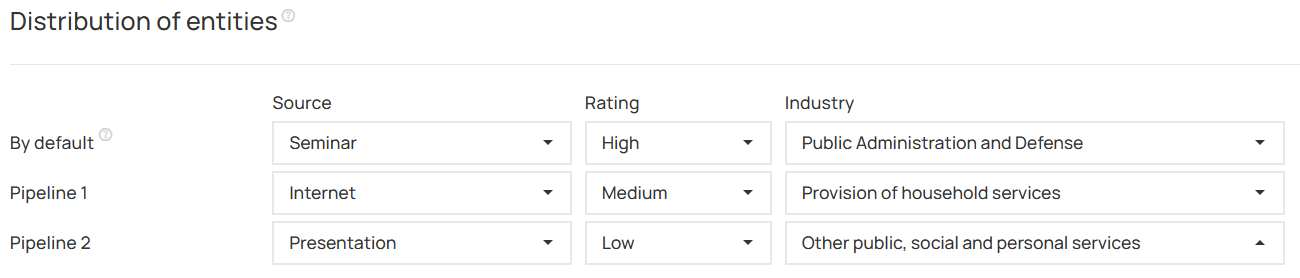
Depending on the external line from which the call came, select which settings to create entities with.
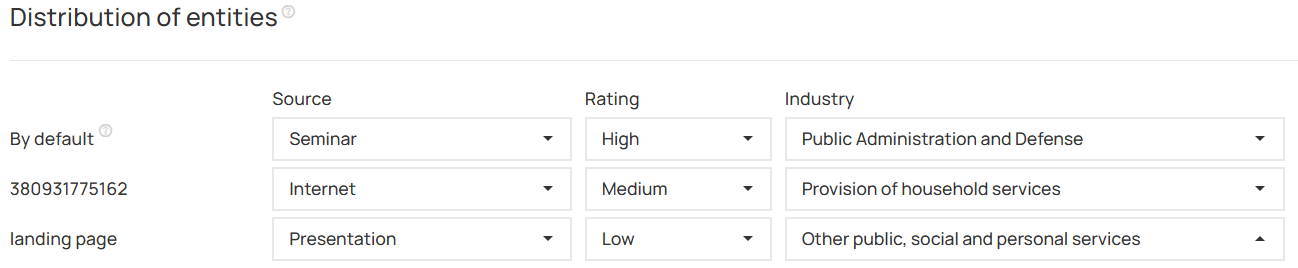
After making changes to your UniTalk integration settings with CRM, click “Save settings for calls”.

Settings for chats
When starting/ending a chat and updating chat fields – the integration can create/update entities in the CRM system, add comments and/or tasks.
In order for the integration to create entities and add comments/tasks, the client in the chat must fill in the user field with the phone number in the authorization form. Without the client’s phone number, it is impossible to create an entity. The number must be specified in full format (for Ukrainian numbers it is enough to use the local format – without the prefix 38).
In the “Main settings” block, specify the task priority.
In the “Chat settings” block you can specify for each chat event whether to add a comment/create task and what actions to perform with entities in which cases.
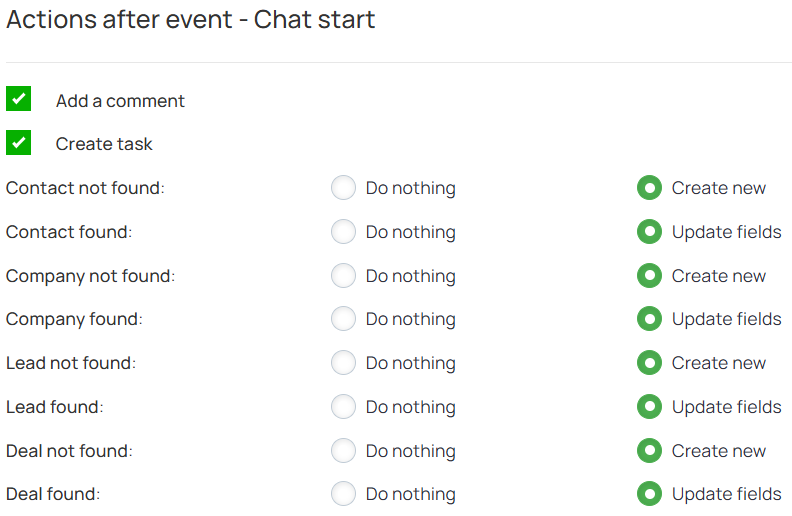
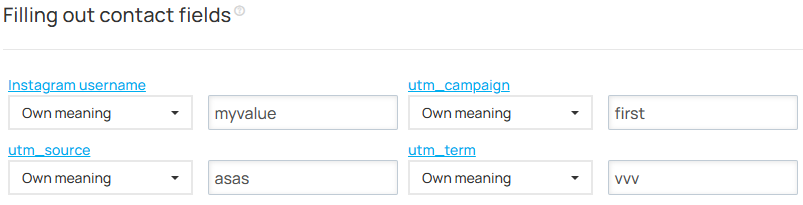
Fill in the fields of entities, which will be filled with data from UniTalk when creating.
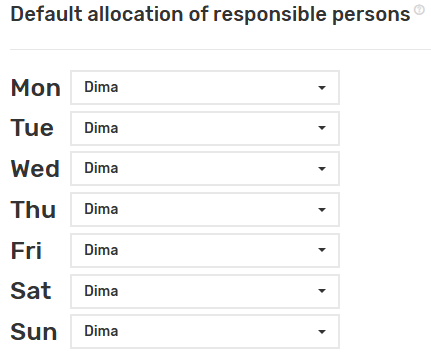
Select the person responsible for the created entities in case the responsible person could not be determined (by default, the operator who wrote in the chat will be responsible for the created entities).
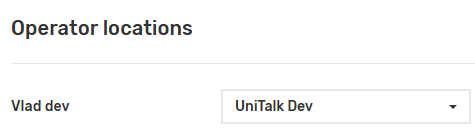
In the Operator locations block, map the project users in UniTalk (name on the left) to CRM users (drop-down list on the right).
Select entities distribution settings when creating.
After making the appropriate changes, click “Save settings for chats”.

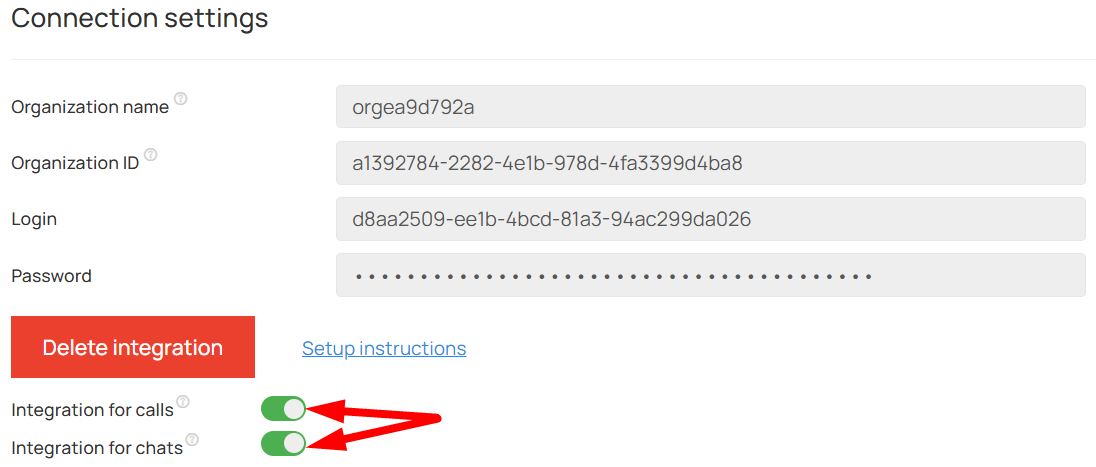
After successfully saving the settings, if necessary, enable the integration for calls and/or chats.
Why is this good for your business?
- No lost leads: Automatically create tasks for missed calls.
- Save time: Managers don’t need to manually enter call and correspondence data.
- One story: All conversation and chat records are stored in the customer card for quick context retrieval.
If you have any questions about setup, our technical support is available 24/7!