Installing Multibutton on horoshop websites
Imagine this situation: a client visits your Horoshop-based online store, chooses a product, but has a quick question before buying. If it is inconvenient for them to search for contacts or wait a long time for an answer, they might simply go to your competitors. To avoid losing clients, you need a simple and convenient communication channel.
The UniTalk multibutton solves this problem by gathering all customer inquiries in one window. Clients write from various messengers or the online website chat, and your managers reply instantly from a single interface. This guarantees that not a single message is lost.
In this guide, we will break down the process of configuring and installing the multibutton on Horoshop-based websites step by step.
Stage 1
Step 1 — Setting up the multi-button from your UniTalk account:
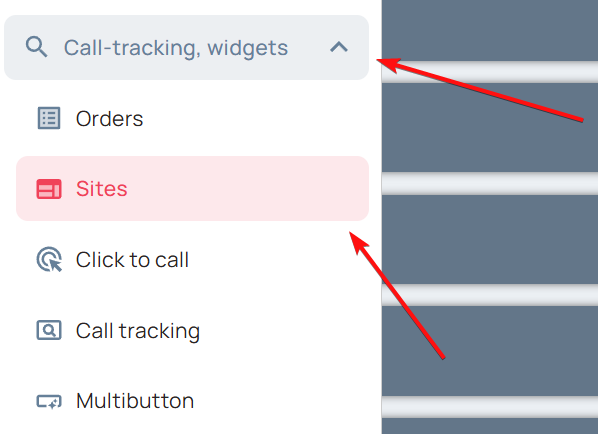
- In the “Call-tracking, widgets” section, expand the “Sites” section as shown in the screenshot below:
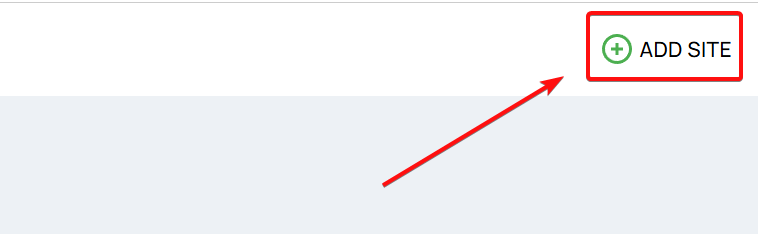
- Create a new site instance by clicking the corresponding menu in the upper-right corner:
*Further configuration will be tied specifically to the site you have created
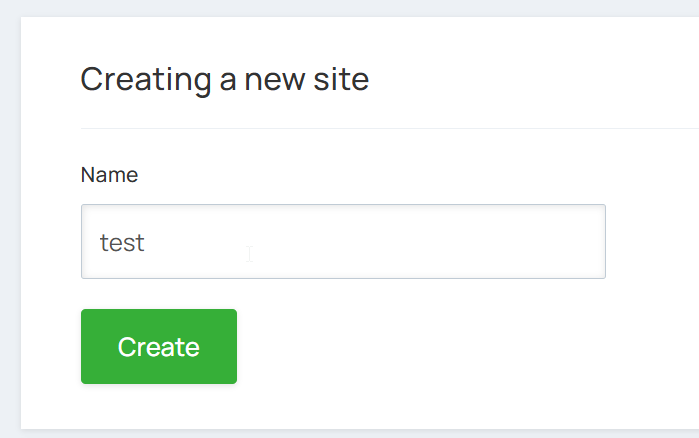
- Enter the website name and save. For consistency, we recommend entering the intended hosting address in this field, but this is not required:
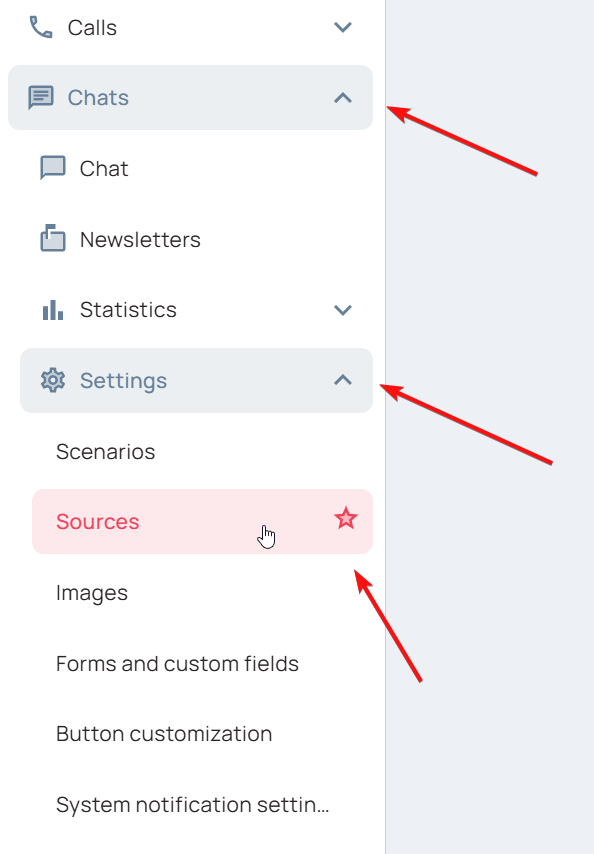
- Let’s temporarily leave the “Websites” section to create a source for handling requests and linking the chat. Go to “Chats” > ‘Settings’ > “Sources,” as shown in the screenshot:
- Next, create a new source by clicking the “Create Source” button in the upper-right corner. A source allows you to flexibly configure rules for handling incoming requests. With it, you can specify authorization forms, service quality assessments, automatic closure of inactive requests, and operator work schedules. The functionality will be discussed in more detail in the articles below.
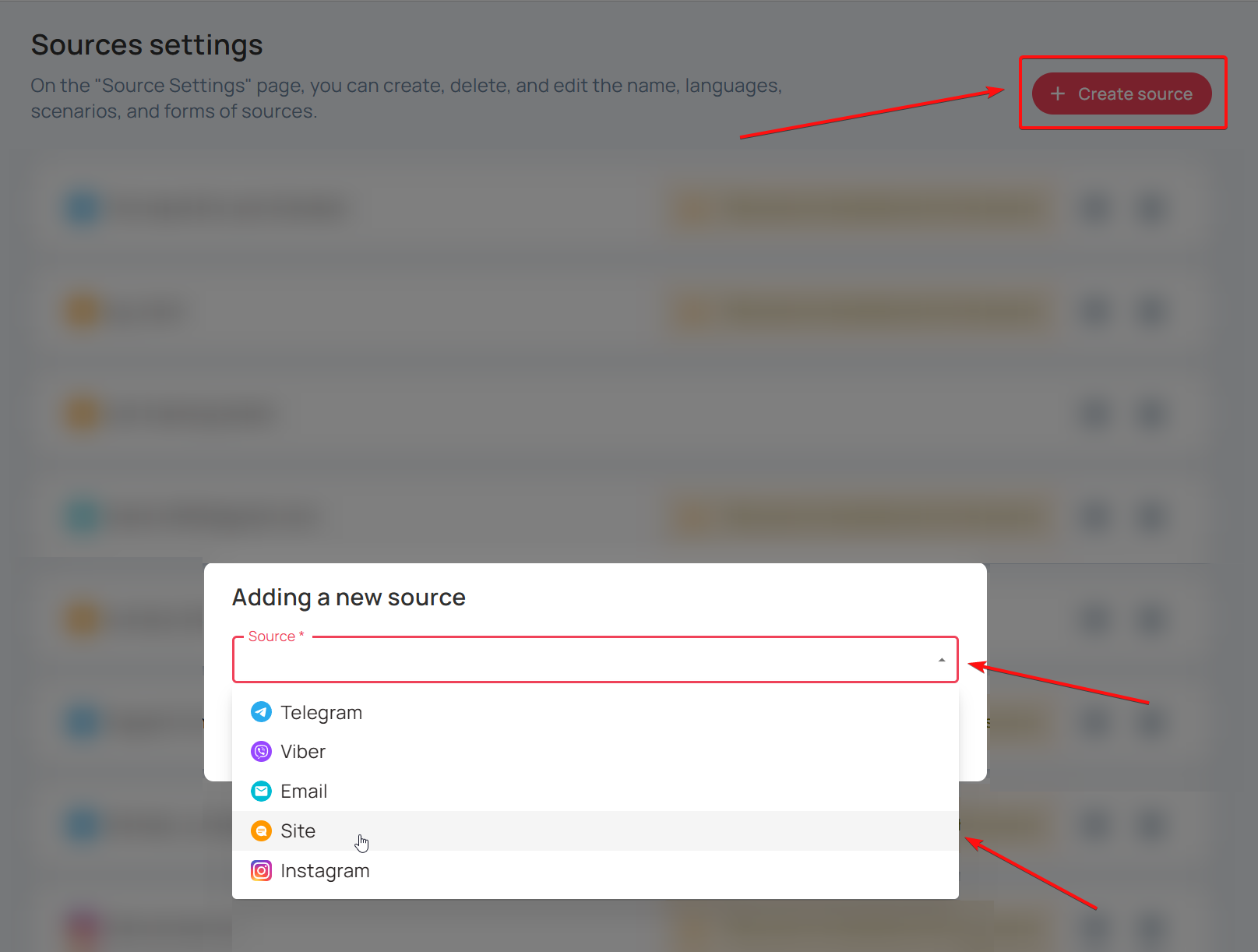
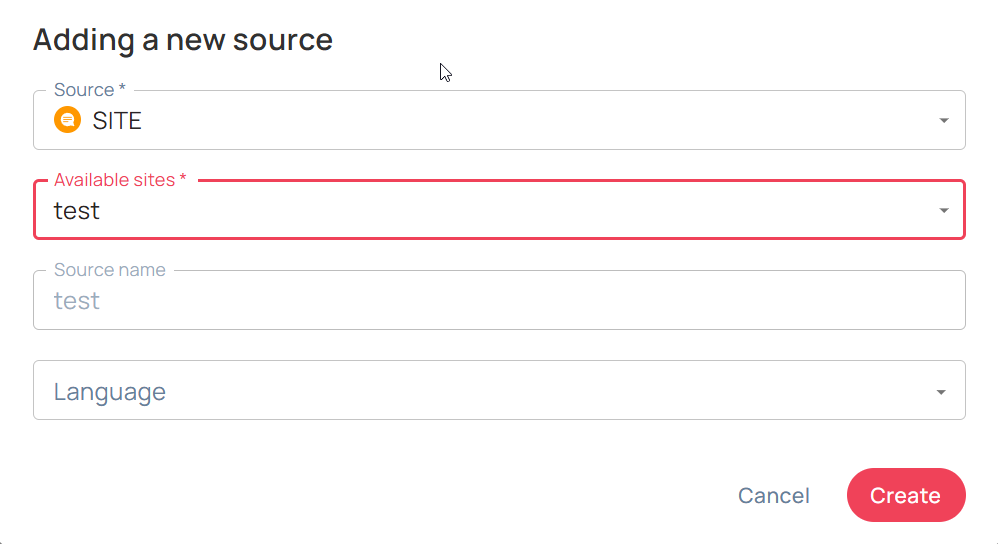
- Select “Site” as the source type. Next, connect the source to the previously created site by selecting it from the drop-down list, specify the language settings, and save the changes:
- After successfully creating and linking the source, return to the “Sites” section as described earlier. Select the site you created earlier, then go to the multi-button settings in the list of active services, as shown in the screenshot:
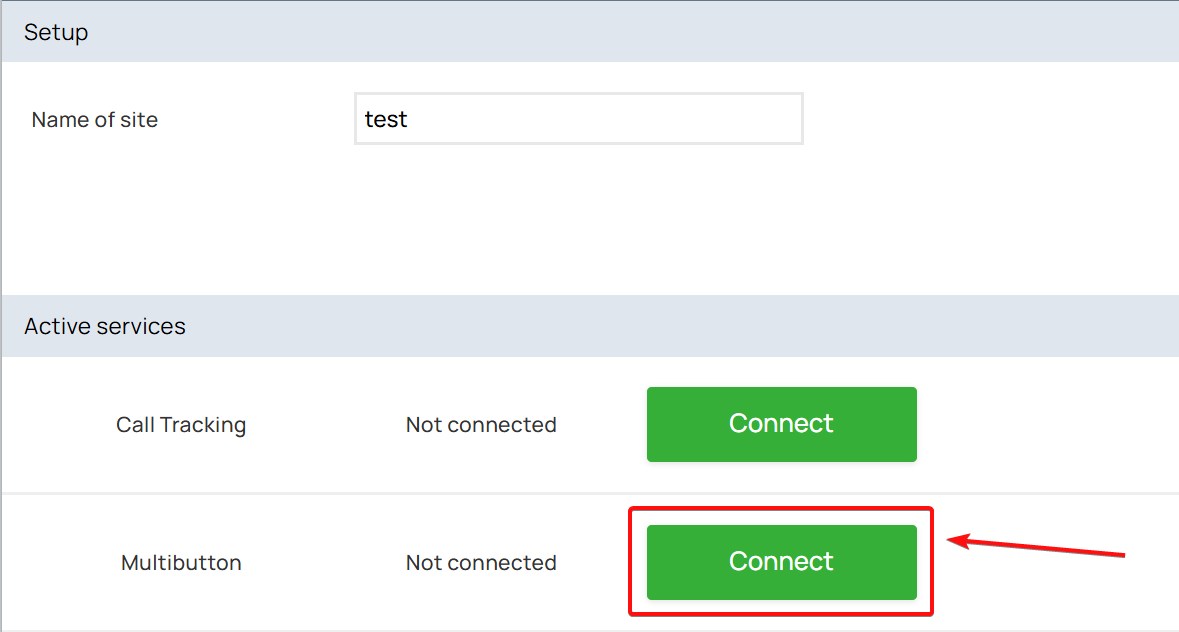
- After clicking the link provided, find your website in the list and assign a multi-button to it by pressing the corresponding key, as shown in the screenshot:

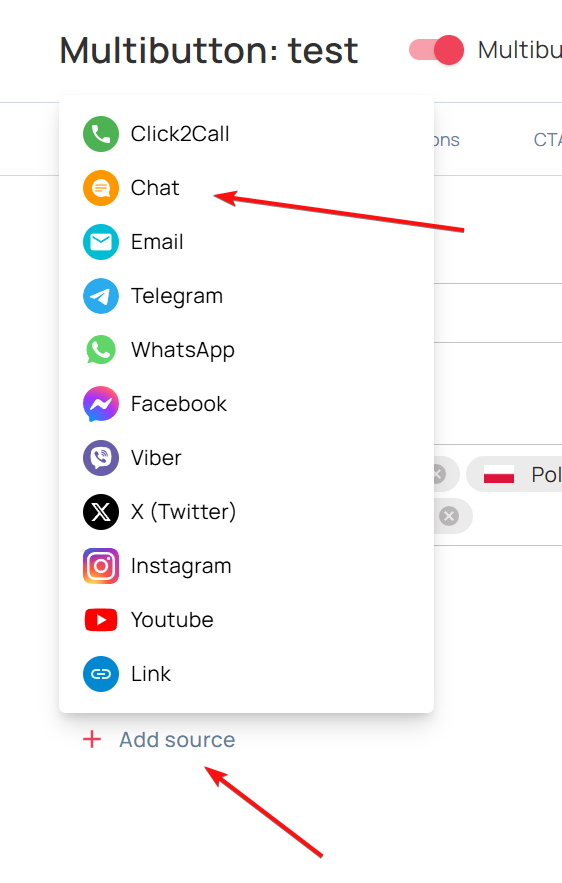
- In the first tab that opens after adding the website’s multi-button, select the previously added “Chat” source by clicking the “Add Source” button, as shown in the screenshot:
- Save your changes
Stage 2
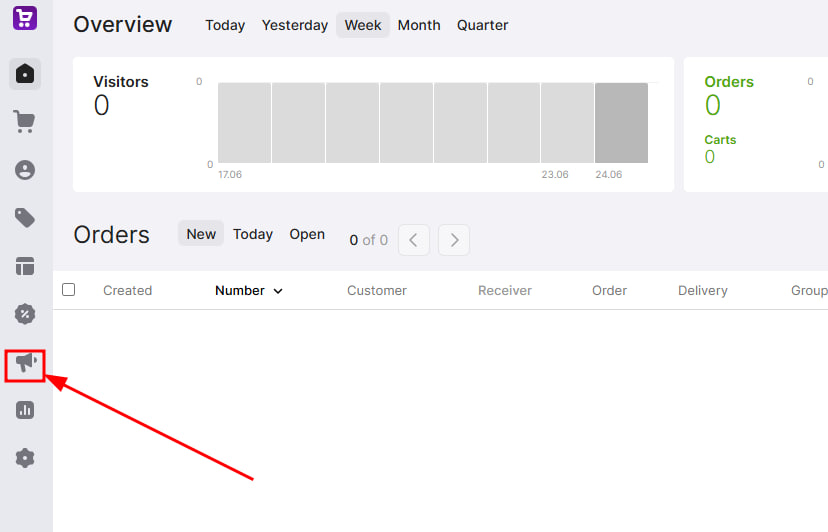
- Go back to the admin tab on your Horoshop page and navigate to the “Marketing” section, as shown in the screenshot:
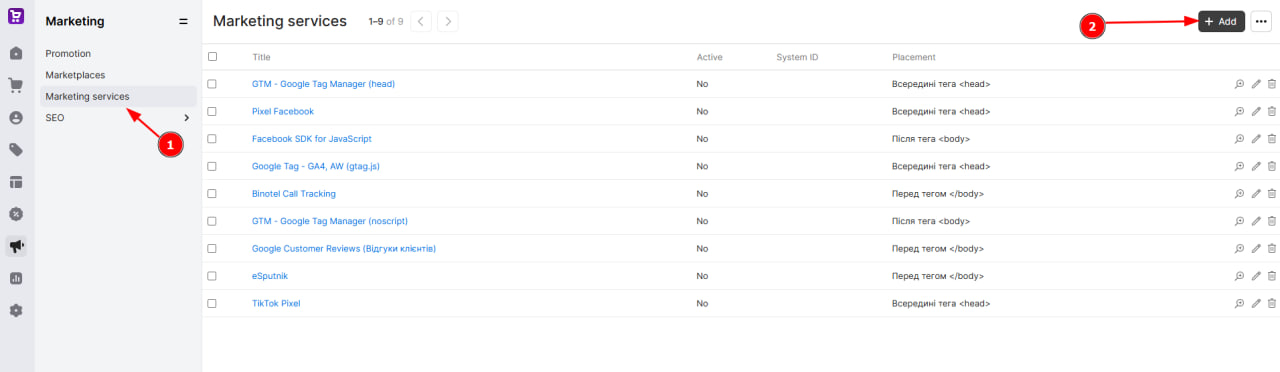
- In the section that opens, go to the “Marketing Services” tab and click “Add”:
- Enter a name for the new entry (required), enable it (by clicking the toggle shown in the screenshot), and then, in the “Location” section, select the last option, “Inside the tag”:
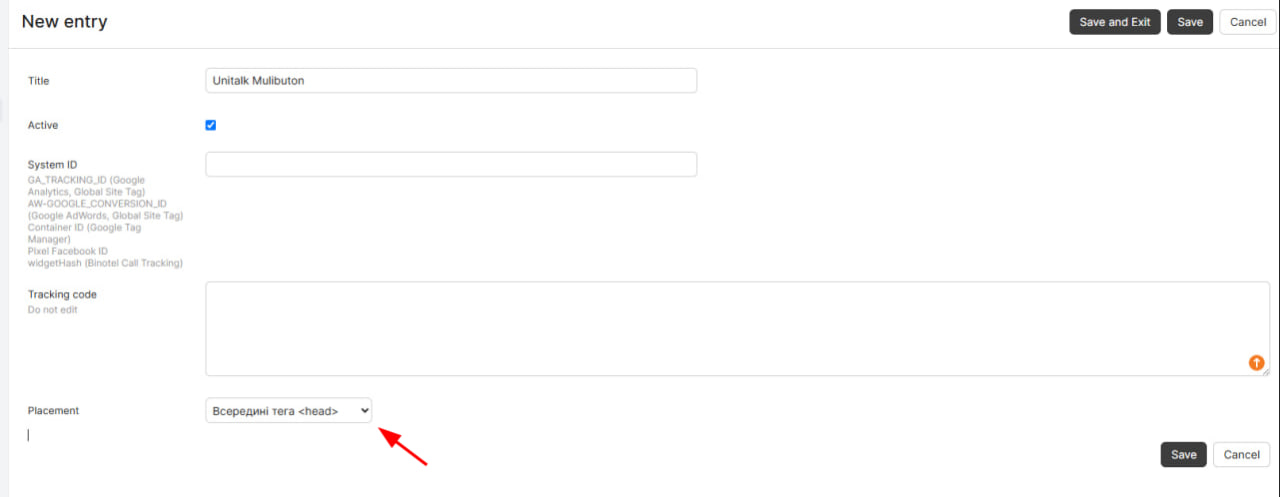
- Go back to your account dashboard, to the “Sites” section, and copy the code highlighted in red in the screenshot. It should link to the script that launches the multi-button settings:
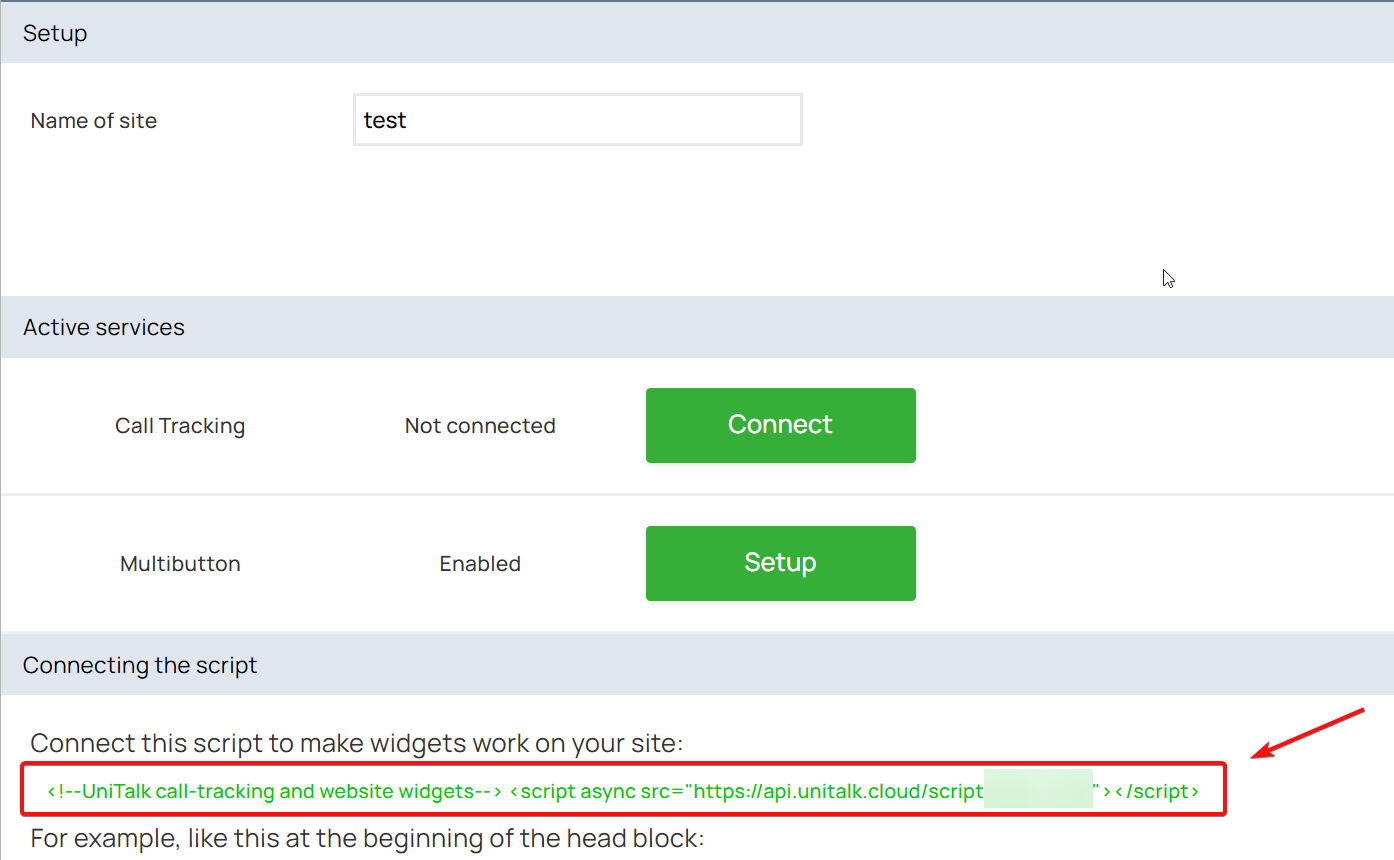
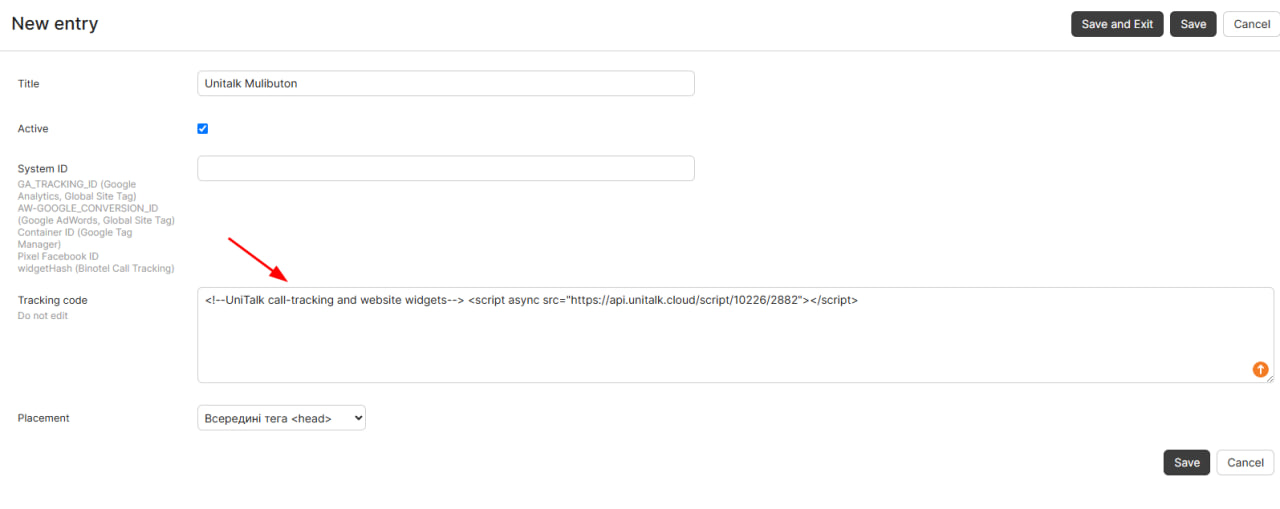
- Paste the following code snippet:
<!–UniTalk call-tracking and website widgets–>
<script async src=”https://api.unitalk.cloud/script/XXXXX/XXXX”></script> into the “Initialization Code” section of your marketing record settings, then save your changes:
- Congratulations, the multi-button has been successfully connected. You can now start chatting:
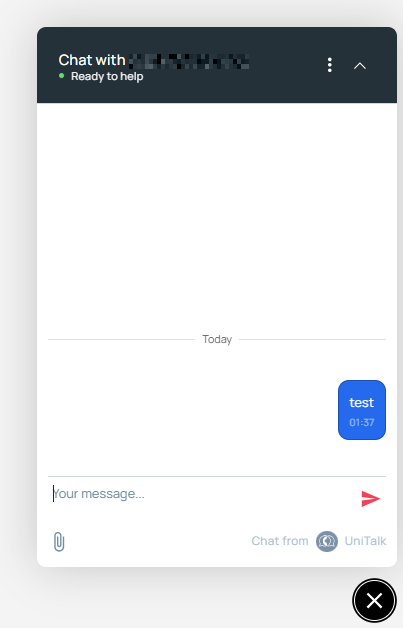
Great, the UniTalk multibutton is now active on your website. From now on, your managers will be able to reply to clients faster, improving service quality and increasing the number of successful deals. We recommend visiting your site to check how the widget looks and works for yourself.
We always strive to make complex processes convenient and manageable. If you have any questions at any stage of the setup or want to learn more about additional chat features, our support team will help. If you need further consultation, you can always reach out to us via our Telegram chat: https://t.me/unitalk_cloud_bot