What Is Callback and How a Callback Widget Increases Sales
Not every website visitor is ready to call a company themselves. Some don’t want to hunt for a phone number on the site, some would rather be called back, and some simply put off reaching out until later.
Callback solves this problem: a visitor leaves their phone number in a widget on the website, and the system automatically arranges a callback. During business hours, it can connect the client with an available manager right away; outside business hours, it saves the request for later processing. This way, a company shortens the path from interest to conversation and gets more chances to engage a potential customer.
Let’s break down what Callback is, how it works, who needs this kind of widget, and what to look for when choosing a service.
Key takeaways
- Callback is a feature that lets a visitor leave their phone number on a website and receive a call back from the company.
- The system automatically sends the request to the phone system and can pass data to a CRM.
- According to our data, adding a Callback button increases the number of website inquiries by more than 54%.
- The less time passes between a request and the first contact, the easier it is to move forward with a potential customer.
- Callback can collect requests outside business hours so they can be handled later.
- Modern Callback services let you customize the widget’s appearance, display rules, call scenarios, and CRM integration.
What Is Callback in Simple Terms?
Picture a typical situation: a visitor lands on a website, picks out a service, and wants to clarify a few details. They don’t feel like calling themselves. They click “Request a call,” leave their number, and the company gets in touch with them.
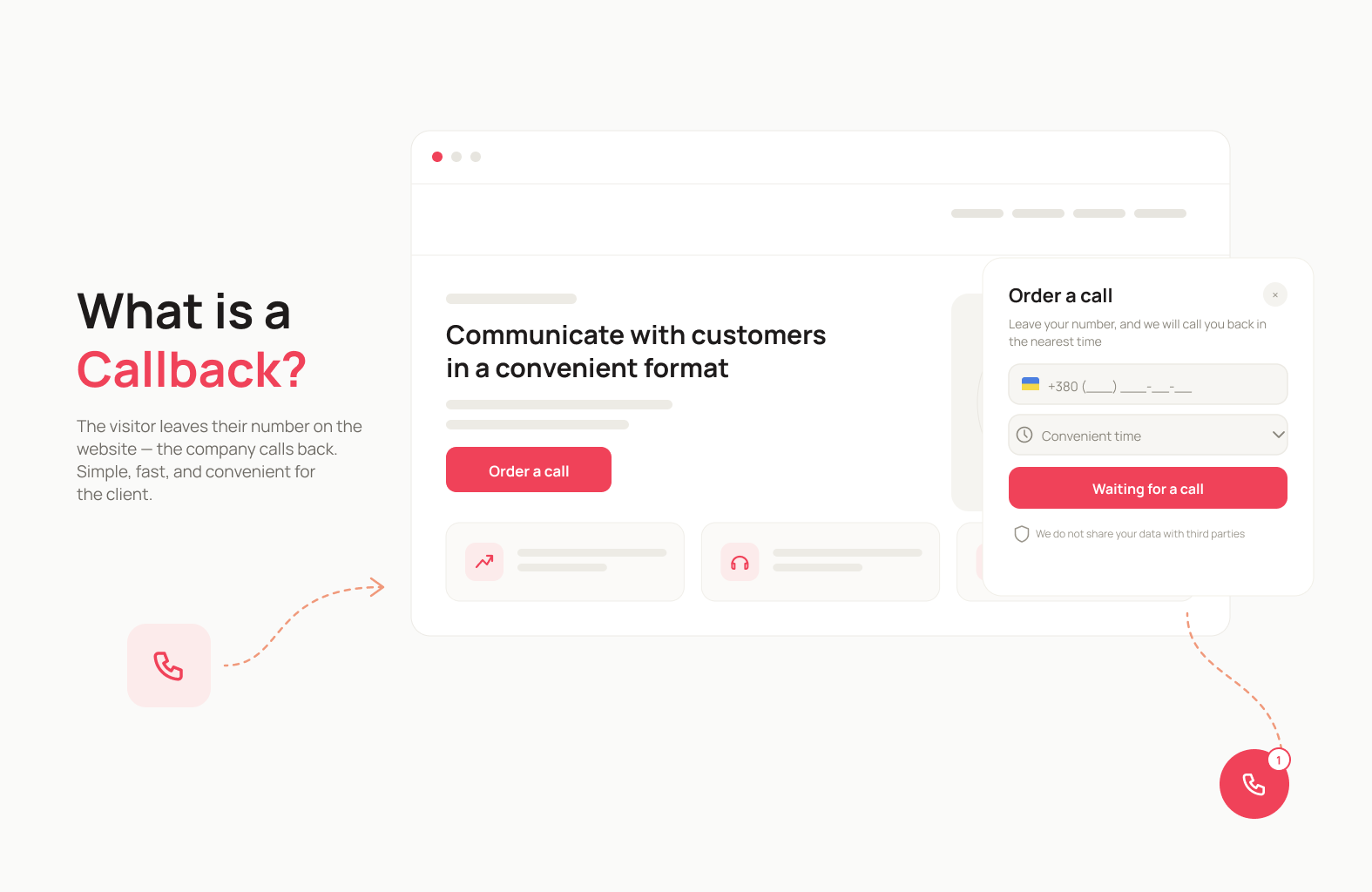
That’s exactly what Callback is. Callback is a call-back function on a website: the visitor leaves their number, and the company contacts them. “Call back” refers to returning a client’s call at their request, and on websites specifically, the term “Callback” is more commonly used. To make this possible, a special widget with a button or a number-entry form is placed on the site.
Depending on the settings, the system can either connect the client with a manager right away or save the request to be processed later.
For the visitor, it all happens in a few steps:
- They click the button or open the callback widget.
- They leave their phone number.
- They pick a convenient time, if that option is available.
- They receive a call from the company.
The main difference between Callback and a regular phone number listed on a site is who initiates the call. If a site just shows a number, the visitor has to dial it themselves. With Callback, the visitor leaves a request, and the system handles the connection from there.
That’s why a callback widget is especially useful when it’s easier for a customer to leave their number than to search for a phone and call the company themselves.
The term is also sometimes spelled “call-back.” A similar scenario shows up in advertising too: a user can leave their number directly in an ad without ever visiting the website. But in this article, we’re focused specifically on the Callback widget on a website.
How Callback Works
For the customer, it’s simple: they leave their number on the site and wait for a call. The system takes care of the rest.
Here’s typically how it plays out:
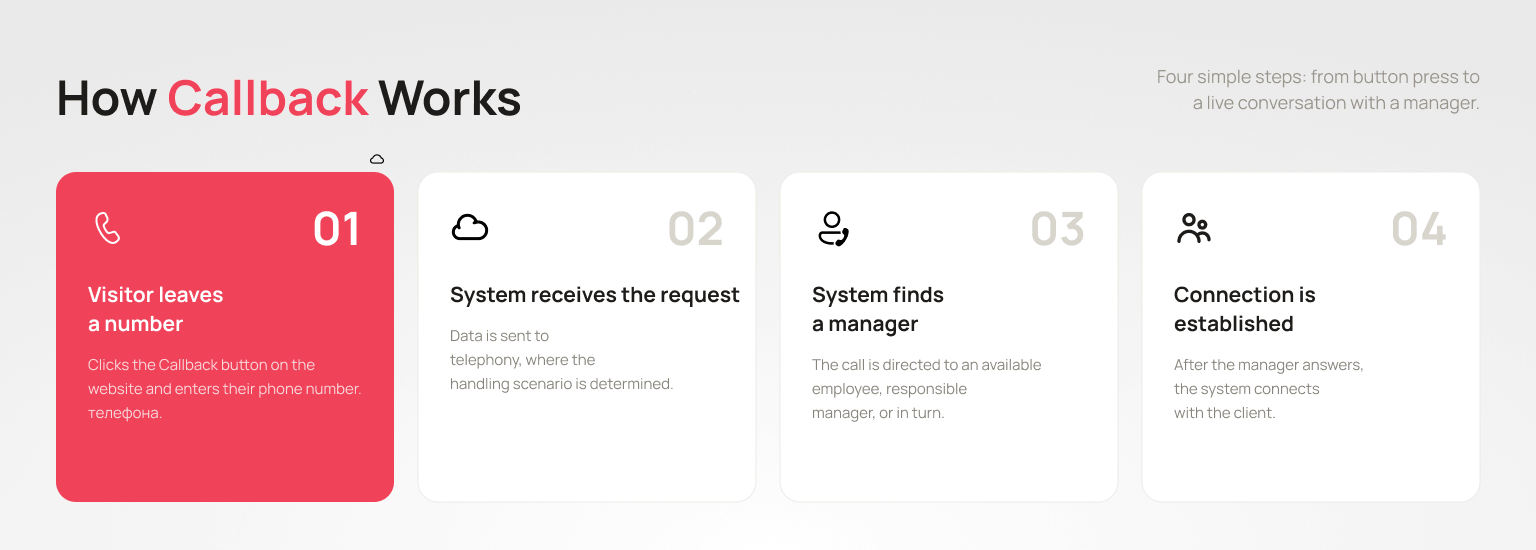
- The visitor leaves their number. They click the Callback button on the site and enter their phone number.
- The system receives the request. The data is sent to the phone system, which determines how the inquiry should be handled.
- The system finds a manager. Depending on the settings, the call is routed to an available agent, a designated manager, or several agents in a queue.
- The client and manager connect. Once the manager answers, the system connects the call to the client.
At UniTalk, this scenario connects a client with a manager in about 30 seconds. That shortens the time between submitting a request and the first conversation, while the visitor’s interest is still fresh.
If Callback is integrated with a CRM, data about the request and the call can be sent to the client’s card. Managers don’t have to manually copy the number or dig for context about the inquiry in another system.
It’s worth not confusing two similar scenarios. Callback handles requests that a visitor left through the widget on the site. If a client already called the company but the call went unanswered, that’s handled by automatic callback for missed calls instead.
Why Should a Business Add a Callback Widget to Its Website?
Callback isn’t just another button to add to a site. Its job is to shorten the path from a visitor’s interest to a conversation with a manager, and to automate how those inquiries get handled.
Higher Conversion
Some visitors are willing to talk to a manager but aren’t willing to hunt down a phone number and dial it themselves. For them, Callback removes that extra step: all they need to do is leave a number in the widget.
That can increase the number of inquiries from a website. According to our data, adding Callback increases website inquiries by more than 54%.
That said, the widget alone doesn’t guarantee more sales. Other factors matter too: the offer on the site, traffic quality, response speed, and how well managers follow up. Callback helps increase the odds that an interested visitor actually reaches out to the company in the first place.
Faster Response
After submitting their number, a visitor doesn’t have to wait for a manager to notice the request, find it in the system, and call back manually. Callback triggers the connection scenario automatically.
The less time that passes between a request and a conversation, the less chance a client has to lose interest or reach out to a competitor instead. That’s why how fast Callback requests get handled matters just as much as receiving them in the first place.
Fewer Lost Leads
Without Callback, a visitor might close the site without leaving any contact info at all — unable to find a number, putting off the call, or simply changing their mind.
The widget gives them another way to reach the company. If managers are busy or a request comes in outside business hours, the inquiry can be saved and handled later according to the configured scenario.
This way, a company gains not just new inquiries, but also a way to hold on to interest that’s already there.
Automating Sales
Callback takes over part of the routine work: capturing the number, triggering the call according to the set scenario, and logging the inquiry.
With CRM integration, request and call data can be sent to the system automatically. That preserves the contact history and lets you continue working with the client without manually re-entering data.
As a result, Callback becomes part of the sales process rather than just a button on a site: the visitor leaves a request, the system arranges the contact, and the manager carries the work forward with a potential customer.
Who Needs a Callback Widget on Their Website?
Callback isn’t tied to any one industry — it’s useful for any business where a conversation with a manager influences the customer’s decision. If a visitor needs to clarify terms, choose between options, get advice, or discuss details before buying, the option to request a callback can make that step from interest to inquiry easier.
Callback is especially useful in these cases:
Consultative sales. If a customer finds it hard to decide without talking to a manager, Callback lets them quickly ask questions without hunting for a phone number on the site.
High-cost or complex products. When buying real estate, a car, equipment, business services, or other big-ticket items, customers often need to discuss details. The easier it is to start that conversation, the less likely they are to put off reaching out.
High sales team workload. When many inquiries come in at once, some requests can end up without a timely response. Callback helps automatically capture requests and route calls according to a set scenario.
Competitive markets. When a potential customer is comparing several companies at once, how fast you make first contact matters a lot. The option to request a call directly from the site shortens the time between interest and a conversation with a manager.
When the website is a key acquisition channel. If a company invests in ads, SEO, or other traffic sources, it’s important not just to bring visitors to the site, but to give them an easy way to leave a request. Callback becomes an additional conversion point alongside a form, a phone number, and live chat.
In practice, this applies to real estate, healthcare, e-commerce, online education, B2B services, and other industries where getting advice before a purchase matters. In real estate, that might mean a question about a specific property; in healthcare, booking an appointment; in e-commerce, clarifying product specs or delivery details.
In other words, the question isn’t so much which businesses need Callback, but whether a site has visitors who would rather leave a number and wait for a call than dial one themselves. If those visitors exist, a callback widget can become an additional channel for inquiries.
Callback or Live Chat: Which Should You Choose?
Callback and live chat solve a similar problem, but they suit different visitors. Some people would rather quickly talk something through by voice; others find it more comfortable to type a message and get a reply in chat.
That’s why a business doesn’t have to choose between Callback and live chat. It’s better to give visitors several ways to reach the company and let them pick whichever fits.
| Criterion | Callback | Live Chat |
|---|---|---|
| Format | Voice call | Text conversation |
| Best for | Quickly discussing a question or getting advice | Writing a message, sharing a link, or clarifying details in writing |
| Customer action | Leaves a number and waits for a call | Opens the chat and types a message |
| Response speed | Depends on the call scenario and manager availability | Depends on how quickly a manager replies in chat |
| Outside business hours | Can be set up to collect requests for later processing | Can leave a message and continue the conversation later |
The trouble starts when every contact channel gets its own separate button on the site: phone, Callback, chat, Telegram, Viber, and other contacts. Too many elements clutter the interface and make it harder to choose.
That’s where a multi-button comes in handy — a single compact widget that bundles several ways to get in touch. For example, a customer can choose a callback, live chat, or jump straight into their preferred messenger. At UniTalk, the multi-button combines Click2Call with the text channels of UniTalk Chat — live chat, Telegram, Viber, and Instagram — in one window. UniTalk Chat itself solves a broader problem: it brings conversations from all these channels into a single window for the manager, even if a site only has a text-only button without Callback.
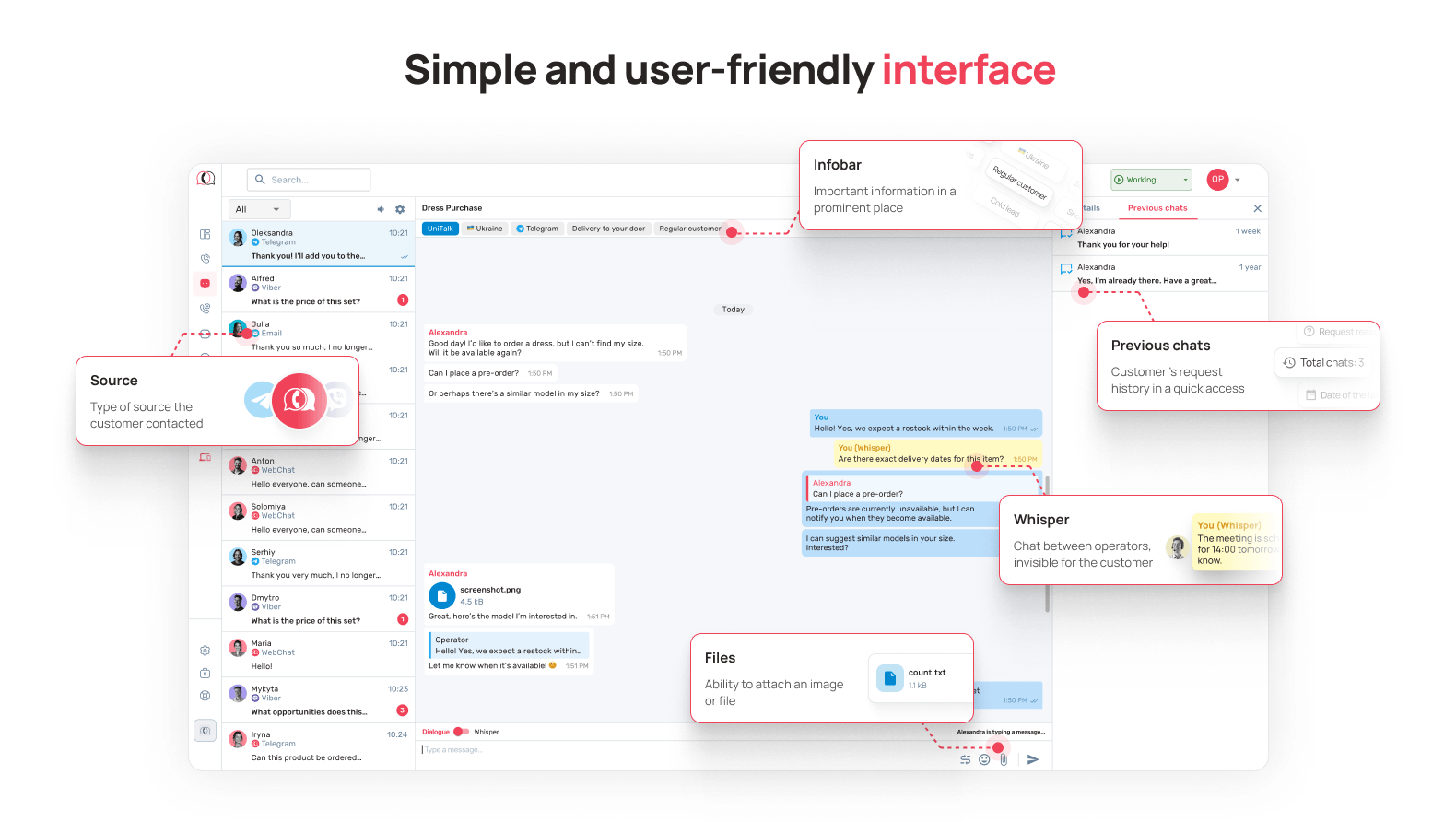
This approach gives visitors freedom of choice and gives the business several channels for inquiries, without needing a separate button on the page for each one.
According to our data, a well-designed multi-button with a clear CTA can boost website conversion by an average of 15%.
To learn more about how the multi-button works, which channels you can combine, and how to configure it for your site’s needs, check out our article “Multi-Button and Chat on Your Website: Designing for Conversion”.
💬 NOTE: That linked article is only available in Russian right now — I couldn’t confirm an English version exists. If one gets published, swap the link; otherwise consider flagging for the reader that it opens a Russian-language page, or dropping the link.
How to Choose a Callback Service
A good callback service isn’t just a button on a website. It needs to fit into how you handle inquiries: routing requests to the right person, storing contact data, and helping you understand what results your calls actually deliver.
When choosing a callback service, pay attention to a few things.
1. How requests are captured. Check whether there’s a form on the site and what happens to inquiries outside business hours.
2. Speed and connection logic. What matters more than just having a callback is how the system organizes the connection. It might call an available agent, a designated manager, or route the inquiry through a queue. The better the scenario matches how your sales team works, the fewer manual steps managers have to take.
3. CRM integration. Callback shouldn’t create a separate stream of data that managers have to copy over by hand. Check whether the client’s number, call details, and other inquiry data can be sent to your CRM automatically, and whether it can create a lead or link the contact to an existing record.
4. Widget customization. The widget should look like part of the site, not a random overlay. Look for the ability to customize the design, copy, and display timing, plus separate scenarios for mobile and desktop. If your site serves multiple languages, language support matters too.
5. Analytics. Just having Callback doesn’t mean it’s delivering results. The service should show you the number of requests, calls, and handled inquiries. Even better if that data can be tied to traffic sources and your CRM, so you can see how many inquiries actually turn into sales.
6. Cost and trial terms. Compare not just the price, but what’s included: the number of requests or calls, available integrations, extra features, and limits. A trial period lets you test Callback on real traffic and see the results before you commit.
In the end, the right choice isn’t the most feature-packed Callback — it’s the one that fits your specific business scenario without creating extra work for your managers.
Why Callback Can Annoy Users (and How to Avoid It)
Callback only helps bring in more inquiries when it doesn’t get in a visitor’s way. If a widget pops up too early, covers important content, or keeps demanding attention, it can create annoyance instead of a desire to get in touch.
Problems usually come down to a few settings:
- Showing up too early or too often. Don’t prompt for a call the moment someone lands on the page, and don’t show the widget again right after a user has closed it.
- Distracting animation or sound. The effect should draw attention to the option of contacting the company, not pull focus away from the page’s content.
- Hard to close. Visitors should easily understand how to dismiss the widget if they don’t want to interact with it right now.
- Calling at the wrong time. If Callback doesn’t account for business hours and time zones, the offer to request a call might show up when no managers are actually available.
That’s why, when setting up Callback, it’s worth focusing not on “the more visible, the better,” but on what’s convenient for the visitor. Set the timing and frequency of the popup, plan a separate scenario for off-hours, and make sure the widget doesn’t cover important elements on the page.
A well-designed Callback doesn’t force users to interact with it. It just stays available for the moment someone actually wants to get in touch.
Conclusion
Callback is a simple way to shorten the path from a website visitor to a conversation with a manager. Instead of hunting for a phone number and dialing it themselves, a customer leaves their number, and the system arranges the callback.
But the widget alone doesn’t turn visitors into customers. The result depends on how quickly the request gets handled, how it reaches the manager, whether the data lands in a CRM, and what happens with the inquiry after the call.
So when choosing a Callback solution, look beyond just the button on the site — consider the whole scenario for handling an inquiry: how the client leaves their number → how the system arranges the call → how the manager receives the request → how the company tracks the results.
Get that process right, and Callback stops being just another element on your site — it becomes another entry point into your sales pipeline.
According to UniTalk’s setup guide, basic Callback configuration takes about 6 minutes. In your account, you can customize the widget’s appearance and behavior rules, then install it on your site.
Callback itself isn’t an SEO tool and won’t boost your search rankings directly. When installing the widget, it’s important to watch its impact on page load speed and overall site usability.
The request is saved so a manager can follow up during business hours. Some services, including UniTalk, let you configure a separate scenario for off-hours — for example, showing different copy or collecting the request through a form instead of an immediate call.
It depends on the provider. UniTalk offers a free 14-day trial with no card required. After that, pricing depends on your plan, with the basic tier starting at $65/month.
Yes — that’s one of the key features of modern callback services. Integration lets you automatically create a lead for every request, send call data to the client’s record, and initiate calls directly from the CRM without manually transferring data.