What is an IVR menu and how it helps businesses handle calls efficiently
A customer calls a company with a specific question. Instead of an answer, they hear a long list: “For sales, press 1. For support, press 2. For billing, press 3.” If the menu is built well, they reach the right specialist within seconds. If not, they wander through the options, wait to be transferred, and eventually just hang up, taking a deal that was almost closed straight to a competitor.
Behind this simple fork sits IVR, an interactive voice menu. It routes incoming calls to the right scenario before an agent ever joins the conversation.
In this article we’ll cover what an IVR menu is, how it works, who actually needs one, and how to set it up so it helps your business instead of trapping callers in an endless “press 9 to return to the previous menu.”
IVR menu in 30 seconds
- IVR is an interactive voice menu that routes a call to the right scenario without an agent handling the first step.
- The customer picks a topic themselves, either by pressing a key on the phone or saying it out loud if speech recognition is enabled.
- IVR cuts down on the number of calls agents have to sort and transfer between departments manually.
- Complex or unusual requests get routed straight to a live specialist instead of being forced through an automated flow.
- The menu can behave differently during business hours, at night, on weekends, and during peak load. Scenarios don’t have to be identical.
- A long, confusing menu frustrates customers more than having no menu at all, so build the scenario around the real reasons people call, not around your org chart.
- IVR pays off most for businesses with a high volume of repetitive calls and several service directions. The more calls you get, the bigger the effect.
What is an IVR menu
IVR (Interactive Voice Response) is a technology that plays pre-recorded voice prompts and asks the caller to choose an action: press a key on the phone or say a short phrase.
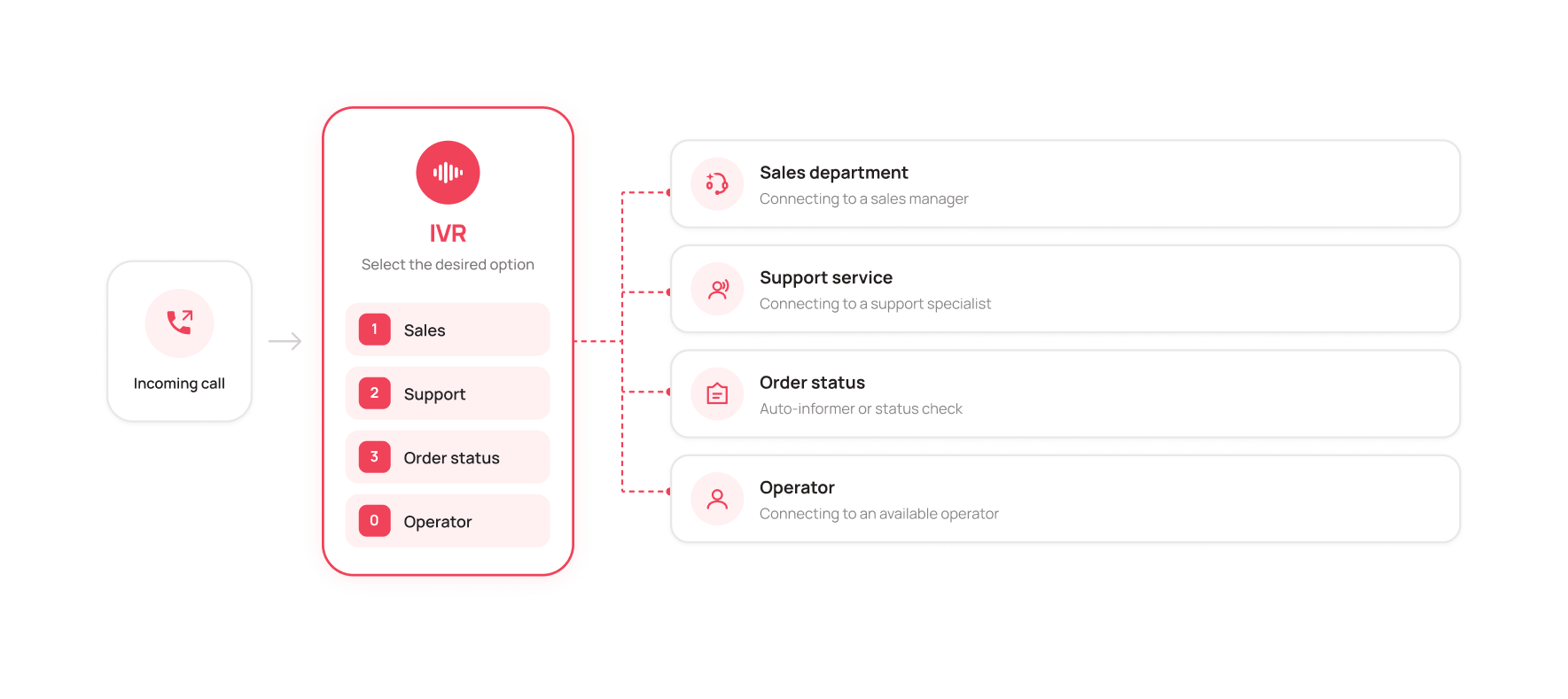
Put simply, IVR is a fork in the road for an incoming call. The system asks the caller a question, gets an answer through a keypress or a voice command, and routes the call further along a defined path: caller, menu, choice, scenario, agent or automated answer.
IVR can do more than route calls. It can also support voice self-service, for example telling a customer their order status or business hours without an agent ever picking up.
How does an interactive voice menu work?
Here’s how IVR handles a call, step by step:
- The customer calls the company’s number.
- IVR plays a voice greeting.
- The system offers a set of options.
- The customer picks a section, by key or by voice.
- The system determines where the call goes next.
- The call reaches an agent, a queue, another number, or an automated scenario with a ready answer.
In practice it sounds something like this: “To check your order status, press 1. To speak with a manager, press 2.” The customer presses 1 and, within a split second, hears specific information instead of generic phrases. The system handles a single call and dozens of simultaneous calls with the same ease.
What an IVR menu is made of
IVR isn’t just a voice menu with a few buttons. It’s a toolkit for building an incoming call scenario. You decide what the customer hears, which options they can choose, where the call goes after each choice, and what happens if they don’t choose anything at all. Depending on the task, a single scenario can include several menu levels, different routing paths, and automated responses.
Voice greeting
The first thing a caller hears isn’t a person, it’s the system: “You’ve reached [company]. For sales, press 1. For support, press 2.” The greeting can be recorded in advance, generated through speech synthesis, or uploaded as a ready-made audio file. In UniTalk, for example, you can simply upload your own MP3 in the IVR settings.
Menu options
This is the menu itself: a list of options the customer chooses between. It lets you separate different types of requests before a human ever gets involved. A billing question, for instance, goes straight into the right scenario instead of landing on a sales manager’s desk.
Call routing
Once the customer makes a choice, the system decides where the call goes next. That could be an agent’s SIP line, an external number, a queue of specialists, another scenario, or the next level of the same IVR. A customer might first pick “Support,” then narrow it down to “Technical issue” or “Billing question.” A few simple menus stacked together build a multi-level scenario for different kinds of requests.
The route can factor in different conditions: business hours, line load, the topic of the call, or an existing queue.
You can also define in advance what happens if the customer doesn’t choose anything: repeat the menu, transfer to an agent, or end the call. So IVR determines not just the route after a customer’s choice, but also what happens in a non-standard situation.
There’s another option worth mentioning: passing context about the customer’s choice to the agent. If the menu includes a language selection, for example, the agent can see which language the customer wants to use before the call even connects. The agent picks up the call already armed with context and doesn’t burn the first seconds of the conversation asking what the customer already told the menu.
Connecting to an agent
If a request needs a specialist, IVR transfers the customer to the right agent or into a queue. It’s important to leave the customer a simple way out to a real person: a dedicated key, or a transfer after a couple of failed recognition attempts.
A good scenario doesn’t force the customer to keep choosing menu options forever. If the system can’t figure out what they need, the call should move to a human or fall back to a predefined alternative scenario.
Why does a business need an IVR menu?
IVR isn’t only about splitting calls between departments. It helps route customers to the right specialist faster, takes work off agents’ plates, and keeps the business from missing calls during busy periods.
Route customers to the right specialist faster. The customer tells you upfront what they’re calling about: placing an order, checking a delivery, or getting help. IVR sends them down the right path immediately, so the agent doesn’t have to open with “What’s this call about?”
Take calls when no agent is on the line. IVR can run at night, on weekends, and during high load. It answers the call, states business hours, handles routine questions, or routes the customer to the right scenario. That way the business doesn’t leave a customer without an answer just because no agent happens to be available.
Take routine questions off agents’ hands. Business hours, order status, an address, or other simple information don’t always need a conversation with a person. Those requests can go to an automated announcement or another automated scenario, leaving agents free for the calls that actually need a human.
Stop customers from repeating themselves. When a call lands in the right department right away, the customer doesn’t have to explain the same problem to several people in a row. That shortens the path to an answer and lowers the odds someone just hangs up.
According to research from Zendesk, cited by Verizon Business, being transferred between departments annoys 68% of customers (source). That’s exactly the kind of problem a well-built IVR is meant to solve.
In UniTalk, you can configure IVR for a range of scenarios, from simple department routing to more complex logic. The scenario is set up in the settings: you just need to define the menu logic and specify where each choice sends the call.
Who is a voice menu right for
There’s no one-size-fits-all IVR template. The scenario is built around your type of business and the questions your customers actually ask.
IVR pays off most wherever call volume and repeat questions are high. An online store, for example, can use it to split requests by order, payment, delivery, and returns. A medical center can route calls to booking, to the front desk of a specific department, or to a dedicated line for urgent cases. A financial company might use it for balance checks, card blocks, or other time-sensitive requests.
The underlying logic stays the same across industries: IVR splits the call flow by topic right away and sends the customer into the right scenario.
| Business type | How it uses IVR | What it gets the business |
|---|---|---|
| E-commerce and delivery | “Order status,” “Payment,” “Returns” | Less load on support, some requests handled without an agent |
| Healthcare and clinics | Booking, test results, urgent line | Less pressure on front desk staff, faster access to the right specialist |
| Finance and banking | Balance checks, card blocks, applications | Fast routing for time-sensitive requests |
| Real estate | Property details, viewing appointments | Fewer irrelevant calls, saves managers’ time |
| Online education | Schedules, tech support, billing questions | Access to basic information outside business hours |
| Service businesses | Taking requests, checking job status | An organized flow of requests even during peak hours |
Types of IVR systems
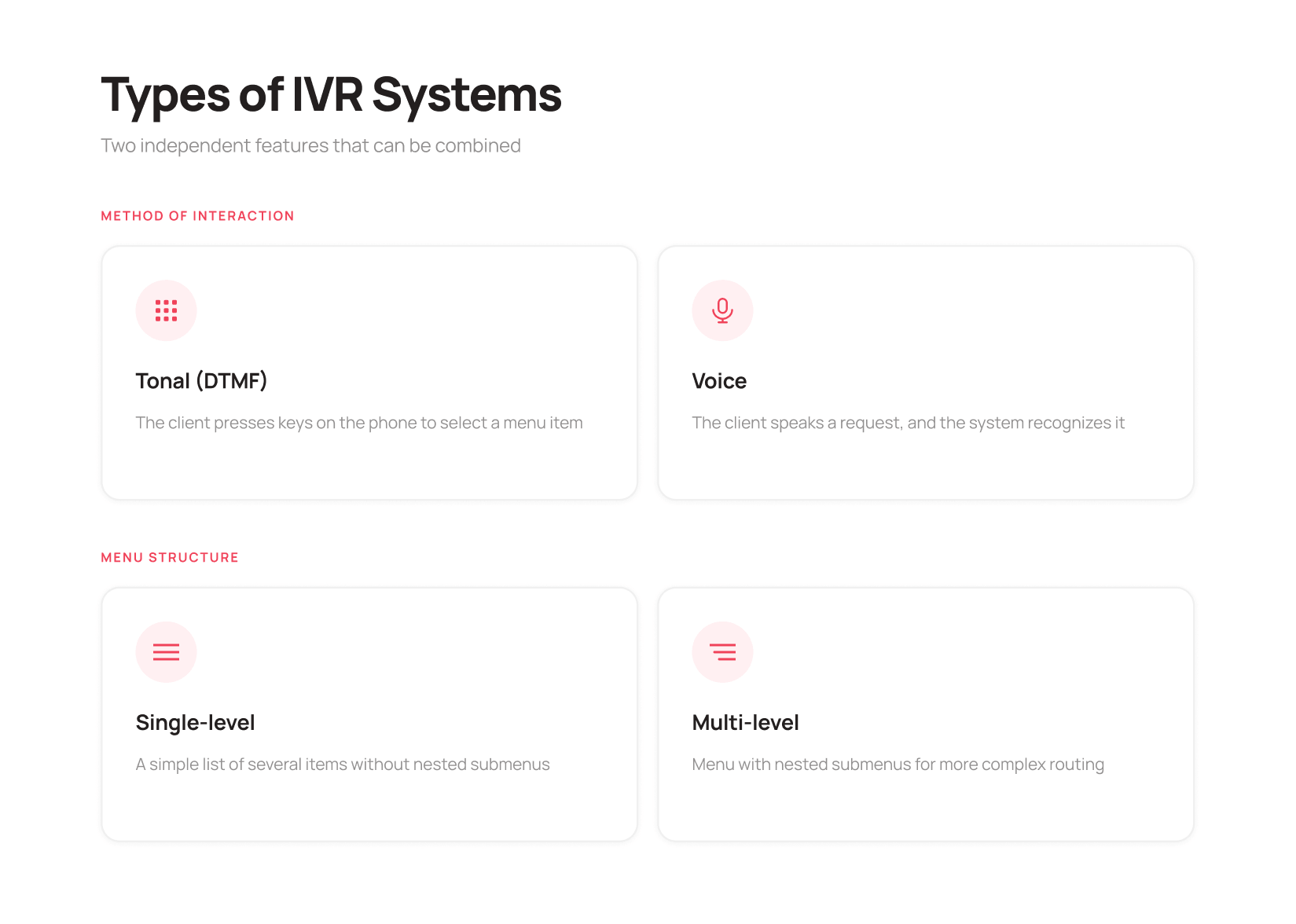
IVR can be configured in different ways: customers can pick an option by key or by voice, and the menu itself can be simple or multi-level. These options combine depending on how many service areas your business has and which questions come up most often.
By how the customer interacts:
Touch-tone IVR (DTMF). The customer picks a menu option by pressing keys on the phone. It works even on a poor connection and doesn’t require complex setup, which makes it a fit for most businesses. It’s not the right choice if you have a long list of questions that change often, since a touch-tone menu can’t interpret free-form phrasing.
Voice IVR with speech recognition. The customer speaks their request and the system recognizes and processes it. This can work better when there’s a wide range of different requests, but it needs more precise tuning and handles strong accents, background noise, or uncommon phrasing less reliably. For a small volume of calls, this format can be more than you actually need.
By menu structure:
Single-level menu. A simple list of options with no nested submenus. Works well for businesses with 2 to 4 main request types.
Multi-level menu. A structure with nested levels, where one option doesn’t lead straight to an agent but to another menu with a narrower set of choices. This suits businesses with several directions and more complex call scenarios, though it needs careful planning: every extra level is another chance for a customer to get lost and hang up.
| IVR type | How it works | When it fits |
|---|---|---|
| Touch-tone (DTMF) | The customer presses keys on the phone | A universal fit for most companies |
| Voice (speech recognition) | The customer speaks their request | Businesses with high call volume and varied requests |
| Single-level | One list of a few options | Companies with 2 to 4 main request types |
| Multi-level | A menu with nested submenus | Companies with several directions and complex call scenarios |
In practice, most companies start with a simple, single-level, touch-tone IVR and add speech recognition or extra menu levels later, once call volume and the number of request types grow.
How to build an effective IVR menu
- Start with the most common reasons people call. Pull call recordings or request statistics from the past month or two. Group calls by topic and build your menu options from those groups. Don’t build the menu around your internal department names. Customers care about their own question, not about how your company is organized.
- Put the most common questions first. If one topic clearly leads in call volume, give it the top spot in the menu.
- Don’t let the menu get too deep. According to Verizon Business, the optimal structure is no more than five top-level options and three sub-options per submenu (source). The logic is simple: the more steps between the call and the answer, the higher the chance a customer won’t make it to the end. A good target is to keep the path to an agent as short as possible, so a customer isn’t forced through several menu levels before they can talk to a person.
- Write short, clear prompts. “For order status, press 1” is easier to follow than “If you would like to check the status of your order with our company, please press the number one.” Short prompts mean the customer doesn’t have to hold several options in their head at once.
- Always leave a way to reach an agent. A “0” key or a dedicated “Speak to an agent” option lets someone connect with a person quickly if they can’t find what they need. Without that option, the menu becomes a closed loop that a customer can only escape by hanging up.
- Account for after-hours calls. Set up a separate scenario for nights, weekends, and holidays: an automated message with your hours, a callback form, or a transfer to whoever’s on duty.
- Plan for silence too. Decide in advance what happens if a customer doesn’t press anything: the menu repeats, the call goes to an agent, or another scenario kicks in. Otherwise the customer is left waiting for something that isn’t coming.
- Test and review. Listen to call recordings, watch where in the menu customers hang up most often, and adjust the scenario. IVR isn’t a one-time setup. It’s a working tool worth revisiting as your company grows.
For more on building IVR around these three principles (a short path to an agent, concise prompts, and a mandatory way to reach a person), see our related article on avoiding IVR frustration.
Sample IVR menu scripts
A good script doesn’t try to tell the customer everything at once. It lays out the main options briefly and leaves a clear path to an agent.
| Business type | Sample voice menu |
|---|---|
| Online store | “You’ve reached [company]. For order status, press 1. For a new purchase, press 2. To speak with an agent, press 0.” |
| Medical clinic | “You’ve reached [clinic name]. To book an appointment, press 1. For test results, press 2. For urgent matters, press 3. To speak with the front desk, press 0.” |
| Delivery service | “Thanks for calling [company]. To check your delivery status, press 1. To arrange a return, press 2. To speak with dispatch, press 0.” |
| Bank or financial company | “You’ve reached [bank]. To check your balance, press 1. To block a card, press 2. To speak with a specialist, press 0.” |
Every example here keeps the menu short and leaves a clear path to a specialist. The set of options depends on the business: an online store might lead with order status, while a clinic leads with booking. A one-size-fits-all IVR template doesn’t work for everyone, and the menu should be built around the real reasons people call.
Common IVR setup mistakes
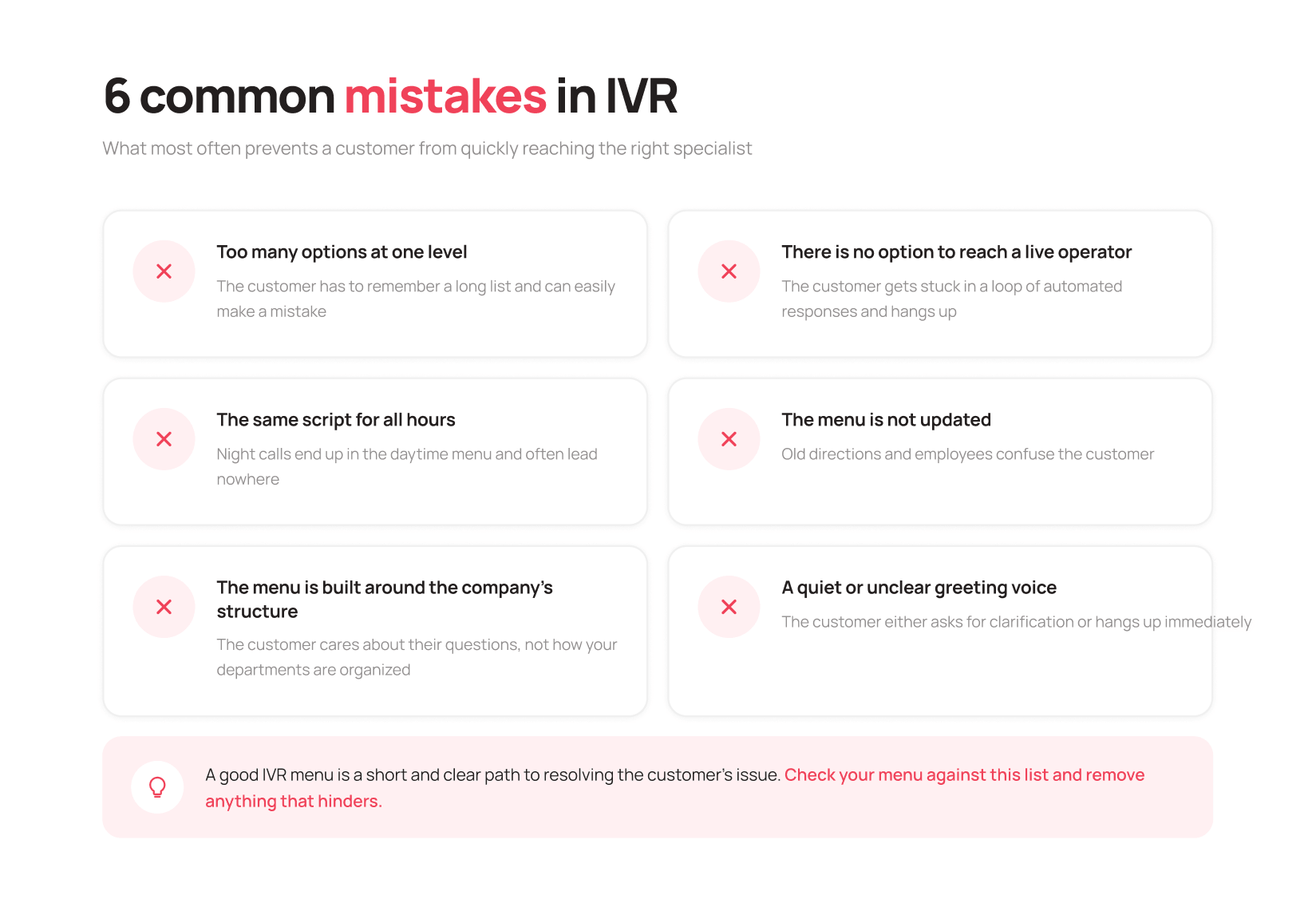
Too many options at one level. Customers have to hold a long list of choices in their head, and the odds of picking wrong or losing track go up with every extra option.
No way to reach a live agent. The customer gets stuck in a loop of automated responses with no quick way to reach a person. The simplest way out ends up being to hang up.
The same scenario runs around the clock. A business can face different situations by day and by night, so the routing logic can differ too. A night call that lands in a daytime scenario might never actually get the customer to a useful answer.
The menu never gets updated. Old departments or staff who’ve since left stay in the menu, sending customers to the wrong place while the team spends time cleaning up the mess.
The menu is built around the org chart, not the customer’s question. Customers don’t care how your departments are structured. They just want to know quickly where to go with their problem, not decode your internal setup.
A quiet or unclear greeting voice. The customer can’t make out the prompts, asks to repeat, or just hangs up. The first impression of the company forms before anyone even talks to an agent.
According to research from SQM Group, the average wait time before a customer hangs up without an answer is 2 minutes 36 seconds (source). With a confusing menu, a customer can give up well before that point, without ever reaching a live specialist.
How to tell if your IVR menu is working well
Once IVR is live, it’s worth checking a few metrics regularly to see whether the menu is actually helping customers reach the right answer faster.
- Share of calls resolved without an agent: how many requests got handled through an automated scenario or announcement, without ever reaching a specialist.
- How calls break down across menu options: which choices get picked most often. This shows which scenarios customers actually need and which ones might be worth simplifying or dropping.
- Percentage of customers who hang up inside the menu: a high number here usually means the menu is too long, too complex, or doesn’t match what customers are actually calling about.
- How often customers ask for an agent: if almost every caller ends up asking for a person after a few options, part of your menu probably isn’t pulling its weight.
- Speed of transfer to an agent: once a customer picks “Agent,” they shouldn’t then face a long wait.
You can pull this data from your virtual PBX or contact center reports. Reviewing it regularly helps you spot weak points in the scenario and adjust the menu as your call patterns change.
Conclusion
Let’s go back to the call from the start of this article. Without IVR, it goes through the familiar chain: “let me ask again,” “please hold,” “let’s find you a free manager.” With IVR, the customer hears “For sales, press 1” right away and quickly reaches the right specialist, not just whoever happened to pick up first.
An IVR menu isn’t a nice-to-have feature. It’s a working tool that takes routine calls off your team’s plate and frees up time for the work that actually needs a person. It helps route customers faster, takes routine questions off agents’ hands, and saves callers from a few unnecessary steps before getting an answer.
As a company grows and call volume grows with it, a single IVR often isn’t enough on its own. At that point it becomes part of a bigger communication management system. UniTalk Contact Center brings call routing, queues, scripts, agent statistics, and analytics together in one workspace.
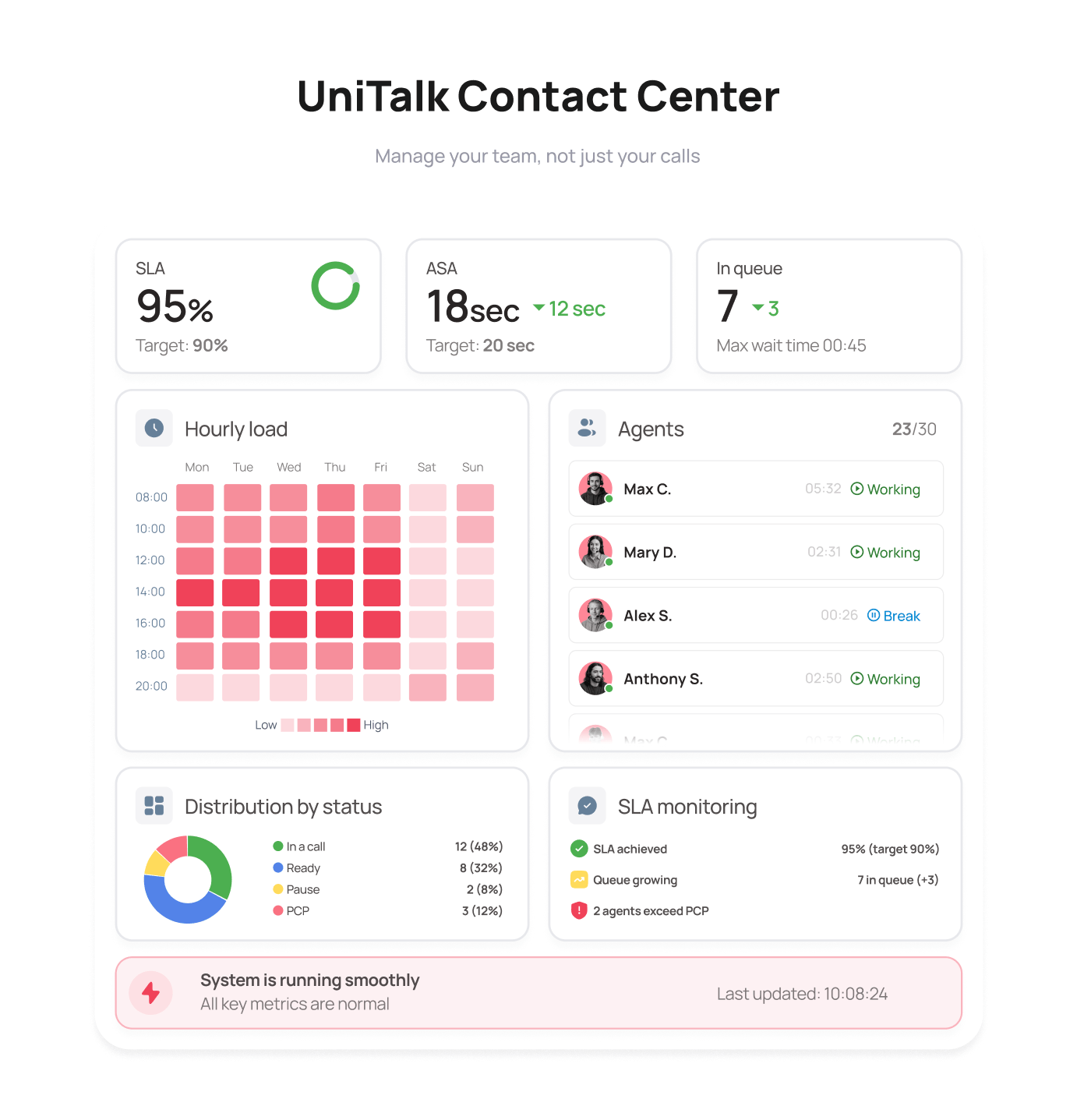
If what matters to you isn’t just answering calls but managing your team’s work and service quality as a system, it’s worth looking at your phone setup as more than just a voice menu.
IVR, or an interactive voice menu, helps a customer pick the service option they need and routes the call along a defined path without an agent handling the first step. It’s short for Interactive Voice Response.
An answering machine just plays a single message and that’s it. IVR is interactive: it offers choices, reacts to what the customer does, and routes the call based on that choice.
Yes. In most modern services, UniTalk included, IVR scenarios are built through a visual editor with no developer needed. You just define the menu logic and record or generate the voice prompts.
Usually not. IVR works as a feature of a virtual PBX or IP telephony system, since those are the systems that handle receiving and routing calls. A voice menu doesn’t run on its own, separate from telephony.
Yes, especially a simple single-level menu with 2 to 4 options. The investment is minimal, and even a basic setup noticeably cuts missed calls and the load on a single administrator handling everything.
Verizon Business recommends no more than five top-level options and three sub-options per submenu. The more steps between the call and the answer, the more likely a customer is to hang up before reaching what they need.
It depends on the provider, how deep the menu is, and whether IVR is billed as a separate line item or bundled into a virtual PBX plan. At UniTalk, for example, single-level and multi-level IVR are available on different virtual PBX plans, and it’s worth checking the current pricing on the service page directly, since plans get updated from time to time.