One client, five tabs: what changes when reps work in a single window
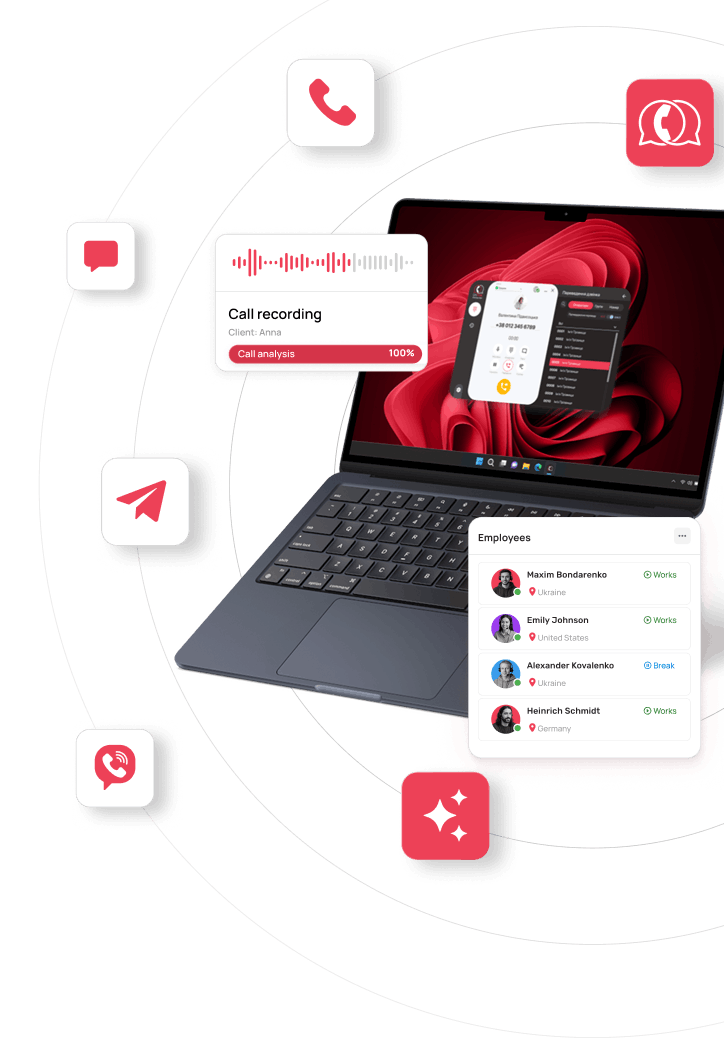
A rep copies a number from the CRM, calls from a separate app, and after the call looks for the same client in Telegram. Then it’s back to the CRM to write down from memory what was agreed. Each switch takes a few seconds, and each one breaks the rep’s train of thought. Here’s how UniTalk Omni brings calls, chats and client data into one window that sits on top of your CRM.
Where the time goes when a rep works across five tabs
For many sales and support reps, the work screen looks something like this: the CRM, a calling app, Telegram, Viber and email. On a screen like that, Ctrl+C and Ctrl+V get more use than any other tool.
What this leads to:
- Numbers are copied from the CRM into the calling app by hand. Copy one from the wrong card or miss a digit, and the call goes to the wrong person. Every contact also costs a few extra seconds.
- The client’s history is scattered across systems. The call is recorded in one, the chat lives in another, and the CRM card just says “call on Thursday”.
- Call outcomes are entered by hand, sometimes at the end of the day. Some agreements never make it into the CRM.
- When a rep leaves, part of the client history leaves with them, because it stays in their messengers, inbox and memory. The new rep starts the conversation with the client from scratch.
Count how many times a day your team switches between windows. For example, if a rep handles 40 contacts and switches between systems four times per contact on average, that’s 160 switches a day. These numbers are only an illustration, so plug in your own.
What a single rep window is
It’s one window where the rep makes calls, handles chats, sends messages and sees the client’s data from the CRM, with no need to switch between apps.
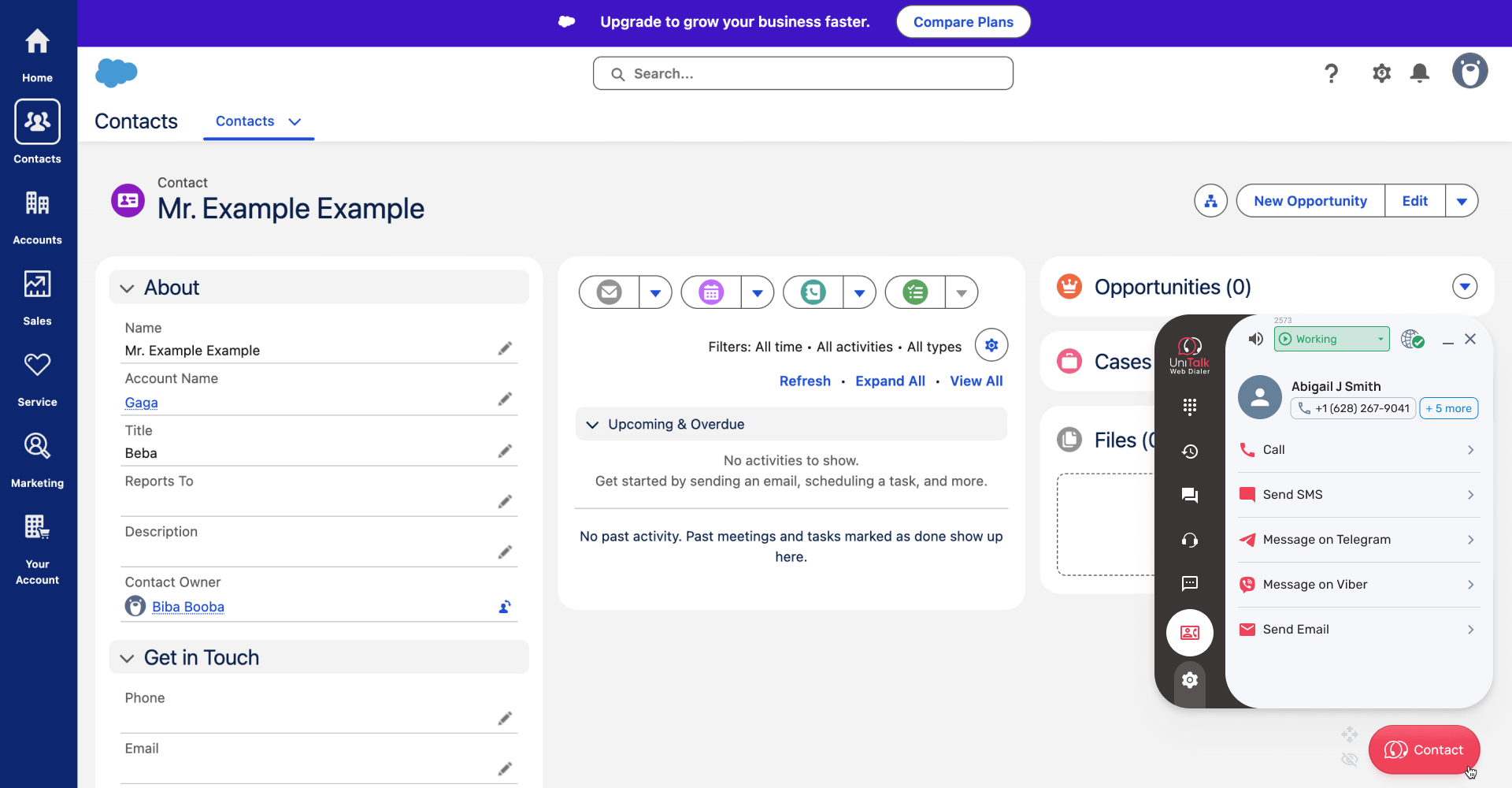
In Omni, the single window is UniTalk Web Dialer
UniTalk Web Dialer is an extension for Chromium-based browsers (Google Chrome, Microsoft Edge, Brave, Opera). It opens a pop-up window for calls and messaging on top of any page, including your CRM.
Reps keep working in the CRM and handle calls and chats in Web Dialer.
What reps can do in Web Dialer
- Make calls right from the browser: answer incoming calls, place outgoing ones, put a call on hold, and transfer it to a colleague or a department. If they need backup, they can bring in a colleague as a whisper coach, who joins the call and gives prompts the client can’t hear.
- Reply to chats from Telegram, Viber, Instagram, email and the website chat.
- Send SMS and Viber messages.
- Browse call history, listen to recordings and call back from there in one click.
- Manage their work status (it determines whether incoming calls reach them).
- Schedule calls for a day and time that suit the client, and get a reminder when it’s time to call.
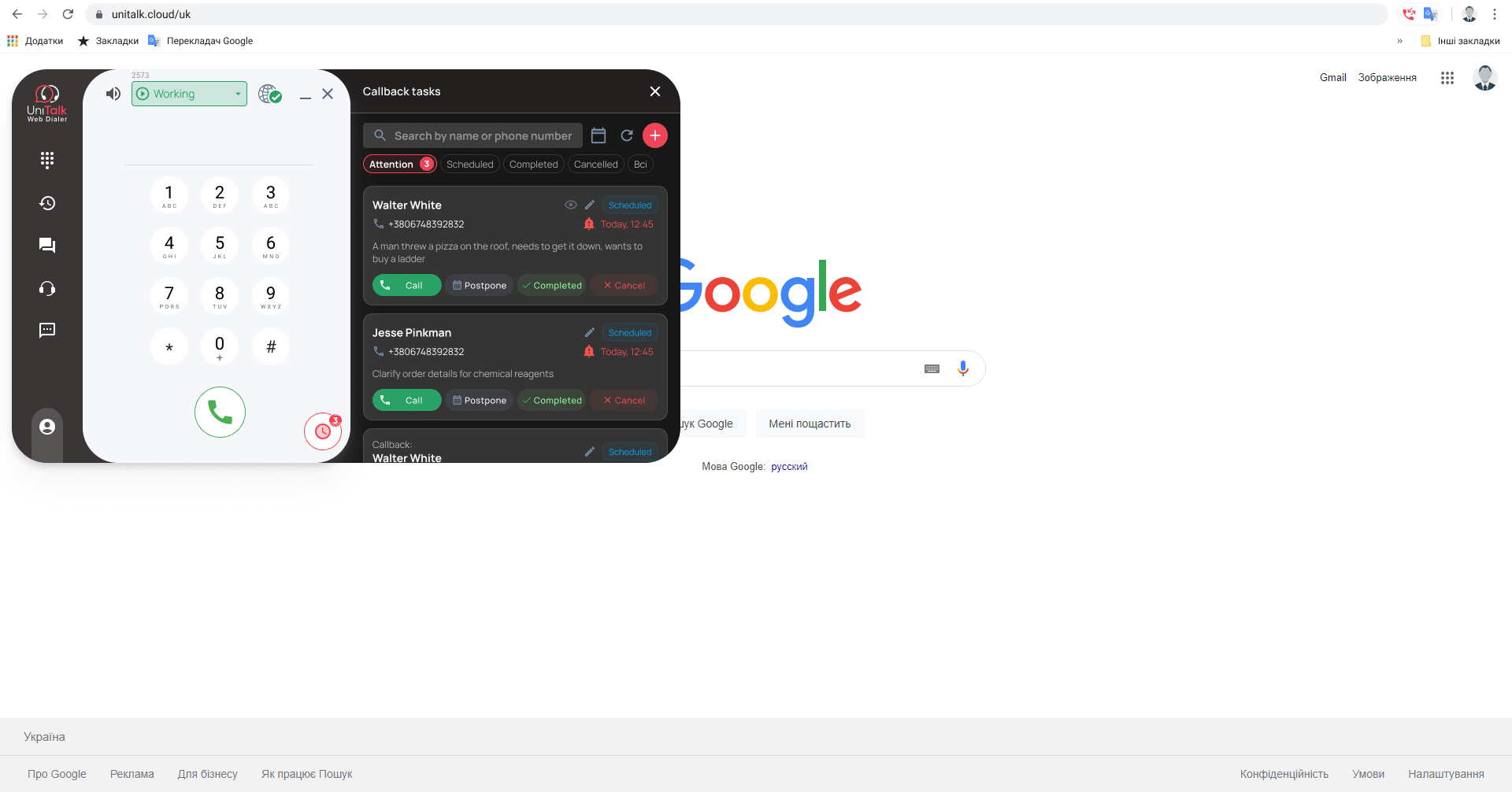
One call across all tabs
The window looks the same in every open browser tab. A rep picks up a call in the tab with a deal, switches to the tab with an order, and the call is still right there.
Open a client in the CRM, and Web Dialer already knows who it is
Web Dialer detects which CRM page the rep has open and pulls up the contact linked to it.
The contact card is built from the page URL
To do this, the extension sends the URL of the open CRM page to the server and gets back the contact linked to it. The Contact tab then shows the client’s name, phone numbers, email and existing chats.
CRM data also shows up on incoming calls, so the rep knows who’s calling before picking up.
Click a number instead of copying it
When a rep clicks a phone number on any web page, Web Dialer intercepts the link (a number formatted on the page as a call link) and strips out extra characters. It then puts the number into the dial field and opens the window.
Data flows both ways
The Omni integration with your CRM works in both directions:
- Calls and chats from Omni are linked to contacts, deals and leads in the CRM.
- Changes in the CRM, such as a deal status update, can trigger actions in Omni based on rules you set up.
- A single client history is built around a shared identifier: phone number, email or messenger ID.
This way, the context of client conversations doesn’t stay with just one rep.
The Contact button: from deal card to conversation in one click
On a contact, lead or deal page in the CRM, a Contact button appears in the bottom right corner. You can drag it somewhere more convenient or turn it off in your profile settings. Clicking it opens the Contact tab in Web Dialer.
The button pulls contact details from the current card and from any linked ones. Say a rep opens a deal: the button shows the phone numbers and email of the contact linked to that deal, so there’s no need to open the contact card to find a number.
What’s available in one click
- Call. If there are several numbers, the system asks which one to use.
- Send an SMS or Viber message, if the service is enabled.
- Write an email, if an email source is set up in the project.
- Continue an existing chat or start a new one in Telegram or Viber.
- View existing website chats.
- Copy a number or email address.
Note. A project sometimes has several sources for one channel, for example two Telegram bots. In that case the action name shows the specific source, so the rep messages the client from the right bot.
The CRM stays the source of truth, and Omni adds the conversation context
Omni doesn’t replace your CRM. The CRM remains the source of data on clients, deals and pipeline stages. Web Dialer gives reps communication tools right on those pages, and Omni sends the context of conversations back to the CRM: calls, chats and their outcomes.
“We wanted it to take one step to get from a deal card to a conversation with the client. So we built a button that sits inside the CRM and brings together every channel: calls, Telegram, Viber, SMS and email. It seems like a small thing, but a rep’s day is made up of small things like this. They no longer hunt for a number or switch between apps, and every week they get a few more hours to spend talking to clients.”
Roman Vasyltsov, Lead Technical Product Manager, UniTalk
What you need to start using Web Dialer
Web Dialer installs from the Chrome Web Store like any other extension. You’ll need:
- Google Chrome or another Chromium-based browser.
- Microphone access: the browser will ask for it right after installation.
- A UniTalk account to sign in. The rep must have a SIP line assigned in the project, meaning their internal line in UniTalk.
The contact card and the Contact button appear once the Omni integration and URL filters for CRM pages are set up.
Step-by-step instructions with screenshots are in the knowledge base: Installing and using UniTalk Web Dialer in Google Chrome.
We’ll show you in a demo how this will look on your CRM pages.